QuickBooks Desktop is ending, and the question for a small business is how to switch from QuickBooks Desktop to cloud accounting for small business without losing the books. Intuit stopped selling new Desktop licences, support is winding down, and every year on Desktop means another year of data that has to move eventually. The cloud version is not a copy of Desktop, it is a different product with different limits, different prices and different reports, so the switch needs a plan rather than a weekend of hope.
The risk is not the software, it is the data. A chart of accounts that imports badly, an accounts receivable balance that does not match, a payroll setup that misses a tax table, each one is a problem that shows up weeks later, when the books are already live. The businesses that switch cleanly are the ones that back up first, verify every balance after the import, and run the two systems side by side until the numbers agree.
This guide walks through how to switch from QuickBooks Desktop to cloud accounting for small business, step by step, from the version check to the first month end on the cloud. It covers the plan prices, what transfers and what does not, and the verification checks that prove the books survived. The timeline is two to four weeks for a small business, and the same steps work whether the destination is QuickBooks Online, Xero or Zoho Books.
Before You Start, Know What You Are Moving
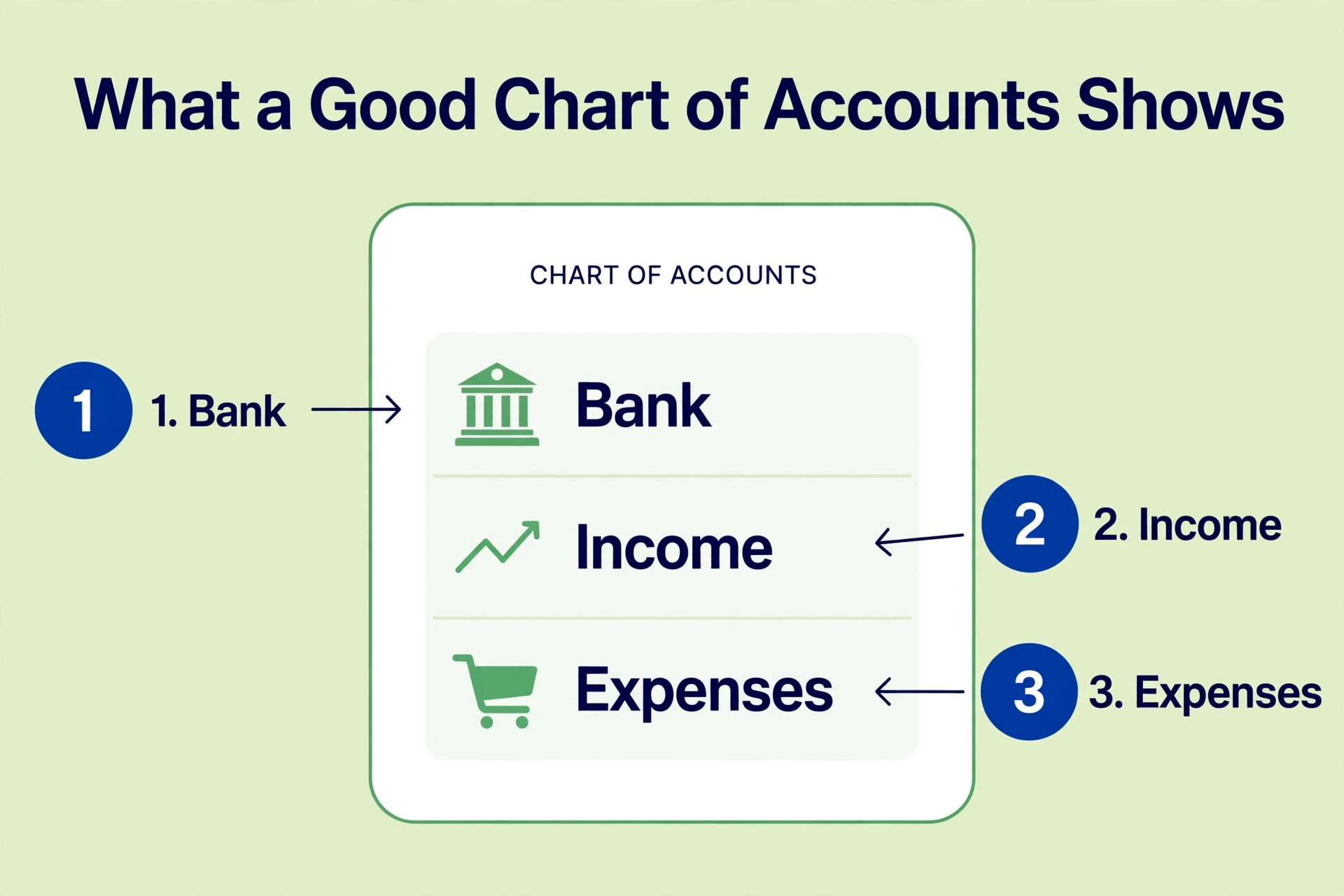
Open Desktop and look at the company file before you do anything else. Check the version, the release number, and the size of the file, because the migration has a limit, and a file with more than 4,000,000 total targets will not import. Total targets is the count of all the transactions, list items and other records in the file, and a business that has run Desktop for fifteen years may be close to the limit. If the count is over the limit, the file needs to be condensed first, which removes old audit trail data and brings the count down.
List the features the business actually uses, because not every Desktop feature exists in the cloud. Desktop has job costing, inventory assemblies, and custom reports that QuickBooks Online does not match, and Xero and Zoho Books have their own gaps. A business that relies on assemblies needs a different plan, or a different product, or an add on. The list takes an hour to write, and it decides whether the cloud can do the job at all.
Check the add ons and the integrations. Payroll, time tracking, inventory apps and payment processors all connect differently in the cloud, and some Desktop integrations have no cloud version. A business that runs payroll in Desktop needs to know whether Workforce Payroll covers its states and its tax forms before the switch, because payroll is the one area where a mistake costs real money. List every integration, check the cloud version, and price the ones that need replacing.
Decide who signs the migration. A business that signs itself gets 90 days to migrate, while a business whose accountant signs gets 180 days, because the accountant migration path allows more time and more data. The difference matters when the file is large or the books are messy. Talk to the accountant before the switch, because the accountant is the person who will verify the balances, and their sign off is the proof the books survived.
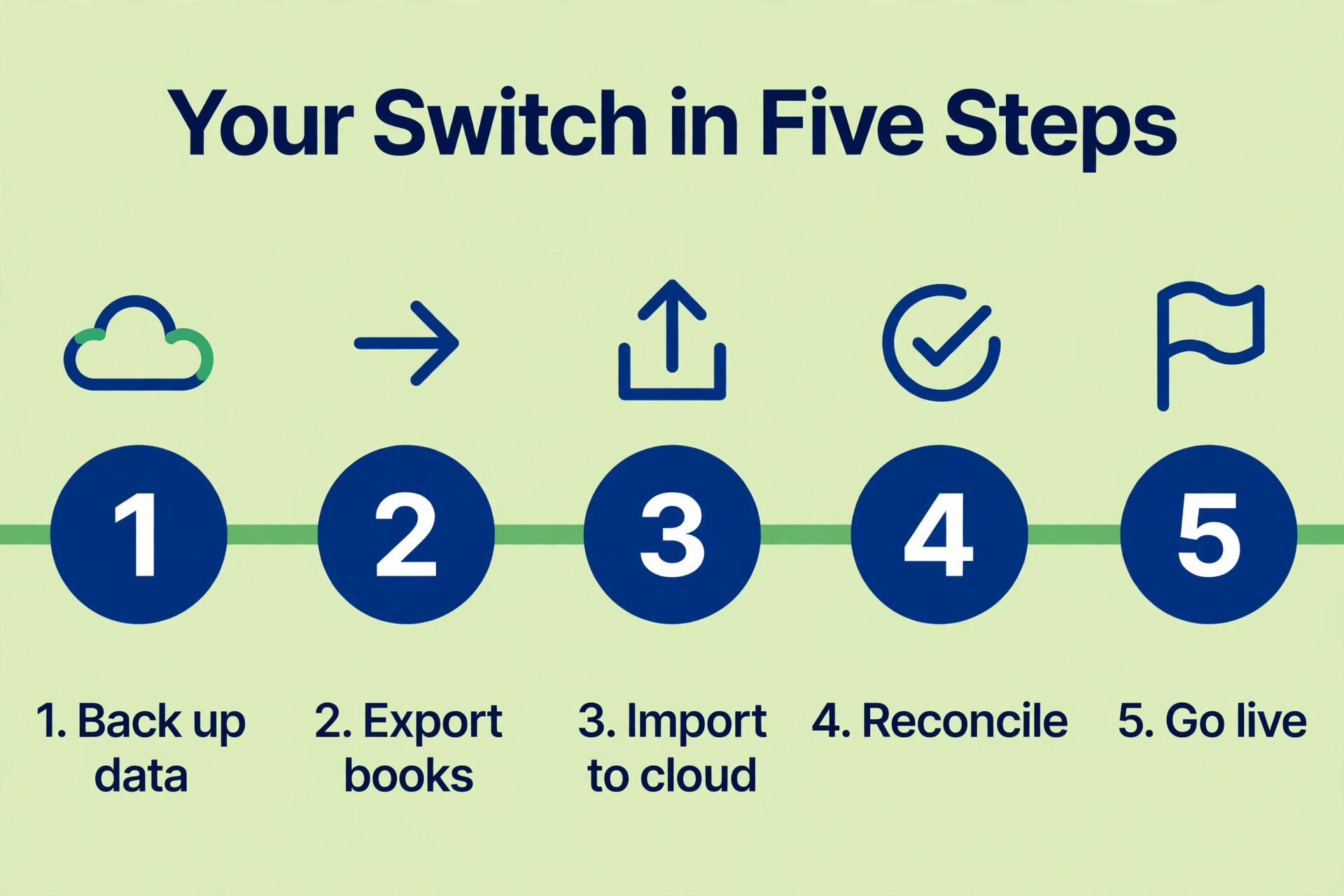
Switch from QuickBooks Desktop to Cloud Accounting for Small Business, Step by Step
1. Check Your Desktop Version and Data Size
Open the company file in Desktop and press F2 to see the version, the release and the total targets. The version must be a supported one, and the release must be the latest, because the export tool only works on a current release. If the release is old, update it first, and do it on a copy of the file, not on the live file, because an update that fails on the live file is a disaster.
Check the total targets against the 4,000,000 limit. If the count is close, run the condense utility, which removes the audit trail and old transactions that are no longer needed. Condense on a copy first, and check that the balances still match after the condense. A business that skips this check discovers the limit on the day of the import, when the export fails and the whole timeline slips by a week.
2. Back Up the Company File
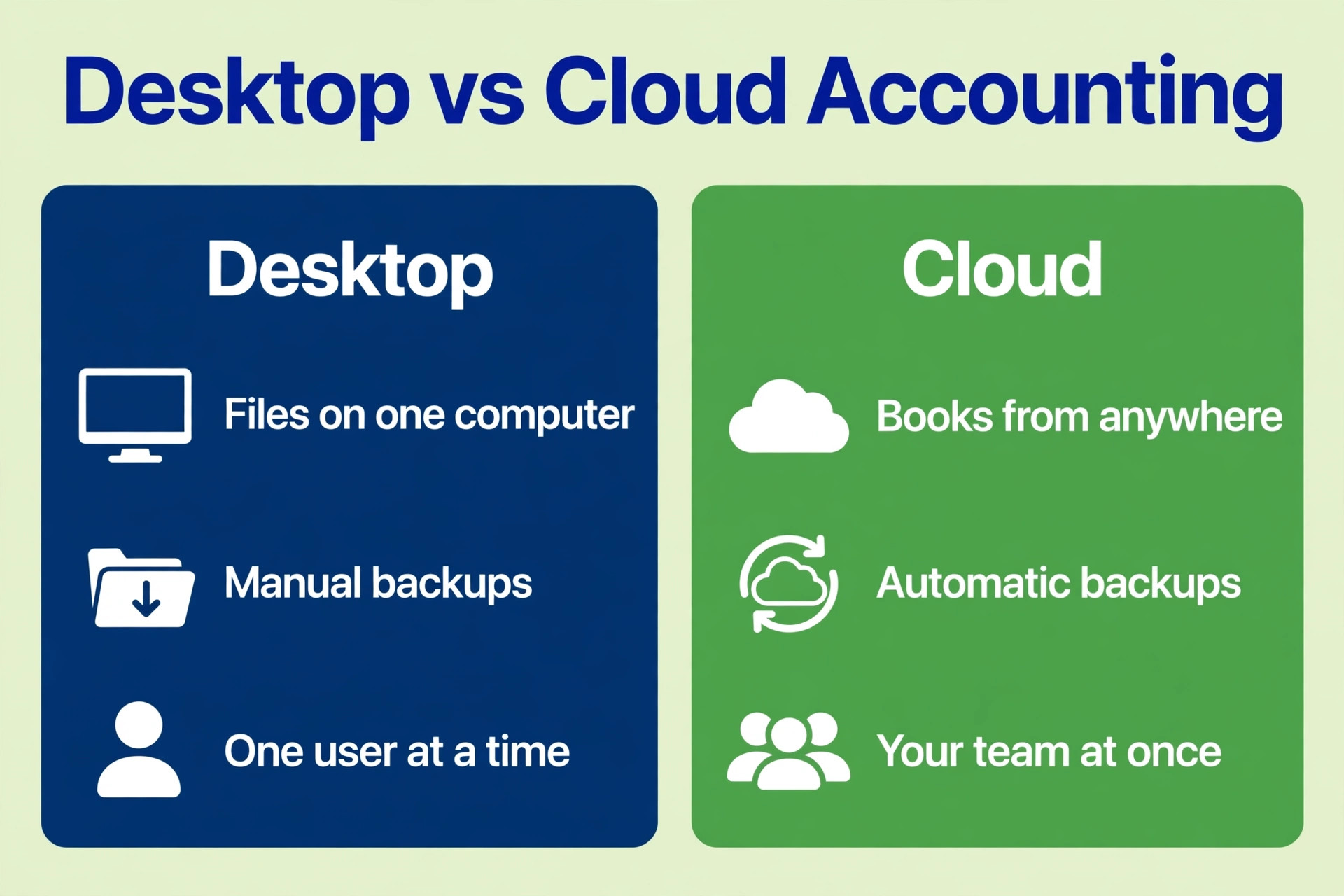
Make two backups before anything else. One backup stays on the office computer, and one goes to a drive that leaves the building, or to cloud storage. A backup is a .QBB file, and it must be made from inside Desktop, from the File menu, not by copying the folder, because a copied folder may be missing the transaction log. Verify the backup by restoring it on a different computer, or at least by checking the file size and the date.
Keep the backup for at least a year after the switch. Desktop stays available in view only mode for twelve months after the subscription is cancelled, but the backup is the real safety net, because it can be restored into Desktop at any time. A business that deletes the backup on the day of go live has no way back if the import is wrong, and that is a risk no small business should take.
3. Update Desktop to the Latest Release
Update Desktop to the latest release, because the migration tool is built into the latest release and older releases cannot export to the cloud. The update takes about half an hour, and it must be done on the computer that holds the company file. Close every other program first, run the update, and then open the company file to confirm it opens cleanly and the balances are unchanged.
If the update fails, stop and fix it before going further. An update failure usually means a damaged company file, and the fix is the verify and rebuild utility inside Desktop, which checks the file and repairs what it can. Run verify first, then rebuild, then verify again, until the file is clean. A damaged file that is exported anyway will import badly, and the errors will be harder to find in the cloud than they are in Desktop.
4. Choose the Cloud Plan
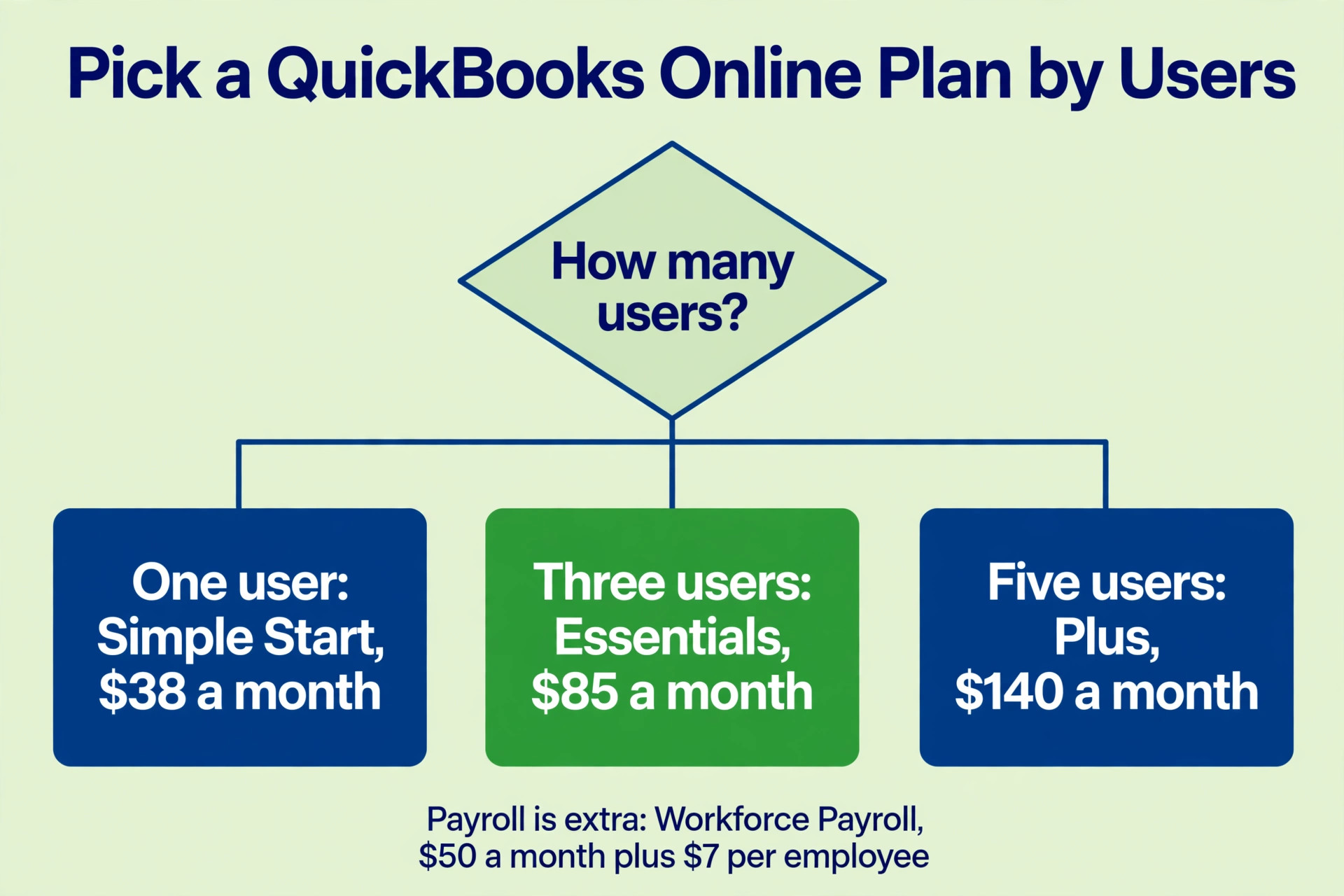
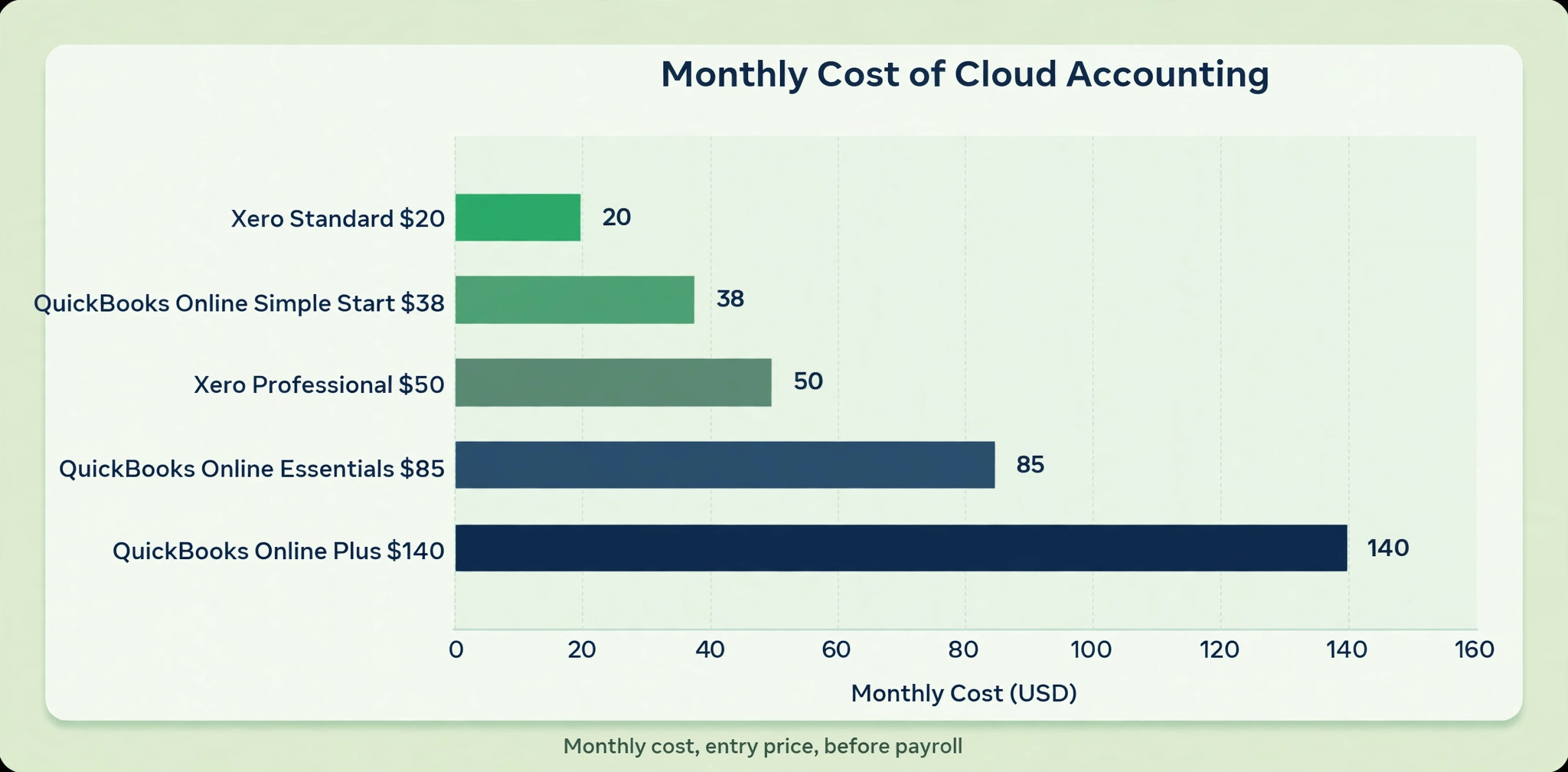
Choose the plan by the number of users and the features the business needs, not by the price. QuickBooks Online Simple Start costs 38 dollars a month and allows one user, Essentials costs 85 dollars a month for three users, Plus costs 140 dollars a month for five users, and Advanced costs 340 dollars a month for twenty five users. New customers get 50 percent off for the first three months. A business with four users needs Plus, and a business that buys Essentials for four users will be locked out of the fourth seat on day one.
Compare the alternatives before committing. Xero Standard costs 20 dollars a month when paid monthly or 15 dollars a month when paid annually, Professional costs 50 dollars a month or 40 dollars annually, and Premium costs 70 dollars a month or 60 dollars annually. Zoho Books and Wave are cheaper, and Wave is free for the core accounting, but neither matches QuickBooks Online on payroll or on the number of integrations. The right choice is the one whose limits match the business, not the cheapest headline.
Price the payroll separately, because it is not in the plan price. QuickBooks Workforce Payroll costs 50 dollars a month plus 7 dollars per employee, so a business with ten employees pays 120 dollars a month for payroll on top of the plan. Xero includes payroll in some plans and charges separately in others, depending on the region. Add the payroll cost to the plan cost before comparing, because a plan that looks cheap without payroll can be the most expensive once payroll is added.
Buy the plan for the business you will have in twelve months, not the business you have today. A business with three users that hires a fourth in six months should buy Plus now, because upgrading mid year means rechecking the reports and relearning the limits. A business that buys the cheapest plan and outgrows it in three months pays the upgrade and the disruption. The plan is a year long decision, and the user count is the number that decides it.
5. Export and Import the Company Data
Start the export from inside Desktop, from the Company menu, and choose the cloud destination. The export sends the chart of accounts, the customers, the vendors, the items, the open invoices, the open bills and the balances to the cloud, and it creates the new company file. The export takes an hour or two for a normal file, and longer for a large one. Do not close Desktop or the browser while it runs, and do not use the computer for other work during the export.
When the import finishes, do not touch anything until the verification step is done. The cloud file will look complete, and the balances will look right, but the import can hide errors, such as a customer balance that moved to the wrong account, or an item that lost its cost. The verification step is the next one, and it is the step that proves the import worked. A business that starts entering transactions before verifying will mix new errors with old ones, and the books will be impossible to untangle.
6. Verify the Balances Line Up
Run the balance sheet in Desktop and in the cloud, on the same date, and compare every line. The total assets, the total liabilities and the total equity must match to the cent. Then run the profit and loss for the year to date, and compare the income and the expenses. Then run the accounts receivable aging and the accounts payable aging, and compare the customer and vendor balances. If any report differs, stop and find the difference before entering a single new transaction.
Check the details, not just the totals. Open the five largest customer balances and the five largest vendor balances, and confirm they match. Open the bank accounts and confirm the balances match. Check the inventory value if the business holds stock, and check the payroll liabilities if the business runs payroll. A total that matches can hide two errors that cancel each other out, and the detail check is the one that finds them.
If a balance does not match, find the difference before doing anything else. Run the balance sheet by month in both systems, and the month where the numbers split is the month where the error lives. Check the opening balances first, because a wrong opening balance is the most common error, and it affects every month after it. Then check the largest transactions in that month, one by one, until the difference is found. A difference of a few dollars is usually a rounding error in a tax calculation, and a difference of thousands is usually a missing invoice or a duplicate bill.
7. Reconnect Bank Feeds and Payroll
Reconnect the bank feeds in the cloud, one account at a time. The cloud will download the last ninety days of transactions, and the business must categorise them before the first bank reconciliation. Do not import the same transactions twice, because the export already brought the history, and the feed will overlap with the imported data. Match the feed transactions to the imported ones, and delete the duplicates before reconciling.
Set up payroll in the cloud, and run a parallel payroll for one pay period. Enter the employees, the pay rates, the tax settings and the deductions, then run a payroll in the cloud and compare it with the Desktop payroll for the same period. The net pay must match to the cent for every employee. If it does not, the tax table or the deduction is wrong, and the fix is made before the first live payroll, not after.
Reconcile the first bank statement in the cloud before the first month end, because the reconciliation is the test that proves the bank feed works. Match every transaction on the statement to a transaction in the cloud, and clear the ones that match. If the statement does not reconcile, the cause is usually a duplicate from the feed overlap, or a transaction that was categorised to the wrong account. Fix it now, because a bank that does not reconcile in month one will not reconcile in month six.
8. Rebuild Reports and Go Live
Rebuild the custom reports the business relies on, because Desktop custom reports do not transfer. The cloud has its own report builder, and the reports that matter are the ones the owner reads every week, such as sales by customer, expenses by category, and the open invoice list. Build each one, save it, and check it against the Desktop version for the same period. A report that is rebuilt wrong will mislead the owner for months.
Go live on the first day of a month, and stop entering transactions in Desktop on that day. The first month end on the cloud is the proof the switch worked, and the books are closed in the cloud, not in Desktop. Keep Desktop in view only mode for twelve months, and keep the backup for a year. The switch is done when the first month end closes cleanly and the bank reconciles, not when the import finishes.
QuickBooks Online vs Xero vs Zoho Books
The three cloud products differ in price, in user limits and in payroll, and the table below shows the numbers that decide the choice. QuickBooks Online is the closest match for a business coming from Desktop, because the chart of accounts and the reports feel familiar. Xero is the pick for a business that wants a lower price and a simpler interface. Zoho Books is the pick for a business already using Zoho, and Wave is the pick for a business that wants the core accounting for free.
| Product | Entry price | Best for |
|---|---|---|
| QuickBooks Online Simple Start | 38 dollars a month | One user and simple books |
| QuickBooks Online Essentials | 85 dollars a month | Three users and bills |
| QuickBooks Online Plus | 140 dollars a month | Five users and inventory |
| QuickBooks Online Advanced | 340 dollars a month | Twenty five users and custom reports |
| Xero Standard | 20 dollars a month or 15 annual | Small business with basic needs |
| Xero Professional | 50 dollars a month or 40 annual | Growing business with more users |
| Xero Premium | 70 dollars a month or 60 annual | Larger business with payroll |
| Zoho Books | From 15 dollars a month | Business already using Zoho |
| Wave | Free for core accounting | Smallest business with simple needs |
What Transfers and What Does Not
The export moves the core of the books, and the table below shows what arrives in the cloud and what stays behind. Anything that does not transfer must be rebuilt by hand, and the business should budget a day for the rebuild. The items that surprise most businesses are the custom reports and the inventory assemblies, because both look like they should transfer and neither does.
| Item | Transfers | Note |
|---|---|---|
| Chart of accounts | Yes | In full |
| Customers and vendors | Yes | In full |
| Open invoices and bills | Yes | In full |
| Historical transactions | Yes | Up to the target limit |
| Bank balances | Yes | As opening balances |
| Custom reports | No | Rebuild in the cloud |
| Inventory assemblies | No | Rebuild or use an add on |
| Payroll history | Partial | Check with the provider |
| Attachments | No | Download and reattach |
| Audit trail | No | Stays in Desktop |
Migration Timeline for a Small Business
A small business with one company file and a clean chart of accounts can finish the switch in two to four weeks, working around the normal bookkeeping. The timeline below assumes the owner or the bookkeeper gives the migration a few hours a week. A business with a large file, a messy chart of accounts, or payroll in many states should allow six weeks, and a business whose accountant signs the migration gets 180 days instead of 90.
| Week | Work | Who |
|---|---|---|
| 1 | Version check and backup | Owner |
| 2 | Update Desktop and choose the plan | Owner |
| 3 | Export and import | Owner or accountant |
| 4 | Verify balances and reconnect feeds | Accountant |
| 5 | Rebuild reports and go live | Owner |
| 6 | First month end on the cloud | Accountant |
The One Page Migration Checklist
Print this checklist and pin it above the desk. Every item has a finish line, and the owner ticks it off when the finish line is met. The checklist is the whole switch on one page, and a business that works through it in order will not lose a balance. Skip an item, and the step after it will fail, because each item depends on the one before it.
| Item | Done when |
|---|---|
| Version and targets checked | Total targets under 4,000,000 |
| Two backups made | One on site and one off site |
| Desktop updated | Latest release opens cleanly |
| Plan chosen | User count and payroll priced |
| Export finished | Cloud company file created |
| Balance sheet matches | Assets and liabilities match to the cent |
| Profit and loss matches | Income and expenses match |
| Aging reports match | Customer and vendor balances match |
| Bank feeds reconnected | Ninety days downloaded and matched |
| Payroll run in parallel | Net pay matches for every employee |
| Reports rebuilt | Weekly reports checked against Desktop |
| Go live done | First month end closes cleanly |
What the Switch Costs in Year One
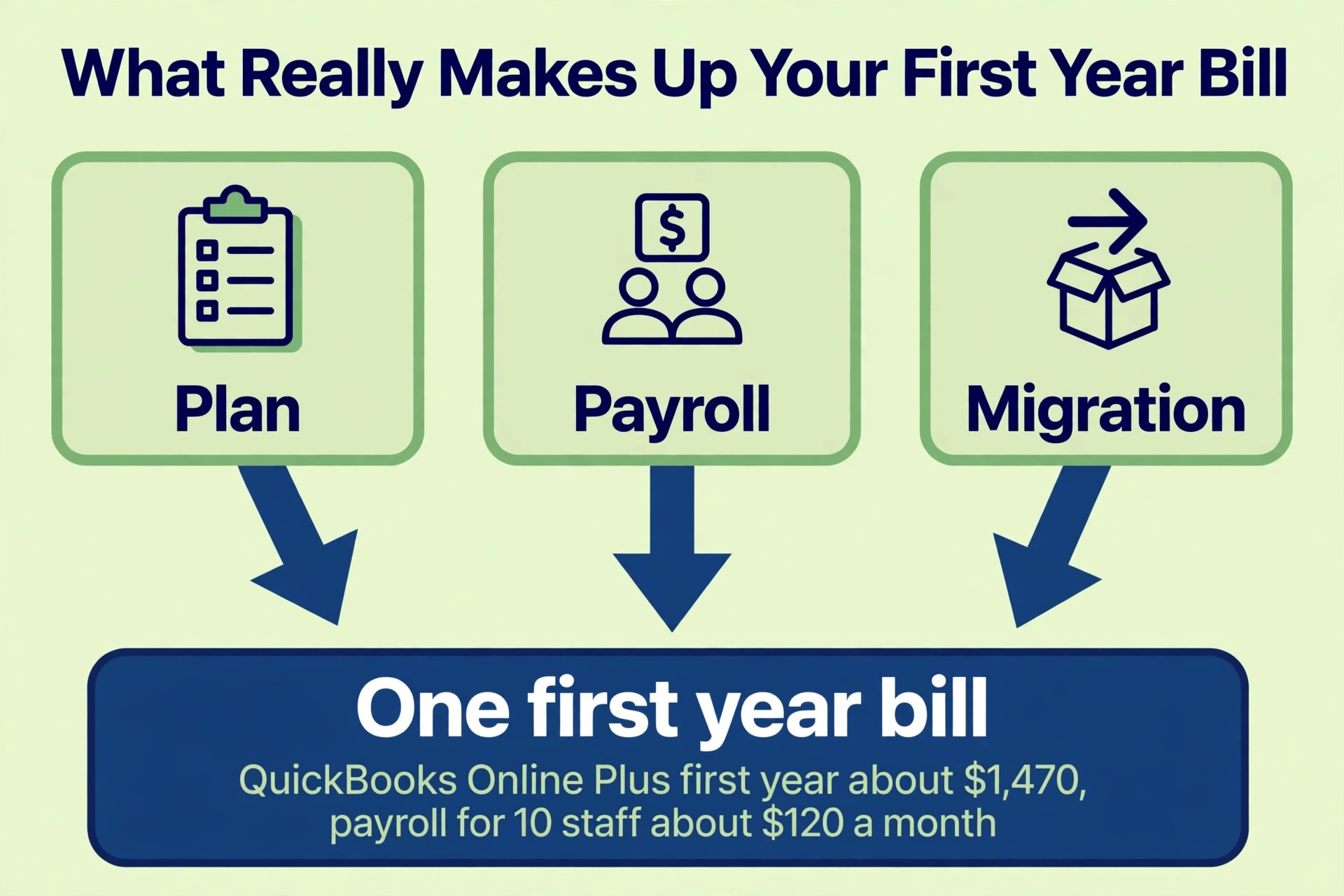
The first year of the switch from QuickBooks Desktop to cloud accounting for small business costs more than the plan price, because the migration itself has a cost. QuickBooks Online Plus costs 140 dollars a month, or 1,680 dollars a year, and with 50 percent off for the first three months the first year costs about 1,470 dollars. Workforce Payroll for ten employees costs 120 dollars a month, or 1,440 dollars a year.
Add the accountant time for the verification, which is usually a few hundred dollars, and the first year total for a ten person business on Plus with payroll is about 3,200 dollars. The second year is the plan plus payroll, about 3,120 dollars, and the saving is the Desktop licence, the server, and the time spent on a product that is no longer supported. The switch pays for itself when the business stops paying for a server and stops waiting for a Desktop update that will never come.
Mistakes That Break the Books
The first mistake in the switch from QuickBooks Desktop to cloud accounting for small business is exporting without a backup. A business that exports from a file that has never been backed up has no way back if the export corrupts the file, and the export does touch the file. Two backups, one on site and one off site, take ten minutes, and they are the cheapest insurance in this project.
The second mistake is entering new transactions before the balances are verified. A business that starts invoicing in the cloud on the day of the import, before the balance sheet is checked, mixes new transactions with import errors, and the books become impossible to untangle. The verification takes a day, and the books are frozen until it is done. A business that cannot wait a day should delay the import by a day, not skip the verification.
The third mistake is cancelling Desktop on the day of go live. Desktop stays available in view only mode for twelve months after the subscription is cancelled, and the business needs that access, because the audit trail, the old reports and the attachments stay in Desktop. Cancel after the first month end closes cleanly on the cloud, not before, and keep the backup for a year after that.
Our Verdict
The switch from QuickBooks Desktop to cloud accounting for small business is a data project with a deadline, and the businesses that succeed treat it that way. They back up first, they update Desktop, they choose the plan by the user count, they verify every balance after the import, and they run payroll in parallel for one period before going live. The two to four week timeline is realistic for a small business, and the books survive when every balance is checked.
Start this week with the version check, because it is free and it tells the business whether the file can migrate at all. Check the total targets against the 4,000,000 limit, make the two backups, and talk to the accountant about the 90 day or 180 day path. The cloud is not going away, and the longer the business waits, the larger the file gets and the harder the move becomes.
Frequently Asked Questions
How long does it take to switch from QuickBooks Desktop to cloud accounting?
A small business with one company file and a clean chart of accounts needs two to four weeks, working a few hours a week around the normal bookkeeping. The export and import take a day, the verification takes a day, and the rest is the plan choice, the payroll setup and the report rebuild. A large file or a messy chart of accounts can take six weeks.
What is the 4,000,000 total targets limit?
Total targets is the count of all the transactions, list items and other records in the company file, and the cloud import refuses files over 4,000,000. A business that has run Desktop for fifteen years may be close to the limit. The fix is the condense utility, which removes the audit trail and old transactions and brings the count down.
How long do I have to migrate?
A business that signs the migration itself gets 90 days, while a business whose accountant signs gets 180 days. The accountant path allows more time and more data, which matters when the file is large or the books are messy. Talk to the accountant before the switch to choose the right path.
What happens to Desktop after the switch?
Desktop stays available in view only mode for twelve months after the subscription is cancelled, so the business can still read the old reports, the audit trail and the attachments. Keep the backup for a year after that. Do not cancel Desktop on the day of go live, cancel after the first month end closes cleanly on the cloud.
How much does QuickBooks Online cost?
Simple Start costs 38 dollars a month for one user, Essentials costs 85 dollars a month for three users, Plus costs 140 dollars a month for five users, and Advanced costs 340 dollars a month for twenty five users. New customers get 50 percent off for the first three months. Workforce Payroll costs 50 dollars a month plus 7 dollars per employee on top of the plan.
Is Xero cheaper than QuickBooks Online?
Xero Standard costs 20 dollars a month when paid monthly or 15 dollars a month when paid annually, Professional costs 50 dollars a month or 40 dollars annually, and Premium costs 70 dollars a month or 60 dollars annually. Xero is cheaper than the matching QuickBooks Online plan, but the payroll and the integrations differ, so compare the total cost, not the headline.
Do my custom reports transfer?
No. Custom reports stay in Desktop and must be rebuilt in the cloud report builder. Budget a day for the rebuild, and check each rebuilt report against the Desktop version for the same period. The reports that matter are the ones the owner reads every week, so rebuild those first.
Check the version this week, make the two backups, and the switch will take weeks instead of months.
That is the short answer on switch from quickbooks desktop to cloud accounting for small business for most small businesses.