Restream is the best overall pick among the best livestream tools for small creators when your audience is split across more than one platform, because it sends one feed to several destinations from 16 dollars a month billed annually. StreamYard is the better choice when your show is built around guests and interviews, and OBS Studio is the best choice when your budget is zero and you want full control. We compared 13 tools on price, multistreaming, guest handling, recording quality and ease of use, and this guide shows what each one actually delivers, what it costs, and where it falls short.
A small creator does not need broadcast gear. A small creator needs a tool that starts fast, looks clean on screen, and does not eat the whole evening in setup. The wrong tool turns a weekly show into a technical chore, and a show that feels like a chore is a show that stops happening. The right tool fades into the background and lets the conversation carry the stream.
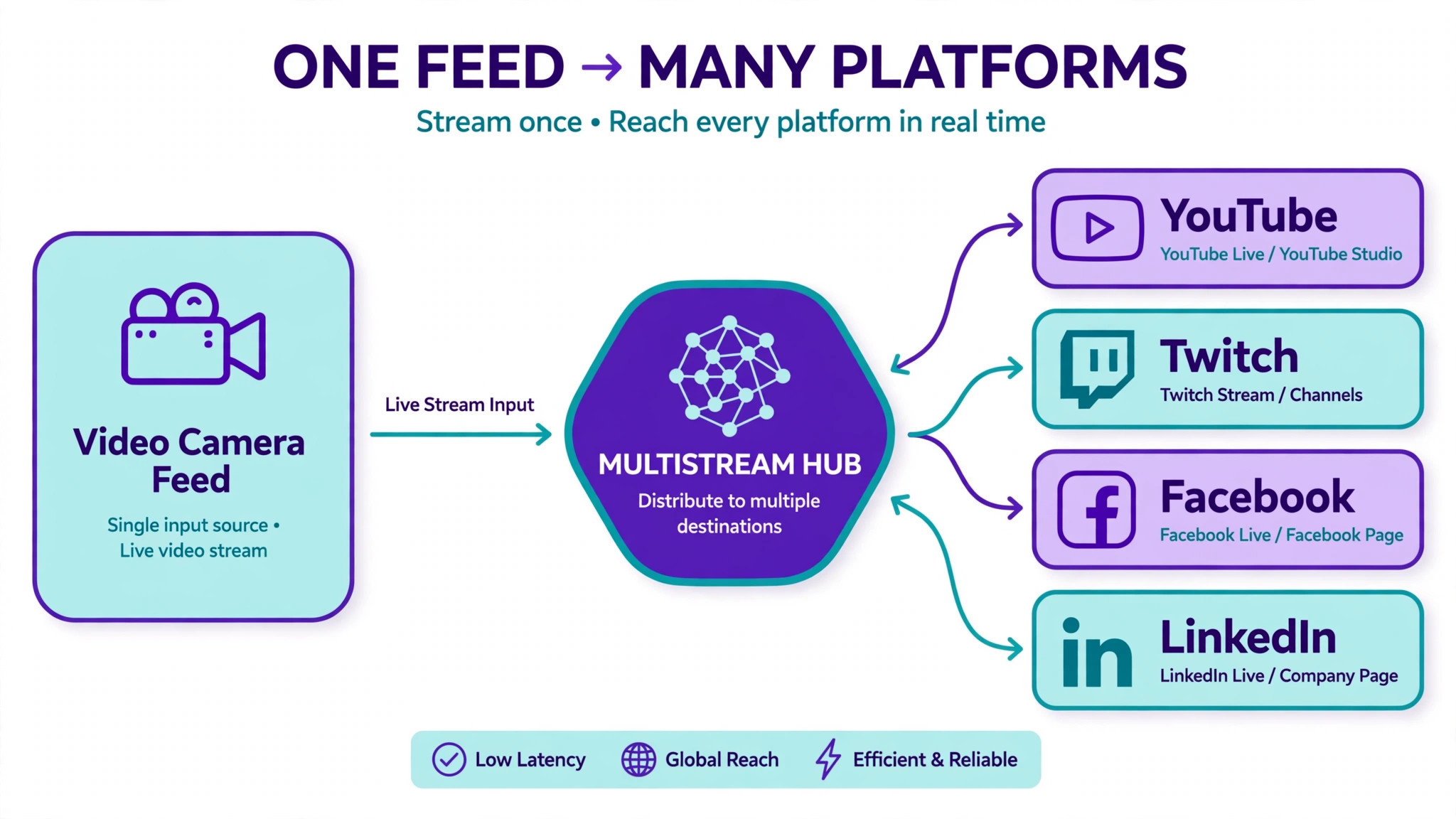
Most creators also stream to more than one place. Viewers find you on YouTube, on Twitch, on Facebook or on LinkedIn, and they rarely move to a second platform just because you asked. A tool that reaches them where they already are will grow a small channel faster than a tool that looks slightly better on one platform only. That is why multistreaming sits at the centre of this comparison, and why the free plans matter as much as the paid ones.
How the Best Livestream Tools for Small Creators Were Compared
We checked vendor pricing pages and current 2026 roundups in November 2026, and we weighed each tool against the same five questions. First, how easy is it to start a stream with no crew and no second computer. Second, how many destinations can one stream reach at once. Third, how well does it handle guests, because most small shows grow through conversations with other people. Fourth, what does the recording look like afterwards, because a live show that also becomes clips and a podcast episode is worth far more than a live show alone. Fifth, what does the real monthly cost look like once you leave the free plan behind.
Prices in this guide were checked against vendor pricing pages and current 2026 roundups. The best livestream tools for small creators change prices often, and several vendors show different prices by region or run short promotions, so confirm the price on the checkout page before you pay. Free plans also change, and a free plan that fits today may cap destinations or add a watermark tomorrow, so read the free plan limits before you plan a show around them.
The Best Pick for Each Job
| Job | Pick | Why it wins |
|---|---|---|
| Multistreaming on a budget | Restream | Lowest paid entry point with a free plan |
| Interview shows with guests | StreamYard | Browser studio guests join with a link |
| Zero budget and full control | OBS Studio | Free and open source with no limits |
| Mac production without OBS | Ecamm Live | Polished Mac studio with guest mode |
| Serious Windows production | vMix | One time licence with multi camera switching |
| Recording quality first | Riverside | Local recording with separate tracks |
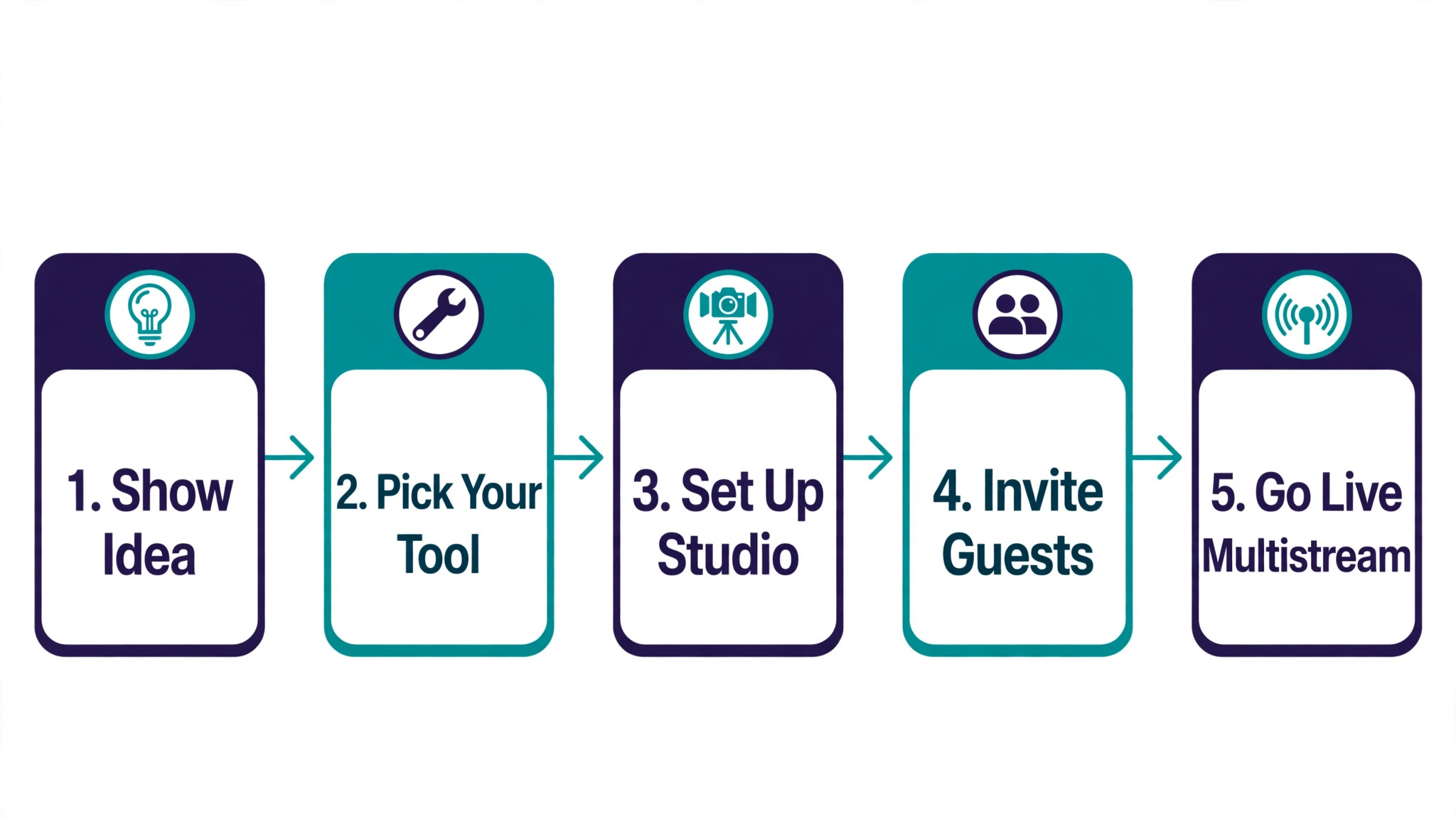
Use this table as a shortcut, then read the full section for the tool you are leaning toward. The cheapest option is not the best value when it cannot reach your audience, and the most expensive option is not the best choice when you only stream once a week to one platform.
The Best Livestream Tools for Small Creators in 2026, Ranked
The 13 tools below fall into four groups. The first group is browser studios, which run in a tab and need no download. The second group is desktop encoders, which run on your computer and give you the most control. The third group is recording first studios, which are built for clean recordings that become clips and podcast episodes. The fourth group is specialist tools, which suit scheduled streams, many destinations, or a single platform.
1. Restream
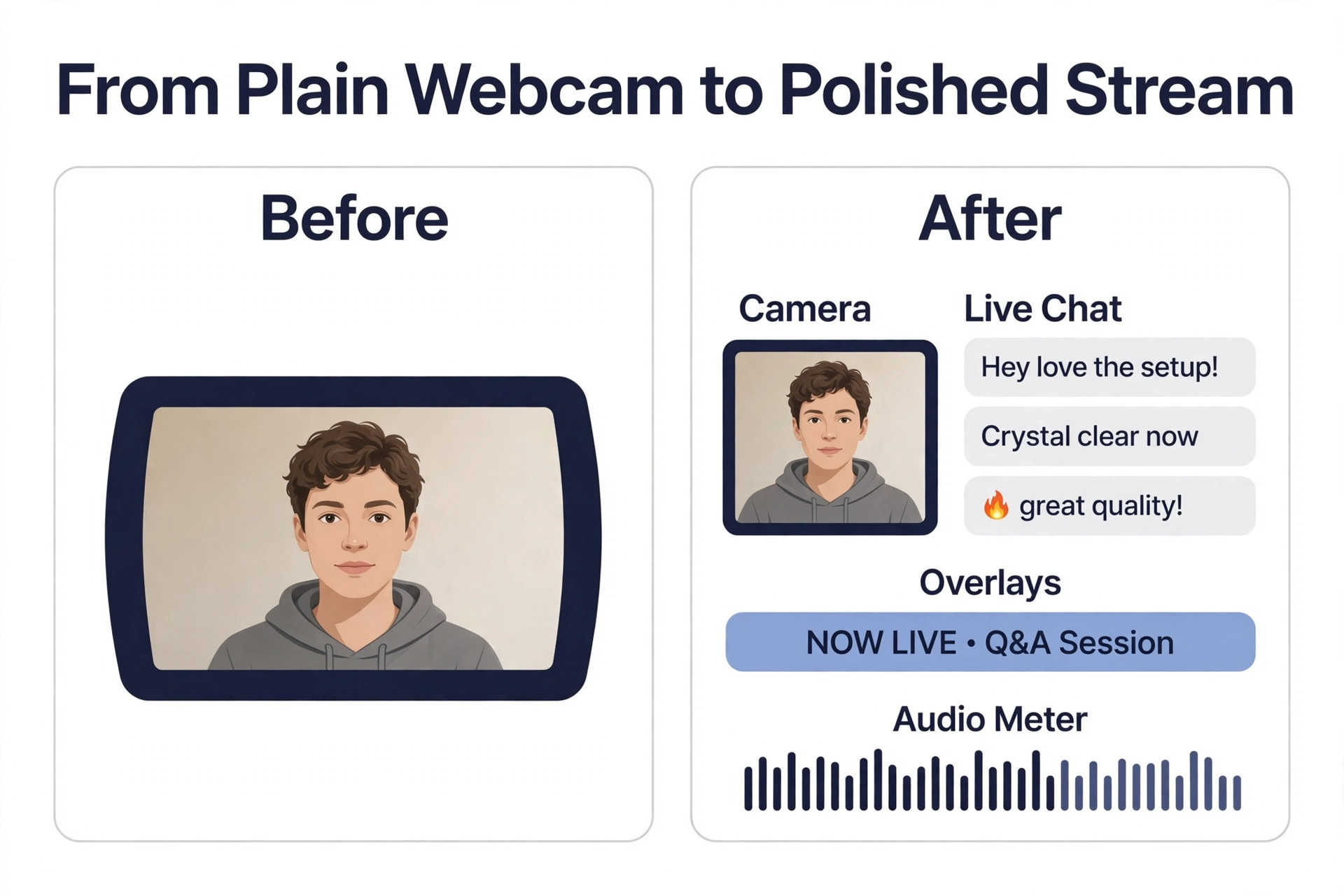
Restream is the simplest way for a small creator to reach several platforms at once. You send one feed into Restream, and it sends that feed out to YouTube, Facebook, LinkedIn, Twitch and more, so you do not need a second computer or a relay service. The browser studio lets you add guests, overlays and on screen chat, and the free plan streams to two channels with Restream branding.
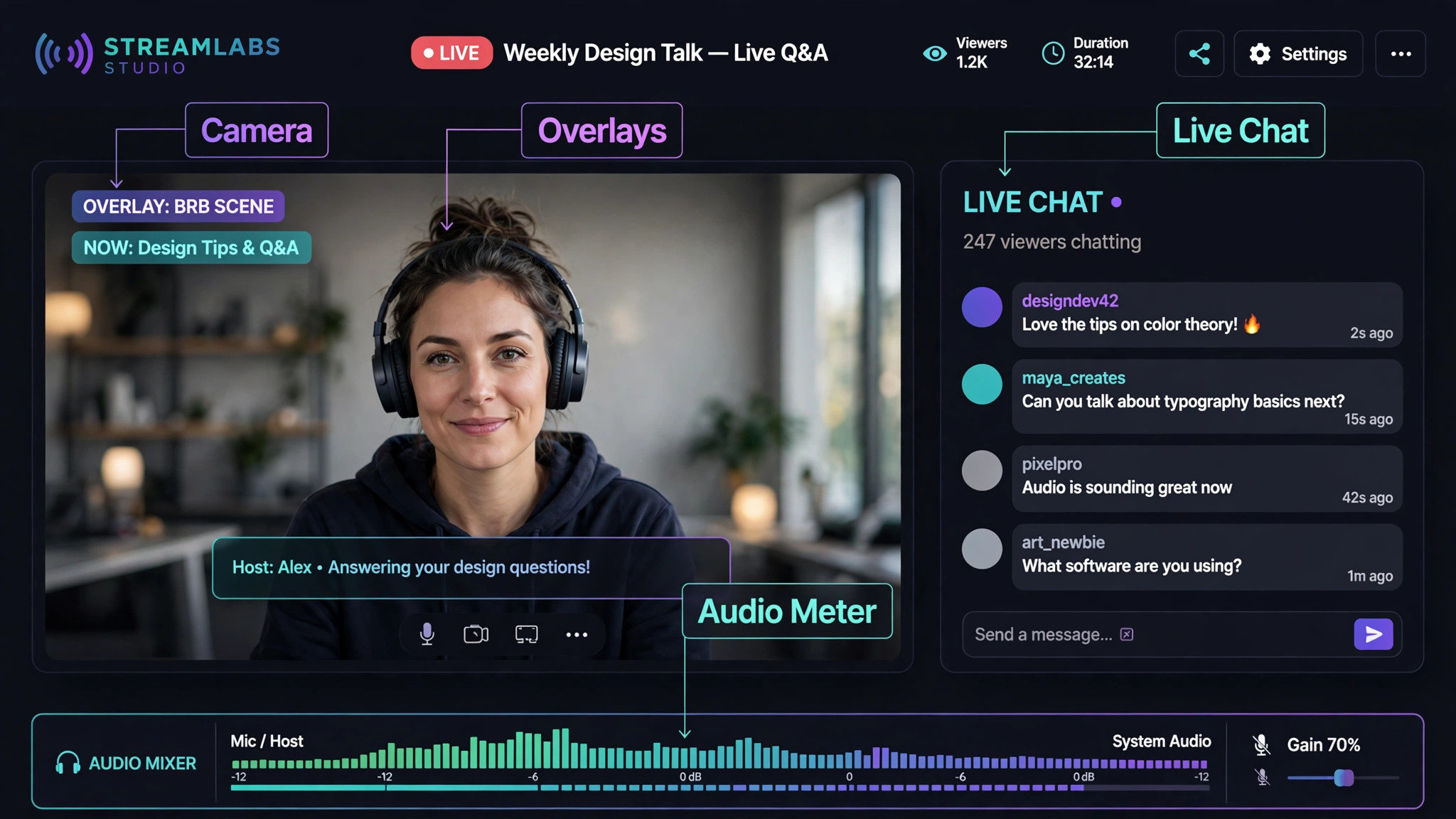
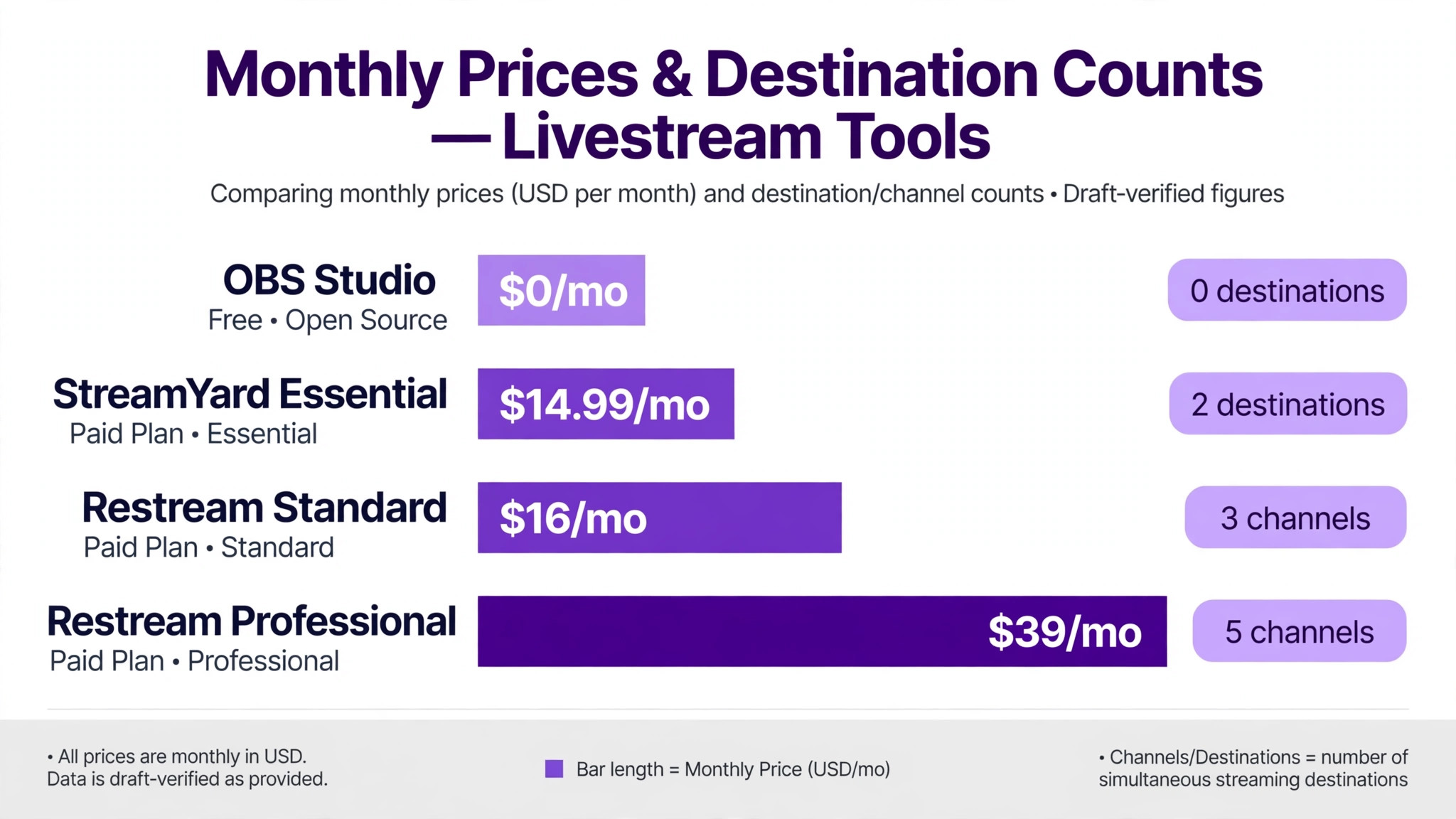
Pricing starts free for two channels. The Standard plan costs 19 dollars a month, or 16 dollars a month billed annually, for three channels. The Professional plan costs 49 dollars a month, or 39 dollars billed annually, for five channels and full HD in the studio. The Business plan costs 239 dollars a month, or 199 dollars billed annually, for eight channels. Restream is the best overall pick in this guide because the paid entry point is low, the free plan is genuinely usable for testing, and the multistreaming works without extra software.
2. StreamYard
StreamYard is the easiest browser studio to learn, and it is the best choice when your show is built around guests. A guest clicks a link and appears on screen, with no download and no account, and the host controls layouts, banners and on screen comments from the same tab. Up to ten people can appear on screen, and the free plan streams to one destination at 720p with a StreamYard watermark.
Pricing starts with a free plan, then an Essential plan at 18.99 dollars a month, or 14.99 dollars billed annually, for two destinations in 1080p with StreamYard branding. The Core plan costs 44.99 dollars a month, or 35.99 dollars billed annually, and removes the branding, raises the limit to three destinations, and adds two hour pre recorded streams. The Advanced plan costs 88.99 dollars a month, or 68.99 dollars billed annually, for eight destinations and 4K local recording. StreamYard costs more than Restream for pure multistreaming, and the destination caps are lower, but for interview shows nothing else in this list is as smooth for guests.
3. OBS Studio
OBS Studio is free and open source, and it is the production tool behind many professional looking streams. You build scenes, mix audio, add sources, and control transitions with far more detail than a browser studio allows, and it runs on Windows, macOS and Linux. It does not multistream on its own, so you need a relay service or a plugin to reach several platforms at once, and it does not host remote guests without help.
The price is zero, with no watermark, no feature limits and no subscription. That makes OBS the best choice for a creator who controls the technical setup, wants full plugin freedom, and cares about cost. The trade off is time. Expect to spend an afternoon learning scenes, audio routing and bitrate settings before your first clean stream, and keep a test recording habit, because a setting that looks fine in preview can still fail live. Pair OBS with Restream when you want free production plus multistreaming, and you get the best of both worlds for the price of one paid plan.
4. Streamlabs Desktop
Streamlabs Desktop takes the OBS engine and wraps it in a beginner friendly package loaded with alerts, overlays and themes that would take hours to configure by hand in OBS. It suits gaming and entertainment creators who want a lively screen with follower alerts, tip jars and chat widgets built in. It runs on Windows and Mac, and the mobile app lets you stream from a phone.
The basic version is free. Streamlabs Ultra costs 27 dollars a month, or 189 dollars a year, and unlocks cloud multistreaming to Twitch, YouTube, TikTok, Kick and Facebook at once, plus premium overlays and extra storage. Streamlabs uses more system resources than plain OBS in head to head tests, so creators on mid range hardware should test it with their game or app open before committing to it. Choose Streamlabs when you want a fast start with a busy, interactive screen, and choose plain OBS when you want the lightest possible setup.
5. vMix
vMix is a complete live production switcher for Windows, and it is what you graduate to when OBS starts feeling limiting. It handles multi camera switching, NDI inputs, instant replay, virtual sets, video calls with up to eight guests, PTZ camera control, and streaming to multiple destinations at once. Churches, schools and small broadcast teams use it for weekly shows with several cameras and a real switching workflow.
Pricing is a one time licence, which is rare in this category. Basic HD costs 60 dollars, HD costs 350 dollars, 4K costs 700 dollars, and Pro costs 1,200 dollars, each with free updates for the first 12 months and an optional 60 dollar a year renewal after that. A subscription option at 50 dollars a month also exists. vMix runs only on Windows and wants a serious PC, and the interface is complex, so it is not a first tool. It is a long term investment for a creator who already streams every week and needs more cameras and more control.
6. Ecamm Live
Ecamm Live turns a Mac into a live video production studio, and it is the best Mac answer in this guide. Hosts can switch cameras, share screens, add overlays and lower thirds, bring in remote guests with Interview mode on the Pro plan, and stream to several platforms. The drag and drop interface feels closer to a video editor than to a broadcast switcher, which makes it far easier to learn than vMix.
Pricing starts with a 14 day free trial and no permanent free plan. The Standard plan costs 16 dollars a month billed annually, or 20 dollars billed monthly. The Pro plan costs 32 dollars a month billed annually, and adds 4K streaming, isolated recordings and advanced audio tools. Ecamm Live runs only on Mac, so Windows creators need another tool. If you stream from a Mac and you want a polished show without learning OBS, this is the tool to try first.
7. Riverside
Riverside is built for recording quality first and live streaming second, and that order matters for creators who repurpose every show. Each guest records locally on their own device, so a weak connection does not ruin the final file, and you get separate tracks for editing. Paid plans add up to 4K video, lossless audio, transcription, text based editing, and Magic Clips for short social videos.
The free plan gives two hours of one off multi track recording with export up to 720p. The Pro plan costs 29 dollars a month, or 24 dollars billed annually, and the Grow plan adds live streaming and more hours. Riverside is the best pick when your live show is also your podcast and your clip source, because the local recording saves hours of repair work. It is not the best pick when live audience interaction is the whole point, because the live features are simpler than StreamYard or Restream.
8. Talk Studio
Talk Studio, formerly known as Melon and now part of Streamlabs, runs live shows and recordings entirely in the browser. Guests join with a link, hosts add logos, backgrounds and layouts, and each participant is captured on a separate track for editing. The free plan costs nothing, while Standard starts at 7.50 dollars a month and Pro at 12 dollars a month in current vendor pricing.
Talk Studio is the cheapest browser studio with separate tracks on this list, and that makes it a strong pick for a small creator who wants clean recordings without paying Riverside prices. The feature set is smaller than StreamYard, with fewer integrations and a simpler overlay system, so test it with your real show format before you move a weekly audience onto it. For a new show that needs guests and separate tracks on a tight budget, it is hard to beat.
9. OneStream Live
OneStream Live suits scheduled and pre recorded streams better than a weekly live show. You upload a video, schedule it, and it streams to your platforms at the time you choose, which is ideal for creators who record in batches or run an always on channel. It also handles live streaming from cloud storage, so you do not need your computer running during the stream.
Pricing starts with a free plan for two destinations at 720p, and paid plans start at 15 dollars a month for five to fifty destinations depending on the tier. The limit to know is that 24 hour looping is limited on lower tiers, so read the plan details if a looping channel is your goal. Choose OneStream Live when your workflow is record first and stream later, and choose a live studio when your show depends on real time guests and chat.
10. Castr
Castr is a multistreaming service built for creators who want many destinations and reliable delivery without running a studio of their own. It takes one feed and sends it to your platforms, with scheduling, pre recorded streaming and 24 hour channels on higher plans. It pairs well with OBS, because you produce in OBS and let Castr handle the distribution.
Pricing is reported rather than published on a single page, so confirm the current plan on the vendor site before you budget. Published summaries place the entry plans in the same range as Restream and OneStream Live, with higher tiers for more destinations and longer streams. Castr fits an always on or pre recorded channel better than a weekly live show, and it is worth a look when Restream destination caps start to pinch.
11. XSplit Broadcaster
XSplit Broadcaster is a polished Windows encoder aimed at gamers and creators who want a clean interface with VCam built in. It handles scenes, overlays, chat widgets and multi platform streaming, and the setup is faster than OBS for a first time user. The interface is the selling point, with clear panels and a gentler learning curve than a full broadcast switcher.
The basic version is free, and paid plans run from about 5 dollars to 15 dollars a month depending on the tier and billing term. XSplit runs only on Windows, and the free version limits some features, so check which features sit behind the paywall before you build a show around them. Choose XSplit when you stream games on Windows and you want a polished screen with less setup than OBS, and choose OBS when you want the same power for free on any operating system.
12. Dacast
Dacast is a video hosting and live streaming platform for organisations that need controlled access, paywalls and private events. Churches, schools and small businesses use it when a stream must be private, ticketed or embedded on their own site without a public platform in the middle. It works with OBS, vMix, Wirecast and hardware encoders, so you bring your own production tool and Dacast handles delivery.
Plans start at 39 dollars a month on a bandwidth based model, which means the real cost depends on how many viewers watch and for how long. That pricing shape makes Dacast a poor fit for a public creator chasing growth, and a good fit for a private or paid event where control matters more than reach. Do not buy Dacast for a public YouTube show, because the public platforms already do that job for free.
13. Twitch Studio
Twitch Studio is the free starter app from Twitch itself, and it is the easiest way to start streaming on Twitch with zero setup. It detects your hardware, sets sensible defaults, and gives you alerts, chat and basic layouts in one window. It runs on Windows and Mac, and it costs nothing.
The limit is the platform. Twitch Studio streams to Twitch only, so it is not a multistreaming tool and it is not a general production tool. Use it for your first month on Twitch while you learn what your show needs, then move to OBS or a browser studio when you want more destinations, more guests or more control. For a Twitch only beginner, it removes every barrier between deciding to stream and going live.
How to Choose the Right Livestream Tool
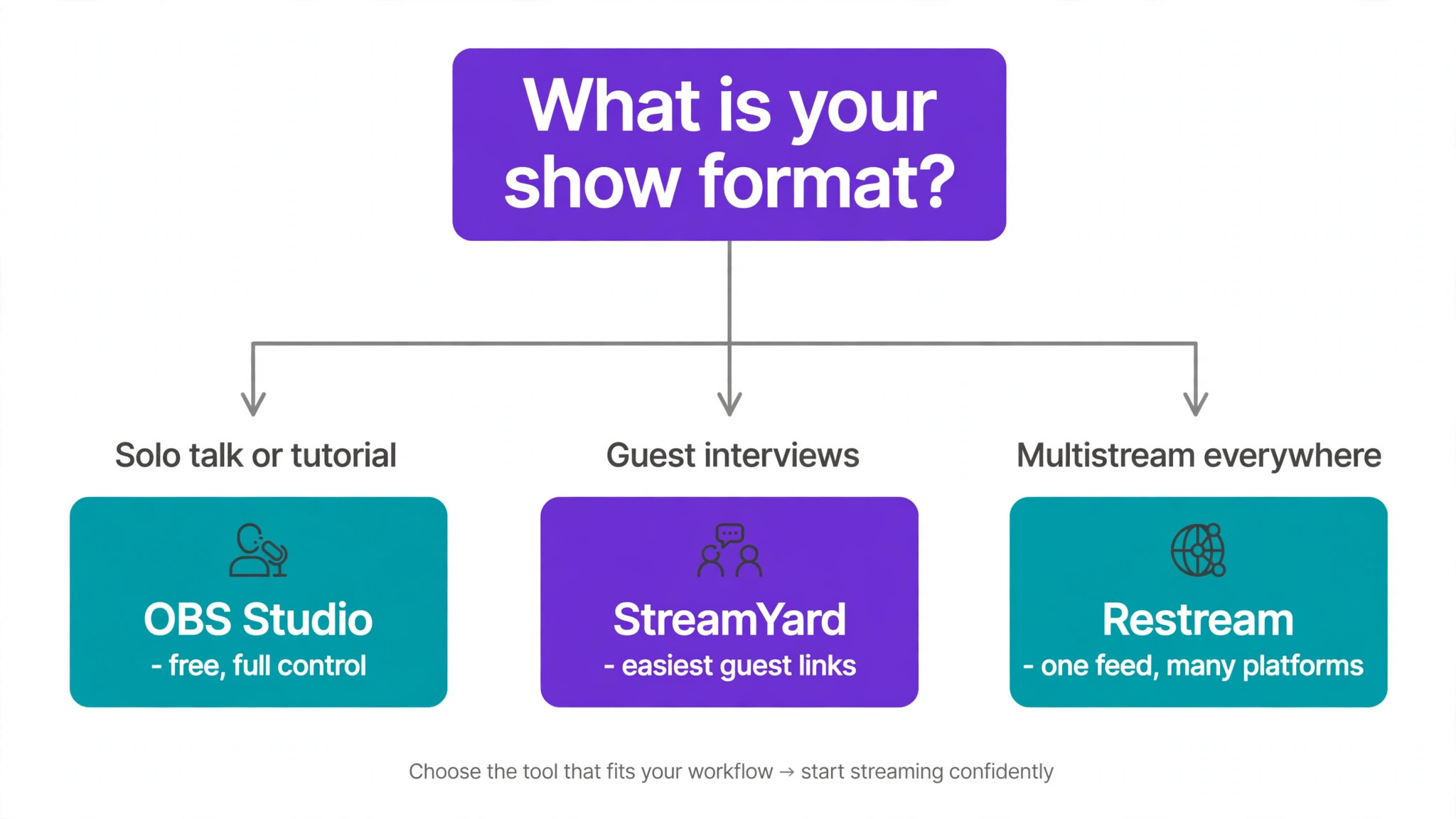
Start with your show format, because the format decides which of the best livestream tools for small creators fits your show. An interview show needs a browser studio with easy guest links, and StreamYard or Talk Studio fits that job. A gaming show needs a desktop encoder with low overhead, and OBS or XSplit fits that job. A teaching show with slides and a camera needs a studio with scene switching, and OBS, Ecamm Live or vMix fits that job. A pre recorded channel needs a scheduler, and OneStream Live or Castr fits that job.
Next, count your destinations. One destination means almost any tool works, and the free plans are enough to start. Two or three destinations means Restream or StreamYard on a paid plan, or OBS paired with a relay service. More than five destinations means checking the destination caps on each plan, because those caps, not the headline price, decide most upgrades. Read the cap before you pay, and test the free plan with your real platforms first.
Then think about what happens after the stream ends. A show that becomes clips, a podcast episode and a short video is worth far more than a show that disappears when the live ends. Riverside and Talk Studio give you separate tracks for editing, and Restream and StreamYard give you recordings you can download. If repurposing matters to you, put recording quality near the top of your list and test the download before you commit to a paid plan.
Finally, add up the true yearly cost. A 16 dollar monthly plan costs 192 dollars in a year, and a 36 dollar monthly plan costs 432 dollars in a year, so a small difference in the monthly price becomes a large difference over 12 months. A one time licence such as vMix Basic HD at 60 dollars can be cheaper over two years than a subscription that looks cheap per month. Write down your destination count, your guest count and your recording needs, then match those three numbers to the plan table before you pay.
- Write down your show format, your destinations and your guest count.
- Test the free plan with a real 15 minute stream to your real platforms.
- Check the destination cap and the recording limit on the paid plan you want.
- Record a test, download it, and check the quality before you pay.
- Add up 12 months of cost and compare it with a one time licence.
Mistakes That Waste Money
The most common mistake is paying for destinations you never use. A creator buys a plan with eight destinations, streams to two, and keeps paying for six empty slots for a year. Start on the free plan, stream for a month, and count the platforms that actually bring viewers. Upgrade only when a real audience is waiting on a third platform.
The second mistake is buying a production tool before learning the basics. A creator pays for vMix or Ecamm Live, then discovers that OBS would have done the same job for free while they learned. Spend a month on a free tool first, learn scenes and audio, and then buy the paid tool when you can name the exact feature you are missing. That one month of patience saves more money than any discount code.
The third mistake is ignoring audio. Viewers forgive a soft picture and they leave a stream with bad audio in seconds, so a 50 dollar microphone and a quiet room matter more than a 50 dollar a month plan. Test your audio with headphones before every show, keep the microphone close, and turn off the fan and the notifications. The best livestream tools for small creators cannot fix a noisy room, so fix the room first and the tool second.
Our Verdict
Restream is the pick for most readers among the best livestream tools for small creators, because the Standard plan at 16 dollars a month billed annually reaches three platforms from one feed, and the free plan lets you test multistreaming before you pay. StreamYard is the pick when guests carry the show, because the browser guest links and the on screen comment tools make interviews feel smooth for everyone involved. OBS Studio is the pick when the budget is zero, because it costs nothing and gives you full control once you learn it.
When your show is also your podcast, start in Riverside to get clean separate tracks, then clip the best moments for social video. When your show runs on a Mac and you want a polished studio without OBS, try Ecamm Live on the free trial. When your show runs on Windows with several cameras, vMix Basic HD at 60 dollars one time is the cheapest serious production licence on this list. Pick the tool that matches your format, your destinations and your recording needs, and your weekly show will get easier instead of harder.
Frequently Asked Questions
Which of the best livestream tools for small creators is the cheapest?
OBS Studio is the cheapest, because it is free and open source with no watermark and no subscription. Twitch Studio is also free, but it streams to Twitch only. Among paid tools, Restream has the lowest paid entry point at 16 dollars a month billed annually, and Talk Studio starts at 7.50 dollars a month for a browser studio with separate tracks. The cheapest tool is not always the best value, because a free tool that cannot reach your audience costs you viewers.
Do I need multistreaming as a small creator?
You need multistreaming when your audience is split across more than one platform, and most small creators find that their viewers are split. A YouTube viewer and a Facebook viewer rarely move to a second platform just because you asked, so reaching both at once grows a small channel faster. When your whole audience is on one platform, multistreaming adds cost and complexity for no gain, so start on one platform and add a second only when viewers ask for it.
Is OBS Studio too hard for a beginner?
OBS Studio is harder to learn than a browser studio, but it is not too hard for a beginner who is willing to spend an afternoon on setup. The basics are scenes, sources and audio levels, and free tutorials cover those three topics well. A browser studio such as StreamYard is faster for a first show, so many creators start there and move to OBS later when they want more control. Start with the tool that gets you live this week, and learn OBS when you have a show worth polishing.
Can I stream to YouTube and Twitch at the same time?
Yes, you can stream to YouTube and Twitch at the same time with a multistreaming tool such as Restream, StreamYard or Castr, or with OBS paired with a relay service. Check the rules of each platform before you do, because some partnership and monetisation agreements limit simulcasting, and those rules change. For most small creators with no exclusivity agreement, simulcasting is allowed, and it is the fastest way to find out which platform your audience prefers.
What internet speed do I need to livestream?
A stable upload speed of at least 10 megabits per second is a safe starting point for a 1080p stream, and 5 megabits per second can work for 720p when the connection is stable. Stability matters more than peak speed, because a connection that drops for a few seconds will freeze the stream even when the average speed looks fine. Use a wired connection when you can, close cloud backups and large downloads before you go live, and run a speed test at the same time of day as your show.
Do guests need to install anything to join a StreamYard show?
No, guests do not need to install anything to join a StreamYard show. The host sends a link, the guest opens it in a browser, and they appear on screen. The same is true for Talk Studio and Riverside, which also use browser guest links. Desktop tools such as OBS and vMix need a separate guest solution, such as a video call fed into the encoder, so a browser studio is the simpler choice when guests are a regular part of your show.
A good livestream tool is one you stop thinking about during the show. Pick the tool that matches your format, test it with a real stream, and keep the show going every week. The audience grows from consistency, and the tool that helps you stay consistent is the right one.