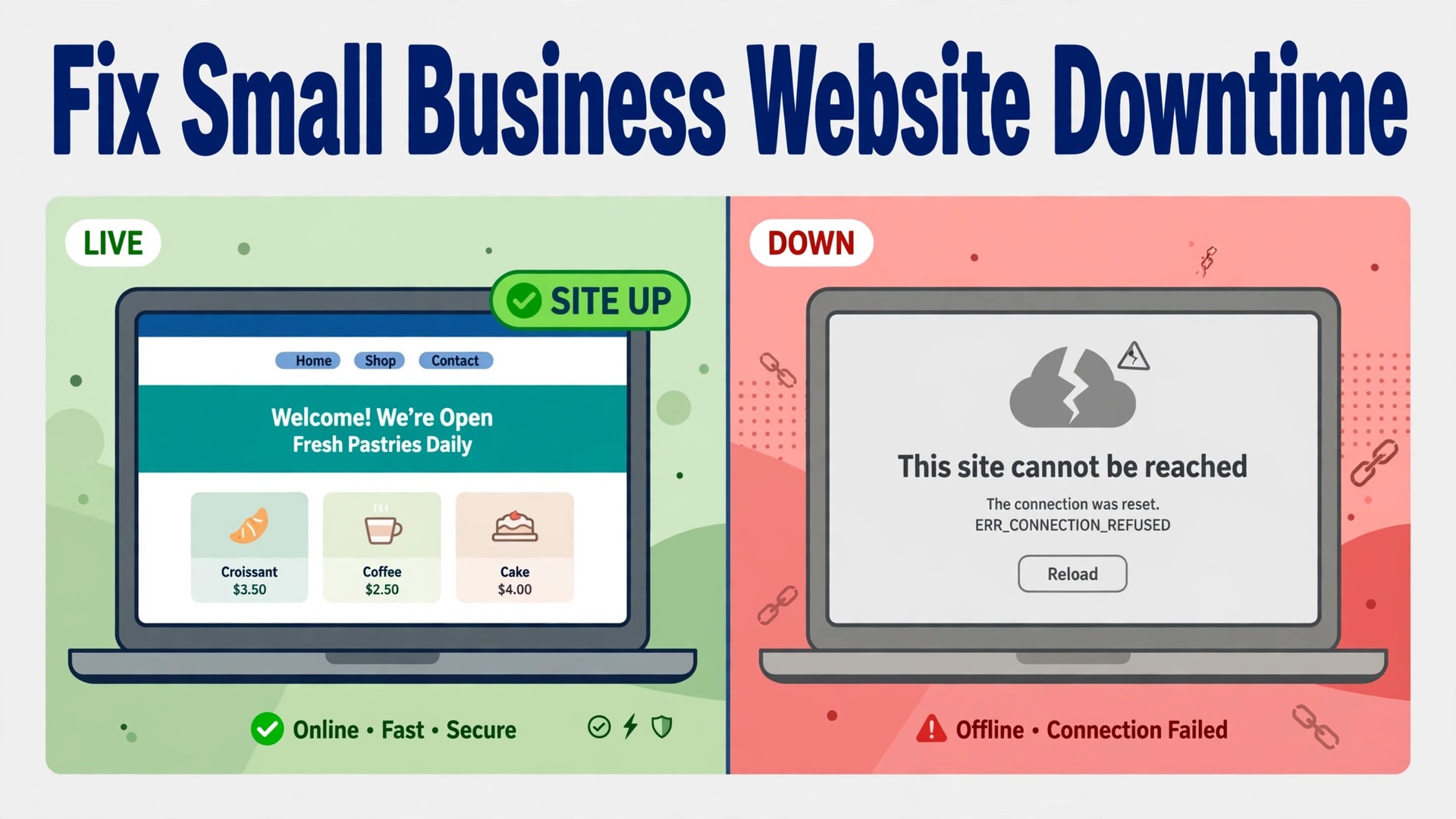
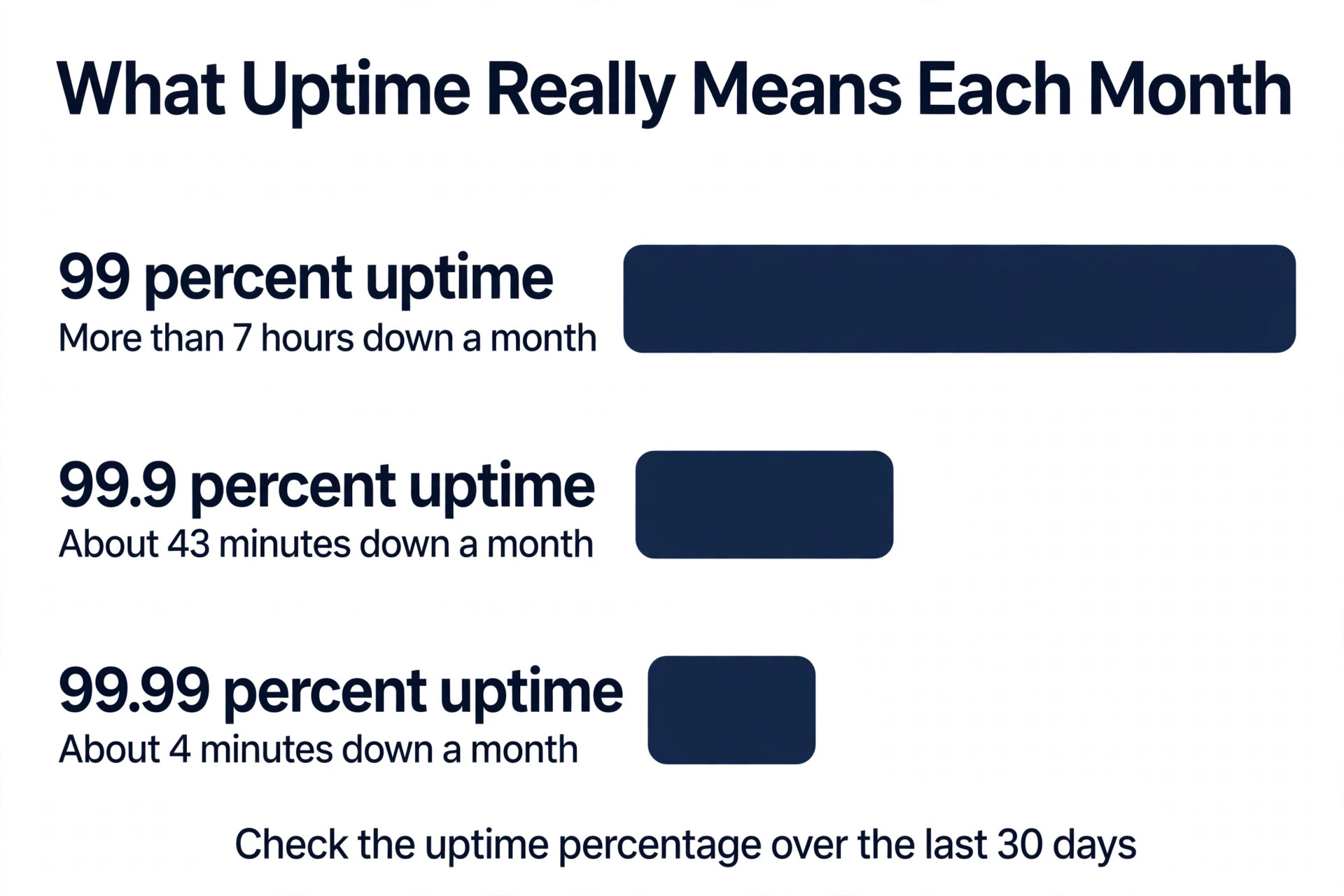
A website with 99.9 percent uptime is still down for about 43 minutes every month, and a site at 99 percent uptime is down for more than seven hours. That gap is the first thing to understand when you need to fix small business website downtime, because the number on the hosting sales page sounds excellent and the reality is a lost sale, a missed enquiry and a customer who never comes back. Most small business owners discover the outage from an angry email or a lost order, hours after the site went down, because nobody was watching it.
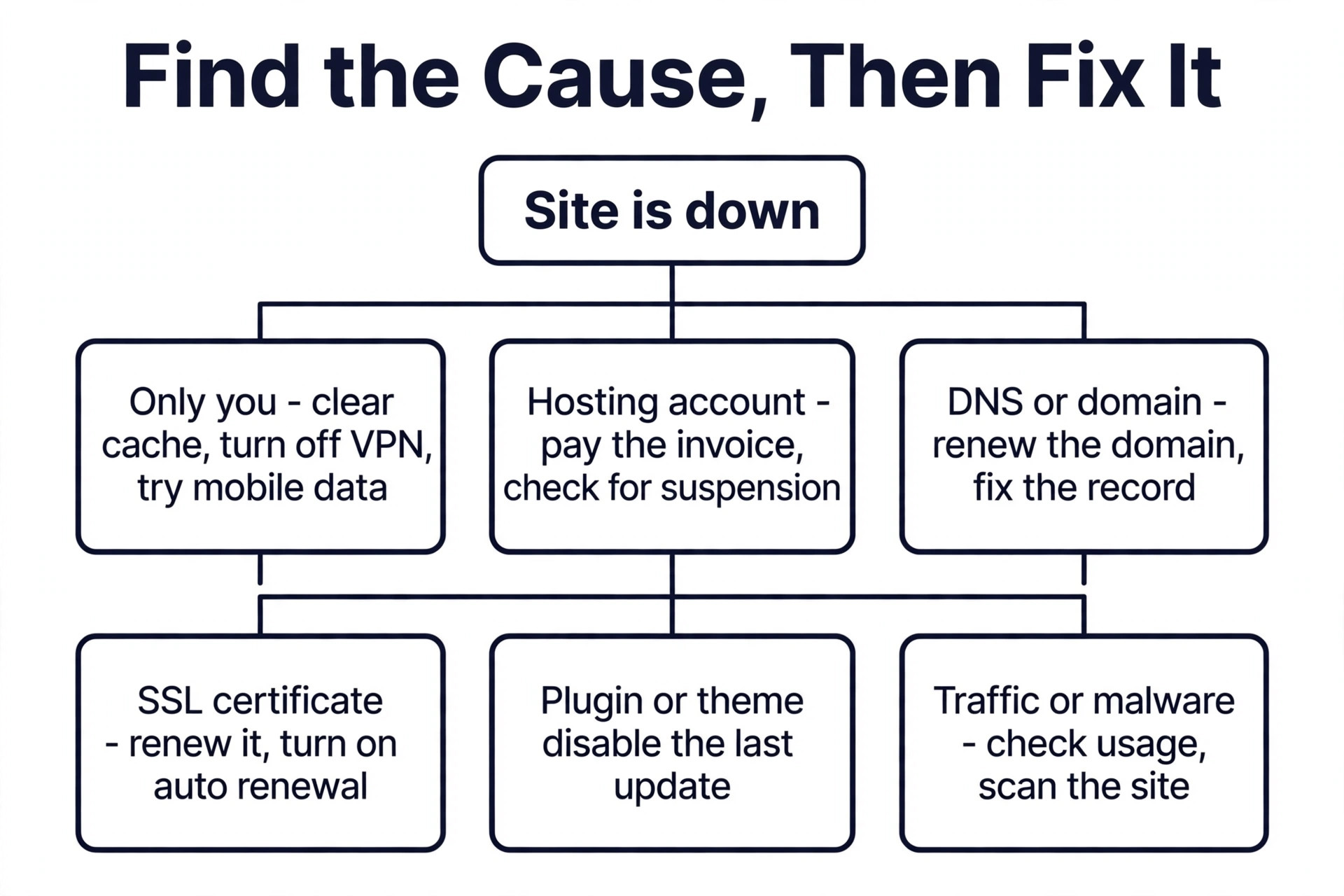
The good news is that most downtime has a simple cause, and the fix is often a five minute check rather than a support ticket. A domain that expired, a DNS record that points to the wrong server, a plugin update that broke the site, or a hosting account suspended for an unpaid invoice can each take a site offline, and each one can be found with the checks in this guide. Work through the seven checks in order, and you will either fix the site yourself or arrive at support with the exact information they need to fix it fast.
This guide also covers the monitoring tools that watch a site around the clock, so the next outage reaches you by text within minutes instead of reaching your customers first. Prices were checked against vendor pricing pages and current 2026 roundups in November 2026, so confirm the price on the pricing page before you buy.
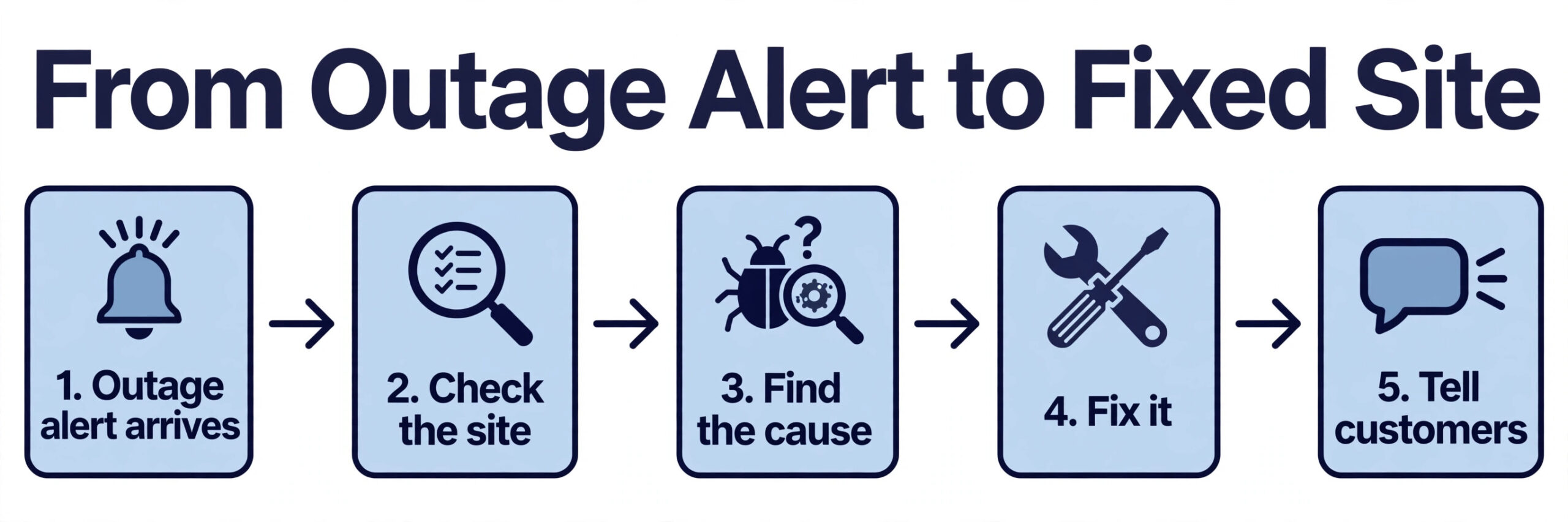
The 7 Checks to Fix Small Business Website Downtime
The seven checks below run in order of speed. The first check takes a minute and tells you whether the problem is your site or your connection. The later checks take longer, but each one rules out a whole category of cause. Do not skip ahead to the support call, because support will ask for the answers to these checks first, and a call without them takes far longer.
1. Check Whether the Site Is Down for Everyone or Only for You
The first question is whether the site is actually down, or whether only your connection cannot reach it. A local cache problem, a VPN, a firewall or a browser fault can make a healthy site look dead on one computer, and a support ticket for a local problem wastes an afternoon. A multi location checker solves the question in seconds by loading the site from dozens of places around the world and reporting whether it responds.
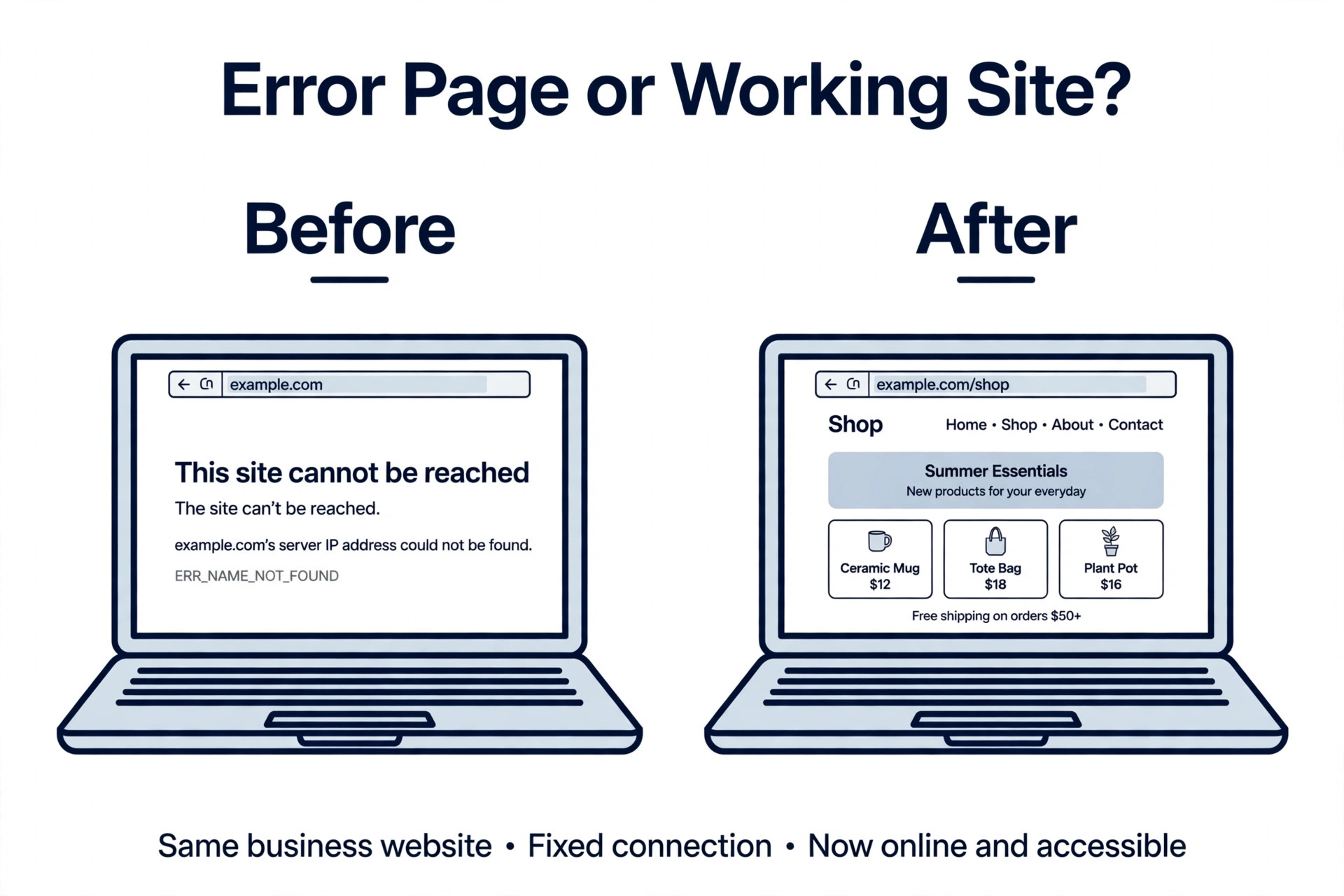
Open a free uptime test tool, enter the full site address and run the check. If the tool reports the site as up from most locations, the problem is local. Clear the browser cache, try a different browser, turn off the VPN, and try the site on a phone using mobile data instead of the office wifi. If the site loads on mobile data, the office network or the router is the problem, not the website. If the tool reports the site as down from most locations, the problem is real, and the next checks will find the cause.
- Run a multi location uptime test and note the result from each location.
- Try the site in a different browser with the cache cleared.
- Turn off the VPN and try again.
- Try the site on a phone using mobile data instead of office wifi.
- Write down the HTTP status code the checker reports, such as 500, 502, 503 or 404.
2. Check the Hosting Account Status and Billing
A hosting provider can suspend an account for an unpaid invoice, a terms breach or a resource limit, and the suspension page often reads as a generic unavailable message. This is one of the most common causes of sudden downtime for a small business, and it is also the fastest to fix, because the answer sits in the hosting dashboard rather than in the code.
Log in to the hosting provider dashboard or billing portal and check the account status first, before you look at anything else. Look for an unpaid invoice, a suspension notice, a bandwidth limit warning or a storage full warning. Pay any overdue invoice, then check whether the site returns within a few minutes. If the account shows a resource limit, check the usage graphs for CPU, memory and disk, because a site that hits its limits repeatedly will keep going down until the plan is upgraded or the resource use is reduced.
- Log in to the hosting dashboard and check the account status.
- Look for unpaid invoices, suspension notices and resource limit warnings.
- Pay any overdue invoice and wait a few minutes for the site to return.
- Check CPU, memory and disk usage for a limit that was hit.
- Note the account status and any error message before you contact support.
3. Check DNS and the Domain
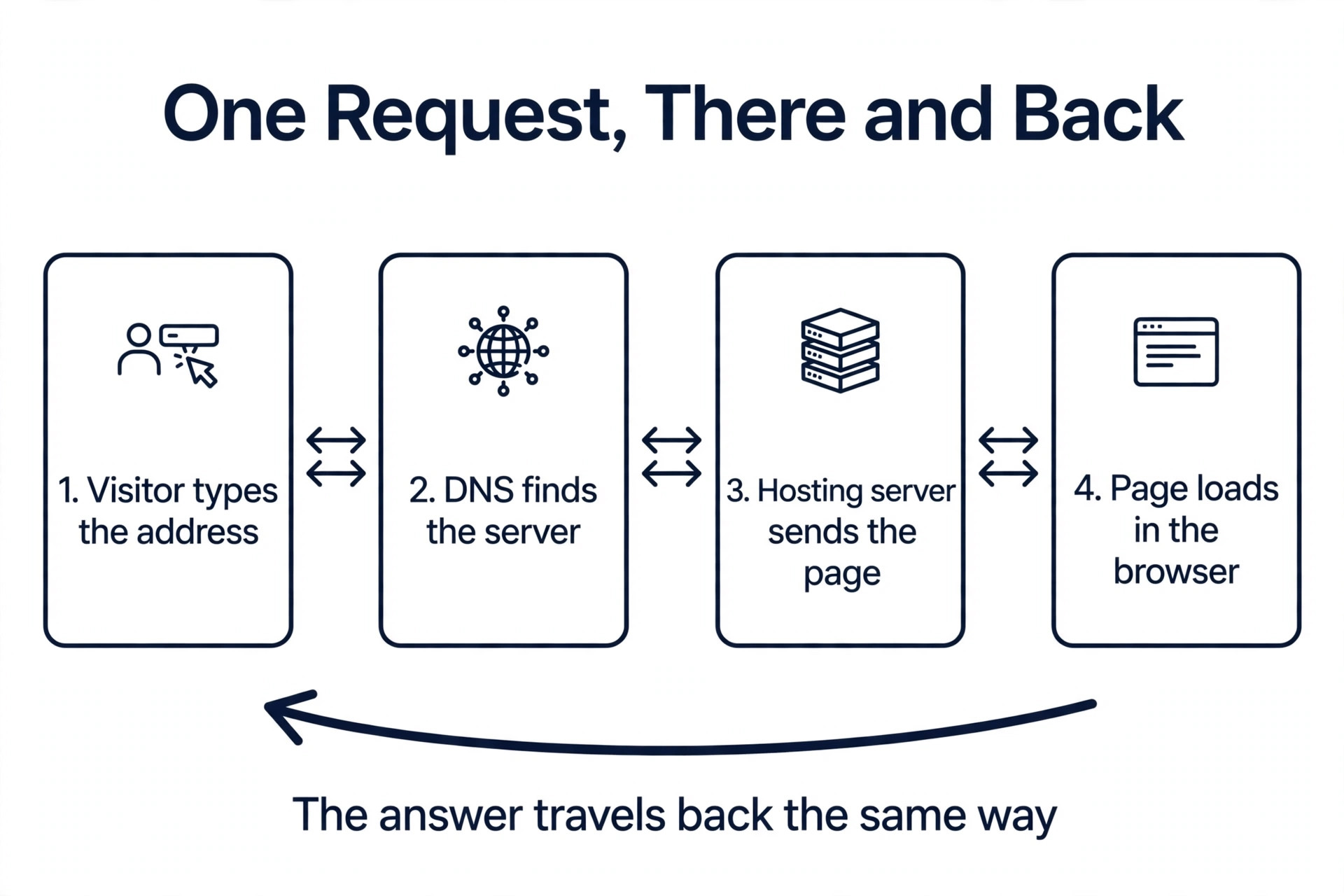
DNS is the system that turns a domain name into a server address, and a DNS error can make a healthy server unreachable. The causes are ordinary. A domain expires, a DNS record is changed during a move and points to the wrong server, a nameserver change has not finished spreading, or a record is deleted by accident. The site is fine, but no browser can find it.
Check the domain first. Use a domain lookup tool to confirm the domain is registered, not expired, and that the nameservers point to the right provider. Then check the DNS records, including the A record and the CNAME record, and confirm they point to the current hosting server address. If the domain expired, renew it at once and expect the site to return within hours as the renewal spreads. If a record was changed recently, wait for the change to spread, which can take up to 48 hours, and check the record again after the wait.
- Confirm the domain is registered and not expired.
- Confirm the nameservers point to the right provider.
- Check the A record and the CNAME record against the hosting server address.
- Renew an expired domain at once and note the renewal time.
- Wait for a recent DNS change to spread before you change anything else.
4. Check the Hosting Status Page
A hosting provider can have an outage that affects many sites at once, and the status page is the fastest way to learn about it. A provider that is honest about an outage will post the start time, the affected services and the expected fix time, and that information saves a support call that would only repeat the same news. A provider with no status page is a provider worth reconsidering at renewal time.
Open the hosting provider status page and look for an incident affecting the server region or the service the site uses. Check the provider social account as well, because an outage is often posted there before the status page updates. If an outage is confirmed, there is nothing to fix on the site itself. Note the incident number, tell customers the site is affected by a hosting outage, and wait for the provider fix. If no outage is reported, the problem is specific to the site, and the next checks will find it.
- Open the hosting provider status page and look for an active incident.
- Check the provider social account for an outage post.
- Note the incident number and the affected service or region.
- Tell customers the site is affected by a hosting outage, with no promise of a time.
- Move to the next check if no outage is reported.
5. Check the SSL Certificate
An expired or broken SSL certificate can make a browser refuse to load a site, even when the server is healthy. The visitor sees a security warning instead of the site, and most visitors leave rather than clicking through the warning. The cause is usually an auto renewal that failed, a certificate that was never installed on a new server, or a mixed content problem where the page loads some parts over an insecure connection.
Check the certificate first. Open the site in a browser and click the padlock icon, or use a free SSL checker, and note the expiry date and the issuer. If the certificate expired, renew it through the hosting dashboard or the certificate provider, and check that auto renewal is turned on for next time. If the certificate is valid but the browser still warns, check for mixed content, where images or scripts load over an insecure connection, and fix those links to use the secure address. A certificate that is valid, auto renewing and covering the whole site will not cause downtime.
- Check the certificate expiry date and issuer with an SSL checker.
- Renew an expired certificate through the hosting dashboard.
- Turn on auto renewal so the next expiry cannot catch you out.
- Check for mixed content where images or scripts load over an insecure connection.
- Test the site in a fresh browser after the renewal to confirm the warning is gone.
6. Check for a Plugin, Theme or Code Error
On a WordPress site, the most common cause of a sudden white screen or a 500 error is a plugin or theme update that conflicts with another plugin, the theme or the PHP version. The site was fine yesterday, an update ran overnight, and the site is dead this morning. The same fault can come from a code change, a full database, or a file deleted by accident.
Start by checking the error. A 500 error means the server hit a fault, a database connection error means WordPress cannot reach its database, and a white screen means a PHP fault stopped the page from loading. Log in to the hosting file manager or use FTP, rename the plugins folder, and reload the site. If the site returns, rename the folder back and rename each plugin folder one at a time until the site breaks again, because the last one renamed is the faulty plugin. Then update or replace it, and restore from a backup if the fault came from a code change rather than a plugin.
- Note the exact error, whether it is a 500 error, a database error or a white screen.
- Rename the plugins folder and reload the site to test whether a plugin is at fault.
- Rename each plugin folder one at a time until the site breaks again.
- Update or replace the faulty plugin, and check the theme and PHP version match.
- Restore from a backup if the fault came from a code change rather than a plugin.
7. Check for a Traffic Spike, Resource Limit or Malware
A site can go down because too many visitors arrived at once, because a backup or a cron job consumed the whole server, or because malware is using the server to send spam or mine cryptocurrency. The signs are a slow site that gets slower, a server that restarts, or a hosting warning about CPU or memory use. A traffic spike from a mention in the press or a viral post is a good problem, but it still takes the site down if the plan cannot handle it.
Check the hosting usage graphs for the time the site went down. A sharp rise in visitors at that time points to a traffic spike, and the fix is a content delivery network, caching, or a larger plan. A sharp rise in CPU with no rise in visitors points to a runaway process or malware, and the fix is a security scan and a review of scheduled tasks. Run a malware scan, check for unknown admin users, and change every password if the scan finds anything. A clean site on a plan that fits its traffic will not keep falling over.
- Check the hosting usage graphs for the time the site went down.
- Compare the visitor count with the CPU and memory use at that time.
- Run a malware scan and check for unknown admin users.
- Change every password if the scan finds anything suspicious.
- Add caching or a content delivery network, or move to a larger plan, if traffic caused the outage.
Monitoring Tools That Alert You Before Your Customers Do
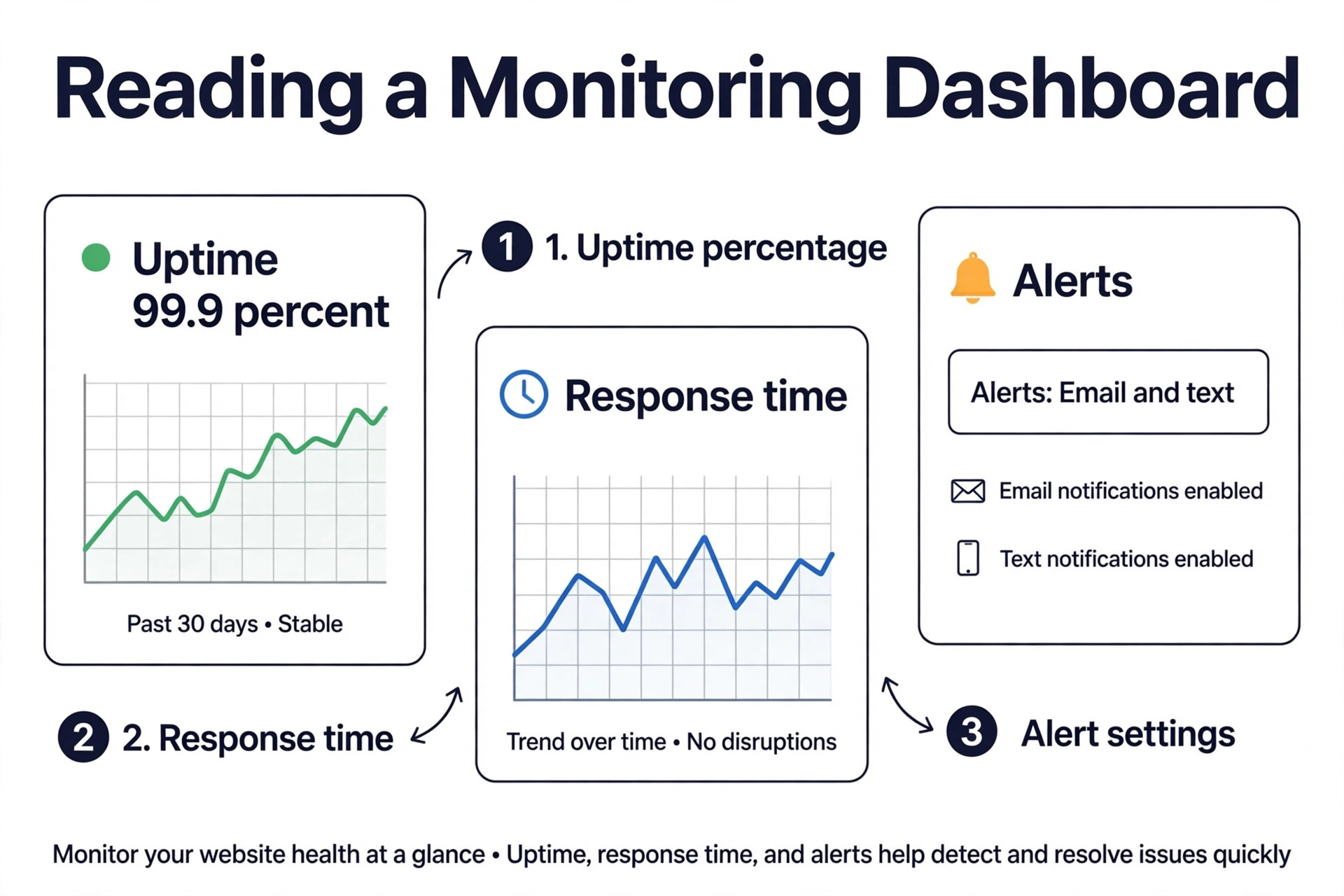
Checking a site by hand only helps after the outage has already cost money. A monitoring tool checks the site every few minutes around the clock and sends an alert by email, text or chat the moment it stops responding, so the owner learns about the outage in minutes rather than hours. The table below compares the tools small businesses use most, with prices checked in November 2026. A monitoring tool is the cheapest insurance a small business can buy for its website, and the free plans below cover a single site well.
| Tool | Free plan | Paid from | Check interval | Best for |
|---|---|---|---|---|
| UptimeRobot | 50 monitors every 5 minutes | Solo 12 dollars a month | 5 minutes free, 1 minute paid | Almost every small business |
| Pingdom | No free plan, 30 day trial | 16.50 dollars a month billed annually | Not published | Synthetic checks and real user monitoring |
| StatusCake | 10 monitors every 5 minutes | Superior 20.41 dollars a month billed annually | 5 minutes free, 1 minute paid | Uptime plus page speed, SSL and domain checks |
| Better Stack | 10 monitors every 3 minutes | 29 dollars a month per responder | 3 minutes free, 30 seconds paid | Checks inside an incident and on call workflow |
| Site24x7 | 5 monitors on the free tier | 9 dollars a month billed annually | Down to 10 seconds | Website monitoring inside a wider suite |
| HetrixTools | 15 monitors every 1 minute | Paid plans from a low monthly fee | 1 minute free | Fast detection and blacklist checks |
| Uptime.com | No free plan | 7 dollars a month billed annually | 1 minute | Transaction checks and real user monitoring |
UptimeRobot is the default starting point, because 50 monitors every five minutes for free covers a small business and its client sites, with status pages, SSL and domain expiry checks included. StatusCake suits a business that also wants page speed and domain checks on the same plan, though its free plan is smaller. Better Stack suits a business that wants the alert to open an incident and wake an on call responder, rather than only sending an email. Pingdom is the most complete tool here, with transaction checks that simulate a checkout and real user monitoring that measures what visitors actually experience, but it has no free plan and bills uptime, transactions and real user monitoring on separate scales.
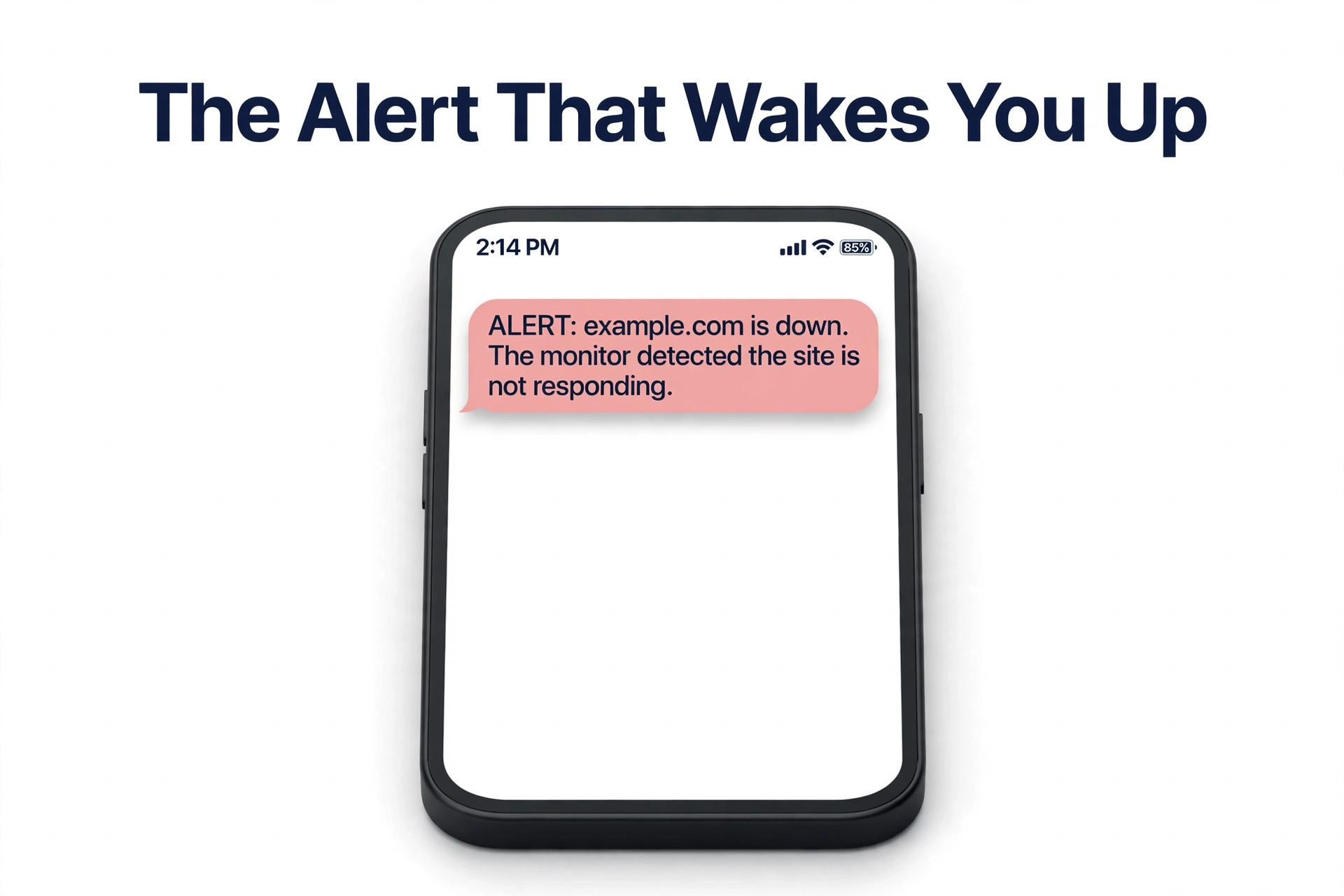
Set up the first monitor in ten minutes. Add the homepage, the checkout or contact page, and the domain and SSL expiry checks, then set the alert to go to the owner phone by text and to the team chat. Test the alert by stopping the site briefly on a staging copy, or by setting a monitor on a page that returns an error, so you know the alert works before a real outage.
A monitor that has never been tested is a hope, not a system. That ten minute setup is the single most useful step you can take to fix small business website downtime for good, because it turns every future outage into a short alert instead of a long discovery.
A Prevention Routine That Keeps the Site Up
A site that is checked once a month will go down once a month. A site with a short routine will stay up, because the routine catches the small faults before they become outages. Spend 30 minutes a month on the list below, and the work to fix small business website downtime becomes a rare event instead of a regular panic. Put the routine on the calendar for the first Monday of each month, so it happens even when the business is busy.
- Check the domain expiry date and set auto renewal with a payment method that will not expire.
- Check the SSL certificate expiry date and confirm auto renewal is turned on.
- Update plugins, themes and the core software on a staging copy first, then on the live site.
- Check the backup ran in the last week and restore one file from it to prove it works.
- Check hosting CPU, memory and disk use, and clear old backups and logs that fill the disk.
- Check the monitoring tool for the uptime percentage over the last 30 days.
- Check the monitoring alerts still reach the right phone number and email address.
Backups deserve a special note. A backup that has never been restored is not a backup, it is a file that might work. Restore one file from the backup each month, and restore the whole site to a staging copy once a quarter, so the day you need the backup is not the day you discover it is broken. Keep at least one backup off the hosting server, because a backup stored on the same server that failed is no help at all.
What to Tell Support So They Fix It Fast
When the seven checks do not fix the site, call support with the facts in hand. Support can fix a problem in minutes when the caller gives the exact error, the exact time and the exact steps already tried. Support takes hours when the caller only says the site is down, because the agent must run every check from the start. A caller who has already worked through the steps to fix small business website downtime will get a faster answer, because the agent can skip the checks that are done and go straight to the server logs.
- State the exact error message and the HTTP status code from the checker.
- State the time the site went down and whether it is down from every location.
- State the hosting account status, the domain status and the SSL status from your checks.
- State what changed recently, including updates, DNS changes and new plugins.
- Ask for the incident number and the expected fix time, and write both down.
Keep the tone calm and the facts short. The support agent is the fastest route to a fix, and an agent who gets clear facts will escalate a real outage faster than an agent who gets a complaint. If the provider cannot give a fix time, ask what the next update time is, and set a reminder to call back at that time rather than waiting for a call that may never come.
Mistakes That Make Downtime Worse
The most common mistake is changing several things at once. An owner who is panicking updates the DNS, restores a backup, changes a plugin and calls support in the same ten minutes, and nobody can tell which change fixed the site or which change broke it further. Change one thing, test the site, and only then change the next thing. A slow and methodical fix is faster than a fast and confused one.
The second mistake is having no monitoring at all. A business that learns about an outage from a customer has already lost the sale and the trust, and the outage has already lasted hours. A free UptimeRobot monitor costs nothing and sends the alert in five minutes. There is no reason for a business site to run without one, and the owner who installs it today will learn about the next outage before any customer does.
Skipping that free monitor is the most expensive saving in this guide, because the first outage it would have caught will cost far more than the ten minutes it takes to set it up, and it is the step most owners skip when they try to fix small business website downtime in a hurry.
The third mistake is ignoring the renewal dates. A domain or a certificate that expires is the most avoidable cause of downtime in this guide, and it happens because the renewal email went to an old address or the payment card expired. Set auto renewal, keep the payment method current, and put the expiry dates on a calendar with a reminder a month before. That small routine is the cheapest way to fix small business website downtime before it ever happens.
Our Verdict
The way to fix small business website downtime is to check whether the site is down for everyone, then check the hosting account, the DNS, the status page, the certificate, the plugins and the traffic, in that order. Most outages end at one of those seven checks, and the fix takes minutes rather than hours. The monitoring tool is what turns a one off fix into a lasting one, because it tells the owner about the next outage in minutes instead of letting customers discover it first.
Start with UptimeRobot free, add the homepage and the SSL check, and run the monthly prevention routine. A small business that does those two things will spend less time on downtime in a year than most businesses spend on a single outage, and the site will be there when the next customer arrives.
Frequently Asked Questions
How do I know if my website is down for everyone or only for me?
Run a multi location uptime test, which loads the site from dozens of places around the world and reports whether it responds. If the site is up from most locations, the problem is local, so clear the cache, try another browser, turn off the VPN and try on mobile data. If the site is down from most locations, the problem is real, and the checks in this guide will find the cause.
What is the most common cause of small business website downtime?
The most common causes are hosting problems, including an unpaid invoice, a suspension or a resource limit, followed by DNS errors, expired domains, broken SSL certificates and plugin updates that conflict with the site. A traffic spike and malware are less common but more serious, because they point to a plan that is too small or a site that has been compromised. The seven checks in this guide cover all of them in order.
How long does DNS take to update after I fix it?
A DNS change can take up to 48 hours to spread around the world, though most changes appear within a few hours. If the site works from some locations and not others, the change is still spreading, and the fix is to wait rather than to change the record again. Check the record with a DNS lookup tool before you change anything else, because a second change restarts the wait.
What is a good uptime percentage for a small business website?
A good target is 99.9 percent uptime, which allows about 43 minutes of downtime a month, and 99.99 percent is excellent, at about 4 minutes a month. A site at 99 percent uptime is down for more than seven hours a month, which is too much for a business that takes orders online. Check the monitoring tool for the uptime percentage over the last 30 days, and ask the host about the cause if the number falls below 99.9 percent.
Should I call support or fix the site myself?
Run the seven checks first, because most downtime has a simple cause that takes minutes to fix, and support will ask for the answers to those checks anyway. Call support when the checks point to a hosting outage, a server fault or a problem only the host can see, and call with the error message, the time the site went down and the steps already tried. A call with facts gets a fix in minutes, while a call without facts takes hours.
What monitoring tool should a small business start with?
UptimeRobot is the best starting point, because the free plan covers 50 monitors every five minutes, with status pages, SSL and domain expiry checks included. Set up a monitor for the homepage, the checkout or contact page, and the SSL certificate, and send alerts by text and to the team chat. Test the alert once, so you know it works before a real outage, and upgrade to a paid plan only when you need faster checks or more monitors.