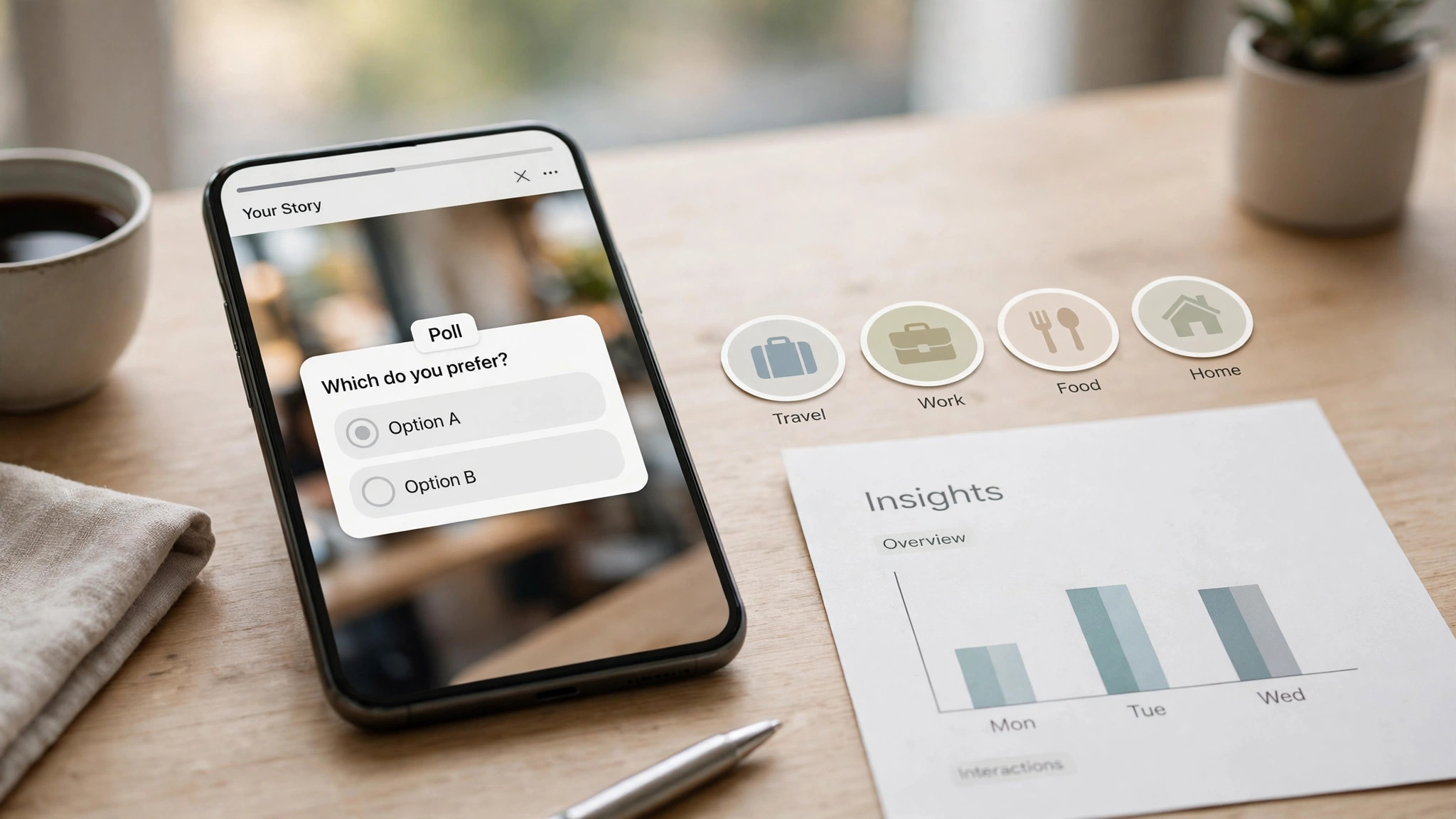
A feed post waits for attention. A story interrupts it. That is the whole difference, and it is why stories get taps that feed posts never see. A story sits at the top of the app, fills the whole screen, and disappears in 24 hours, so the viewer feels a small pressure to look now rather than later. Learning how to make a Facebook story that earns that tap is not about fancy editing. It is about one clear idea, a vertical frame, and a reason to touch the screen.
This guide covers the full process in 8 steps, from planning the idea to checking the insights after it goes live. It uses the 2026 specs from Meta, including the 1080 by 1920 frame and the 60 second video limit for Page stories, and it flags the outdated numbers that still appear in older guides. Whether you run a business page or a personal profile, the steps are the same, and the tools are mostly free.
The Short Answer on How to Make a Facebook Story
If you want the fastest route, open the Facebook app, tap the plus sign on your profile picture, and record a vertical video that is under 60 seconds long. Add one line of large text that says what the video is about, add a poll sticker that asks a simple question, and post it. That takes five minutes, and it will outperform most feed posts because stories sit above the feed and play full screen.
For a business page, use Meta Business Suite instead. It lets you schedule the story in advance, publish it to Facebook and Instagram together, and see the replies and taps in one inbox. For a designed story, build the frame in Canva first, export it at 1080 by 1920, and upload it as a photo story. The design step adds ten minutes and makes the story look like it came from a brand rather than a phone camera, which matters when the story carries a price or a date.
The 2026 Specs at a Glance
| Spec | Value |
|---|---|
| Recommended size | 1080 by 1920 pixels |
| Aspect ratio | 9 by 16 vertical |
| Minimum size | 540 by 960 pixels |
| Photo display | 5 seconds |
| Video length | 3 to 60 seconds per story |
| Video formats | MP4 or MOV |
| Maximum file size | 4 GB |
| Story lifetime | 24 hours |
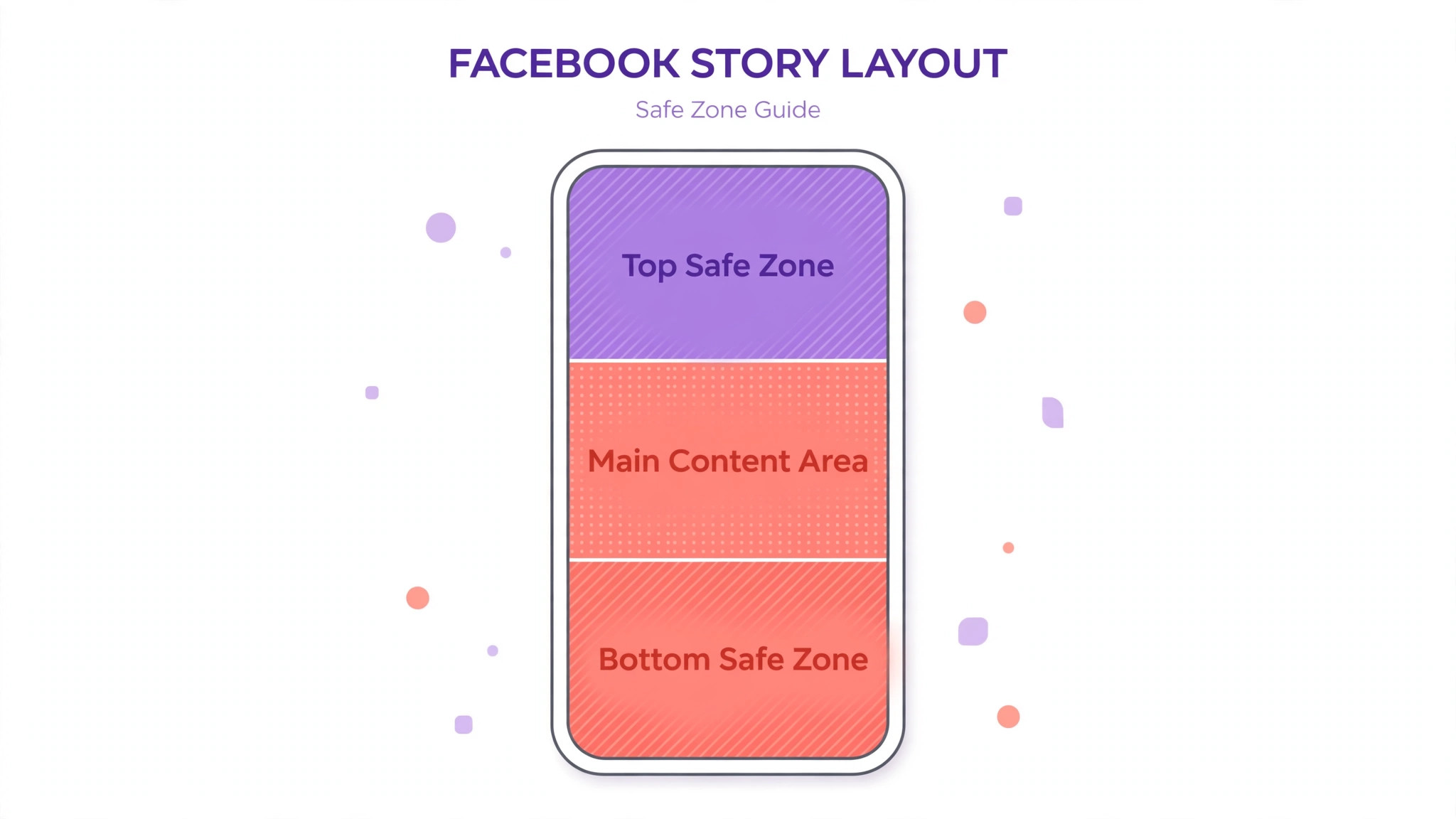
Two notes on the numbers above. First, the 20 second video limit that appears in older guides is out of date. Meta Page Stories API allows video stories of 3 to 60 seconds, and longer videos are split into sequential cards rather than rejected. Second, the safe zone matters. Keep text and buttons inside the middle of the frame, because the top and bottom edges are covered by the profile bar and the reply box, and Meta recommends keeping key content inside the central 14 percent margin at each edge.
Best Tool by Job
| Job | Pick | Why it wins |
|---|---|---|
| Fastest story | Facebook app | Record and post in one place |
| Scheduling | Meta Business Suite | Plan stories ahead, cross post |
| Designed frames | Canva | Templates at 1080 by 1920 |
| Video editing | CapCut | Captions, cuts, and effects free |
| Quick phone edits | InShot | Trim, text, and music in minutes |
| Social graphics | Adobe Express | Fast templates, free plan |
The 8 Steps
Step 1. Plan One Idea per Story
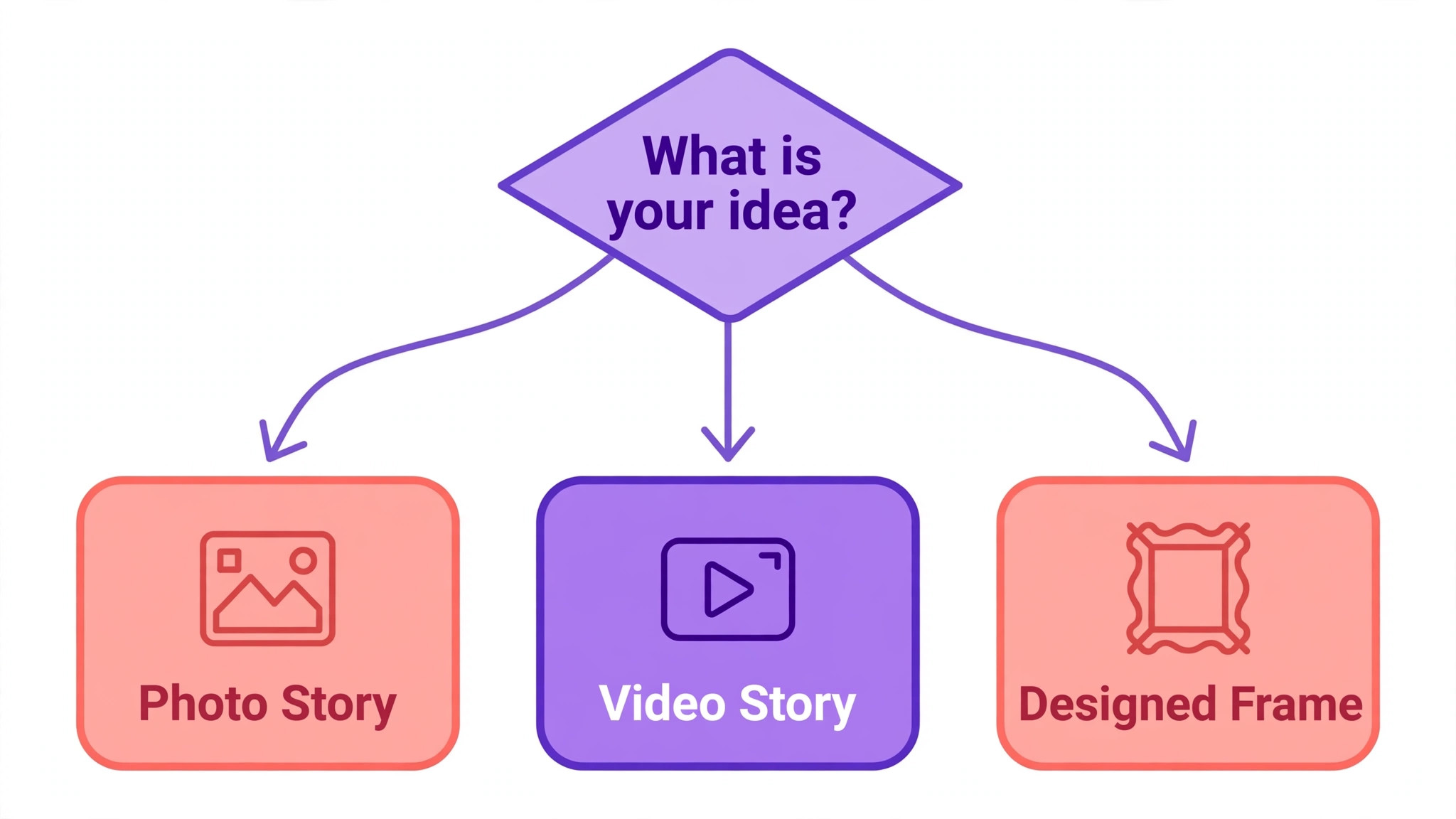
A story that tries to say three things says nothing. Before you open the app, write one sentence that states the idea, such as new lunch menu starts Friday, or the workshop has two seats left. That sentence is the whole story, and everything else in the frame exists to support it. If you cannot state the idea in one sentence, the story is not ready to make, and the viewer will not know what to do with it either.
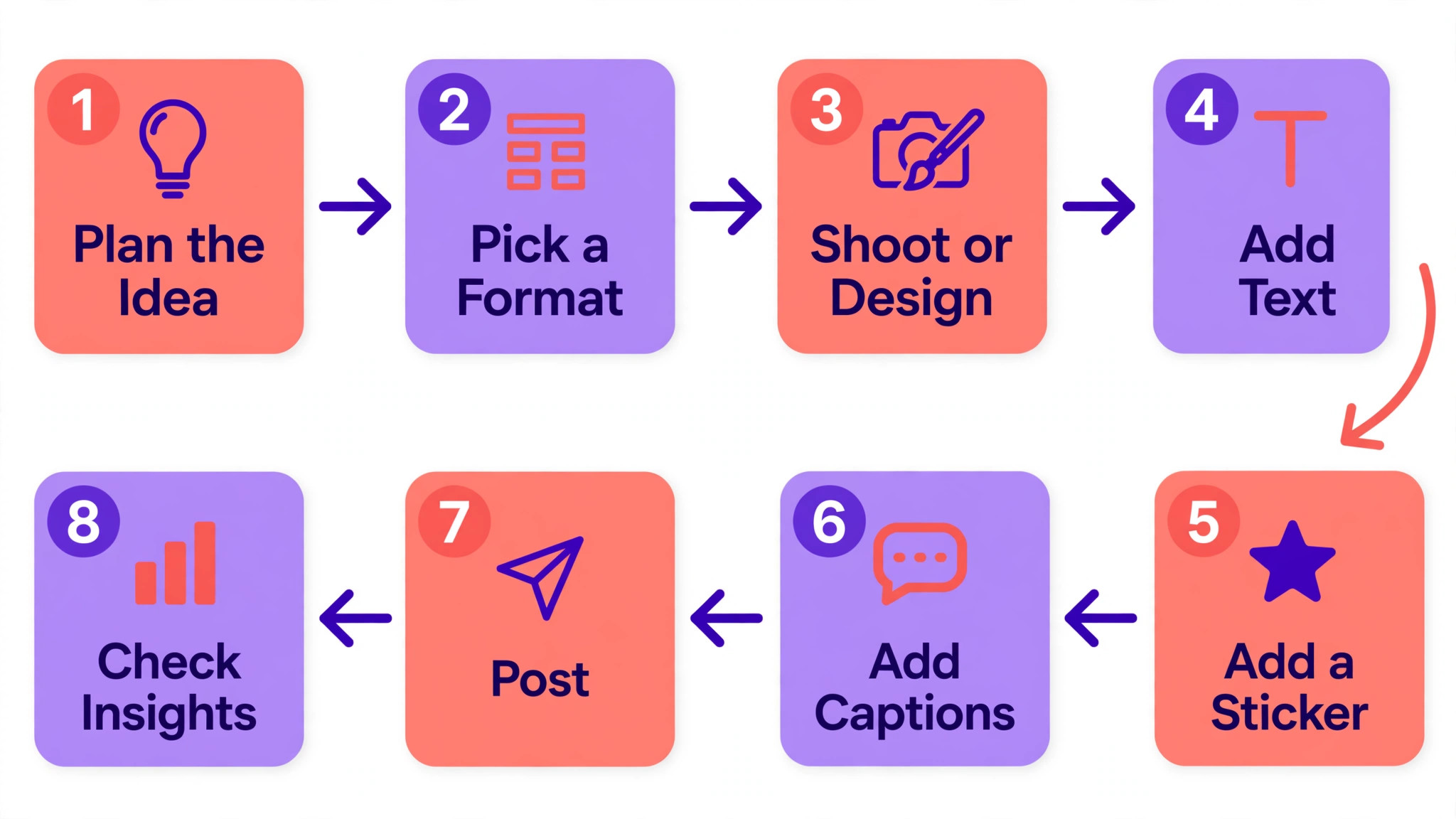
The idea also decides the format. A date or a price belongs on a designed frame with large text, because the viewer needs to read it. A behind the scenes moment belongs on video, because the viewer needs to feel it. A question belongs on a poll sticker, because the viewer needs to answer it. Pick the format after the idea, not before, and the story will feel focused instead of decorated.
Step 2. Shoot or Design Vertical
Every story is a vertical frame, 1080 by 1920 pixels, and anything shot horizontal will be cropped, zoomed, or letterboxed into a shape it was never meant to fill. Hold the phone upright, fill the frame with the subject, and leave space at the top and bottom for the interface. If you shoot video, keep the camera steady, shoot in good light, and record in the highest quality the phone offers, because Facebook compresses the file and a low quality source comes out worse.
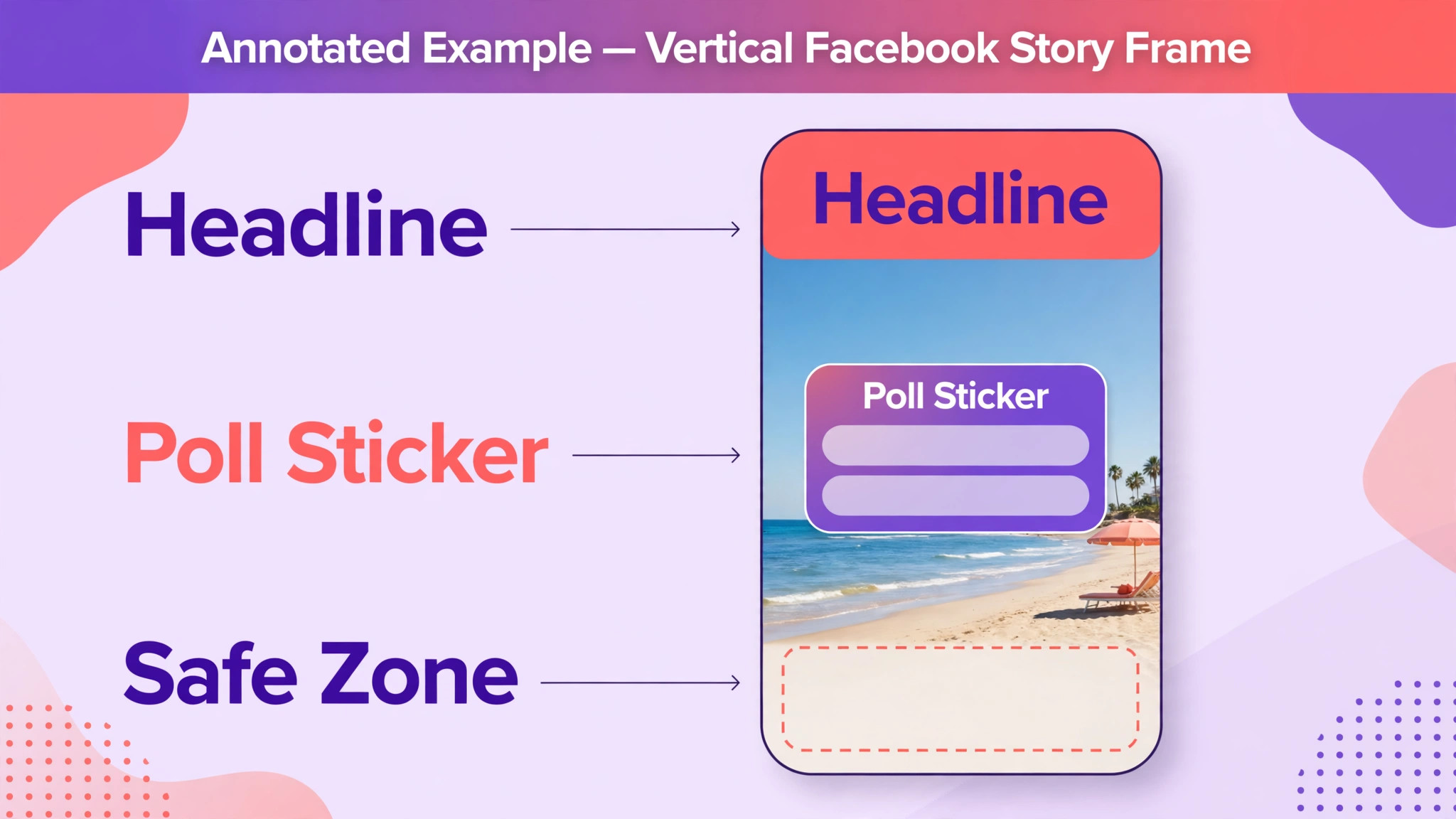
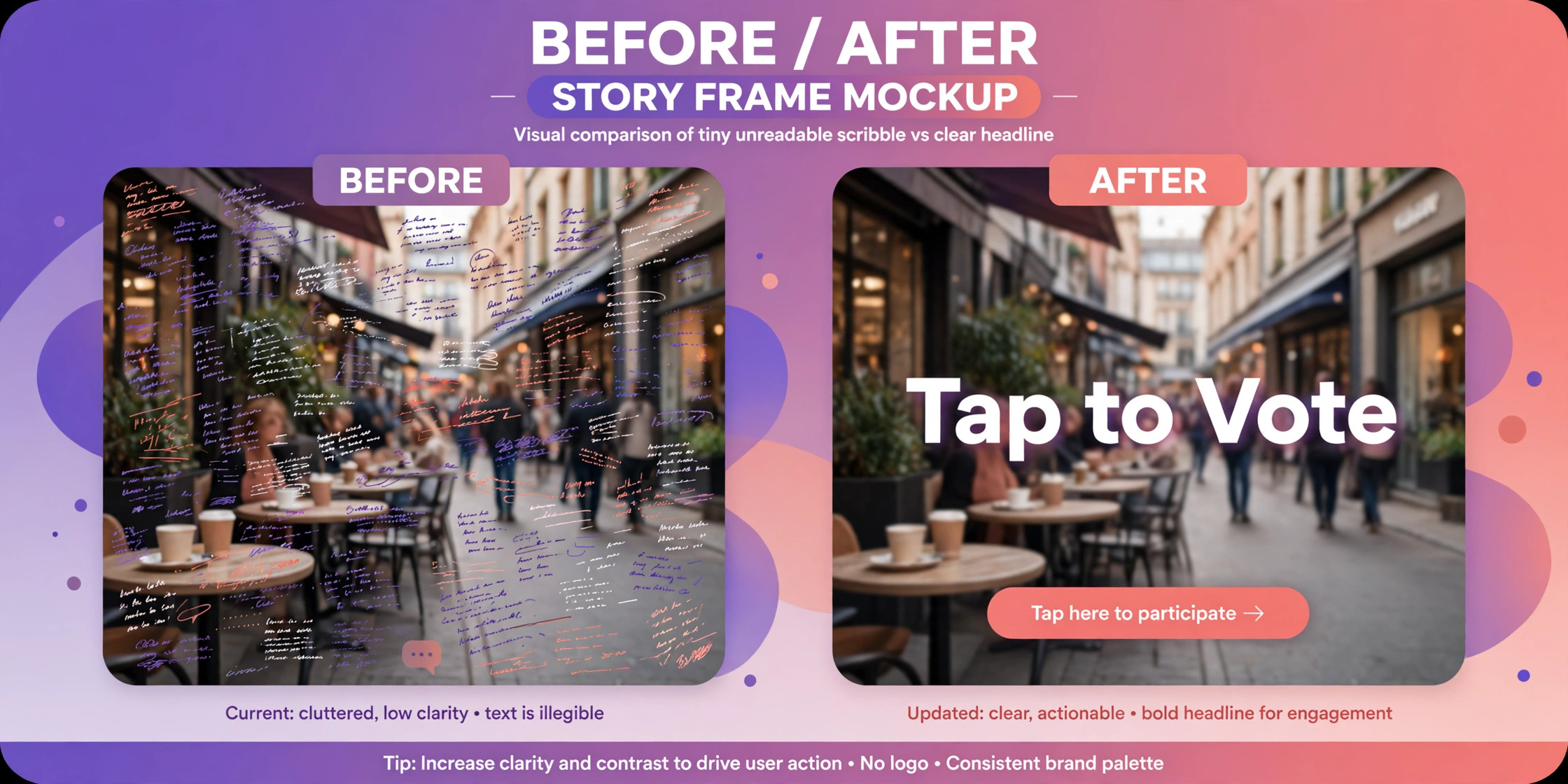
For a designed story, build the frame in Canva or Adobe Express at 1080 by 1920 and keep the text large. A headline should take up a fifth of the frame, not a tenth, because the viewer reads it on a phone while walking. Use one photo, one headline, and one call to action, and leave the rest of the space empty. A crowded frame is the most common reason a designed story gets skipped.
Step 3. Open the App or Business Suite
For a personal profile, open the Facebook app and tap the plus sign on your profile picture at the top of the feed. That opens the story camera, where you can record, take a photo, or pick a file from the gallery. The camera includes filters, effects, and a timer, and you can switch between the front and back cameras without leaving the screen.
For a business page, open Meta Business Suite on desktop or mobile and choose Create Story. Business Suite lets you schedule the story for later, publish it to Facebook and Instagram at the same time, and manage the replies in one inbox. Scheduling matters for a business, because the best time to post is often a time when nobody is free to post, and a scheduled story goes out on time without anyone touching a phone.
Step 4. Add Text That Can Be Read in 3 Seconds
Most viewers decide whether to keep watching in the first three seconds, and the text on the frame is what decides it. Write one line, in large type, that says what the story is about. New lunch menu starts Friday is a good line. A long sentence about the history of the lunch menu is not, because nobody reads a paragraph on a story frame. If the text needs more than one line, the story needs a second card, not smaller type.
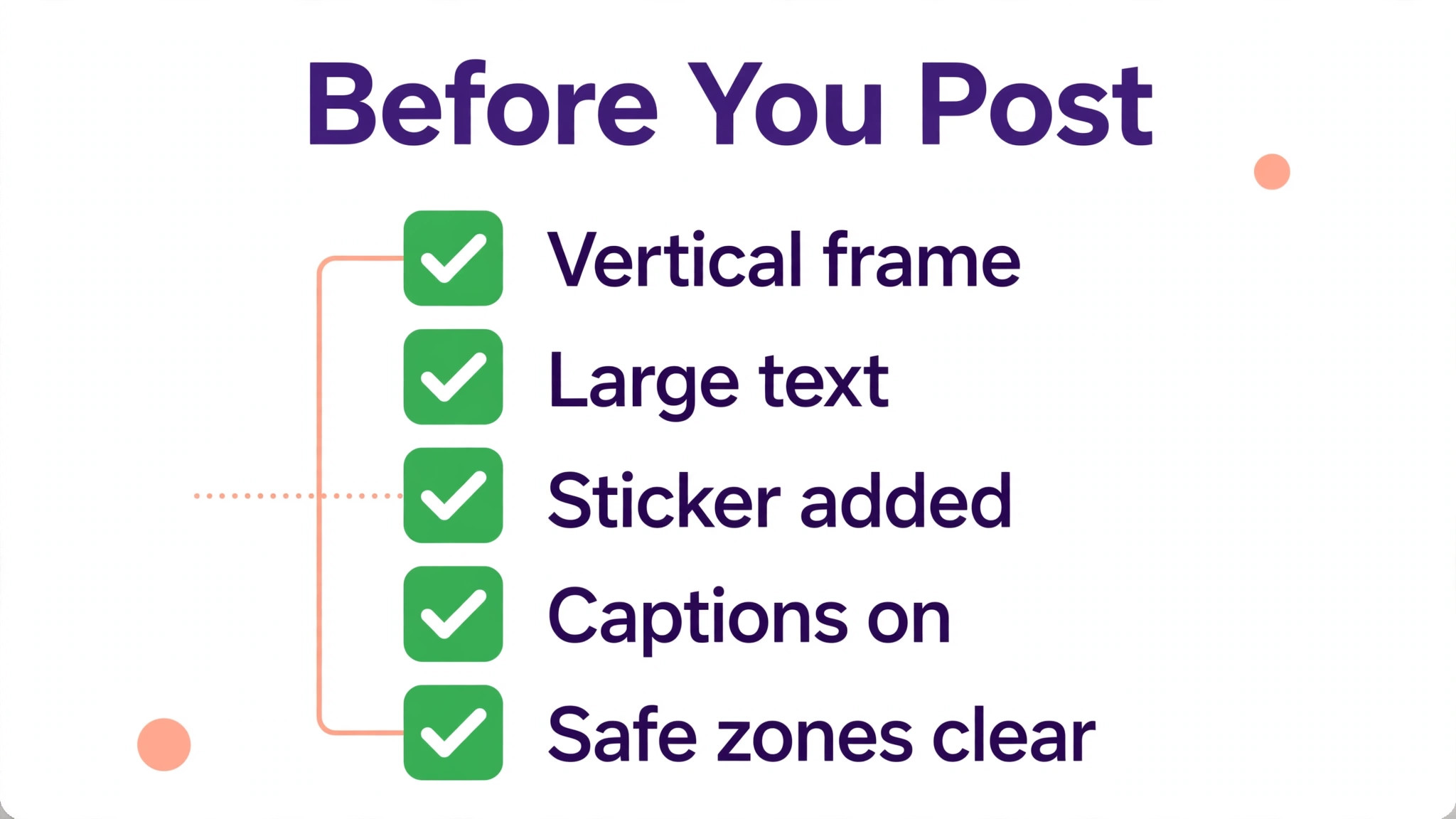
Place the text in the middle of the frame, away from the top and bottom edges where the interface covers it. Use a colour that contrasts with the background, and add a solid backing bar if the photo behind the text is busy. Test the frame by holding the phone at arm’s length. If the headline is not readable at that distance, it is too small, and the viewer will skip past it before the video even starts.
Step 5. Add a Sticker That Asks for a Tap
A story without an interaction is a small video, and small videos get skipped. A story with a poll, a question, or a countdown gives the viewer something to do, and doing something is what turns a viewer into a follower. The poll sticker is the simplest version. Ask a question with two answers, such as lunch or dinner, or this Friday or next Friday, and let the viewer tap. The question should be easy to answer in one second, because a hard question gets no taps at all.
The question sticker works the same way for businesses that want replies rather than votes. Ask what the viewer wants to see next, or what they would order, and read the answers as market research. The countdown sticker suits launches and events, because it lets the viewer set a reminder and come back when the thing happens. Use one sticker per story. Two stickers compete with each other, and a story with two questions gets fewer answers than a story with one.
Step 6. Add Music or Captions
Most stories are watched with the sound off, which means a story that depends on the spoken word is a story half the audience cannot hear. Add captions to any video where someone talks, either with the caption sticker in the Facebook app or with an editor like CapCut that generates them automatically. Captions also help viewers who watch in a quiet room, on a bus, or at work, and they cost nothing to add.
Music does the opposite job. It sets the mood for a story that has no talking, such as a product shot, a shop tour, or a montage of the day. Pick a track from the Facebook music library, keep the volume low enough that it does not fight the captions, and avoid a song that is louder than the message. A story with captions and music works with the sound on and with the sound off, and that is the standard to aim for.
Step 7. Check the Safe Zones and Preview
Before you post, preview the story exactly as a viewer will see it. Tap through it once, check that no text is hidden behind the profile bar at the top or the reply box at the bottom, and confirm that the sticker is tappable and not covered by anything. Meta recommends keeping key content inside the central area, clear of the top and bottom 14 percent of the frame, and that guidance is worth following because the interface does not move for your design.
Check the video length as well. A Page story video can run 3 to 60 seconds, and anything longer is split into sequential cards. Splitting is not a failure, but it changes the pacing, so watch the split point and make sure no sentence is cut in half. If the split lands in an awkward place, trim the video or move the text so each card stands on its own.
Step 8. Publish, Then Check Insights and Save to Highlights
Post the story, and then do the part most people skip. Open the insights after a few hours and look at three numbers. Reach tells you how many people saw it. Taps forward tells you how many skipped to the next story, and taps back tells you how many came back to look again. A story with high reach and high taps forward was seen and skipped, which usually means the opening was weak. A story with taps back was interesting enough to rewatch, which usually means the idea was strong.
Save the best stories to highlights on the profile or page, because highlights are the only stories that survive past 24 hours. A highlight called Menu, or Workshop, or Reviews turns a disappearing story into a permanent showcase, and it is the first thing a new visitor sees. Archive the rest, so the story stays in the archive for later reuse even after it leaves the public feed.
Seven Story Ideas That Get Taps
The steps above explain how to build a story. This section explains what to put in it. Each idea below is a format you can repeat every week, and each one gives the viewer a reason to tap.
A behind the scenes story shows the work, not the product. A kitchen before service, a workshop mid project, or a delivery being packed all work, because people are curious about how things are made.
A poll story asks a simple either or question and lets the audience decide, which gives you an answer and gives them a reason to come back for the result.
A countdown story builds toward a launch, a sale, or an event, and the reminder it sets is a free nudge to return.
A question story invites replies, and the replies are the most valuable interaction a story can earn, because Facebook shows your next story to people who replied to the last one.
A before and after story shows a transformation in two frames, such as a room before and after a clean, or a design before and after a revision, and the swipe between them is satisfying enough to earn a tap.
A customer story shares a review or a photo from a real buyer, which is more persuasive than any claim you make about yourself.
A tutorial story teaches one small thing in three frames, such as how to use a product or how to book a table, and it earns saves and shares because it is useful after the 24 hours pass.
Tools That Make a Better Story
You can make a good story with the Facebook app alone, but the tools below each fix one weakness in that flow. The design tools make the frame readable, the editors make the video watchable with the sound off, and the scheduler makes the posting happen on time. Knowing how to make a Facebook story that looks professional usually means knowing which of these to reach for, and when to leave the app alone.
Facebook App
The Facebook app is the starting point and the fallback. It records, edits, and posts in one place, and its camera includes filters, effects, timers, and the full sticker set. The caption sticker adds text over video, the music library adds a soundtrack, and the poll and question stickers are built in. For a quick story from the shop floor, nothing else is faster, and the app is free.
Meta Business Suite
Meta Business Suite is the tool for business pages, and it is free. It schedules stories in advance, publishes to Facebook and Instagram together, and puts the replies, comments, and taps in one inbox. The insights show reach, taps forward, taps back, and replies per story, which is the data the steps above rely on. If the page posts more than twice a week, Business Suite is the tool that keeps it consistent.
Canva
Canva is the design tool for stories that carry a price, a date, or an offer. The template library includes story frames at 1080 by 1920, the editor keeps text large and readable, and the Brand Kit keeps colours and fonts consistent with the rest of the marketing. The free plan covers the design, and Canva Pro at 18 dollars a month or 144 dollars a year adds premium templates and the full stock library. Export the frame as a PNG and upload it as a photo story.
Adobe Express
Adobe Express covers the same ground as Canva at a lower price, with Premium at 9 dollars and 99 cents a month. The template library includes story frames, the editor is fast, and the free plan is enough for occasional designs. It suits owners who already use Adobe Express for social graphics and want the story in the same workspace. Export at 1080 by 1920 and upload the same way.
CapCut
CapCut is the video editor for stories where someone talks. It generates captions automatically, cuts dead air, adds transitions, and exports in vertical format without a watermark on the free plan. The caption feature alone justifies it, because a story with captions works with the sound off, and most stories are watched that way. CapCut is free, with a paid Pro tier for extra effects and stock.
InShot
InShot is the quick phone editor for trimming a video, adding text, and laying music over it in minutes. It is simpler than CapCut and faster for a one off edit, and the free version covers the basics with a watermark that the paid version removes. Use it when the story needs a trim and a title and nothing else, and use CapCut when the story needs captions and a real edit.
When to Post a Story
Timing matters less for stories than for feed posts, because stories sit at the top of the app whenever the viewer opens it, but it still matters. The best times are the moments people check their phones, which for most local businesses means the morning commute, the lunch break, and the evening after dinner. A story posted at 8 in the morning is still at the top of the stack at lunch, because stories last 24 hours, so the exact hour matters less than the habit of posting daily.
Consistency matters more than timing. A page that posts a story every day trains its audience to check it, and Facebook shows the next story to people who watched the last one. A page that posts three stories in one day and then nothing for two weeks trains its audience to ignore it. One story a day, at roughly the same time, is the rhythm that works, and it is a rhythm a small business can keep without hiring anyone.
Scheduling, Highlights, and Reuse
A story that disappears after 24 hours is not wasted if you plan for it. Save the best stories to highlights on the profile or page, grouped by topic, such as Menu, Reviews, Workshop, or Offers. Highlights are the first thing a new visitor sees, and they turn a day of stories into a permanent showcase that works while you sleep. Archive the rest, because the archive keeps the story available for reuse even after it leaves the public feed.
Reuse is the part most businesses miss. A tutorial story that taught one small thing can be reposted a month later to a new audience, and a customer story can be reshared when the same product goes on sale. Business Suite keeps the archive organised, and a quick check of the insights shows which stories earned taps back, which is the signal that a story is worth posting again. The stories that get rewatched are the stories worth reusing.
Mistakes That Kill a Story
The most common mistake is a horizontal video. A story shot sideways gets cropped, zoomed, or letterboxed, and the viewer sees a small rectangle floating in a tall frame. Shoot vertical, every time, and the problem disappears. The second mistake is tiny text. A headline that needs squinting gets skipped, and a story that gets skipped teaches Facebook to show the next one to fewer people.
The third mistake is a story with no interaction. A video with no sticker, no question, and no call to action is a small television ad, and viewers treat it as one. Add one sticker, one question, or one link, and the story becomes something the viewer does rather than something they watch. The fourth mistake is posting a feed graphic as a story without resizing it. A square post in a vertical frame leaves empty space top and bottom, and the empty space tells the viewer the story was an afterthought. Resize it to 1080 by 1920 first, and it will look like it belongs.
How to Make a Facebook Story for a Business Page
A business page story has a different job from a personal story. It is not a diary, it is a shop window, and every story should point at something the business sells, shows, or books. The process is the same as the steps above, but the planning is stricter. Plan the week on Monday, with one story a day, and give each day a theme, such as the product on Monday, the customer on Tuesday, the team on Wednesday, the offer on Thursday, and the event on Friday. A themed week is easier to plan than seven separate ideas, and the audience learns what to expect.
The page story also needs a call to action that a personal story does not. A link sticker, a message button, or a line that says book through the link in the bio turns a view into a booking, and a story without one is a missed sale. Keep the action to one per story, and put it at the end, after the viewer has seen the reason to act. A story that opens with a link and closes with a product is a sales pitch, and sales pitches get skipped. That order, story first and link second, is the heart of how to make a Facebook story that sells without feeling like an ad.
Replies matter more on a page than on a profile. When a viewer replies to a page story, that reply lands in the Business Suite inbox, and a fast answer turns a viewer into a customer. Answer story replies within the hour when you can, and use the question sticker to start conversations that would never happen in the comments. The page that answers its story replies builds a habit of conversation, and that habit is what the algorithm rewards with more reach.
Frequently Asked Questions
How long can a Facebook story video be?
A Page story video can run 3 to 60 seconds, according to Meta Page Stories API, and longer videos are split into sequential cards. Meta Ads Manager lists 1 to 120 seconds for story ads. The 20 second limit in older guides is out of date. For the best results, keep the story under 30 seconds, because most viewers decide in the first three seconds whether to keep watching.
What size should a Facebook story be?
Build every story at 1080 by 1920 pixels, in a 9 by 16 vertical frame, with a minimum of 540 by 960 pixels. Photos display for 5 seconds, videos run 3 to 60 seconds, and the maximum file size is 4 GB in MP4 or MOV format. Keep text and buttons inside the central area, clear of the top and bottom 14 percent of the frame, where the interface covers them.
How do I make a Facebook story from my business page?
Open Meta Business Suite, choose Create Story, and upload a photo or video, or record one in the app. Business Suite lets you schedule the story, publish it to Facebook and Instagram together, and read the replies in one inbox. For a personal profile, tap the plus sign on your profile picture in the Facebook app and record or upload from there.
Why does nobody watch my Facebook stories?
The usual cause is a weak opening. Viewers decide in three seconds, so a story that opens with a logo, a long sentence, or a horizontal video gets skipped. Start with the interesting frame, add one large line of text, and add a poll or question sticker so the viewer has something to do. Posting daily also helps, because Facebook shows the next story to people who watched the last one.
Can I schedule Facebook stories in advance?
Yes. Meta Business Suite schedules stories for business pages, and third party tools that use Meta Graph API can schedule them too. Scheduling matters because the best time to post is often a time when nobody is free to post, and a scheduled story goes out on time without anyone touching a phone. Learning how to make a Facebook story that goes out on schedule is mostly a matter of setting aside one hour a week to plan and queue them.
Do Facebook stories disappear after 24 hours?
Yes, a story disappears from the public feed after 24 hours, unless you save it to a highlight or it stays in the archive. Highlights are the only stories that survive past 24 hours on the profile, so save the best ones under topic names like Menu, Reviews, or Offers. The archive keeps every story for later reuse, even after it leaves the feed.
The Verdict
Plan one idea, shoot it vertical at 1080 by 1920, add one line of large text and one sticker that asks for a tap, and post it daily. Check the insights, save the best stories to highlights, and reuse the ones that earned taps back. That is how to make a Facebook story that gets taps instead of skips, and it takes five minutes a day once the habit is set.