The verdict is simple. Canva is the best AI flyer generator for most people in 2026, because it pairs prompt based design with the largest template library and an editor anyone can learn in ten minutes. Adobe Express is the better pick when print polish and commercially safe AI images matter most. Design.com wins when you want flyers that automatically match your brand, with printing built in. That short answer covers most readers, and the rest of this guide explains when to ignore it. The best ai flyer generators differ sharply on price, print quality, and how much control they give you, so the right choice depends on whether the flyer will be printed, posted, or both.
A flyer is a harder design job than it looks. It must grab attention from a distance, carry a date and a price, and still read clearly when it is shrunk to a phone screen. AI helps by turning a short description into a finished layout, suggesting headlines, and generating images that match the message. It does not replace judgement. A tool that generates a beautiful flyer with the wrong size, the wrong resolution, or unreadable text has wasted your time, and this guide tests each tool against the practical questions that decide whether a flyer works.
Why the Best AI Flyer Generators Beat Starting From a Blank Page
A blank page is the slowest place to start a flyer. You have to choose a layout, a colour scheme, a headline, and an image, and each choice takes time when you are not a designer. An AI flyer generator removes that first hour. You type a sentence about the event or the offer, and the tool returns several finished layouts to react to. Reacting to a draft is faster than inventing one, and it is how most non designers produce their best work.
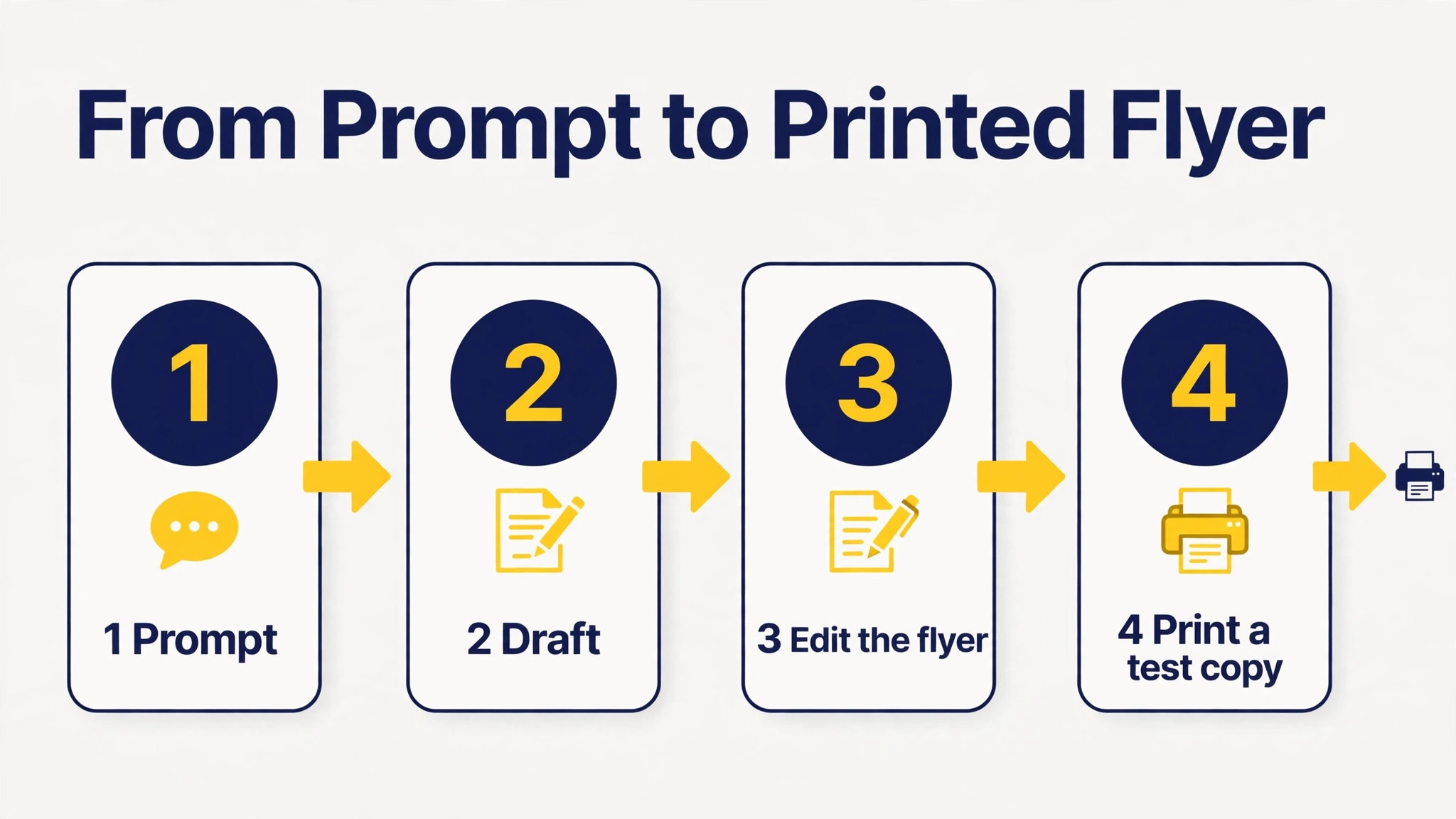
Speed matters because flyers are usually made under pressure. A sale starts on Friday, a gig is announced on Tuesday, a class needs a handout tomorrow morning. A tool that produces a usable draft in a minute and lets you edit it in ten is worth more than a powerful editor that takes an evening to learn. The tools in this guide were judged on that clock, as well as on the quality of what they produce when the deadline is tight.
Print quality is the second reason the choice matters. A flyer designed for a phone screen can look perfect online and terrible on paper, because print needs higher resolution, correct sizes, and bleed around the edges. Some tools handle those details automatically and export a print ready PDF. Others export a low resolution image that falls apart on a printer. This guide marks that difference clearly, because it is the difference between a flyer you can hand out and a flyer you can only post.
The Five Tools at a Glance
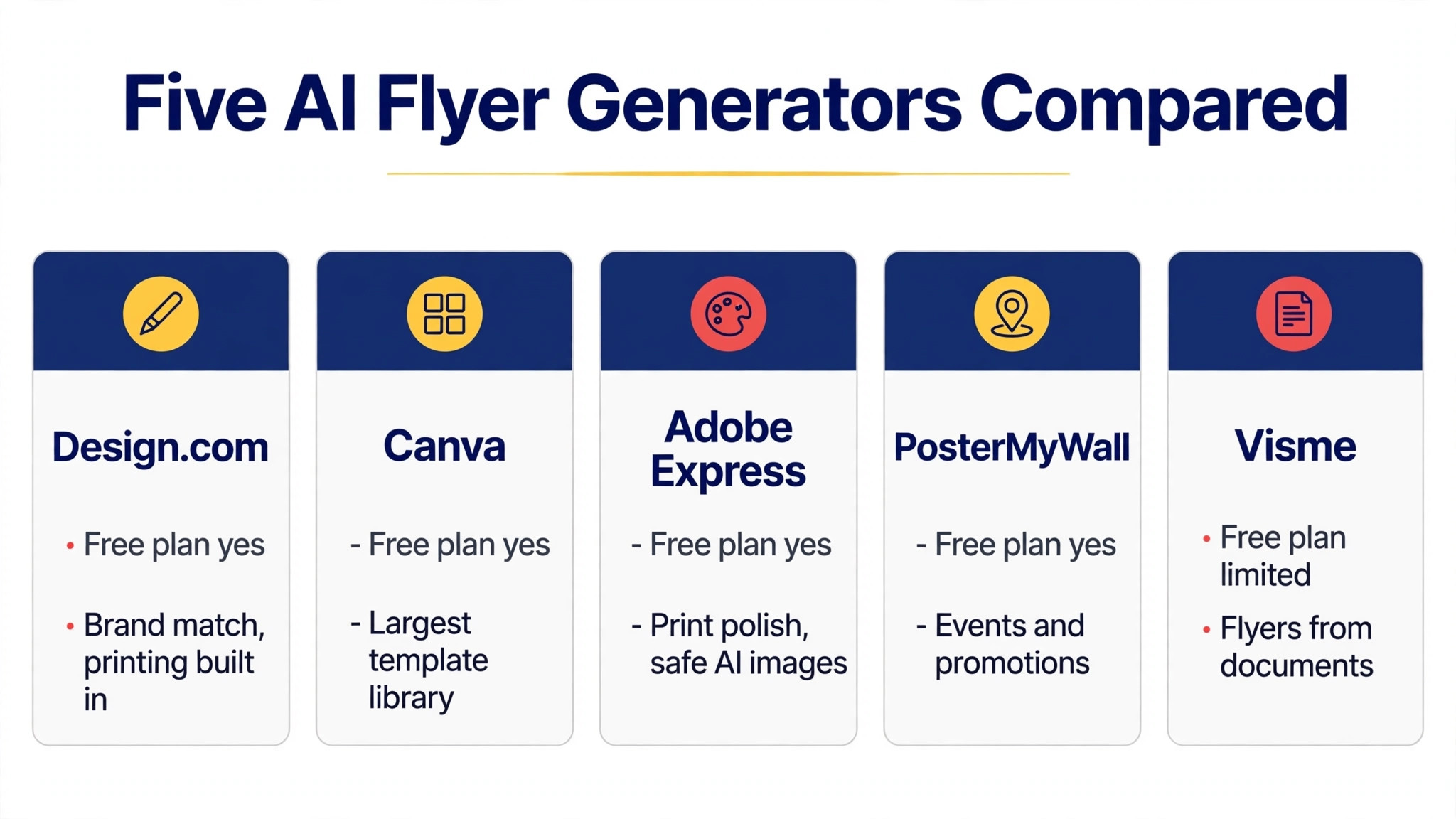
The table below gives the short version of the comparison among the best ai flyer generators. Read it to narrow the field to two candidates, then read the detailed sections for those tools before you decide. Prices were reported in autumn 2026 from vendor pages and published comparisons, and sources disagree on several figures, so confirm the current price on the vendor pricing page before you pay.
| Tool | Best for | Free plan | Paid from |
|---|---|---|---|
| Design.com | On brand flyers plus printing | Yes | About 3 dollars a month on annual billing |
| Canva | Best overall, largest template library | Yes | About 13 dollars a month |
| Adobe Express | Print polish, safe AI imagery | Yes | 9.99 dollars a month |
| PosterMyWall | Events and promotions | Yes | About 10 to 13 dollars a month |
| Visme | Flyers built from documents or links | Limited | 12.25 dollars a month on annual billing |
Best Pick by Job
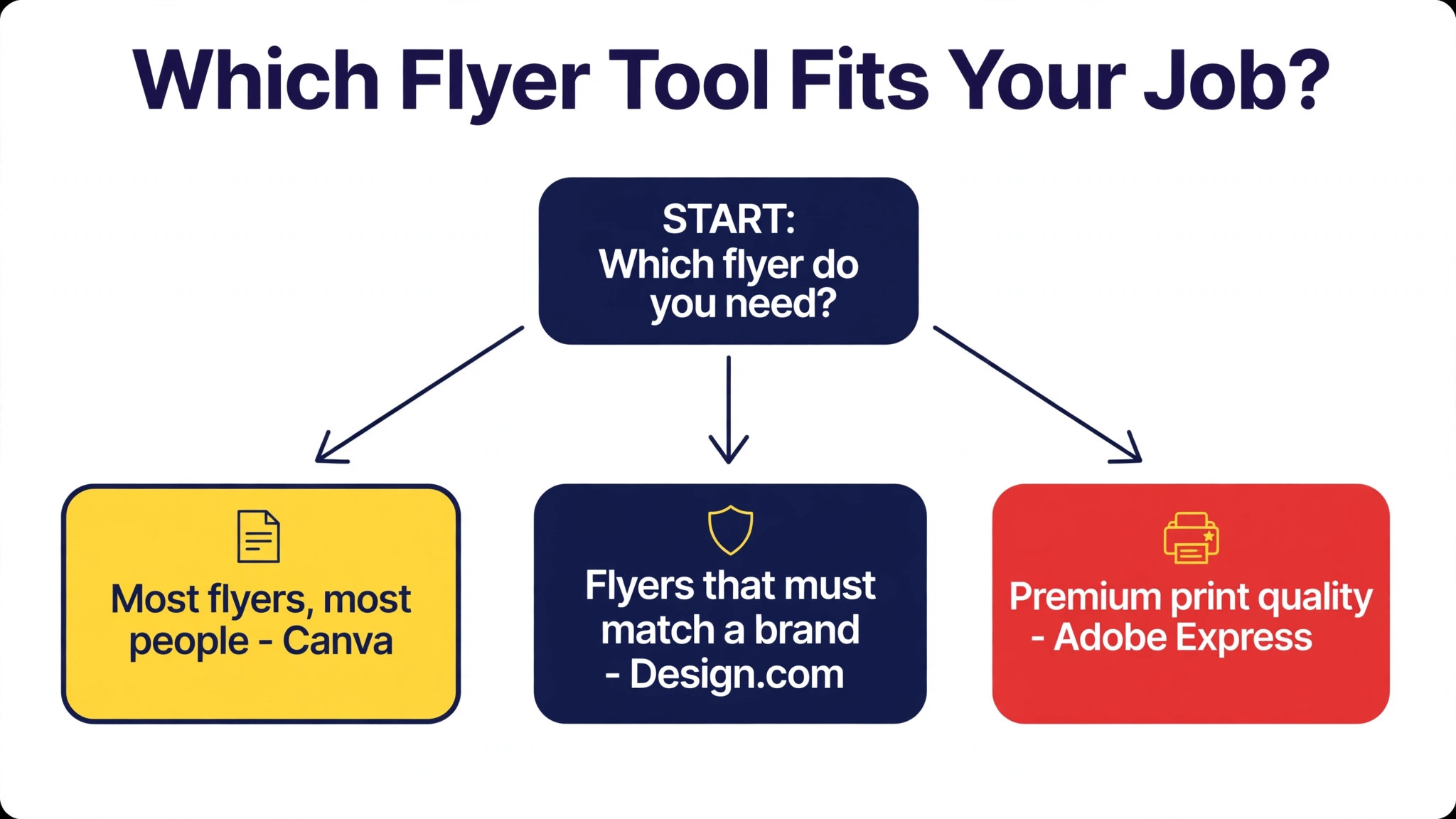
The table below picks one of the best ai flyer generators for each common job, so you can skip straight to the tool that fits your flyer.
| Job | Pick | Reason |
|---|---|---|
| Most flyers, most people | Canva | Largest library, easiest editor, strong AI help |
| Flyers that must match a brand | Design.com | Brand kit applied automatically, printing built in |
| Premium print quality | Adobe Express | Firefly images, clean PDF export, Adobe polish |
| Event and promo flyers | PosterMyWall | Event layouts, email and social built in |
| Flyers from a document | Visme | Turns a link or file into a designed flyer |
The Five Tools in Detail
1. Design.com
Design.com approaches flyers from the brand side, and that is what makes it different. You enter your business name and a few keywords, and it generates flyer concepts that already use your colours and typography. The result looks like it came from the same marketing team as your logo and your business cards, because it did, in the sense that the same brand kit drives all of them. For a small business that sends flyers regularly, that consistency is worth more than any single template.
The editor handles gradients, drop shadows, curved text, and a large shape library, and the templates cover event promos, sale announcements, and product launches. Downloads come in PNG, JPG, SVG, EPS, and PDF, which means the same design can go to a printer and to a social feed without rebuilding it. The platform also offers printing, so a flyer designed in the tool can be ordered as a physical product without exporting a file and uploading it elsewhere. That single path from design to print saves a step that trips up many first time flyer makers.
Pricing is free to start, with paid plans reported from about 3 dollars a month on annual billing for Starter, about 4 dollars for Value, and about 5 dollars for Premium, although sources disagree and there is no plain public pricing page, so confirm the total at checkout.
The free plan lets you customise and download basic flyer templates without a credit card, while paid plans add high resolution and vector downloads plus full brand kit access. The weakness is template depth. The library is smaller than Canva, and a business that wants a very unusual layout may find the options limited. For a branded flyer made fast, it is a strong pick, and the best ai flyer generators for small businesses usually include it for that reason.
2. Canva
Canva is the best overall AI flyer generator for most people, and the reasons are hard to argue with. The template library is the largest in this category, with thousands of flyer specific starting points, and the AI features sit on top of that library rather than replacing it. Magic Design turns a prompt into a full layout, Magic Write drafts the headline and body copy, and the background remover and image tools clean up photos without leaving the editor. A beginner can produce a good flyer in ten minutes, and a regular user can produce a great one in half an hour.
The free plan is genuinely usable for flyers. It includes many templates and limited AI uses, which is enough for an occasional flyer. Pro is reported from about 13 dollars a month, or about 144 dollars a year, and adds the full Magic Studio set, brand kits, and PDF export with bleed for print. The brand kit is the feature that matters most for repeat flyer makers, because it stores your colours, fonts, and logo in one place and applies them to every new design. Without it, each flyer starts from scratch and the results drift.
The weakness is print precision. Canva works from fixed template sizes, and exact size control is limited unless you resize manually on a Pro plan. A flyer that needs an unusual print size or a strict bleed setting takes more fiddling than in a dedicated print tool. Canva also leans on templates, so two businesses using the same popular template can end up with flyers that look related. Change the photo, the colours, and the headline, and that problem mostly disappears. For most flyers, Canva is the safe first choice.
3. Adobe Express
Adobe Express delivers the design quality you would expect from Adobe in a package that a non designer can actually use. The free plan is usable, and Premium runs 9.99 dollars a month, adding 250 generative credits a month, the full Adobe Stock library, and Firefly powered image generation. Firefly is trained on licensed content, which matters when the flyer will be used commercially or when copyright claims worry you. That safety is a real advantage over tools that generate images from less clearly licensed sources.
The AI toolkit covers text to image generation, background and object removal, and generative fill, all inside a clean editor with strong typography controls. Layout suggestions and font pairing help a beginner avoid the most common design errors, and the export options include high resolution PDF suitable for print. For a flyer that will be printed in quantity and handed to strangers, that polish shows. Colours stay accurate, text stays sharp, and the finished piece feels professional in a way that a rushed template rarely does.
The weakness is template range. The library is smaller than Canva, and the tool is less suited to someone who wants to browse hundreds of event flyers before choosing one. Adobe Express also sits inside the Adobe ecosystem, so users who do not use other Adobe products get less value from the subscription. Choose it when print quality and safe imagery matter most, and when the flyer represents a business that cannot afford a copyright surprise.
4. PosterMyWall
PosterMyWall is built around the kind of marketing small businesses actually produce, and flyers are at the centre of that work. The free plan includes more than a million templates, and Premium is reported at roughly 10 to 13 dollars a month, adding unlimited watermark free downloads, monthly AI credits, and a full AI suite. The AI tools cover text to image generation, an AI writer for captions, an AI background remover, plus voiceovers and subtitles for video versions of the same promotion.
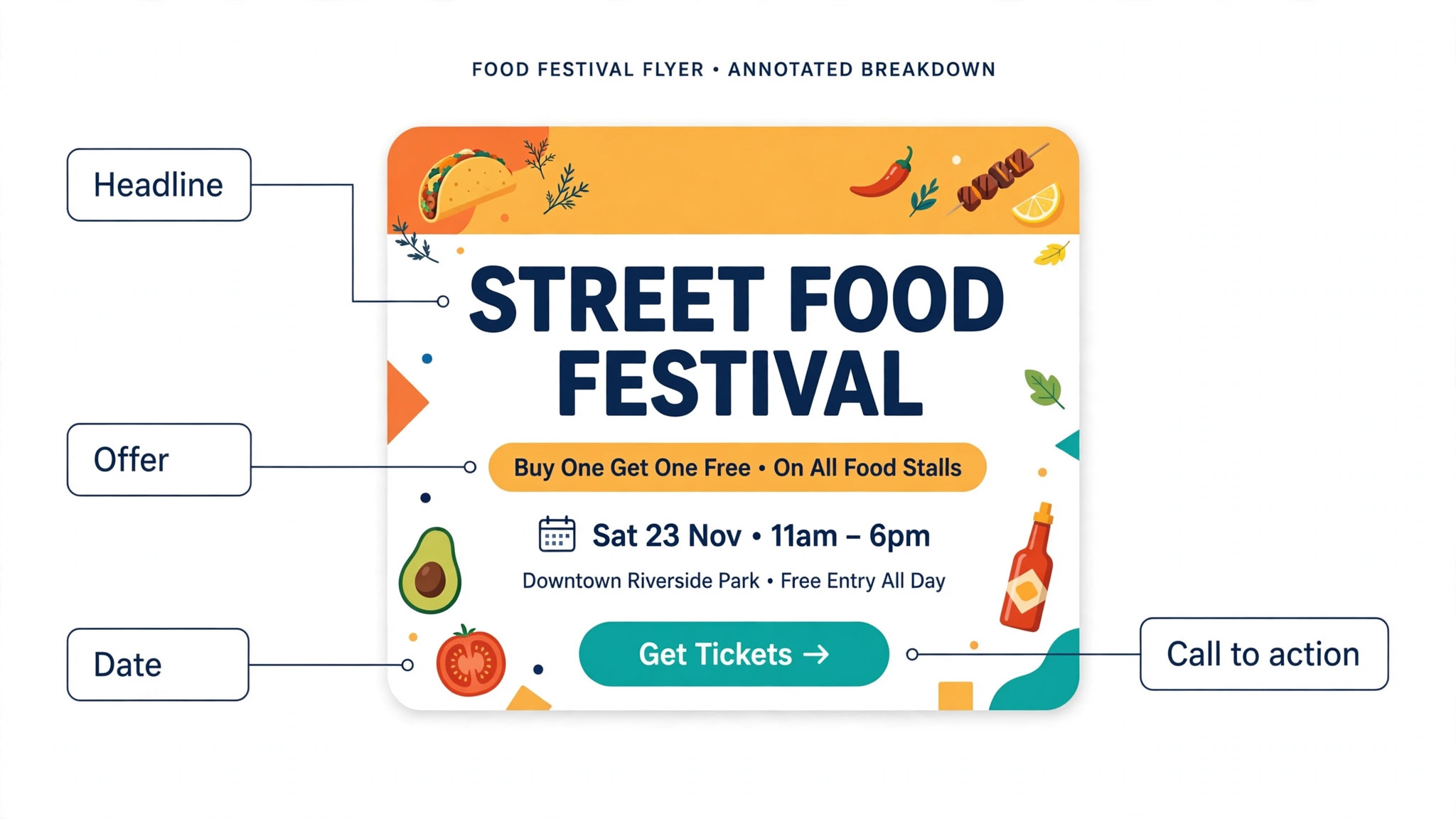
The strength is the workflow around the flyer. You can design the flyer, turn it into a social post, build an event page, and send an email campaign without leaving the platform. For a restaurant announcing a weekly special, a gym promoting a class, or a shop running a sale, that single workflow saves more time than any single design feature. The event specific layouts are also a genuine advantage, because they are built around the information an event flyer actually needs, such as the date, the venue, and the ticket link, rather than a generic layout with those details squeezed in.
The weakness is print finesse. Downloads on the free plan carry a watermark, and high resolution PDF export sits behind the paid plan. The editor is also less refined than Canva or Adobe Express, and the designs can feel template led when you compare them side by side. For an event flyer that needs to exist on paper, on social media, and in an inbox by the same afternoon, PosterMyWall is the fastest route, and the price is fair for what it covers.
5. Visme
Visme leans harder into documents and data than pure flyer design, but it handles the job well, and it does one thing no other tool on this list does as naturally. Its AI Designer can draft a flyer from a prompt, a link, or an uploaded file, which means you can hand it a product page or a report and get a structured flyer back. For a business flyer built from real content, such as a price list, a service description, or a set of figures, that starting point saves a lot of copying and pasting.
Pricing starts at 12.25 dollars a month for Starter on annual billing, which includes 200 AI credits, and climbs to 24.75 dollars a month for Pro, which adds 500 credits, a brand kit, and analytics. The free plan is limited, so Visme is not the best choice for a one off free flyer. It earns its place when flyers are part of a regular content routine, and when the flyer needs charts, tables, or data presented cleanly. The layout tools are structured rather than freeform, which suits informational flyers and suits a playful event flyer less well.
The weakness is that the design range feels corporate next to Canva or PosterMyWall. A party flyer or a gig poster will look better in a tool built for that energy. Visme also charges for AI credits, so heavy use adds up in a way that a flat subscription does not. Choose it when the flyer must present information accurately, when it starts from an existing document, or when your team already uses Visme for presentations and reports. For a data heavy flyer, it is the most capable tool here.
Print or Digital First
A flyer built for print and a flyer built for a phone screen are different products, and deciding which one comes first changes the design. A print flyer needs a fixed size, usually a standard paper size such as A5 or US Letter, high resolution at 300 dots per inch, and bleed around the edges so the printer can trim it cleanly. A digital flyer needs a size that fits a feed, a headline that reads at thumbnail size, and a file small enough to load quickly. A design that tries to serve both without choosing will serve neither well.
Start with the main use. If the flyer will be printed and handed out, design at the print size first, export a PDF with bleed, and then make a smaller digital version from the same file. If the flyer will live on social media, design at the feed size first, keep the text large, and export a JPG or PNG. Canva and Adobe Express both handle the print export well once you choose the right size. PosterMyWall handles the digital spread better than the print finish. Design.com handles the brand consistency across both, which matters when the same offer appears in print and online in the same week.
Resolution is the number to check before you print. A flyer exported at screen resolution will look soft on paper, even if it looked sharp on your monitor. Export at 300 dots per inch for print, and check the file size before you send it to the printer. A printer will also ask for bleed, usually an extra eighth of an inch on each side, and for fonts to be embedded or outlined in the PDF. These details sound technical, but they are the difference between a flyer that looks professional and one that arrives with a white border and fuzzy text.
How to Judge an AI Flyer Generator
Start with the prompt test. Type the same short description into each tool you are considering, and compare the first three results. A good tool returns layouts that understand the event, the tone, and the key details. A weak tool returns generic designs that could belong to any business. This test takes five minutes and tells you more than any feature list, because it shows how the AI actually behaves on your brief rather than on a demo.
Next, test the editing. Change the headline, swap the photo, move a block of text, and change the colours to your brand. A good editor makes each change in seconds and keeps the layout intact. A weak editor fights you, breaks the alignment, or hides the control you need behind a menu. Flyers are edited more than they are generated, so the editor matters more than the first draft. Pay attention to text editing in particular, because a flyer lives or dies on its words, and an editor that makes text hard to adjust will slow every future flyer.
Then check the export. Export the flyer at the size and format you need, and open the file at full size. Look for blurry text, compressed photos, or colours that shifted during export. Export a print PDF if you plan to print, and check that the bleed and resolution are correct. A tool that generates beautifully but exports poorly is a bad tool for real work, and this test catches it before you commit to a subscription.
Finally, check the cost of the features you actually used. A free plan that watermarks downloads, limits AI uses, or blocks print export is not really free for your purpose. Add up the monthly cost, the cost of any extra AI credits, and the cost of the stock images you needed. The best ai flyer generators are honest about these costs on their pricing pages, and the ones that hide them behind a checkout deserve a second look before you pay.
Your Flyer Setup Checklist
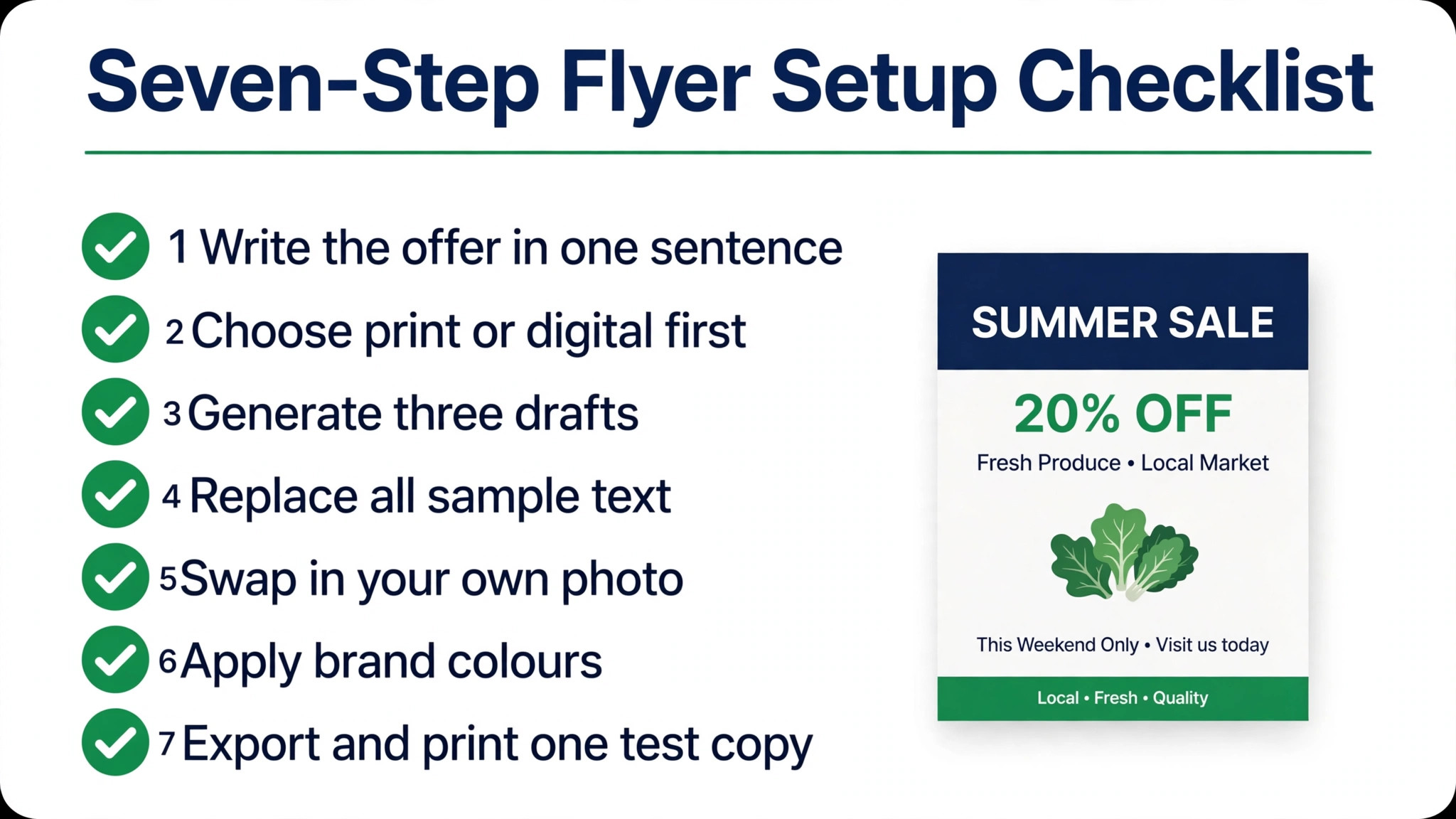
Use this checklist in order. Each step is small, and skipping one is how a flyer goes to print with the wrong date.
- Write the offer in one sentence, with the date, the price, and the action you want the reader to take.
- Choose the main use, print or digital, and set the canvas to the correct size before you design anything.
- Generate three drafts from your prompt and pick the layout with the clearest headline, not the prettiest picture.
- Replace every word of sample text with your real details, then read the whole flyer aloud once.
- Swap in your own photo or a stock image that matches the offer, and check it at the size people will see it.
- Apply your brand colours and fonts, then check the contrast of the headline against its background.
- Export at the right resolution, check the file at full size, and print one test copy before you order a full run.
Mistakes That Ruin a Good Flyer
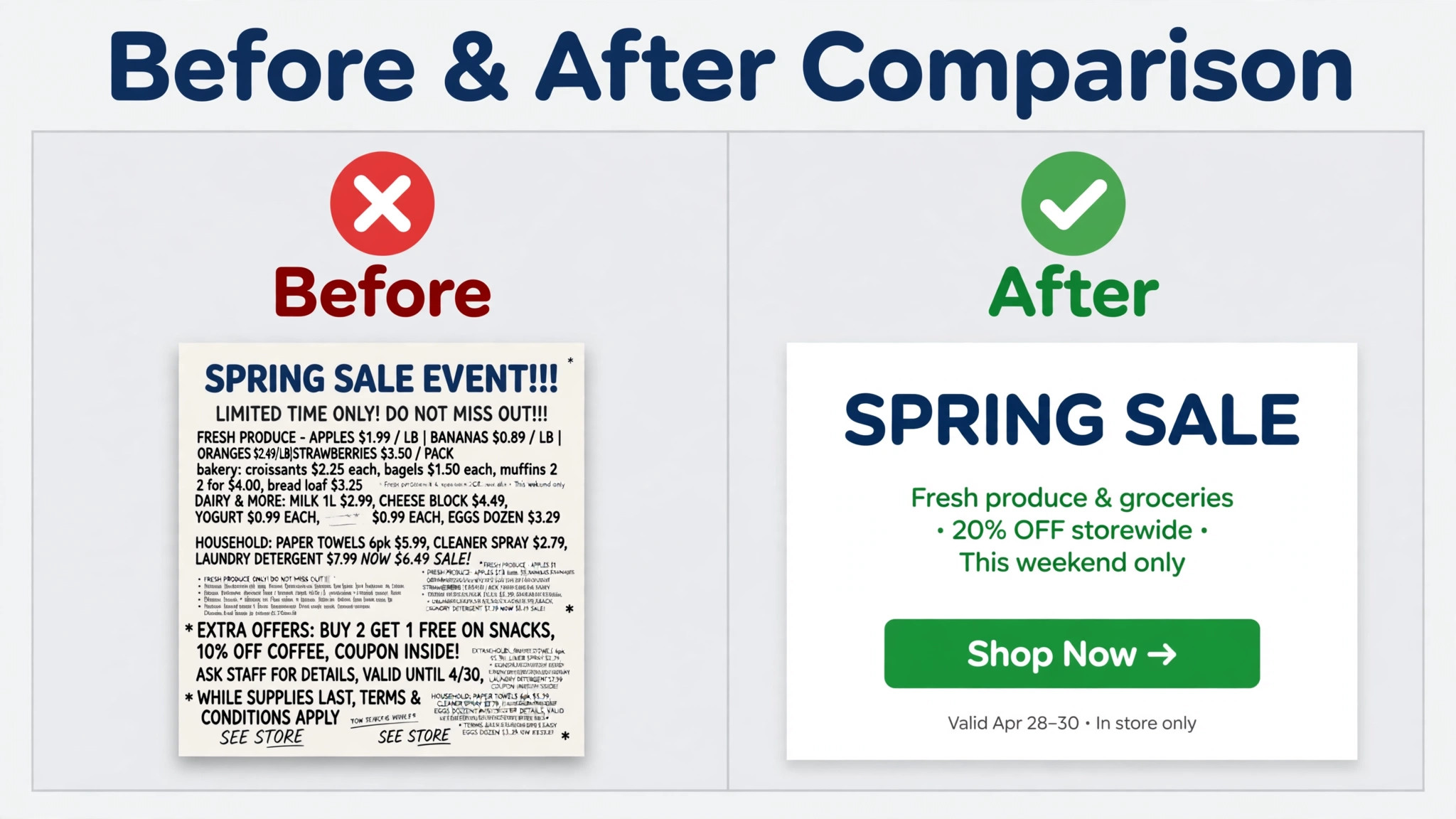
The most common mistake is writing too much. A flyer is not a brochure, and a reader gives it about three seconds before deciding whether to keep reading. One headline, one offer, and one call to action is the practical maximum. Everything else, such as the full menu, the terms, or the back story, belongs on a website or a second page. Cut words until the flyer feels almost empty, then add back only what a stranger needs to act.
The second mistake is choosing the wrong size. A flyer designed for a phone screen will look lost on a noticeboard, and a flyer designed for print will shrink into unreadable text on a feed. Decide the main use first, design for it, and make a second version for the other use rather than stretching one file to fit both. The third mistake is low resolution. A photo that looks fine on a screen can turn soft on paper, and a logo exported at screen size will look fuzzy when printed large. Start with high resolution files and export at 300 dots per inch for print.
The fourth mistake is trusting the AI without checking it. AI copy can invent a date, a price, or a detail that was never in your prompt, and AI images can add extra fingers, garbled text, or a logo that is almost but not quite yours. Read every word, zoom into every image, and check every number before the flyer goes out. The AI is a fast draft assistant, not a proofreader, and the final check is always yours.
What Flyers Really Cost
A single flyer can cost nothing. Canva, Adobe Express, PosterMyWall, and Design.com all offer free plans that cover a basic flyer, and Microsoft Designer is free with a Microsoft account for simple personal projects. The free tier is enough when you make flyers occasionally and you can live with limited AI uses, a watermark, or a smaller template range. For a one off event, free is the right price, and paying for a subscription you will use once is a waste.
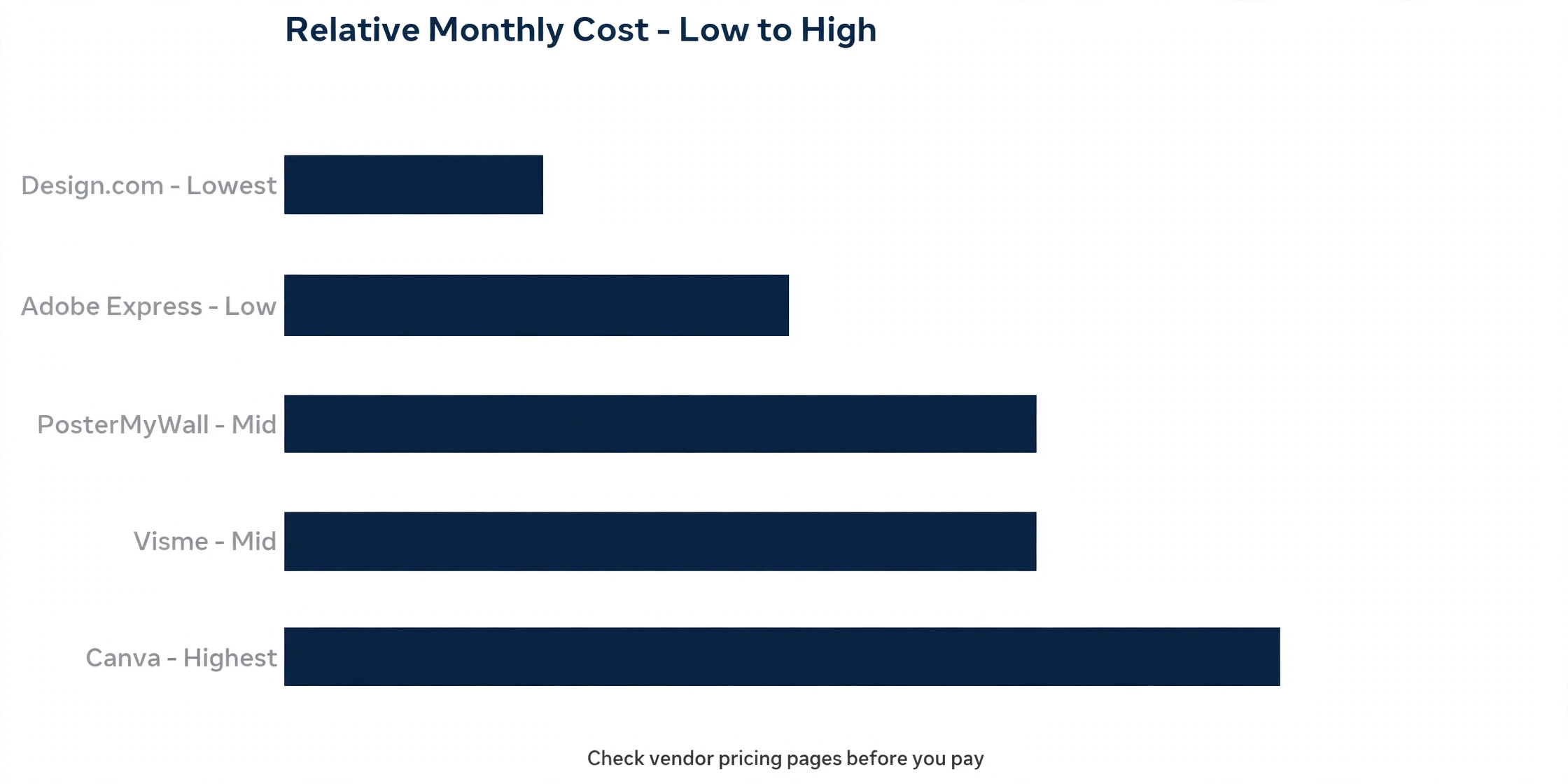
Regular flyer makers should budget monthly. Canva Pro is reported from about 13 dollars a month, Adobe Express Premium is 9.99 dollars a month, PosterMyWall Premium is roughly 10 to 13 dollars a month, and Visme Starter is 12.25 dollars a month on annual billing. Design.com is reported from about 3 dollars a month on annual billing, which makes it the cheapest paid option here, although sources disagree on the exact figure. The differences between these prices are small, so choose on features rather than on a few dollars a month. A tool that saves you an hour per flyer earns its subscription quickly.
Print costs sit on top of the design cost, and they depend on size, paper, and quantity. A small run of 100 flyers from an online printer can cost less than a dinner out, while a large run of several thousand brings the per flyer cost down sharply. Design.com offers printing inside the platform, Canva Print offers it as well, and both let you compare the printed price before you commit. Always order a small test run first when the flyer matters, because a reprint costs more than a test.
Frequently Asked Questions
This section answers the questions people ask most often when they compare the best ai flyer generators. Each answer keeps to the practical point, so you can decide without reading another guide.
What is the best free AI flyer generator?
Canva is the best free starting point for most people, because the free plan includes many templates and limited AI uses, which is enough for an occasional flyer. Microsoft Designer is free with a Microsoft account and suits simple personal projects. PosterMyWall is free to design, but downloads carry a watermark until you pay. The best free tool is the one whose free tier covers the export you actually need, so check the export limits before you design.
Can AI flyers be printed professionally?
Yes, when the tool exports a high resolution PDF with bleed. Canva Pro, Adobe Express, and Design.com all offer print ready exports, and PosterMyWall offers high resolution PDF on its paid plan. Export at 300 dots per inch, add bleed, and print one test copy before you order a full run. A flyer exported as a low resolution JPG will look soft on paper, even if it looked sharp on your screen.
Do I own the images an AI flyer generator creates?
Ownership depends on the tool and the plan. Adobe Express uses Firefly, which is trained on licensed content, and that gives commercial users more confidence. Other tools use different image models with different terms, so read the terms of use for the plan you are on before you use a generated image commercially. Stock photos inside a template usually carry their own licence as well, and the safest habit is to use your own photos for the main image.
How long does it take to make a flyer with AI?
A first draft takes about a minute from a good prompt, and a finished flyer takes ten to thirty minutes including editing, proofreading, and export. The prompt matters. A specific prompt with the event, the date, the offer, and the tone produces a better draft than a vague one. Budget an extra ten minutes for the proofread, because AI copy and AI images both need a human check before they go out.
What size should a flyer be?
It depends on the use. A common print size is A5 or US Letter, and a common digital size is 1080 by 1350 pixels for a social feed. Check the size your printer or your platform asks for before you start, and design at that size rather than resizing later. Resizing a finished flyer often breaks the layout, while starting at the right size keeps everything aligned.
Can I use an AI flyer generator for my business logo too?
Some tools cover both jobs. Design.com starts from your logo and brand kit, so the flyer and the logo share the same identity, and Canva Pro stores a brand kit that applies to flyers and other designs. A dedicated logo maker will still give you more control over the logo itself, but for a flyer that must match an existing brand, a tool with a brand kit is the right choice.
Our Verdict
Canva is the best AI flyer generator for most people, because the template library is the largest, the editor is the easiest, and the free plan is genuinely useful. Adobe Express is the pick when print polish and commercially safe imagery matter most, and its 9.99 dollar monthly price is fair for what it offers. Design.com is the pick when the flyer must match a brand without extra work, and its low reported price makes it the cheapest paid option here. PosterMyWall is the pick for events and promotions, where one workflow covers the flyer, the social post, and the email. Visme is the pick for flyers built from documents and data.
Start with the prompt test. Type the same description into two tools, compare the first drafts, and test the editor and the export before you pay. That short test takes an evening, and it tells you more than any comparison table, because it shows how each tool behaves on your brief rather than on a demo. Pick the tool that fits the flyer you actually make, not the one with the longest feature list, and your next flyer will take minutes instead of hours.