Of the best Twitch banner makers, Canva leads for most streamers because it combines free Twitch sized templates, drag and drop editing, and exports that meet Twitch size rules without any design skill. Placeit is the best choice for gaming first templates, and Adobe Express is the best free route to a polished result with Adobe stock imagery. That is the short answer.
The rest of this guide tests the full field, because the best twitch banner makers are not all the same kind of tool. Some are template libraries built for gamers. Some are full photo editors that happen to handle banners well. A few sell ready made branding packs so you never open an editor at all. This guide compares 14 real options on templates, price, export quality, and ease of use, so you can pick one and have a finished banner tonight.
What Makes a Good Twitch Banner Maker
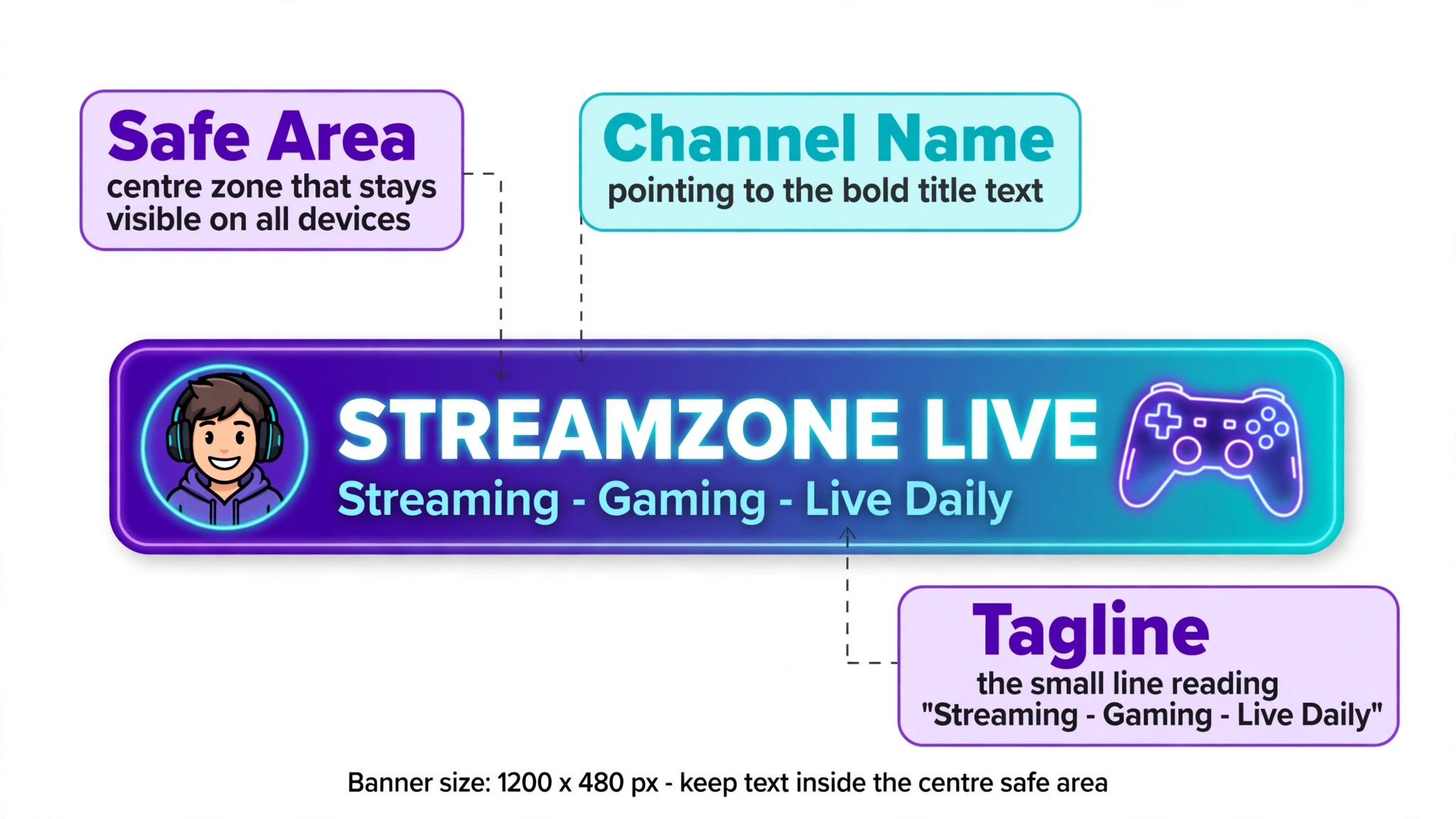
A Twitch profile banner lives at 1200 by 480 pixels, and Twitch recommends a file under 10 MB in JPG, PNG, or GIF format. The banner sits at the top of your channel page, wide and short, which means a design made for any other platform will crop badly. A good banner maker starts you at the right size or offers a Twitch preset, so you never guess dimensions. That single feature separates the tools worth using from the ones that waste an evening.
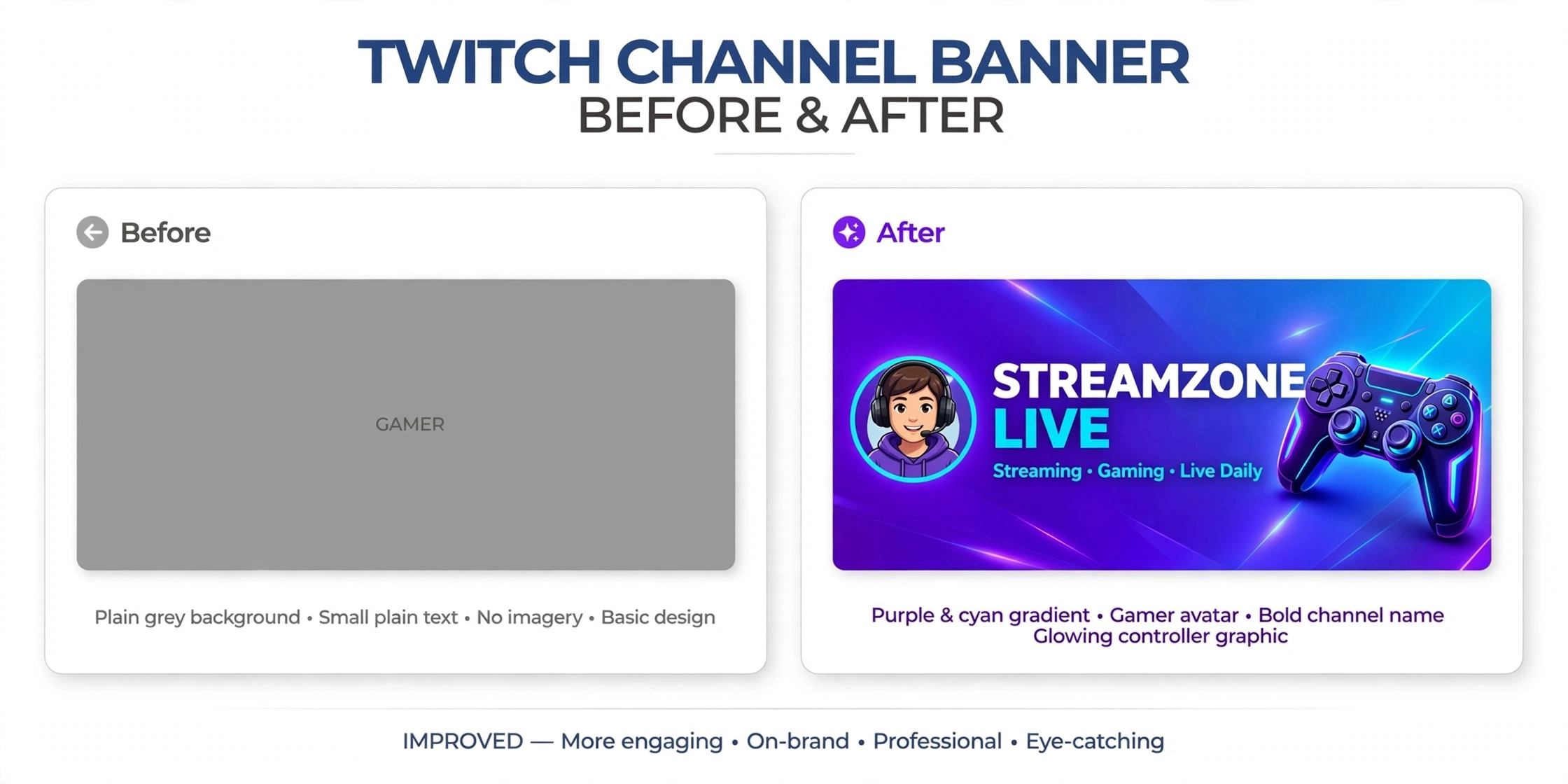
Template quality matters next. A library of gaming templates saves hours, but only if the templates look current. Dated clip art fonts and neon gradients from five years ago will make a new channel look abandoned before anyone watches a stream. The best twitch banner makers update their libraries regularly and cover more than one game genre. A horror streamer and a cozy farming streamer need very different art, and a tool with one visual style cannot serve both.
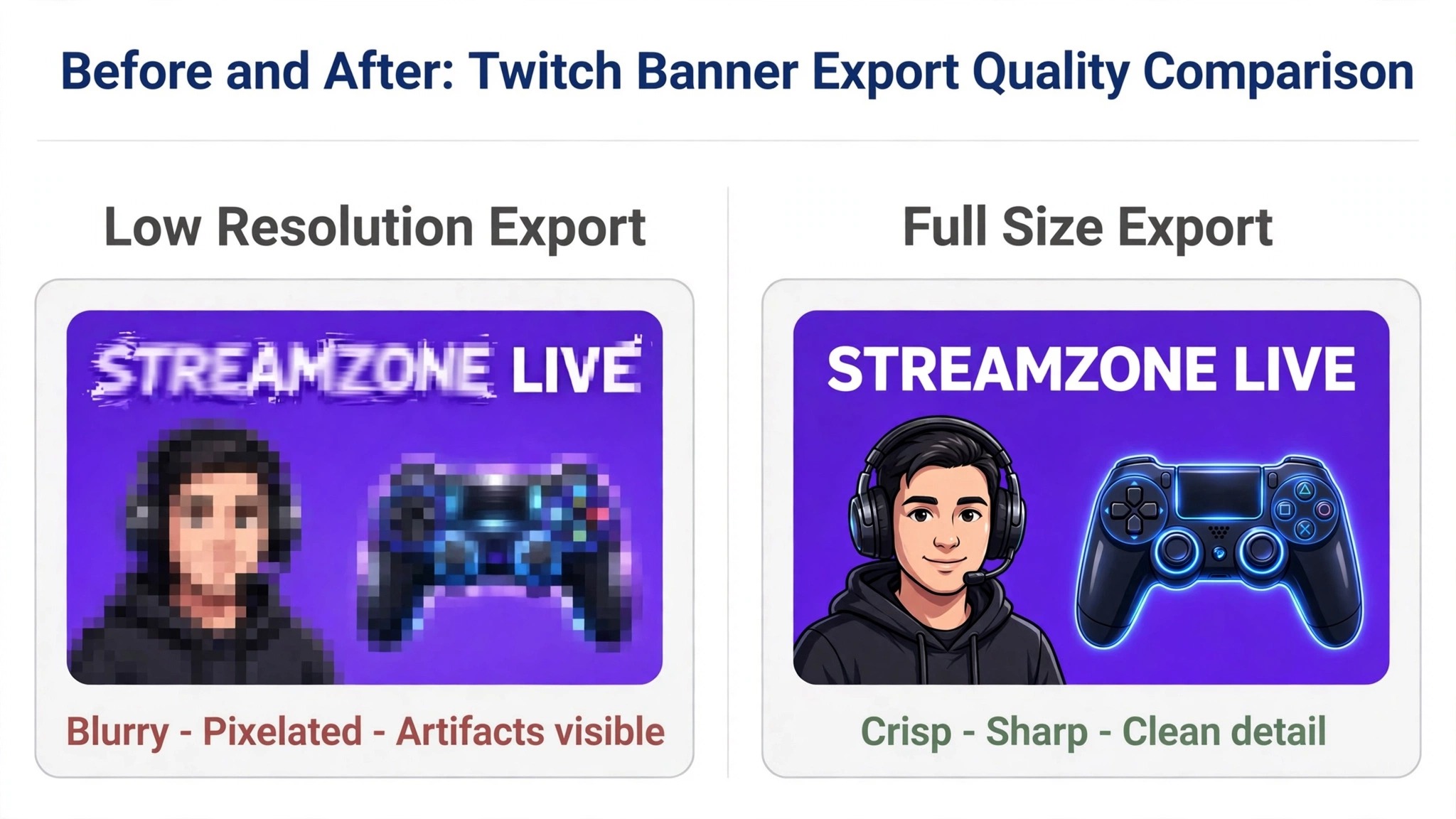
Export quality is the third test. A banner that looks sharp in the editor and blurry on your channel is worse than no banner at all, because it signals low effort. Free plans that cap exports at low resolution are a real limitation, so this guide notes where the free tier holds you back.
A good export should stay crisp when viewed full width on a desktop monitor, and the file should load quickly so the channel page never feels slow. Ease of use is the final test. Most streamers are not designers. A tool that needs a tutorial before the first banner is a tool most people will abandon, while a tool that produces a finished banner in fifteen minutes will get used again when the channel rebrands.
How We Picked the Best Twitch Banner Makers
We started from tools streamers actually recommend in 2026, including the names that appear across Restream, CapCut, FounderJar, and Fueler roundups, then checked each one for a Twitch banner preset or template set, a free way to try it, and an export that meets Twitch requirements. Tools that only make logos, tools that shut down, and tools with no banner sizing were excluded. Every tool below is available now and can produce a 1200 by 480 banner. Prices are given as listed by the vendors at the time of writing, and where a vendor does not publish a clear price, this guide says so rather than guessing.
The 14 Best Twitch Banner Makers Compared
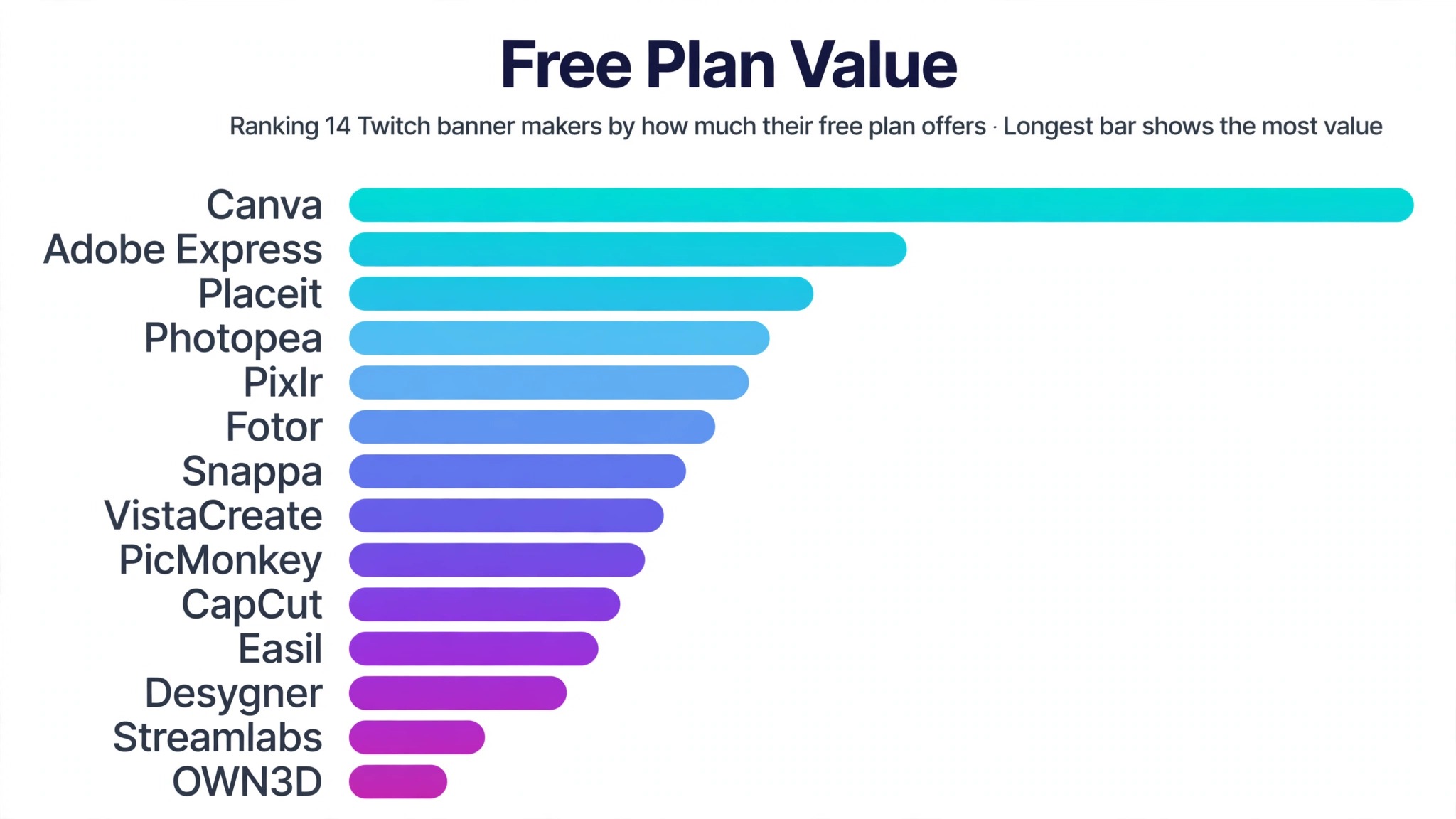
| Tool | Free plan | Paid plans start at | Best for |
|---|---|---|---|
| Canva | Yes | About 120 dollars a year for Pro | Most streamers |
| Placeit | Limited | About 15 dollars a month | Gaming templates |
| Adobe Express | Yes | About 10 dollars a month | Polished free designs |
| VistaCreate | Yes | About 13 dollars a month | Animated banners |
| Snappa | Yes | About 15 dollars a month | Fast simple banners |
| Pixlr | Yes | About 8 dollars a month | Photo editing control |
| Fotor | Yes | About 9 dollars a month | Quick templates |
| PicMonkey | Trial | About 8 dollars a month | Text heavy designs |
| CapCut | Yes | About 10 dollars a month | Video style graphics |
| Easil | Yes | About 8 dollars a month | Brand consistency |
| Streamlabs | Yes | Subscription for premium packs | Ready made packs |
| OWN3D | Free samples | One time purchases | Premium overlay sets |
| Photopea | Yes | A few dollars a month | Free Photoshop style editing |
| Desygner | Yes | About 7 dollars a month | Business like channels |
Best Pick by Job
| Job | Best pick | Why it wins |
|---|---|---|
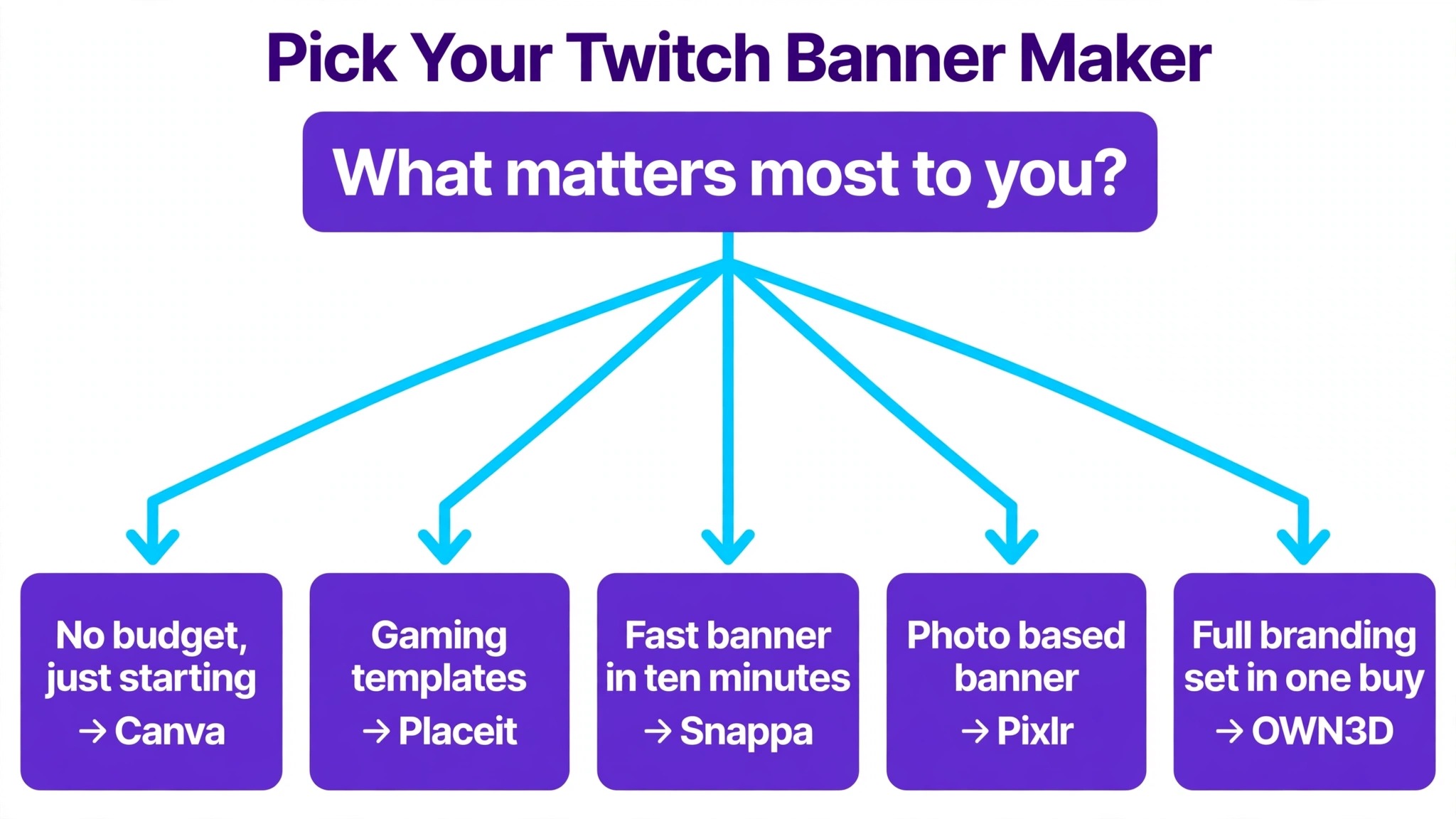
| Brand new streamer, no budget | Canva | Free Twitch templates and correct sizing |
| Gaming focused channel | Placeit | Templates built for esports and genres |
| Polished look with no spend | Adobe Express | Free plan plus Adobe stock images |
| Fast banner in ten minutes | Snappa | Preset sizes and minimal learning curve |
| Photo based banner | Pixlr | Layers and masking like a desktop editor |
| Full branding set in one buy | OWN3D | Matching overlays, alerts, and banner |
| No install, pro level control | Photopea | Photoshop style tools free in the browser |
1. Canva
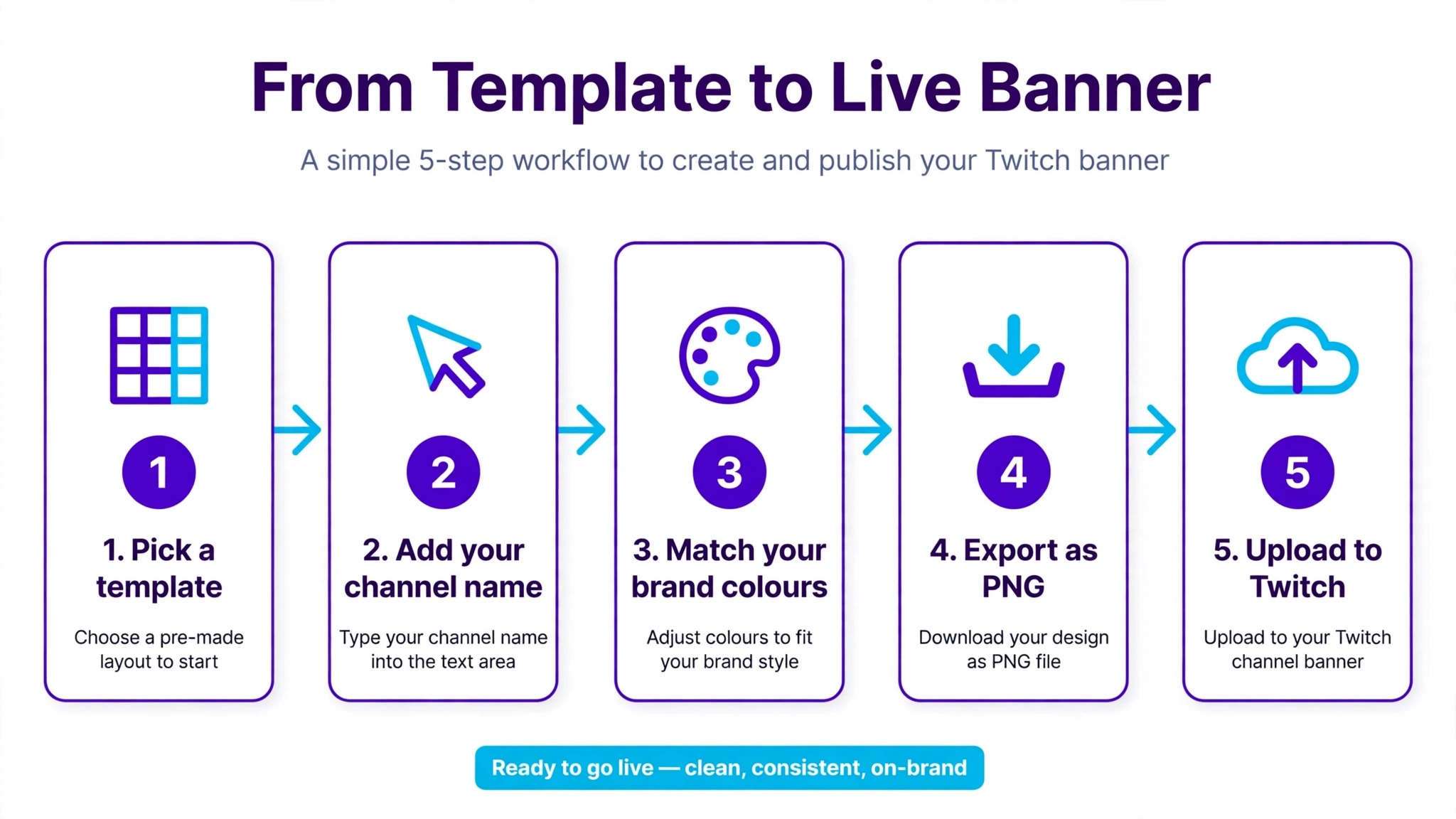
Canva is the default answer for a reason. It offers hundreds of free Twitch banner templates, a Twitch banner size preset, and drag and drop editing that a complete beginner can learn in minutes. Search the template library for your game or mood, swap the text and colours, drop in your own logo or a screenshot, and export as PNG or JPG. The free plan covers most of what a new streamer needs.
Pro, at about 120 dollars a year, adds premium templates, background removal, and brand kit features that keep colours and fonts consistent across your banner, panels, and offline screen. The weakness is originality. Canva templates are so widely used that a popular design can appear on several channels at once, so change the fonts, the layout, and the imagery rather than publishing a template untouched. For most streamers, that small effort is enough, and Canva remains the fastest route from nothing to a finished banner.
2. Placeit
Placeit is built for gamers first, and it shows in the template library. Thousands of layouts cover esports, FPS, RPG, horror, racing, and cozy games, with matching logos, overlays, and stream screens available in the same style. The editor is simpler than Canva, which is both the appeal and the limit. You pick a template, change the text and colours, and download. Deep customisation is not the point. Speed and a gaming native look are the point.
Pricing runs about 15 dollars a month or about 90 dollars a year, and the subscription covers the whole Placeit library, not just banners. There is a limited free option, but the best templates sit behind the subscription. Choose Placeit if you want your channel to look like it belongs on Twitch from day one and you would rather start from a gaming template than adapt a general design tool.
3. Adobe Express
Adobe Express, formerly Adobe Spark, gives you Adobe polish without the Adobe learning curve. The free plan includes templates for Twitch banners and social graphics, access to Adobe Stock photos, and simple drag and drop editing in the browser. The premium plan costs about 10 dollars a month and unlocks more templates, premium stock, and background removal.
The editor handles layered designs better than most free tools, which matters when your banner has a character cutout, a logo, and text competing for space. Adobe Express suits streamers who want a clean, professional result and already like the Adobe ecosystem. Its template library is smaller for gaming than Placeit, so you may need to adapt a general template with your own game art, but the finished quality is high.
4. VistaCreate
VistaCreate, formerly Crello, is a strong option for streamers who want movement in their branding. It offers thousands of social media templates, including designs sized for Twitch, plus animation tools that let you export animated graphics for other uses. The free plan is genuinely usable, with a large template set and stock photos included. The Pro plan costs about 13 dollars a month and adds more templates, background removal, and a brand kit.
VistaCreate sits between Canva and Adobe Express in feel. It is easy to learn, visually polished, and a good choice if you want your banner, panels, and social posts to share one style. The Twitch specific template count is lower than Placeit, but the animation features give it an edge for streamers who reuse designs across platforms.
5. Snappa
Snappa is the fastest tool on this list for a simple banner. Pick the Twitch banner preset, choose a template or a background from the stock library, add your channel name, and export. The whole process can take ten minutes, and the free plan is enough for a basic banner. Paid plans start at about 15 dollars a month and add more downloads and premium assets.
Snappa will not win awards for depth. There are no layers in the Photoshop sense, no advanced masking, and no animation. What it offers is speed and zero learning curve, which is exactly what a streamer who wants a clean banner today needs. If you plan to redesign often or want detailed control, look at Pixlr or Photopea instead. If you want one good banner with minimal effort, Snappa delivers.
6. Pixlr
Pixlr is a photo editor first and a banner maker second, and that order is its strength. It supports layers, masking, blending, and professional effects in the browser, which means you can cut out a character, blend a game screenshot into a background, and add text with real typographic control. The free version handles most banner work, with ads and some premium features locked behind a paid plan that starts at about 8 dollars a month.
The trade off is a learning curve. Pixlr expects you to know what layers are, and a beginner will need an evening to get comfortable. For streamers who already edit photos or want a banner built around their own screenshots, that investment pays off. The result can look like a custom commission rather than a template.
7. Fotor
Fotor combines a template library with a capable photo editor, and it works well for streamers who want a banner in minutes without a subscription. The free plan covers a useful range of Twitch and social templates, and the editor is friendly, with one click enhancements for photos that look dull straight from a screenshot. The Pro plan costs about 9 dollars a month and adds premium templates, more storage, and batch processing.
Fotor is less deep than Pixlr and less gaming focused than Placeit, which makes it a middle of the road choice. That is not a criticism. A middle of the road tool that you actually use beats a powerful tool you never open. Fotor suits casual streamers, variety streamers, and anyone who wants a decent banner without studying design.
8. PicMonkey
PicMonkey shines when your banner is mostly text. Its font library and text effects are stronger than most template tools, with curved text, outlines, shadows, and layering that make a channel name stand out at small sizes. That matters, because a Twitch banner is often seen at a fraction of its full width on mobile.
There is no permanent free plan, though a trial is available, and paid plans start at about 8 dollars a month. PicMonkey is not the best choice for photo heavy designs, and its gaming template range is thinner than Placeit. But if your brand is your name in bold type over a clean background, PicMonkey produces that look faster and better than any other tool here. Use it when typography carries the design.
9. CapCut
CapCut is best known as a video editor, but its desktop design tools make it a capable banner maker too. It offers ready made Twitch banner templates, stylish fonts, stickers, and effects, plus high resolution image editing with custom fonts and logo placement. The free version covers the basics, while advanced features sit behind a Pro subscription at about 10 dollars a month.
CapCut suits streamers who already edit clips in the app, because the banner can be designed in the same place as the stream highlights and social clips. The template set is smaller than Canva and the editor is less focused on print style design, but for a streamer building a visual identity across video and channel art, keeping everything in one app is a real convenience.
10. Easil
Easil is built around brand consistency, which makes it a good fit for streamers who treat their channel as a brand rather than a hobby. It offers thousands of templates, easy drag and drop editing, and tools that lock in your colours and fonts so every asset matches. The free plan is usable, and paid plans start at about 8 dollars a month.
Easil is less known than Canva, and its Twitch specific template count is smaller, but its strength is the workflow. Design the banner, then reuse the same locked brand elements for panels, social posts, and thumbnails without retyping hex codes each time. Streamers who already have a logo and a palette, and want every asset to match it, will get more from Easil than from a tool with a bigger template library.
11. Streamlabs
Streamlabs takes a different approach. Instead of starting from a blank canvas, you start from a ready made overlay and banner pack. The Streamlabs library includes free and premium stream overlays for Twitch, TikTok, and other platforms, and many packs include a matching banner, panels, alerts, and offline screen. The free library is useful, while premium packs are sold individually or through a subscription.
This route suits streamers who want a complete look in one download and do not enjoy designing. The trade off is uniqueness. A popular pack will appear on other channels, and customisation is limited compared with building your own design in Canva or Pixlr. If you want speed and a coordinated set, Streamlabs is the fastest path. If you want a banner nobody else has, design your own.
12. OWN3D
OWN3D sells premium overlay and banner sets made for Twitch, with one time purchases and a subscription pass for access to the full library. The designs are gaming native, with styles for FPS, MOBA, horror, and variety streaming, and most sets include a banner, overlays, alerts, panels, and emotes in the same visual language. Quality is high, and the sets are made by designers who understand streaming, so the text placement and safe areas are already correct.
The cost is the catch. A single premium set can cost more than a month of a template subscription, and the subscription pass adds an ongoing cost. OWN3D is the best choice when you want a professional, coordinated channel look and you are ready to pay for it. For a new channel testing the waters, a free tool is the smarter first step.
13. Photopea
Photopea is a free, browser based editor that works like Photoshop, with layers, masks, blending modes, and PSD file support, all without an install. For a streamer who wants full control at zero cost, it is unmatched. You can build a banner from scratch at exactly 1200 by 480, composite screenshots, cut out characters, and export a high quality PNG.
The premium plan costs only a few dollars a month and removes ads, but the free version is fully functional. The catch is skill. Photopea assumes you know how image editing works, and a beginner can feel lost in the menus. There are no Twitch templates built in, so you start from a blank canvas or a file you bring yourself. For experienced users, it is the most powerful free option on this list by a wide margin.
14. Desygner
Desygner is a general design tool with templates for social media, including banners you can adapt for Twitch, and it is popular with business like channels and professional streamers. The free plan covers the basics, and paid plans start at about 7 dollars a month, which makes it one of the cheaper options here. Desygner offers brand kit features, PDF import, and a clean editor that is easy to learn.
Its Twitch specific templates are thinner than the gaming focused tools, so you will likely adapt a general banner template and set the dimensions yourself. That is a small extra step, and the reward is a polished, professional result at a low price. Desygner suits streamers whose channels cover business, education, or talk formats as well as gaming.
Twitch Banner Sizes and File Rules
Twitch recommends a profile banner of 1200 by 480 pixels, and the file must be under 10 MB. JPG, PNG, and GIF are all accepted. The wide shape is the part most people get wrong. A square image uploaded as a banner will crop heavily, cutting off text at the edges. Always start from the correct canvas, and keep important text and faces inside the central area, because the banner is viewed at different widths on desktop and mobile. A logo placed at the far edge may vanish on a phone screen.
Export as PNG when your banner has sharp text or a logo, because PNG keeps edges clean. Use JPG when the banner is mostly a photo, because the file stays smaller. Keep the final file under a few megabytes even though Twitch allows 10 MB, so the channel page loads fast. Check the banner on your own channel page after uploading, on both desktop and mobile, before announcing the new look. A design that looks perfect in the editor can still hide a flaw at real size.
Banner Design Tips That Work on Twitch
Keep the text short. Your channel name and one short phrase are enough. A banner is a signpost, not a poster, and viewers read it in about two seconds. Use a font that stays readable at small sizes. Thin scripts and decorative fonts look good full screen and disappear on a phone. Test readability by shrinking the image to a third of its width. If you cannot read it, change the font.
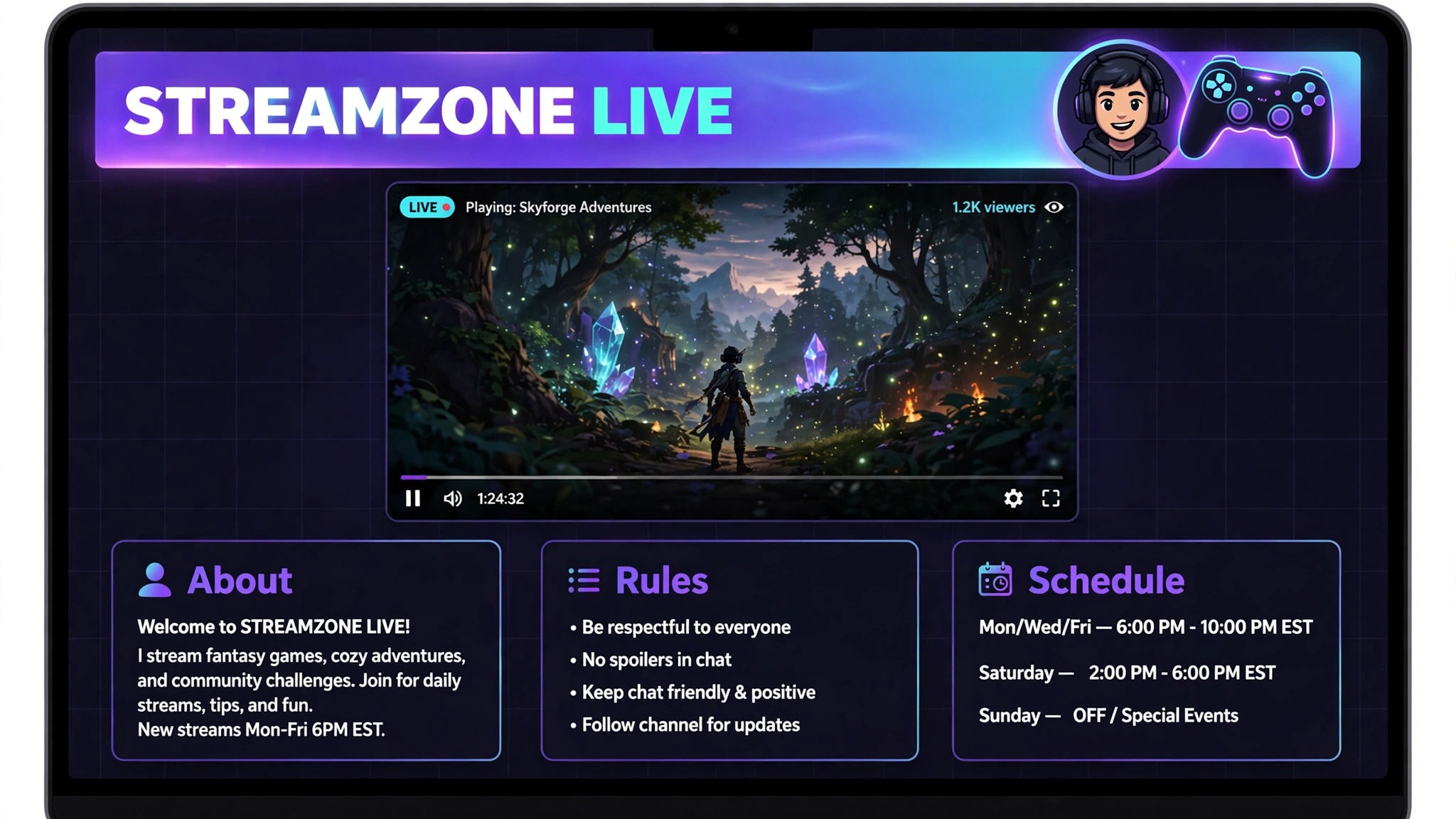
Match the banner to your overlays and panels. A neon green banner with purple overlays looks like two different channels. Pick two or three colours and use them everywhere. If your game has strong art, use a screenshot as the background and put your name over a darkened area so the text stays readable. The best twitch banner makers make this easy, because you can save a palette once and reuse it across every asset instead of retyping colour codes.
Mistakes to Avoid With Your Twitch Banner
The most common mistake is uploading a banner made for another platform. A YouTube banner is far wider, and a Twitter header is a different ratio again. Each crop cuts off text and makes the channel look careless. The second mistake is cramming too much into the space. A schedule, a Discord link, a tip jar address, and a quote do not fit in a 1200 by 480 strip. Put the extras in panels below the stream instead.
The third mistake is using a template untouched. If a viewer recognises the template from three other channels, your brand feels borrowed. Change the colours, the font, and at least one major element. The fourth mistake is ignoring the file size and format. A blurry low resolution export, or a PNG with a huge file size that loads slowly, hurts the first impression. Even the best twitch banner makers produce a weak result if you export at the wrong size, so check the file before you upload it.
Twitch Banner Ideas by Channel Type
A banner should tell a new visitor what the channel is about in two seconds, and different channel types need different answers. A competitive FPS channel benefits from bold type, dark backgrounds, and high contrast colours that read like an esports broadcast. The name should be large, the tagline should be short, and the imagery should suggest speed and precision. Placeit and OWN3D both carry templates in this style, and they are a good starting point if you play ranked shooters.
A cozy or variety channel needs the opposite treatment. Soft colours, a friendly font, and a warm photo or illustration work better than neon and sharp angles. The banner should feel like an invitation rather than a challenge. Canva and VistaCreate both have templates in this register, and Fotor is a solid choice when the banner is built around a photo of the streamer or their setup. The goal is a channel page that feels calm enough to stay on.
Just Chatting and talk format channels should put the person first. A clear photo or illustrated portrait, the channel name in bold type, and one line about what the streams cover will do more than any game art. PicMonkey is useful here because its text tools make the name the design. IRL and music channels can follow the same rule. Show the person, name the thing, and leave the rest to the panels below.
Creative channels, including art and music streamers, can use their own work as the banner. A strip of your own illustrations or a photo of your studio tells visitors exactly what they will get. Pixlr and Photopea are the right tools for this, because they let you composite your own images at full quality instead of forcing your work into a template. Whatever the channel type, the test is the same. Show the banner to someone who has never seen the channel and ask what the channel is about. If they answer correctly in two seconds, the banner works, and the best twitch banner makers are the ones that help you reach that answer with the least friction.
Frequently Asked Questions
What size should a Twitch banner be?
Twitch recommends 1200 by 480 pixels, with a file size under 10 MB in JPG, PNG, or GIF format. Start your design at those exact dimensions and keep key text in the central area so it survives cropping on mobile screens. Most banner makers on this list offer a Twitch preset that sets the size for you, which removes the most common sizing mistake entirely.
What is the best free Twitch banner maker?
Canva is the best free option for most streamers because its free plan includes hundreds of Twitch templates at the correct size. Adobe Express is a close second, with free templates and Adobe Stock images. Photopea is the most powerful free choice, but it has no templates and needs image editing skill, so it suits experienced users better.
Can I use Canva for a Twitch banner?
Yes. Canva has a Twitch banner size preset and hundreds of templates made for streaming. Design on the free plan, export as PNG for sharp text, and upload the file to your Twitch channel settings. Pro adds premium templates and background removal, but the free plan is enough for a good first banner.
Do Twitch banners need to match my overlays?
They do not have to match exactly, but a consistent colour palette and font across your banner, overlays, and panels makes the channel look professional. Matching sets from Streamlabs or OWN3D solve this in one purchase, while template tools let you reuse the same colours and fonts across each asset manually.
How much does a good Twitch banner cost?
A good banner can cost nothing if you use Canva, Adobe Express, or Photopea on their free plans. Paid template subscriptions run about 7 to 15 dollars a month, and premium ready made sets from OWN3D can cost more as a one time purchase. Pay only when the free result is holding your channel back.
How often should I change my Twitch banner?
Change it when your brand changes, when you switch games or content focus, or when the design starts to look dated, which is usually every six to twelve months. Avoid changing it weekly, because regular viewers use the banner to recognise your channel. A stable look builds familiarity, and familiarity builds return visits over time. Small consistent improvements beat frequent redesigns every time.