What separates a TikTok that gets watched from one that gets swiped past in under a second? It is rarely the camera. It is the edit. A strong hook in the first second, captions that carry the message with the sound off, cuts that match the pace of the platform, and a clean vertical export all decide whether a viewer stays or leaves. The best TikTok video makers make those choices easy, and the worst ones fight you at every step. This guide compares seven tools that do the job well in 2026, with real prices, honest watermark rules and a clear pick for each kind of creator.
How the Best TikTok Video Makers Were Compared
Every tool below was judged on the same five measures, because a tool that suits a beginner can frustrate a daily poster, and the reverse is just as true. Editing power came first. A good TikTok editor needs multi track timelines, trimming, speed control, transitions and text, because those are the tools every short video uses. Captions came second. Auto captions are now a core feature, not a luxury, because most viewers watch with the sound off at least some of the time.
Templates and trends came third, because a template library that tracks current TikTok styles saves hours. Watermark rules came fourth, because a free plan that stamps a logo on every export is not really free. Price came fifth, measured as the cheapest paid plan that removes the watermark and unlocks the main features. Export quality closed the list, with 1080p as the minimum and 4K as a bonus.
The 7 Best TikTok Video Makers at a Glance
This table compares the best TikTok video makers on the measures that matter most, so you can shortlist two or three before reading the detail below.
| Tool | Best for | Free plan | Watermark free | Paid from |
|---|---|---|---|---|
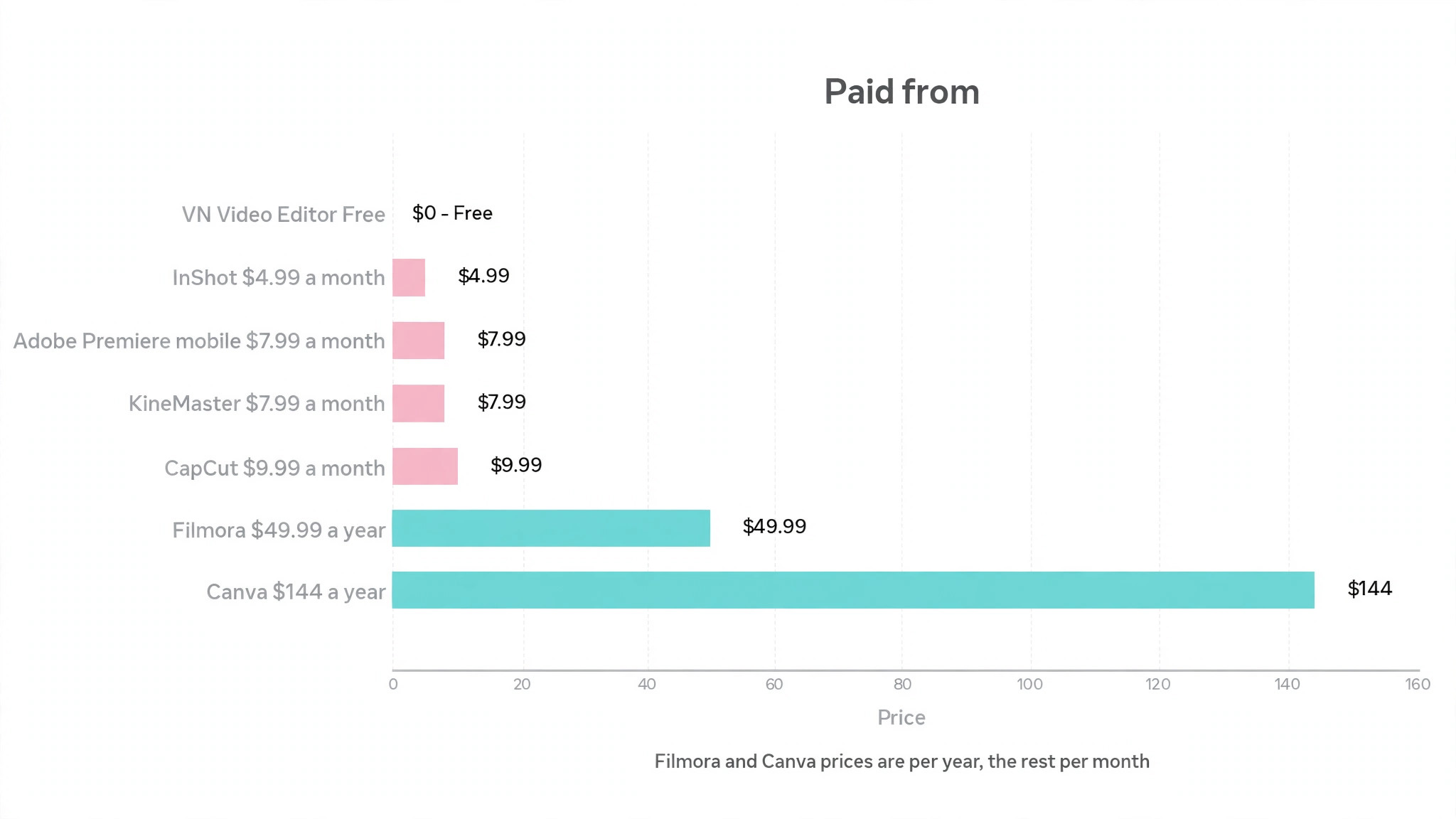
| CapCut | All round editing with AI | Yes | Partly | $9.99 a month |
| InShot | Quick mobile edits | Yes | No | $4.99 a month |
| VN Video Editor | Free, no watermark editing | Yes | Yes | Free |
| Canva | Template led branded videos | Yes | Pro elements only | $144 a year |
| Adobe Premiere mobile | Pro grade mobile editing | Yes | Yes | $7.99 a month |
| KineMaster | Layered mobile editing | Yes | No | $7.99 a month |
| Filmora | Desktop power with templates | Yes | No | $49.99 a year |
Prices are in US dollars and vary by region, platform and promotion, so confirm the current figure in the app store or on the vendor site before you subscribe. CapCut does not publish a fixed public pricing page, and its prices vary by region more than the others.
Best Pick by Job
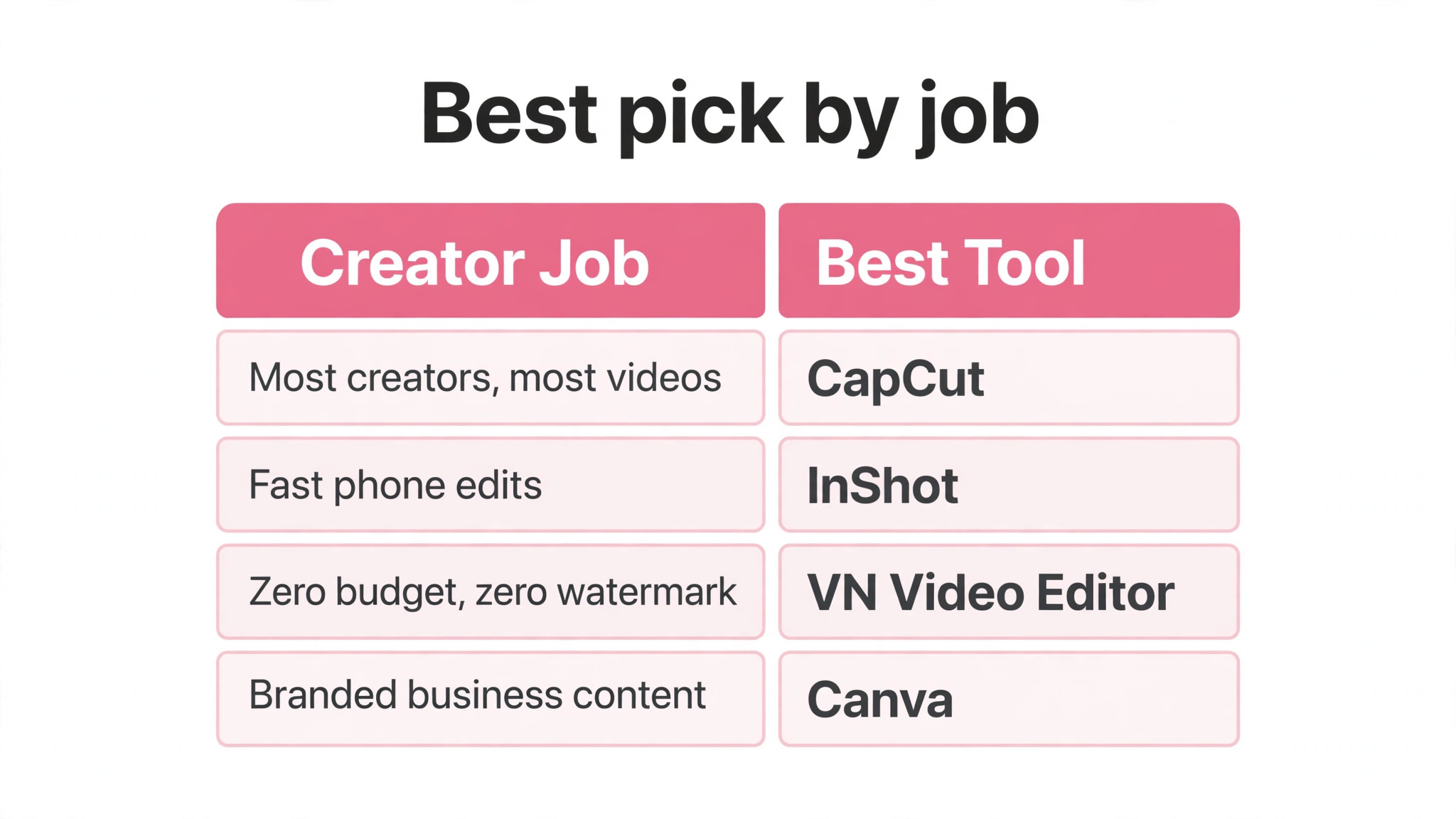
The table below matches the best TikTok video makers to the job they do best, so you can skip straight to the tool that fits your work.
| Job | Pick | Why it wins |
|---|---|---|
| Most creators, most videos | CapCut | Trend templates, auto captions and AI tools in one app |
| Fast phone edits | InShot | Simplest timeline and fastest path from clip to post |
| Zero budget, zero watermark | VN Video Editor | Multi layer editing and 4K export for free |
| Branded business content | Canva | Brand kit and templates keep every video on brand |
| Professional mobile editing | Adobe Premiere mobile | Pro grade tools free, with no watermark on exports |
| Layered edits on a phone | KineMaster | Full layer control and chroma key on mobile |
| Desktop editing with templates | Filmora | Big template library and a one time purchase option |
The 7 Tools in Detail
1. CapCut
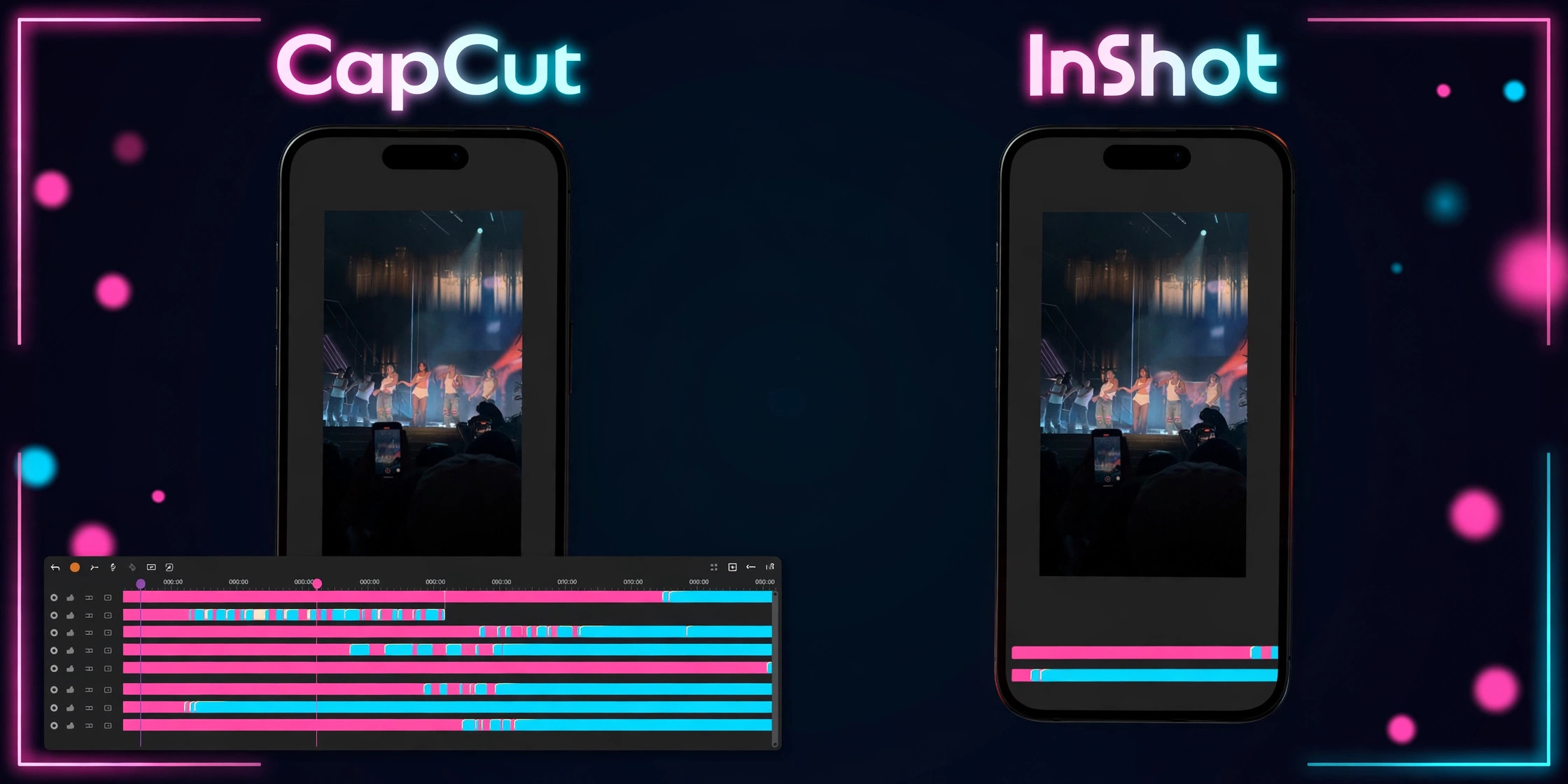
CapCut is made by ByteDance, the company behind TikTok, and it shows. It has the deepest library of trending templates, the best auto captions of any free editor, and a direct line to the styles that perform on the platform. The free plan includes the full editor with 1080p export, keyframe animation, chroma key, motion tracking and AI tools, which is more than any rival offers for free. The desktop and web versions extend the same workflow to a bigger screen.
The catches are real and worth knowing before you commit. The free plan now limits auto captions and adds a watermark when you use Pro templates or effects. Paid plans come in two tiers, Standard at about $9.99 a month for mobile only, and Pro at $19.99 a month or $179.99 a year for all platforms.
CapCut does not publish a fixed public pricing page, so the figures vary by region and promotion, and the price rose sharply in early 2026. The terms of service also changed in 2025 and 2026, granting the company a broad licence to use uploaded content, which matters for commercial work. CapCut is still the best all round pick for most creators, but read the current terms before you use it for client work.
2. InShot
InShot is the fastest path from a raw clip to a posted TikTok. The interface is simple, the timeline is easy to learn, and a polished video takes minutes rather than an hour. It covers trimming, speed control, filters, stickers, music and text, with 4K export and aspect ratios for every social platform. The learning curve is the gentlest of any tool here, which is why it is the standard recommendation for beginners.
The free version adds a watermark and shows ads, and Pro removes both. Pro costs $4.99 a month, or $19.99 a year in the US, with a lifetime option in some regions. Some older listings show $3.99 a month, so the price varies by store and region. InShot has fewer advanced features than CapCut, with no AI video generation and weaker motion tracking, but it is simpler and faster for basic edits, and the Pro price is lower. InShot suits creators who want a quick, clean edit on a phone without learning a complex tool, and it is the easiest app in this list to hand to a friend who has never edited a video.
3. VN Video Editor
VN Video Editor is the best free option in this list, and it is free in a way the others are not. There is no watermark on exports, no forced subscription, and multi layer editing with 4K export included at no cost. The timeline supports multiple video, audio and text layers, keyframes, speed curves and masks, which is a feature set that rivals paid editors. It runs on iOS, Android and desktop, so the same project can move between phone and computer.
The trade off is a smaller template library and fewer AI features than CapCut, and no direct trend feed. VN suits creators on a zero budget, students, and anyone who wants professional editing without a watermark or a monthly bill. It is the pick when the money matters more than the templates, and it is the tool to recommend to a friend who is starting out.
4. Canva
Canva is a design platform first and a video editor second, and that is exactly why it suits branded TikTok content. The template library is enormous, the brand kit keeps colours, fonts and logos consistent across every video, and the editor handles trimming, text, transitions and stock footage without a learning curve. Teams can share templates and approve videos in the same workspace, which matters for a business account.
The video tools are simpler than a dedicated editor, with less control over keyframes, speed curves and audio mixing. Pro elements in a template can add a watermark or a paywall, and Pro costs $18 a month or $144 a year. Canva suits small businesses, marketers and creators who value brand consistency above editing depth, and who already use Canva for the rest of their content.
5. Adobe Premiere Mobile
Adobe Premiere on mobile, formerly known as Premiere Rush, is the professional grade free option. All editing tools are free, exports carry no watermark, and the timeline supports multi track editing, colour correction, audio mixing and speed control at a level the other free tools do not match. It is the only tool here that gives professional editing power without a paywall on the core features.
The paid tier adds AI credits from $7.99 a month, which cover AI powered features such as generative tools and enhanced effects. The learning curve is steeper than InShot or CapCut, because professional tools come with professional complexity, and the template library is smaller than the trend led apps. Adobe Premiere mobile suits creators who want pro grade control on a phone, editors who already know the Adobe workflow, and anyone who plans to move up to desktop Premiere later.
6. KineMaster
KineMaster is a layered mobile editor with a long history on Android and iOS. It supports multiple video layers, blending modes, chroma key, keyframe animation and a large asset store, which makes it the most powerful mobile only editor for complex edits. The interface is dense but learnable, and the export quality is strong, with 4K support on capable devices.
The free version adds a watermark and shows ads, and Premium removes both. The official site lists Premium at $7.99 a month or $51.99 a year, though some app store listings show $8.99 a month or $59.99 a year, so the price varies by platform and region. KineMaster suits creators who build layered edits on a phone, such as gaming clips, reaction videos and multi angle content, and who want more control than InShot offers without moving to a desktop.
7. Filmora
Filmora is a desktop editor with a strong mobile app, and it suits creators who edit on a computer and post to TikTok. The template library is large, with presets for Reels and TikToks, and the editor covers multi track timelines, keyframes, colour tools, audio ducking and AI features such as auto captions and smart cutout. The interface is friendlier than a professional editor, which makes it a good step up from a phone app.
The free plan includes the full editor but adds a watermark to every export, so it is a trial rather than a free tier. Paid plans start at $49.99 a year for Basic, $59.99 a year for Advanced, and $99.99 a year for Premium, with a perpetual licence at $79.99 for the current major version. Filmora suits creators who want desktop power, a big template library and a one time purchase option, and who find phone editing too cramped for longer projects.
TikTok Export Settings That Matter
The right export settings are the difference between a video that looks sharp and one that looks soft, and the settings are the same across all seven tools. Export vertical video at 1080 by 1920 pixels, in a 9 to 16 aspect ratio, at 30 frames per second. That matches the TikTok player exactly, so the platform does not need to resize or crop your video. A 4K export is available in several tools here, but TikTok compresses uploads, so 1080p is the practical standard and 4K adds little visible quality for the extra upload time and file size.
Keep the video under the platform limits. TikTok accepts videos up to 10 minutes from the app, and longer uploads from desktop, but the videos that perform best are usually 15 to 60 seconds. A file under 100 MB uploads faster and fails less often on a weak connection. Export in MP4 with H.264 encoding, because that is the format TikTok handles best.
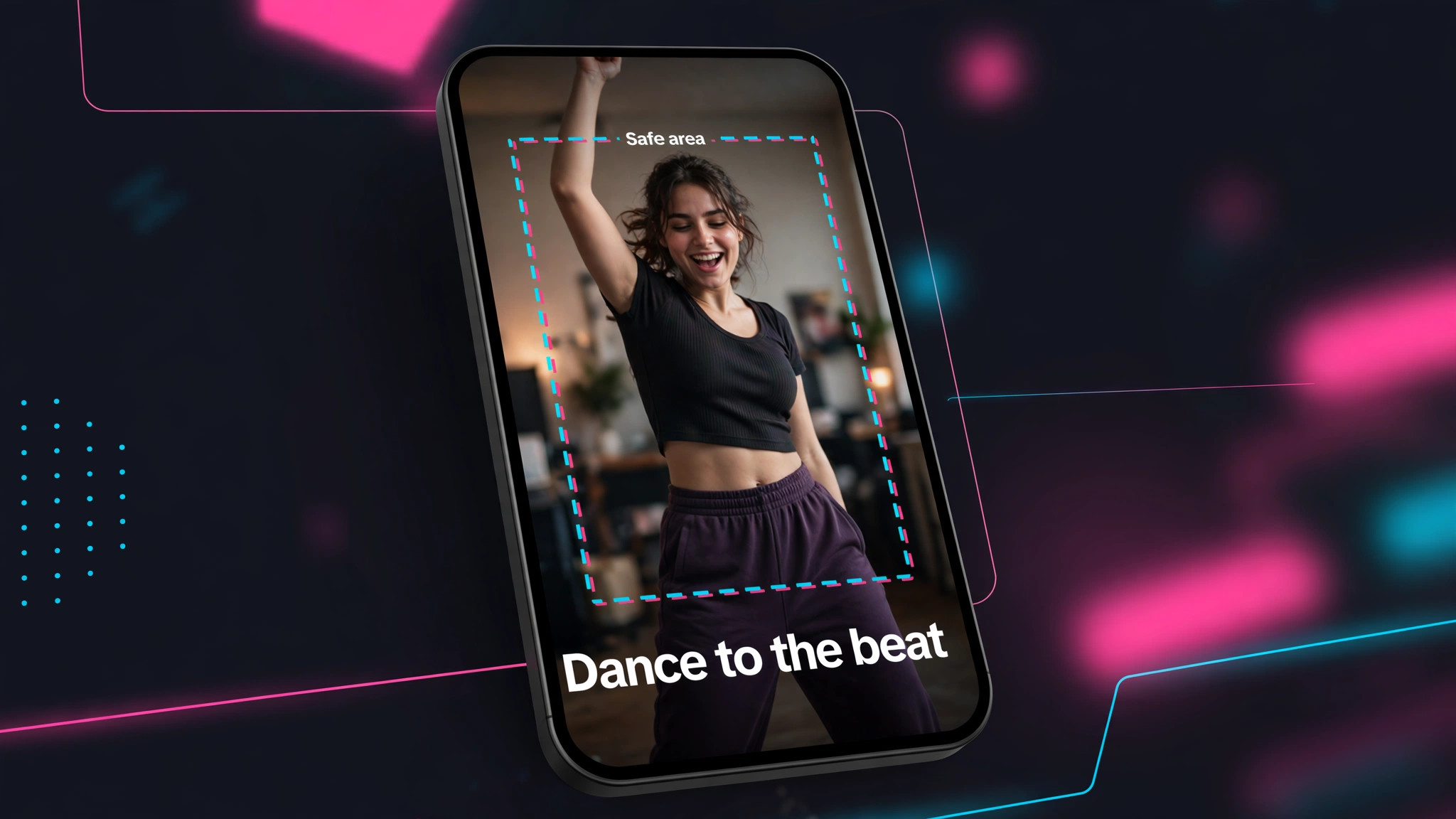
Add captions as burned in text or as a separate caption file, and keep the text inside the safe area, away from the top and bottom edges where the TikTok interface covers the video. The like, comment and share buttons sit on the right side, so keep important text away from the right edge too. Style the captions to match the video, with a bold font and a high contrast background, because captions that are hard to read are captions that get ignored. Test the export on your own phone before you post, and watch it once with the sound off, because that is how a large share of your audience will see it.
A Simple Workflow for One TikTok a Day
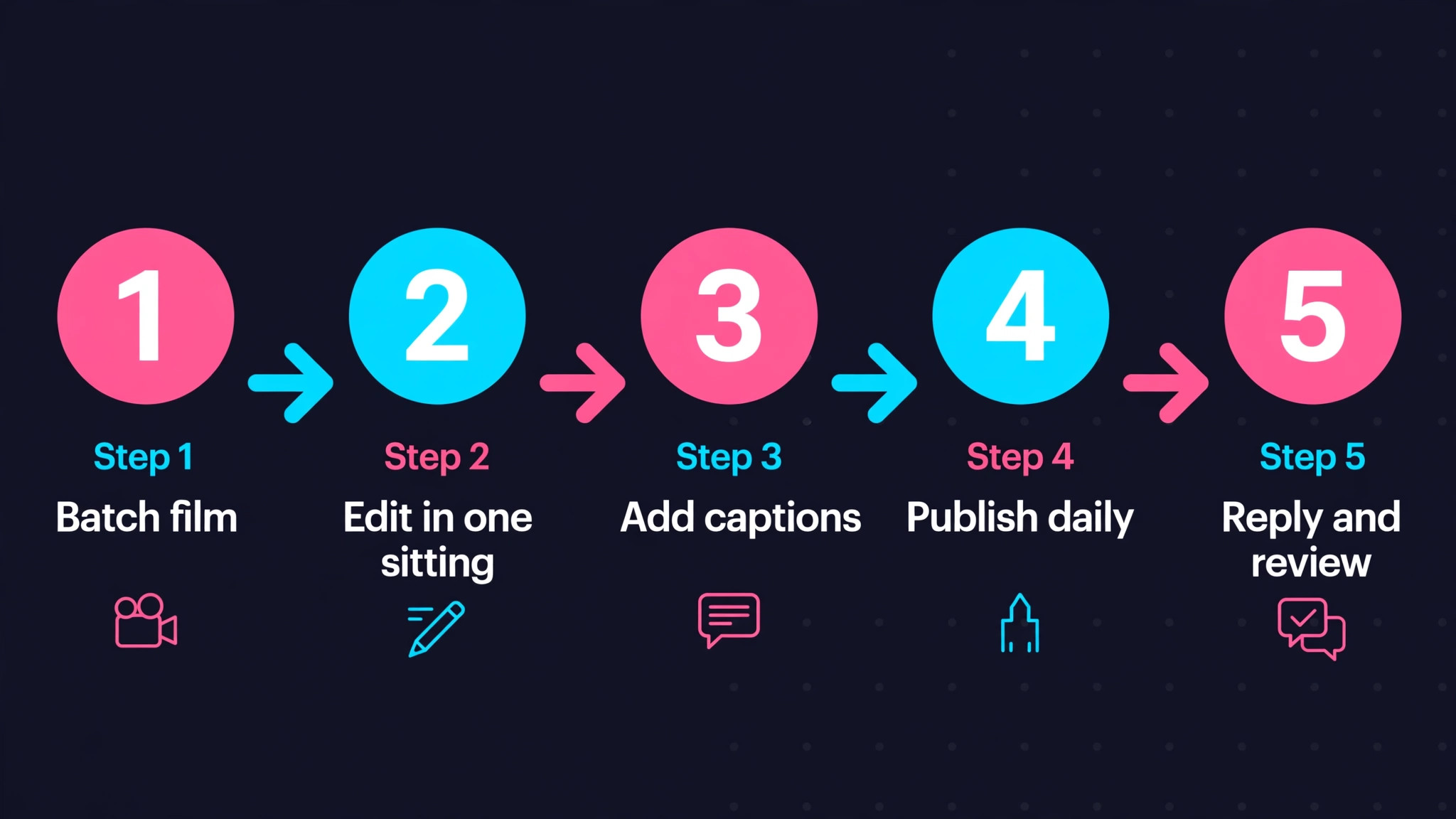
Posting daily is the fastest way to grow on TikTok, and a simple workflow makes it sustainable. The best TikTok video makers all support this routine, because it is built on the features they share rather than on any one tool. Start by filming in batches. Record three or four videos in one session, with the same lighting and the same setup, so the week is covered in an hour. Batch filming removes the daily pressure to perform on demand, and it keeps the lighting and the look consistent across the week.
Edit the batch in one sitting. Import the clips, trim the dead air from the start of each one, add auto captions, and apply the same template or preset to the whole batch. A consistent opening, a consistent caption style and a consistent export setting make the account recognisable, and they cut the editing time per video to minutes.
Schedule the posts or publish them at the same time each day, and spend ten minutes after each post replying to comments, because the replies drive the engagement that pushes the video further. Review the analytics once a week, keep the format that performed best, and drop the format that did not. A workflow that fits in an hour a day is one you will keep, and consistency beats intensity on TikTok every time.
Mistakes That Kill Watch Time
The first mistake is a slow opening. A TikTok has about one second to earn the next second, and a video that starts with a logo, a greeting or a long setup loses most viewers before the point arrives. Lead with the result, the question or the surprising moment, and explain afterwards. The second mistake is no captions. Most viewers watch with the sound off at least some of the time, and a video without captions loses them entirely. Auto captions take seconds to add, and they are the highest return edit in this guide.
The third mistake is exporting in the wrong shape. A horizontal video on TikTok plays small, with black bars and a tiny image, and viewers swipe past it. Always export vertical at 1080 by 1920. The fourth mistake is a watermark from a free editor, because a watermark signals low effort and pushes viewers away. Use a watermark free tool such as VN or Adobe Premiere mobile, or pay for the Pro plan of the tool you use. The fifth mistake is posting inconsistently. One video a week cannot compete with an account that posts daily, because the algorithm rewards accounts that publish regularly and the audience forgets accounts that do not.
The sixth mistake is copying a trend without understanding it. A trending sound or format works because it fits the creator using it, and a forced copy looks exactly like what it is. Watch the trend, understand why it works, and adapt the idea to your own content rather than pasting your face onto someone else’s joke. Trends are a starting point, not a script, and the accounts that grow are the ones that make a trend their own.
Captions, Hooks and Trends: The Three Features That Matter Most
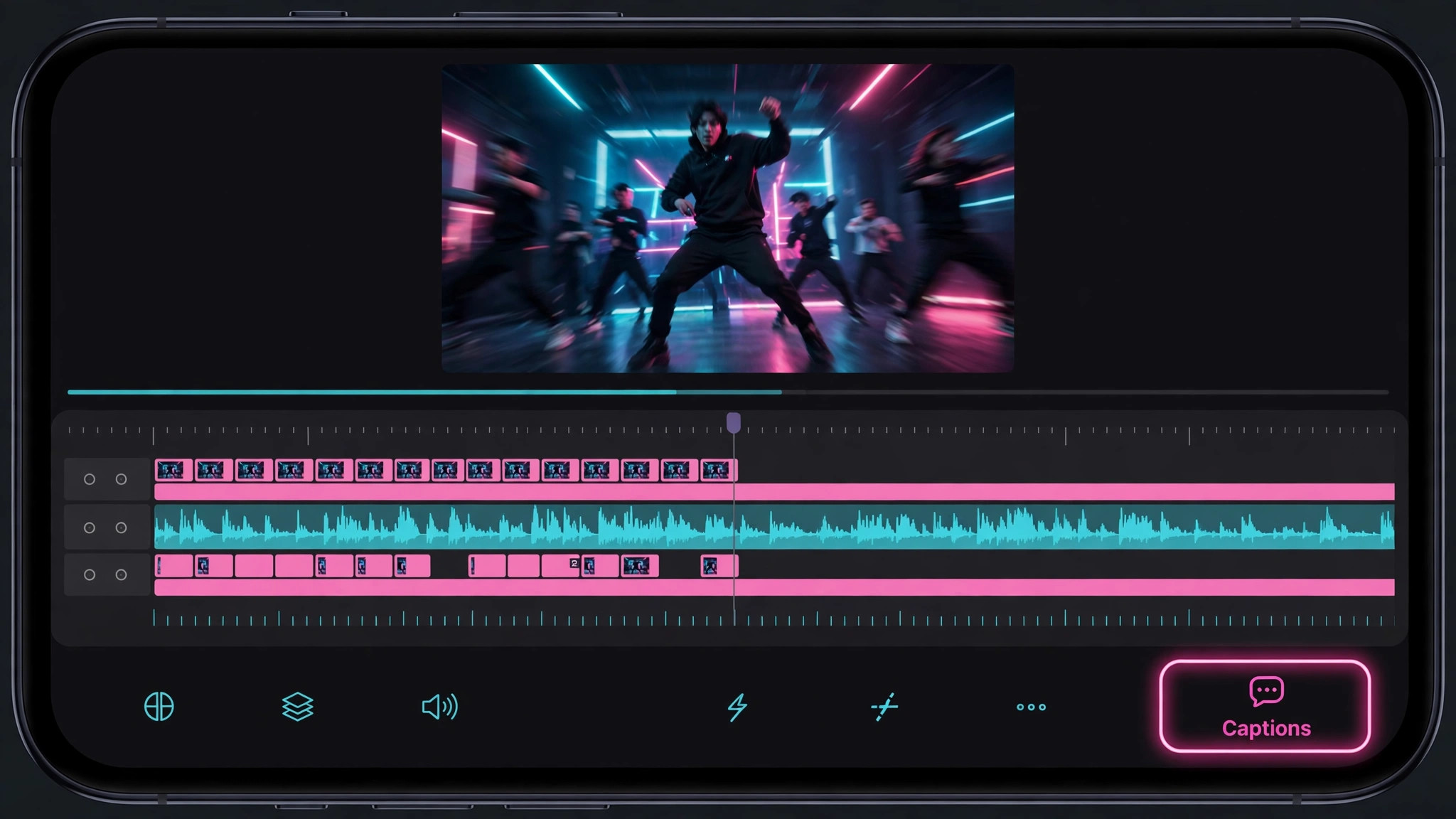
Three features decide whether a TikTok gets watched, and they are the same three features that separate the tools in this list. Captions come first. Auto captions turn speech into text on screen, and they matter because a large share of viewers watch with the sound off. The best auto caption tools in this list are CapCut and Filmora, which generate accurate captions in seconds and let you style them to match the video. VN and Adobe Premiere mobile offer captions too, though with less automation. Check the caption accuracy before you publish, because an auto caption that mishears a key word can change the meaning of the whole video.
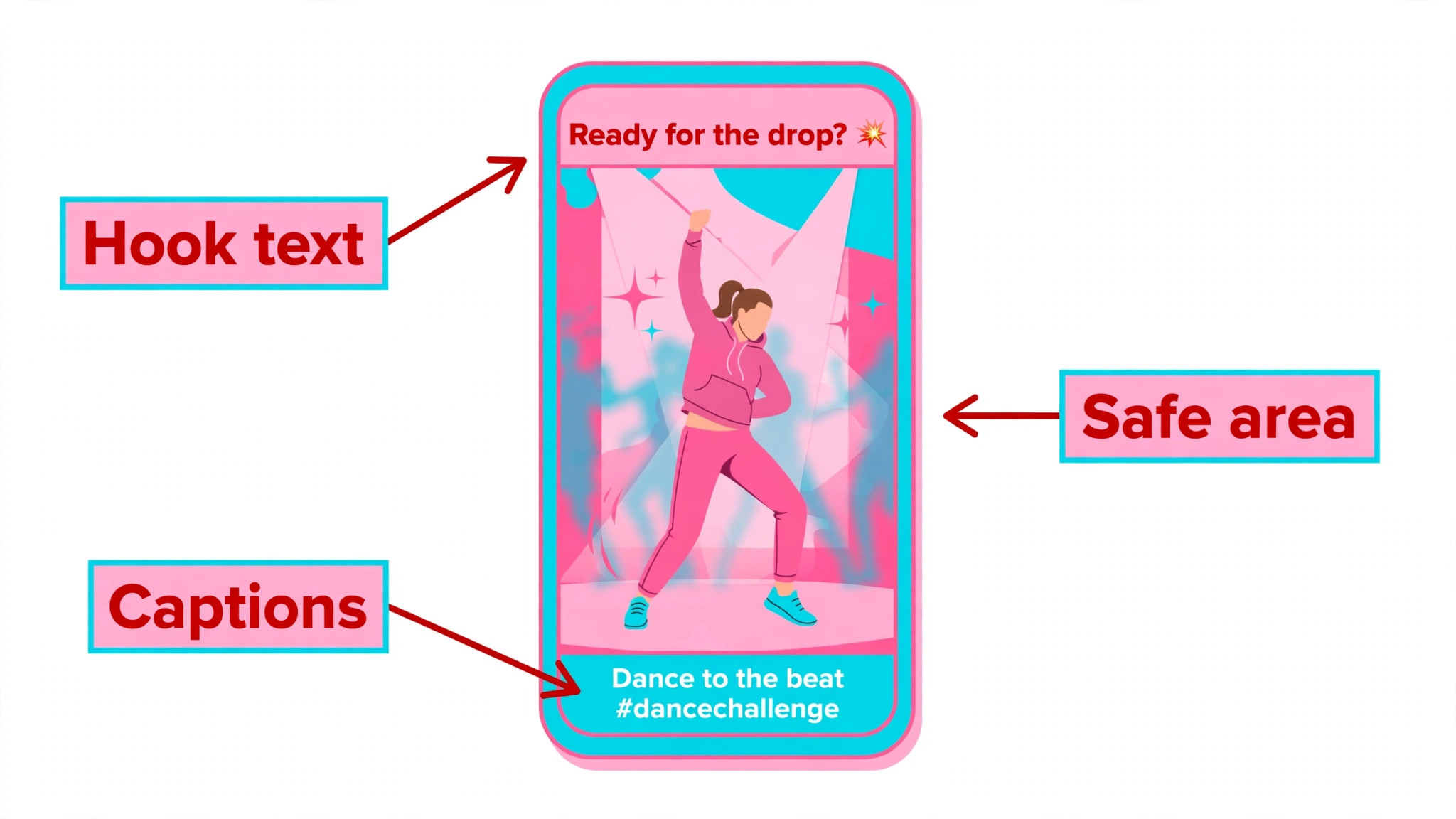
Hooks come second. The hook is the first second of the video, and it is the only second that is guaranteed to be seen. A good hook is a question, a result or a surprising image, delivered before the viewer decides to swipe. The tools cannot write a hook for you, but templates help, because a template that starts with a bold text overlay forces you to state the point up front. CapCut templates are the strongest here, because they are built from videos that already performed, and the structure of the template teaches the structure of a good hook.
Trends come third. TikTok moves fast, and a template library that updates weekly is worth more than a library that updates yearly. CapCut tracks trends directly, because it shares a parent company with TikTok, and its template feed reflects what is performing right now. Canva and Filmora update their libraries regularly but more slowly. VN has no trend feed at all, which is fine for creators with their own style and a problem for creators who rely on trends. Pick the tool whose trend support matches how much you lean on trends, and remember that a trend is a boost, not a strategy.
The three features work together, and the order matters. A hook earns the first second, captions carry the message with the sound off, and a trend gives the video a distribution boost. A video with all three has a real chance, while a video with none of them relies on luck. When you compare tools, test these three features first, because they decide more outcomes than any other feature in the editor.
Free vs Paid: What the Money Buys
Free plans in this list fall into three groups, and the group matters more than the price. The first group is genuinely free, and it holds VN and Adobe Premiere mobile, which export without a watermark and charge nothing for the core editor. The second group is free with limits, and it holds CapCut and Canva, which give you the full editor but charge for premium templates, effects and elements. The third group is free as a trial, and it holds InShot, KineMaster and Filmora, which watermark every export until you pay.
Paid plans buy three things. They remove the watermark, they unlock premium templates and effects, and they add AI features such as auto captions, smart cutout and generative tools. The cheapest paid plan that removes the watermark is InShot Pro at $4.99 a month, while CapCut Standard is about $9.99 a month and Filmora Basic is $49.99 a year. The question is not which plan is cheapest, it is which limit blocks your work. A creator who posts daily and uses premium templates needs the paid plan, while a creator who posts weekly with core features can stay free for a long time. Start free, find the limit that actually blocks you, and pay to remove that one limit.
The two year cost is worth calculating before you subscribe, because monthly prices hide the real spend. CapCut Pro at $179.99 a year costs about $360 over two years, while Filmora Advanced at $59.99 a year costs about $120, and Filmora perpetual at $79.99 covers the current major version once. InShot Pro at $19.99 a year is the cheapest paid plan here, and VN costs nothing at all. A tool that looks cheap per month can be the most expensive over two years, so compare the annual figure, not the monthly one.
Frequently Asked Questions
Which of the best TikTok video makers is completely free?
VN Video Editor is the only tool in this list that is fully free with no watermark on exports, multi layer editing and 4K export included. Adobe Premiere mobile is also free for all editing tools with no watermark, though AI features cost extra. CapCut is free for the core editor, but Pro templates and effects add a watermark, and auto captions are limited on the free plan. The free tier that fits your work is the one to start with, and the paid tier only matters when a limit blocks a video you need to publish.
Is CapCut still the best TikTok editor in 2026?
CapCut is still the most complete editor for TikTok, with the best trend templates and auto captions, and the deepest integration with the platform. The price rose sharply in early 2026, with Pro at $19.99 a month or $179.99 a year, and the terms of service grant the company a broad licence to use uploaded content. For most creators the free plan remains strong, but anyone doing client work should read the current terms and consider VN or Adobe Premiere mobile as alternatives. The free plan limits auto captions now, so a creator who relies on captions may hit the paid tier sooner than before.
Do I need a paid plan to remove the watermark?
It depends on the tool. VN and Adobe Premiere mobile export without a watermark for free. CapCut exports without a watermark on the free plan for core features, but Pro templates and effects add one. InShot, KineMaster and Filmora all add a watermark on the free plan, and removing it needs the paid plan. Canva adds a watermark only on Pro elements. If a watermark is the only thing pushing you to pay, check VN first, because it removes the problem for free.
What export settings should I use for TikTok?
Export vertical video at 1080 by 1920 pixels, in a 9 to 16 aspect ratio, at 30 frames per second, in MP4 with H.264 encoding. Keep the video between 15 and 60 seconds for the best performance, keep the file under 100 MB for a fast upload, and keep text away from the top, bottom and right edges where the TikTok interface covers the video.
Can I edit TikTok videos on a desktop?
Yes. CapCut, Canva and Filmora all offer desktop and web versions, and VN runs on desktop as well. Desktop editing suits longer projects and precise work, while phone editing suits quick daily posts. The workflow is the same either way, and the export settings do not change. Pick the screen that fits the project, not the tool that forces one. A useful setup is to edit the batch on desktop once a week and post from the phone daily, because the desktop handles the heavy work and the phone handles the publishing.
How long should a TikTok be?
The videos that perform best are usually 15 to 60 seconds, because that length holds attention and fits the pace of the feed. TikTok accepts videos up to 10 minutes from the app and longer from desktop, but length alone does not help. A 20 second video with a strong hook beats a 3 minute video that loses viewers in the first five seconds. Cut ruthlessly, and let the analytics tell you what your audience actually watches. Check the average watch time in the analytics for each video, and if viewers leave at the same point every time, cut that section from the next video.
Final Verdict
There is no single winner, because the right tool depends on how you work. CapCut is the best all round pick for most creators, with the strongest templates and captions. VN is the best free pick, with no watermark and no subscription. Adobe Premiere mobile is the best professional pick, with pro grade tools free.
InShot is the fastest pick for quick phone edits, Canva is the best pick for branded business content, KineMaster is the best pick for layered mobile edits, and Filmora is the best pick for desktop editing with templates. Pick the tool that matches your main job, learn its captions and its export settings, and post every day. The editor matters less than the habit, and the habit is what grows the account. That is the honest summary of the best TikTok video makers in 2026, and the next step is to pick one, make one video today, and post it. The first video will not be perfect, and it does not need to be.