Instagram passed 2 billion monthly active users, and the average person decides whether to stop scrolling in less than two seconds. That short window is why the design of a post matters as much as the idea behind it. A clear image, readable text and a caption that sounds human will earn the stop. A cluttered graphic will not, however good the offer is. The best instagram post makers exist to close that gap for people who are not designers, and this guide compares thirteen of them on price, templates, AI help and scheduling, so you can pick one and start posting this week.
A post maker is not the same thing as a photo editor. A photo editor improves one image. A post maker gives you the size, the layout, the text treatment and the caption in one place, then helps you get the finished post onto Instagram on schedule. The tools below were judged on that full job. A tool that makes a beautiful square graphic but leaves you to retype the caption and set a phone reminder to post it scores lower here than a tool that does the whole job, even if its templates are plainer.
Why a Good Post Maker Pays for Itself
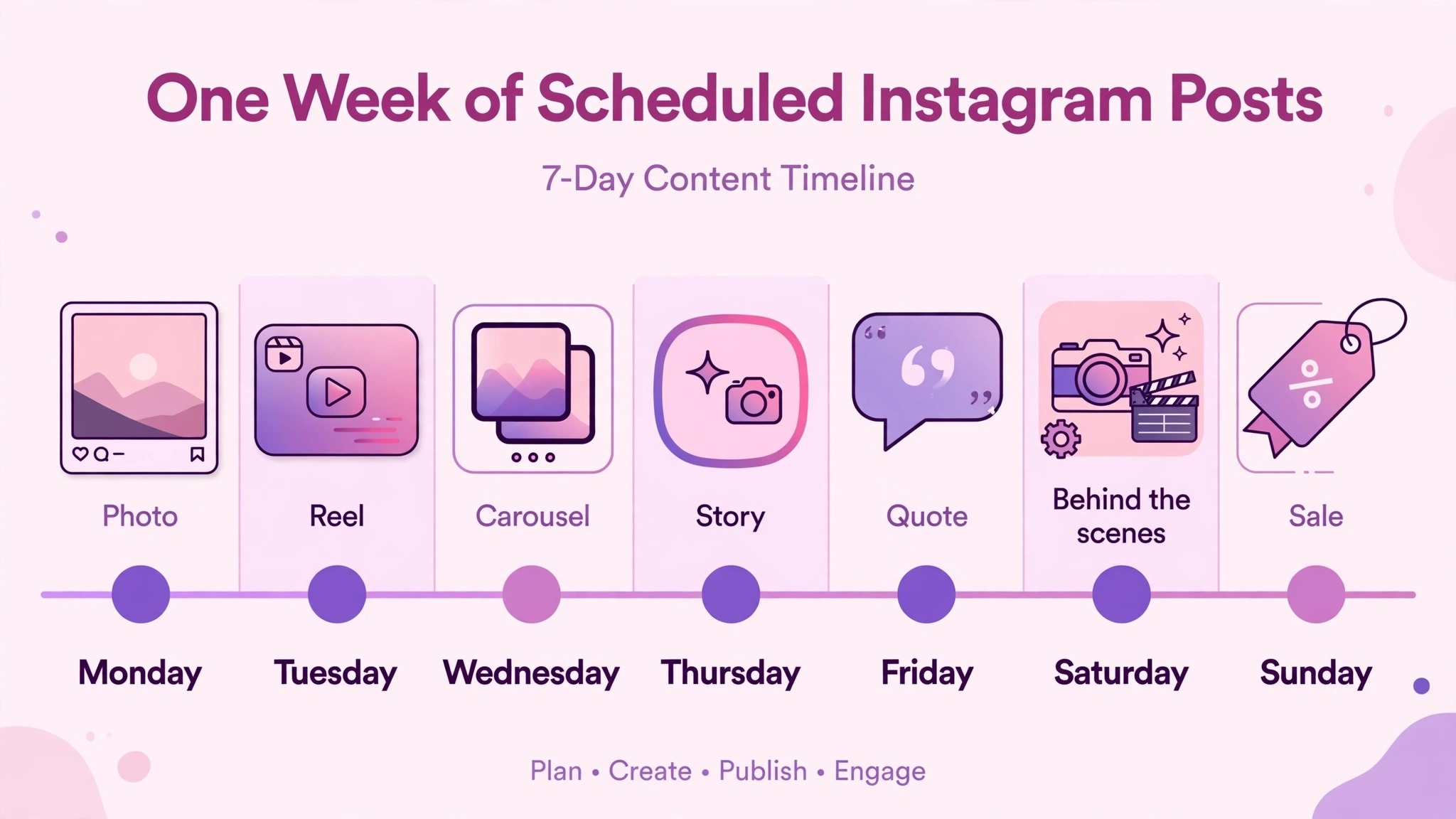
Most small accounts fail on Instagram for a boring reason. They post in bursts, then go quiet for three weeks, then post four times in one day. Followers forget them between bursts, and the algorithm has little to work with. A post maker with scheduling breaks that cycle. You can build a week of posts in one sitting on a Sunday evening and let the tool publish them while you run the business. Consistency is the one growth habit that every study of the platform keeps confirming, and it is the habit a good tool makes possible.
Design quality is the second reason. Instagram compresses images, crops them in the grid, and shows them at phone size. A design that looks good on a laptop can turn to mush on a phone. The tools in this guide all ship templates sized for the feed, and most offer the 1080 by 1350 portrait size that takes up more screen space than a square. Portrait posts earn more screen time per scroll, and every tool below that is worth paying for handles the size for you.
How the Best Instagram Post Makers Were Tested
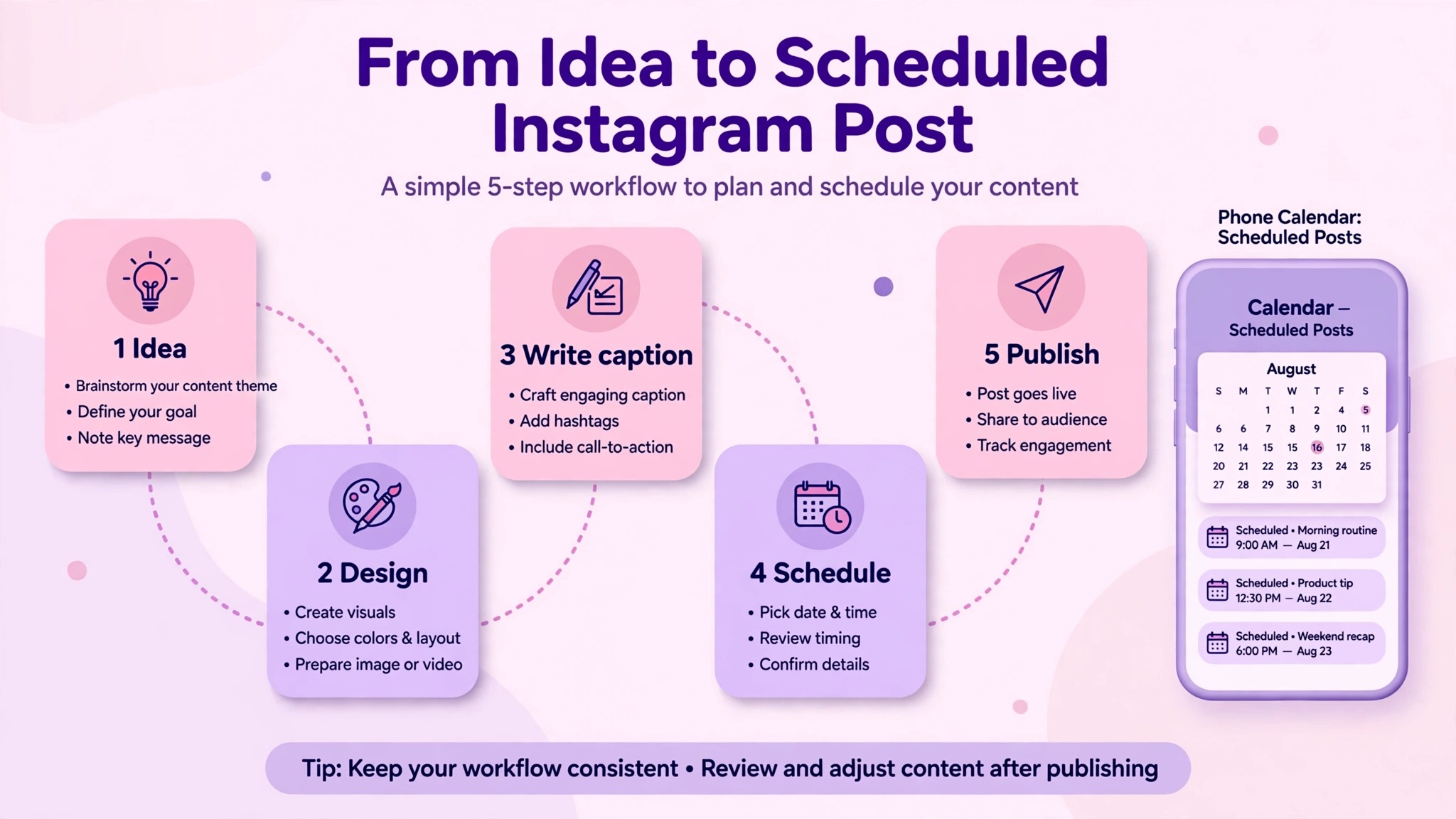
Every tool below was checked against the same five questions. First, can a beginner make a finished feed post in under fifteen minutes without a tutorial. Second, does the free plan allow real work, or does it exist only to show you what you cannot have. Third, does it write or improve captions and hashtags, or only draw pictures. Fourth, can it schedule and publish directly to Instagram, or does it stop at a download button. Fifth, what does it actually cost per month, read from the vendor pricing page, with the billing period stated.
Prices change often, so treat every figure below as the published price at the time of writing and confirm it on the vendor page before you pay. Where a vendor lists different prices by region, the United States figure is given. Where a vendor publishes no price for a plan, that is stated plainly instead of guessing a number.
The Best Pick by Job
| Tool | Starting price | Best job |
|---|---|---|
| Canva | Free, Pro from 15 dollars a month | Most people and most posts |
| Adobe Express | Free, Premium 9.99 dollars a month | Free scheduling plus design |
| Predis.ai | Free trial, Core 24 dollars a month billed yearly | AI generated carousels and reels |
| Later | Free plan, paid plans from about 19 dollars a month | Visual planning and grid preview |
| Buffer | Free for 3 channels, Essentials 5 dollars per channel a month | Simple scheduling on a budget |
| VistaCreate | Free, Pro 10 dollars a month billed yearly | Animated posts |
| Snappa | Free with 3 downloads a month, Pro 10 dollars a month billed yearly | Fast simple graphics |
| PicMonkey | Paid plans from 7.99 dollars a month | Photo led posts and touch ups |
| Fotor | Free, Pro 8.99 dollars a month | Quick photo edits with templates |
| Picsart | Free, Plus paid | Playful stickers and collages |
| Easil | Free, paid plans on its pricing page | Branded templates for teams |
| Stencil | Free limited, paid plans on its pricing page | Speed over depth |
| Desygner | Free, Pro paid | Small business brand kits |
If you only remember one row, remember the first. Canva is the pick for most people because its free plan is genuinely usable and its template library is the largest. Adobe Express is the pick if you want scheduling without paying, since its free tier includes a scheduler. Predis.ai is the pick when the hard part is inventing the post itself, because it turns a short prompt or a product link into a finished carousel.
1. Canva
Canva is the default answer in this category for a reason, and that reason is volume. Its template library runs into hundreds of thousands of designs, and its Instagram section covers feed posts, carousels, stories, reels covers and profile highlights in the right sizes. You start from a finished layout, swap the photo and the words, and export. For a cafe, a coach or a shop owner, that is the whole job, and Canva does it faster than anything else here.
The free plan is unusually generous. It includes free templates, free stock photos, 5 GB of storage and a capped allowance of AI uses each month. Premium elements carry a watermark until you pay, which is the main limit. Pro costs 15 dollars a month with monthly billing in the United States, and annual billing brings the monthly equivalent down. Pro adds Brand Kit, Magic Resize, the Content Planner scheduler and 1 TB of storage.
The best instagram post makers now write captions too, and Canva does it through its Magic Write tool. It can also generate images from a prompt. Treat the caption help as a first draft. It will give you a clean structure and a hashtag set, but it will not know your voice, your prices or your local details unless you tell it. Let it draft, then rewrite the first line yourself, because the first line is what shows before the read more cut.
2. Adobe Express
Adobe Express is the strongest free option in this list, and it wins that title on one feature. Its free tier includes a content scheduler that publishes to one Instagram account, which Canva reserves for paying users. If your budget is zero and you still want to plan a week of posts, this is the tool. The editor is simpler than Canva, with fewer templates, but it is fast, and its mobile app is one of the best here.
Premium costs 9.99 dollars a month with monthly billing and no annual commitment. It adds the full Adobe Stock library, Firefly AI image generation, Brand Kit and unlimited scheduling. Firefly is commercially safe by design, since Adobe trained it on licensed and public domain material, which matters if your posts are ads for a real business.
The trade off is template depth. Canva has more Instagram specific layouts. Adobe Express answers with better stock photography and cleaner typography defaults. If your posts are photo led, with a strong image and a short line of text, Adobe Express will make them look expensive. If your posts are text led, Canva templates will save you more time.
3. VistaCreate
VistaCreate, formerly called Crello, is the pick for motion. Instagram rewards movement, and a post with a gentle animation or a moving background holds the eye longer than a still image. VistaCreate ships thousands of animated templates for feed posts and stories, and its free Starter plan includes 100,000 templates, one brand kit and 10 GB of storage. That free plan is enough to test whether animated posts suit your account.
Pro costs 10 dollars a month on its annual option and covers up to ten seats. It adds the one click resizer, background remover and scheduling, plus the full template set. The background remover is useful for product posts, since it lets you lift a product off a messy photo and place it on a clean colour.
VistaCreate is weaker than Canva on AI writing and on sheer template count, and its scheduler is simpler than Later. Its strength is narrow and real. If your account is visual, if you sell products, food, travel or fashion, and if your posts are mostly images with short captions, the animated templates will make your grid look more alive than a static tool can.
4. Predis.ai
Predis.ai is the only tool in this list that starts from an idea instead of a blank canvas or a template. You paste a product link, a short description or a single line, and it returns a finished carousel, a single image post or a short video, with caption and hashtags included. For a shop with fifty products and no time to design fifty posts, that is a genuine change in what is possible. It is the fastest first draft in this category.
Pricing is credit based. Core costs 24 dollars a month on yearly billing, or 32 dollars month to month, and includes 1,300 credits, one brand and publishing to ten channels. Rise costs 55 dollars a month billed yearly with 3,200 credits and up to four brands. A single image or carousel slide costs about 15 credits, so the Core plan covers roughly eighty images a month. There is a short trial, and it requires a card, so set a reminder if you only want to test it.
The weakness is sameness. The best instagram post makers that generate from a prompt share a family look, and Predis.ai output is no exception. You must edit the text, swap at least one image, and change the colours, or your posts will look like every other Predis.ai account. Used as a draft machine with a human finishing pass, it is excellent. Used as a publish button, it will make your account look automated.
5. Later
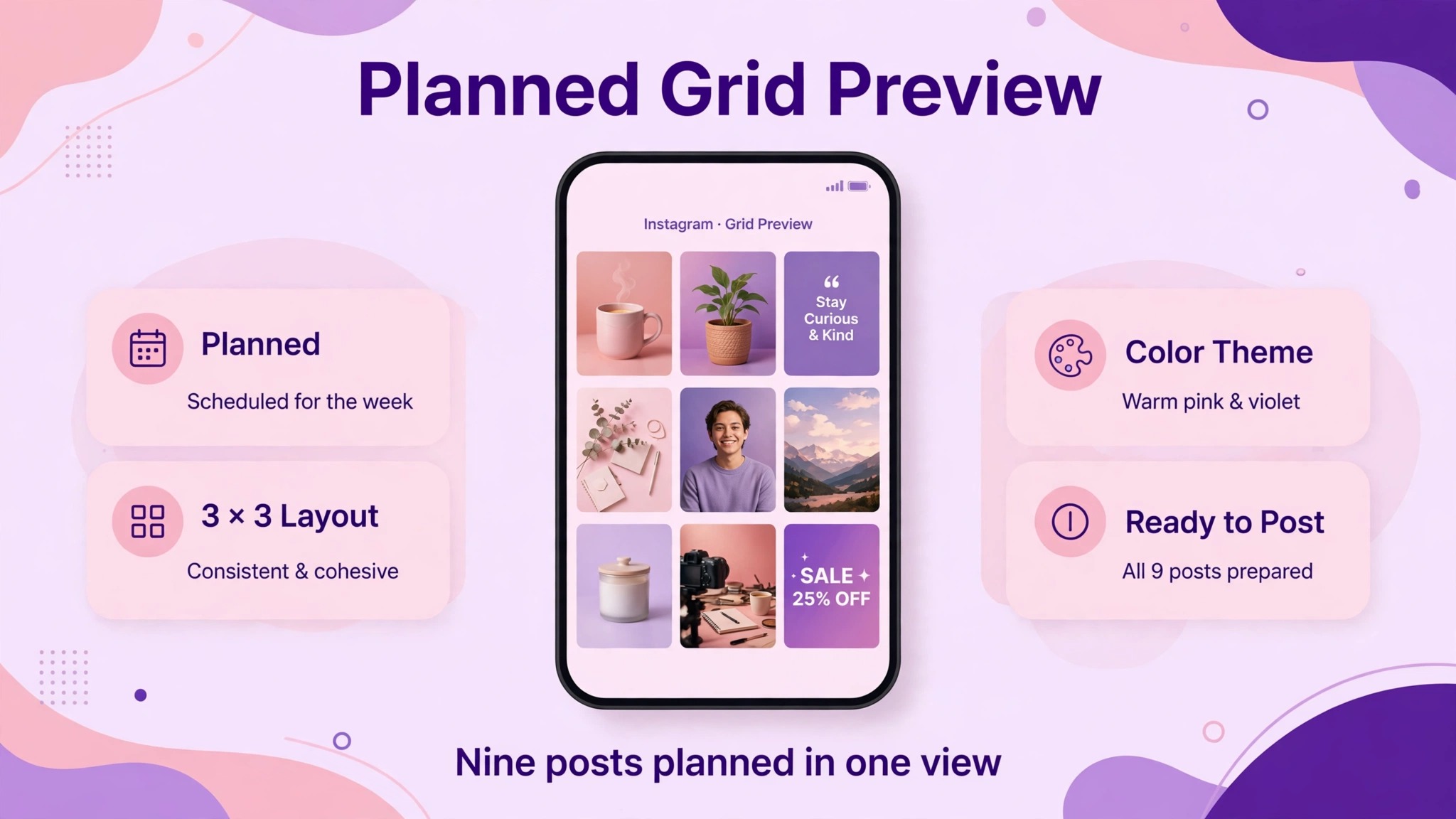
Later is built around the grid. Most post makers treat each post as a separate job, but Later shows you how the next nine posts will look together on your profile, and that preview changes decisions. A post that looks fine alone can clash with its neighbours, and Later catches that before you publish. It is the best planning tool here for accounts where the grid itself is the brand, such as photographers, interior designers and fashion sellers.
The free plan covers 12 posts per profile a month including drafts, which suits a light poster. Paid plans start near 19 dollars a month on annual billing for the Starter tier, which raises the post limit and adds more profiles. Later also writes captions with AI, suggests hashtags, and offers a link in bio page that turns the single bio link into a small shop window. Its visual calendar lets you drag posts between days, which is the fastest way to plan a month.
Later is not a design tool in the Canva sense. It has templates, but fewer and plainer, and most users design in Canva and schedule in Later. That two tool workflow is common and it works well. If you design elsewhere and need the best planner, Later is the pick. If you want one tool for everything, Canva or Adobe Express will serve you better.
6. Buffer
Buffer is the simplest scheduler in this list, and simplicity is its selling point. You write the post, attach the image, pick a time, and Buffer publishes it. The free plan covers three channels with ten scheduled posts per channel, and it includes the AI Assistant with what Buffer describes as unlimited credits. For a solo creator with one Instagram account, the free plan may be all you ever need.
Paid plans are priced per channel. Essentials costs 5 dollars per channel a month billed yearly, and Team costs 10 dollars per channel a month and adds approvals. That per channel math is honest and cheap at small scale. One Instagram account costs 5 dollars a month. Two accounts cost 10 dollars.
Buffer will not design your post. It has no template library worth naming, and its image editing is basic. Pair it with Canva free and you have a complete system for about nothing. The best instagram post makers for a tight budget are often a pair like this rather than a single expensive suite, and Buffer plus a free design tool is the cheapest pair that still works well.
7. Snappa
Snappa is the fastest tool here for a plain graphic. It has more than 6,000 templates, which is far fewer than Canva, but its editor has fewer buttons and fewer decisions, so a simple announcement graphic takes about five minutes. It exports web optimised JPG, high resolution PNG and 2x retina versions, and its Pro plan connects to Buffer for scheduling. For a local business that posts opening hours, offers and event notices, that speed is worth more than a giant template library.
The free plan allows only three downloads a month and no background removal, which is tight. Pro costs 10 dollars a month billed yearly and removes the limit. That makes Snappa a poor free tool and a fair paid one. If you post three times a week, the free plan will run out in the first week, so judge it on the paid price, not the free tier.
Snappa suits people who hate design software. There is almost nothing to learn, and the templates are clean rather than flashy. It does not generate images from AI prompts, it does not write captions, and it will not plan your grid. It makes a good graphic quickly, and then it gets out of the way.
8. PicMonkey
PicMonkey is a photo editor first and a post maker second, and that order matters. If your Instagram posts start from your own photos, a product shot, a portrait, a plate of food, PicMonkey gives you better touch up tools than Canva or Snappa. You can fix light, remove a background, whiten teeth, smooth skin and add text in one place. The results look like edited photos rather than designed graphics, which suits personal brands and beauty, food and lifestyle accounts.
There is no usable free plan, which is the main drawback. Paid plans start at 7.99 dollars a month, and you should treat that as the entry price. For that money you get the editor, templates, stock photos and cloud storage. PicMonkey also has a mobile app that is genuinely usable, so you can shoot, edit and post from the phone without touching a laptop.
PicMonkey is weaker on scheduling and on AI generation than the leaders. Buy it for the photo editing. If your posts are mostly text and graphics rather than photos, Canva or Adobe Express will give you more for less money.
9. Fotor
Fotor is a free first tool with a long history in photo editing, and its Instagram templates are a useful extra rather than the main event. The free plan covers basic editing and templates, and Pro costs 8.99 dollars a month for advanced tools and more than 100,000 templates. Its one click photo enhancer is genuinely good for dull phone photos, and its background remover works well on product shots.
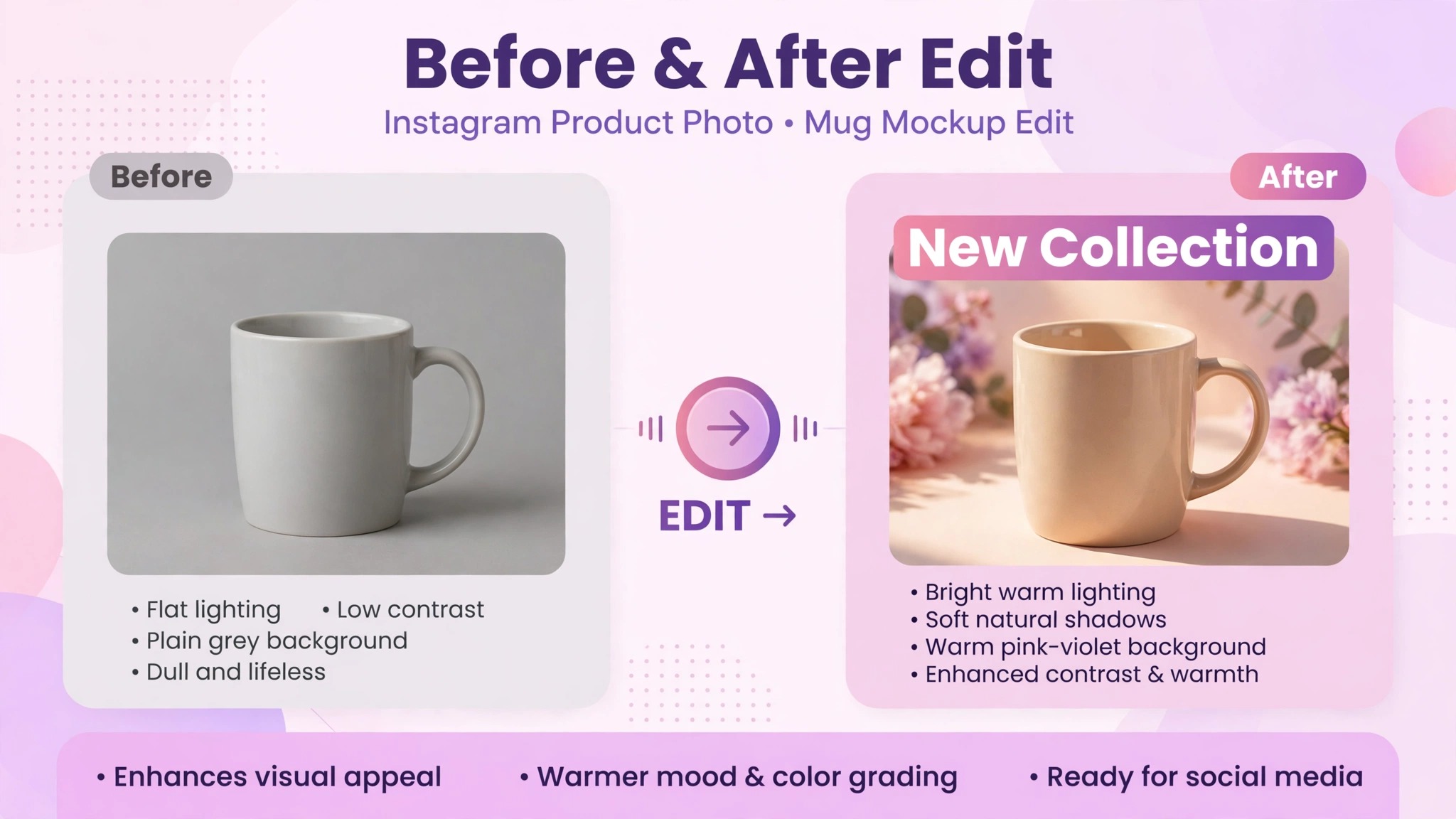
Fotor also includes AI image generation and an AI headshot tool on paid plans, plus collage layouts that suit before and after posts. A salon, a gym or a home renovator can show the transformation in one image, and that format performs well on Instagram because the change is visible without reading the caption. The collage tools are simpler than Picsart, but they are faster.
The editor feels dated next to Canva, and the template designs are less current. If your posts are photo heavy and your budget is small, it is worth a test. If your posts are design heavy, the leaders will save you more time.
10. Picsart
Picsart is the playful tool in this list, and its strength is stickers, collages and effects. It has a large community that shares stickers and remixable designs, so a post can start from a trending sticker rather than a blank page. For accounts aimed at younger audiences, for memes, for fan content and for casual brands, that community energy is an advantage that the corporate tools cannot copy.
The free plan is usable, with ads and some locked features. Picsart Plus is the paid subscription, and its price varies by region and by platform, so check the pricing page in your app store or on the site before you commit. Plus removes ads, unlocks premium stickers and fonts, and adds the full AI toolset. The AI tools include background generation and image expansion, which can rescue a photo that was shot too tight.
Picsart is not the tool for a law firm or a B2B consultancy. Its style is loud and its templates lean young. It is also weaker on scheduling than Later or Buffer, so most users export from Picsart and schedule elsewhere. Use it where fun is the brand.
11. Easil
Easil is built for teams that need every post to look like it came from the same brand. Its template system locks fonts, colours and logo placement, so a junior staff member cannot accidentally post in the wrong shade of blue. That control is the product. A franchise, a gym chain or a restaurant group with five locations will get more value from Easil than from a tool with ten times the templates.
The free plan covers basic use, and paid plans are listed on its pricing page with team features such as approvals and shared brand kits. Easil also includes a gif and stock photo library, plus simple animation for stories. Its design tools are less powerful than Canva, and its AI features are lighter, but that is a deliberate trade. Fewer options mean fewer brand mistakes.
Easil is a poor pick for a solo creator. You will pay for team controls you will never use, and you will miss the template range of the leaders. It is a good pick for a marketing manager who has to approve posts from five people and wants to stop checking every colour by eye.
12. Stencil
Stencil is the smallest tool in this list, and it knows it. It offers a tight set of templates, a fast editor and a low price, and it does not pretend to be a suite. You open it, pick a size, add a photo and a line of text, and you are done. For a solo operator who posts a quote card or an announcement twice a week, Stencil is enough, and its speed is its best feature.
The free plan is limited, and paid plans are listed on its pricing page. Stencil includes a large stock photo library and a set of icons and quotes, plus simple scheduling through integrations. It does not generate images from AI, it does not write captions, and its template count is far below Canva. None of that matters if your posts are simple and your time is short.
Stencil suits beginners who find Canva overwhelming. Canva has so many options that a new user can spend twenty minutes choosing a font. Stencil has fewer choices, so the post gets made.
13. Desygner
Desygner is a small business brand kit tool that happens to make Instagram posts well. You set up your logo, colours and fonts once, and every template you open already wears your brand. That setup step takes twenty minutes, and it pays back every week after, because no post starts from a blank page. It also handles print and PDF export, so a flyer and an Instagram post can share one design.
The free plan covers basic design, and Pro is a paid plan with more templates, brand kits and scheduling features. Pricing is listed on its site and varies by billing period. Desygner includes a large template library for social posts, business cards and flyers, plus a mobile app for editing on the go. Its AI features are modest next to Canva and Adobe, and its scheduler is simpler than Later.
Desygner fits a small business owner who wants one brand system for everything, not just Instagram. If you only need Instagram, Canva is stronger.
How to Choose the Right Post Maker
Start with the job, not the tool, when you compare the best instagram post makers. If you post once a day and design everything yourself, you need templates and speed, so Canva or Adobe Express is the answer. If you post three times a week and hate designing, you need generation, so Predis.ai is the answer.
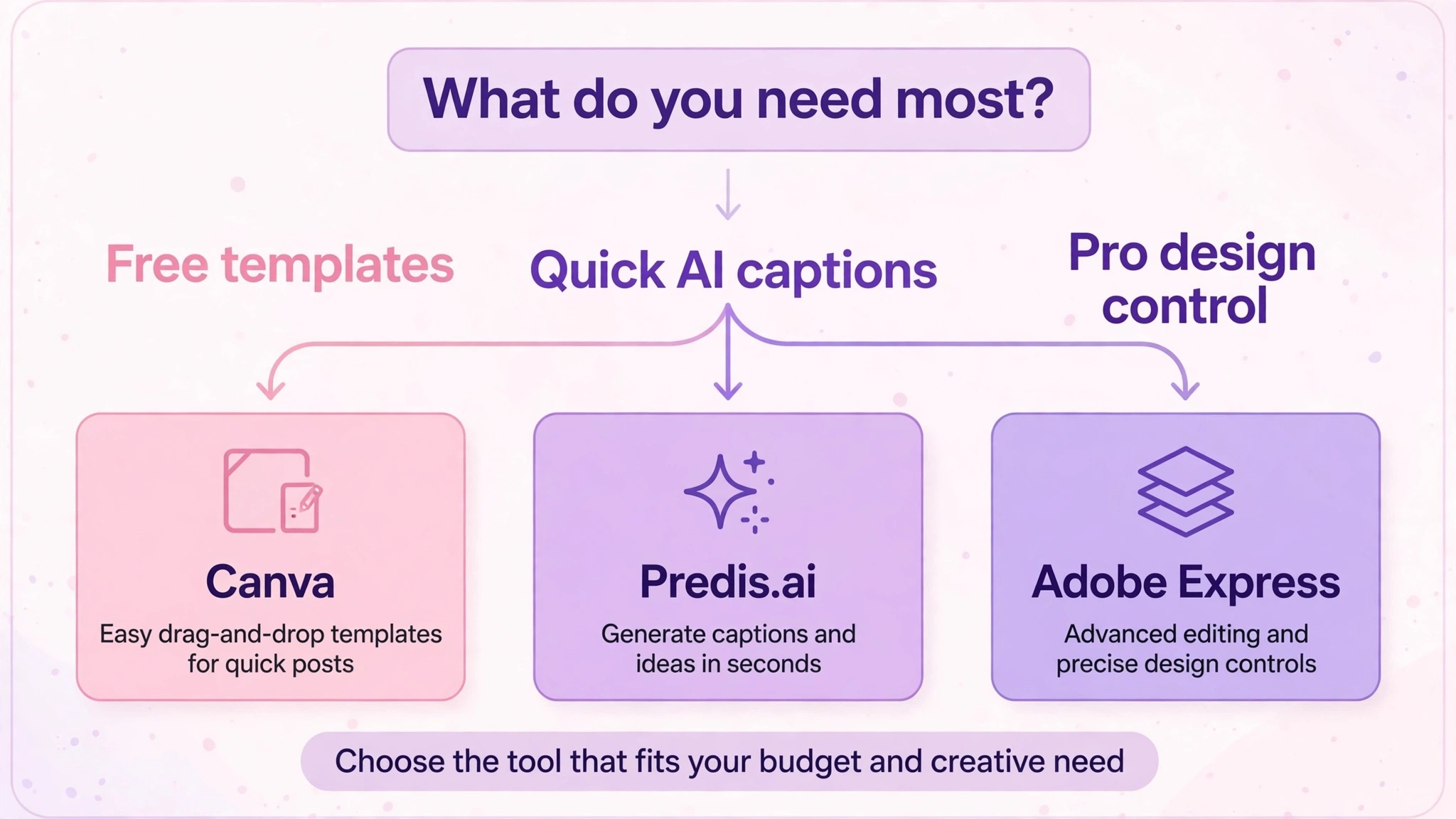
If you manage five client accounts, you need planning and approvals, so Later or Easil is the answer. If your budget is zero, Adobe Express is the answer, because it is the only free plan here with real scheduling.
Test before you pay. Every paid tool above has a free plan or a trial, and a week of real posting will tell you more than any review. Make five real posts in the tool, schedule them, and watch how long each one takes. If a post takes more than fifteen minutes, the tool is wrong for you. The best tool is the one you will still be using in three months.
Watch the renewal price, not the first month price. Several tools discount the first year and then charge the full rate. Check what the second year costs before you build your brand kit inside a tool. Also check the export rules. A tool that watermarks exports on the free plan is fine for testing, but it is not fine for a live account.
Mistakes That Make Good Posts Perform Badly
The first mistake is text that is too small. Instagram shows your post at phone size, and a clever line in 12 point type becomes grey noise. Use short lines, large type and no more than ten words on the image itself. Put the detail in the caption, where it belongs. A post that can be read from arm’s length will beat a post that needs a pinch zoom.
The second mistake is posting a square when a portrait would earn more screen space. The feed favours the 1080 by 1350 portrait size, and most tools here offer it as a preset. A square post is fine for a grid that must stay uniform, but a portrait post takes up more of the screen and holds attention longer. Use portrait for your important posts and square for the rest.
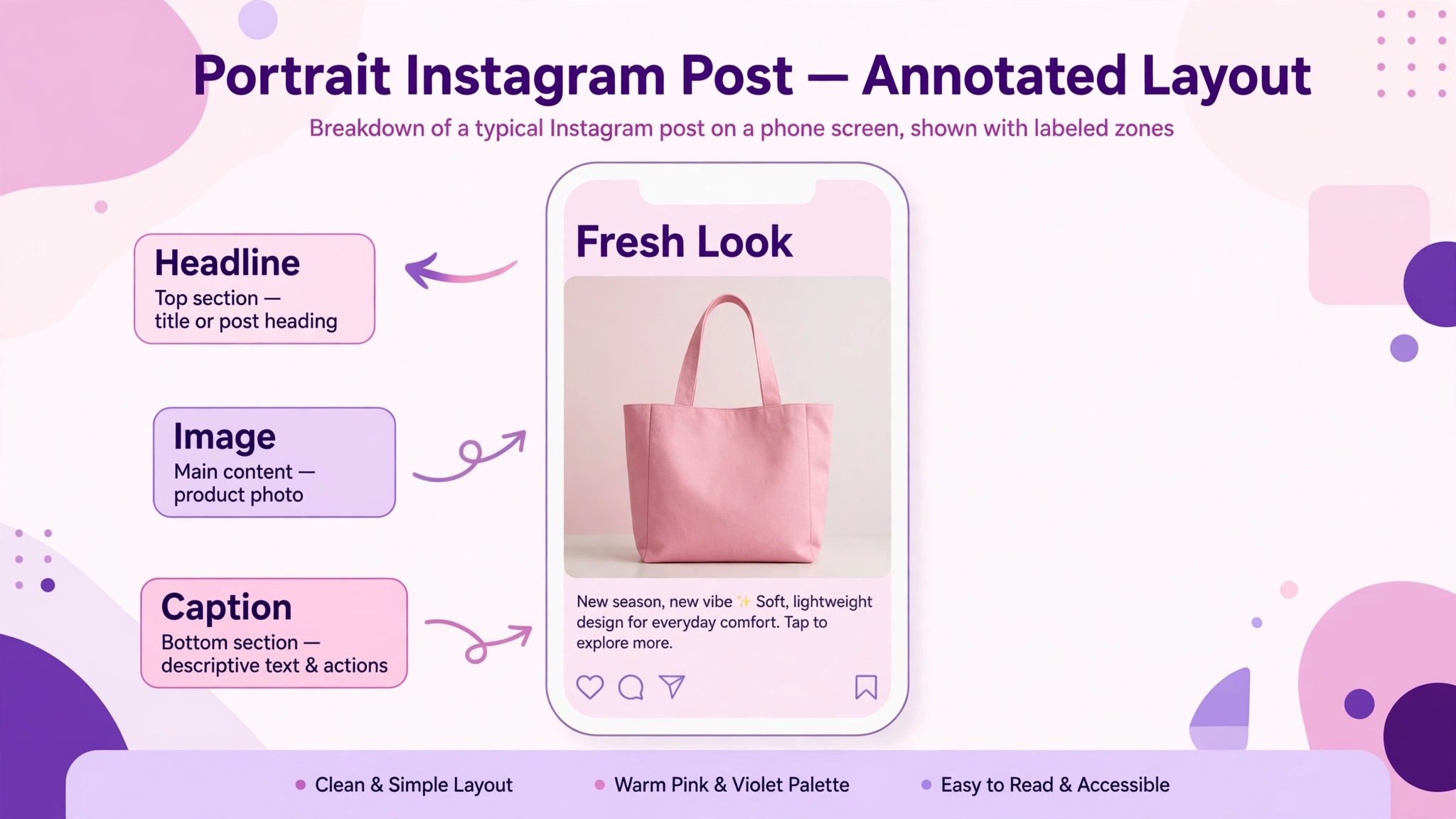
The third mistake is ignoring the first line of the caption. Instagram shows only the first line or two before the read more cut, and that line decides whether anyone reads the rest. Start with the point, the price, the date or the promise. Do not start with a greeting, a hashtag or a line about how excited you are. The best instagram post makers can draft captions, but none of them knows your first line until you write it.
The fourth mistake is using the same image for the feed, the story and the reel cover. Each surface has its own size and its own audience, and a feed post cropped into a story looks careless. Use the resize tool in your post maker and adjust the layout for each surface. It takes two minutes and it shows.
Frequently Asked Questions
What is the best free Instagram post maker?
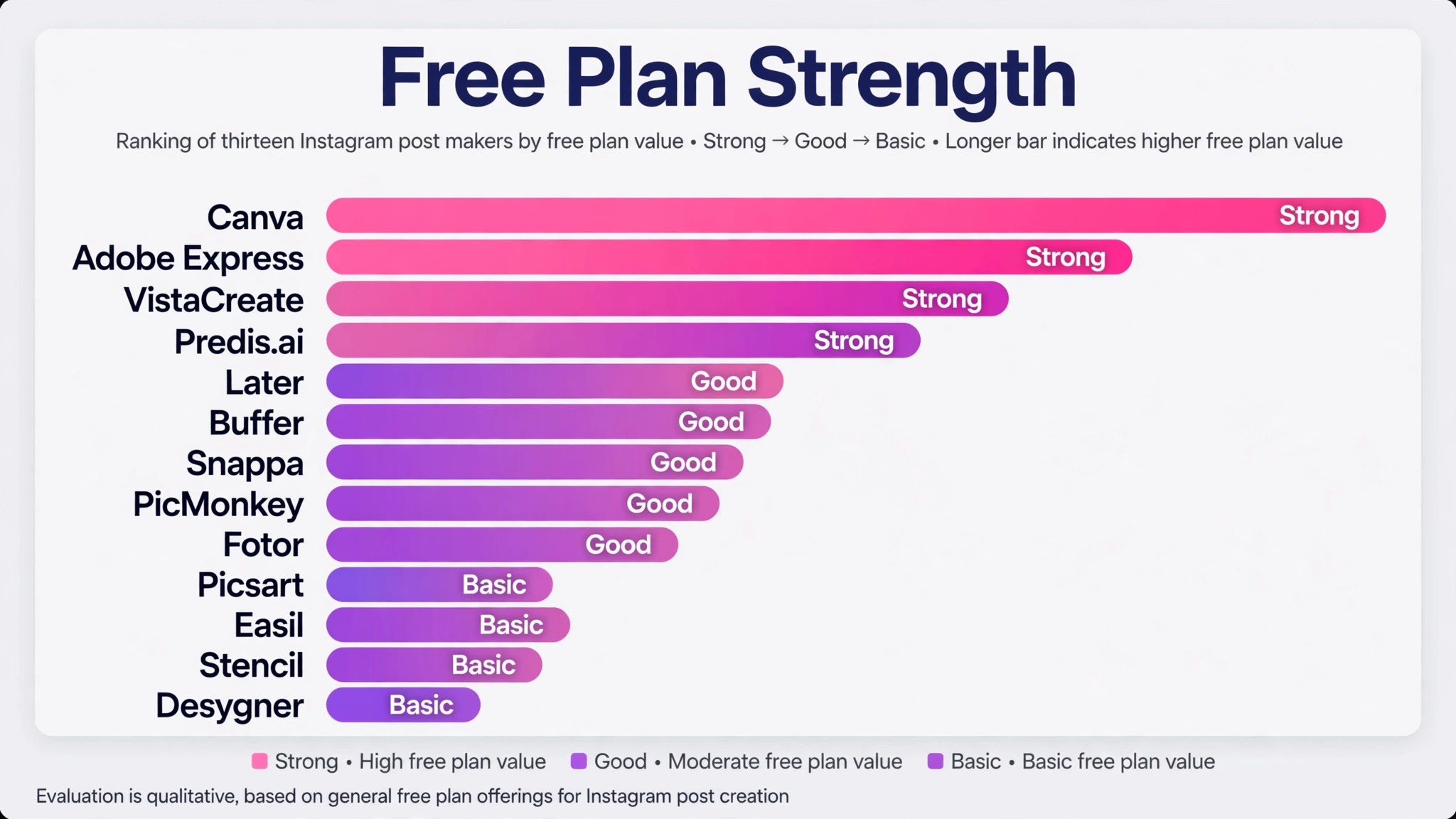
Adobe Express has the strongest free plan among the best instagram post makers, because it includes design templates, stock photos and a scheduler that publishes to one Instagram account at no cost. Canva free is close behind on templates and AI uses, but its scheduler needs a paid plan. If you need free scheduling, pick Adobe Express. If you need free templates, pick Canva.
Do I need a paid plan to post on Instagram?
No. Instagram itself is free, and you can post from the app at no cost. A paid post maker buys speed, templates, scheduling and AI help, not the right to post. Many small accounts run for a year on free plans. Pay when the free plan starts costing you time, not before.
Can an AI tool make my Instagram posts for me?
It can make a first draft, and Predis.ai is the best at that job in this list. It turns a prompt or a product link into a finished carousel with a caption. You should still edit the text, check the facts and swap at least one image before publishing. Unedited AI posts share a look that followers learn to ignore, and a wrong price or date in an AI caption is your mistake, not the tool’s.
What size should an Instagram feed post be?
Use 1080 by 1350 pixels for a portrait feed post, which is a 4 by 5 ratio and takes up the most screen space. A square post is 1080 by 1080 pixels. A story or reel cover is 1080 by 1920 pixels. Every tool in this guide offers these sizes as presets, so you should never have to type the numbers yourself.
Is it better to design on desktop or on mobile?
Design on desktop for carousels, text heavy posts and brand work, because the bigger screen makes alignment and spacing easier to judge. Use mobile for quick stories, photo posts and last minute edits. Canva, Adobe Express, Picsart and PicMonkey all have mobile apps that sync with the desktop version, so you can start on one and finish on the other.
How often should a small business post on Instagram?
Three to five feed posts a week is a realistic target for most small businesses, plus stories on the days you do not post to the feed. Consistency matters more than volume. Five posts a week for a month will do more than twenty posts in one week followed by silence. Use a scheduler to keep the rhythm when you are busy.
The Verdict
Canva leads the best instagram post makers for most people, because its free plan is real, its templates are the widest, and its Pro plan is fairly priced for what it adds. Adobe Express is the best free pick for anyone who needs scheduling without paying. Predis.ai is the best pick when inventing the post is the hard part. Later is the best planner for a grid that must look curated. Start with the free plan of the tool that matches your job, post for two weeks, and only pay when you can name the feature you are missing. That is the cheapest way to find the tool you will still be using next year.