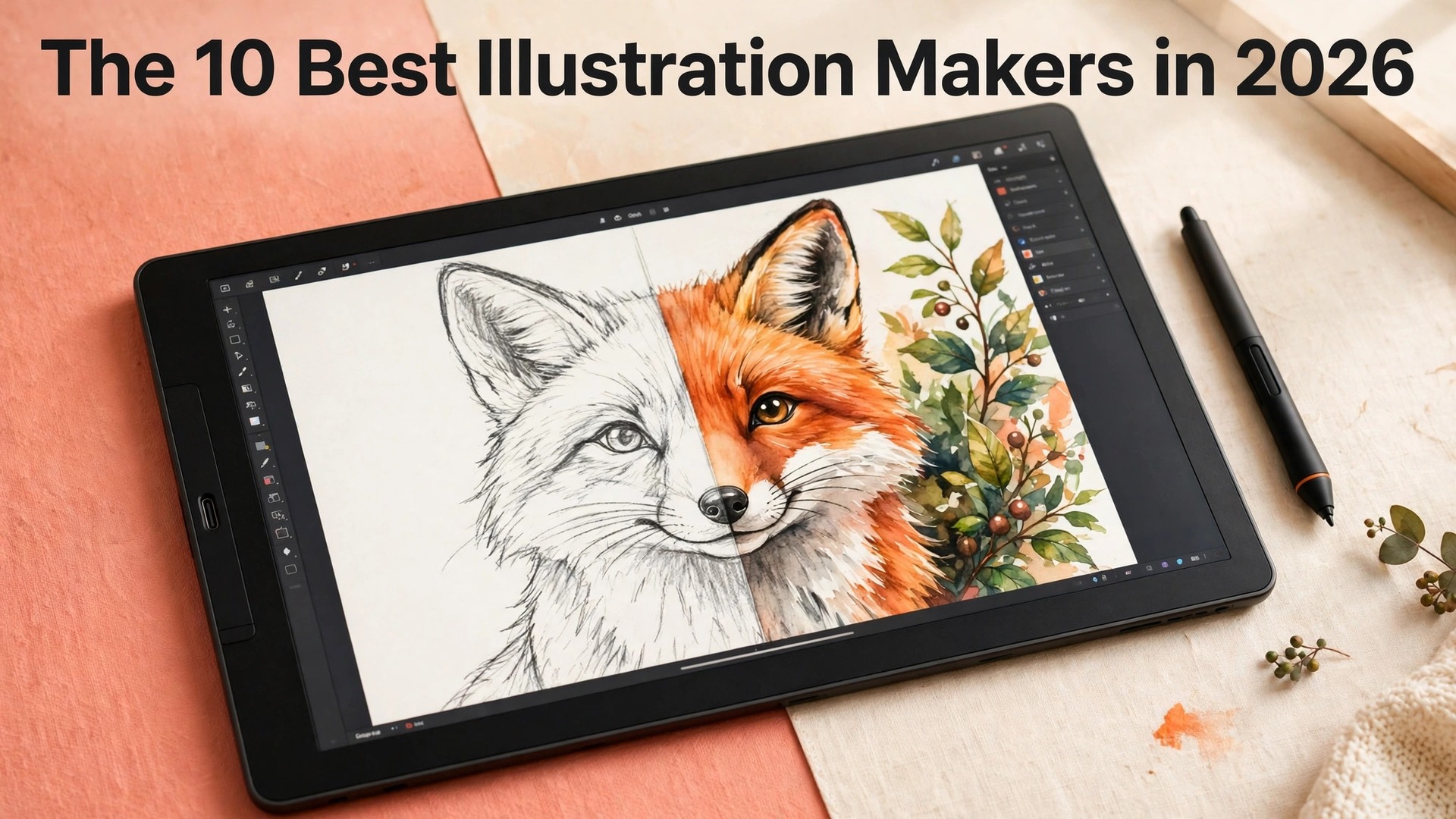
Adobe Illustrator is the industry standard for vector work, Procreate is the best value on iPad at a one time price of 12.99 dollars, and Affinity is now completely free. Three tools, three different answers to the same question, and none of them is wrong. The best illustration makers in 2026 are not ranked on features alone, because the right tool depends on what you draw, where you draw it, and whether you want to pay every month or once.
A logo designer needs vectors that scale. A comic artist needs panels and inking tools. A painter needs brushes that feel like paint. This guide compares 10 real illustration tools across vector, raster, comic, and painting workflows, with honest prices and a clear pick for every kind of illustrator, so you can stop comparing spec sheets and start drawing.
Vector vs Raster, and Why It Decides Everything
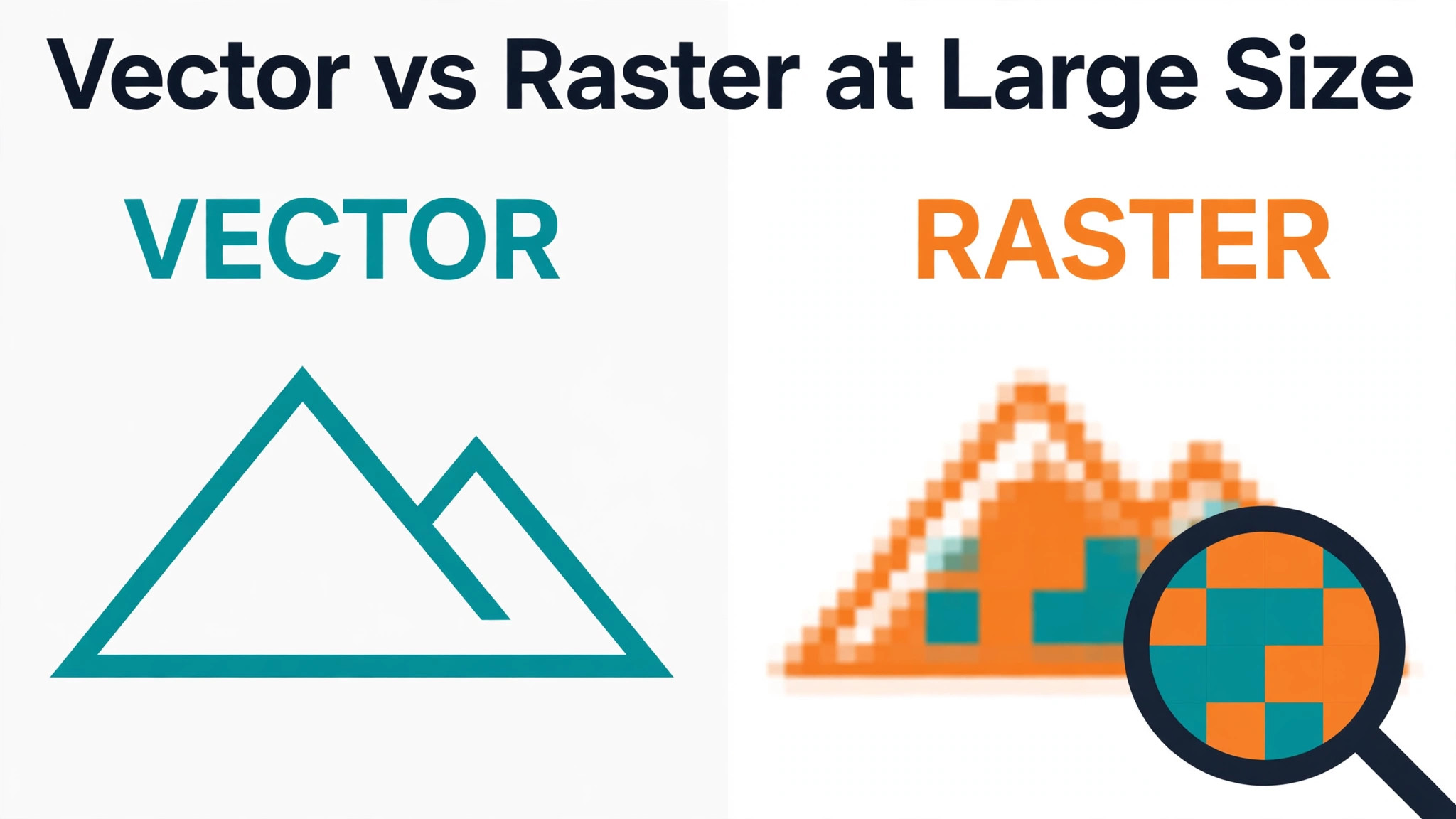
The first decision is not which app to buy. It is whether your work should be vector or raster. Vector illustration is built from mathematical paths, which means a logo, an icon, or an infographic stays sharp at any size, from a phone screen to a billboard. Raster illustration is built from pixels, which means a painting, a sketch, or a textured portrait can carry brush marks and grain that vectors cannot imitate, but it cannot scale beyond its canvas without softening.
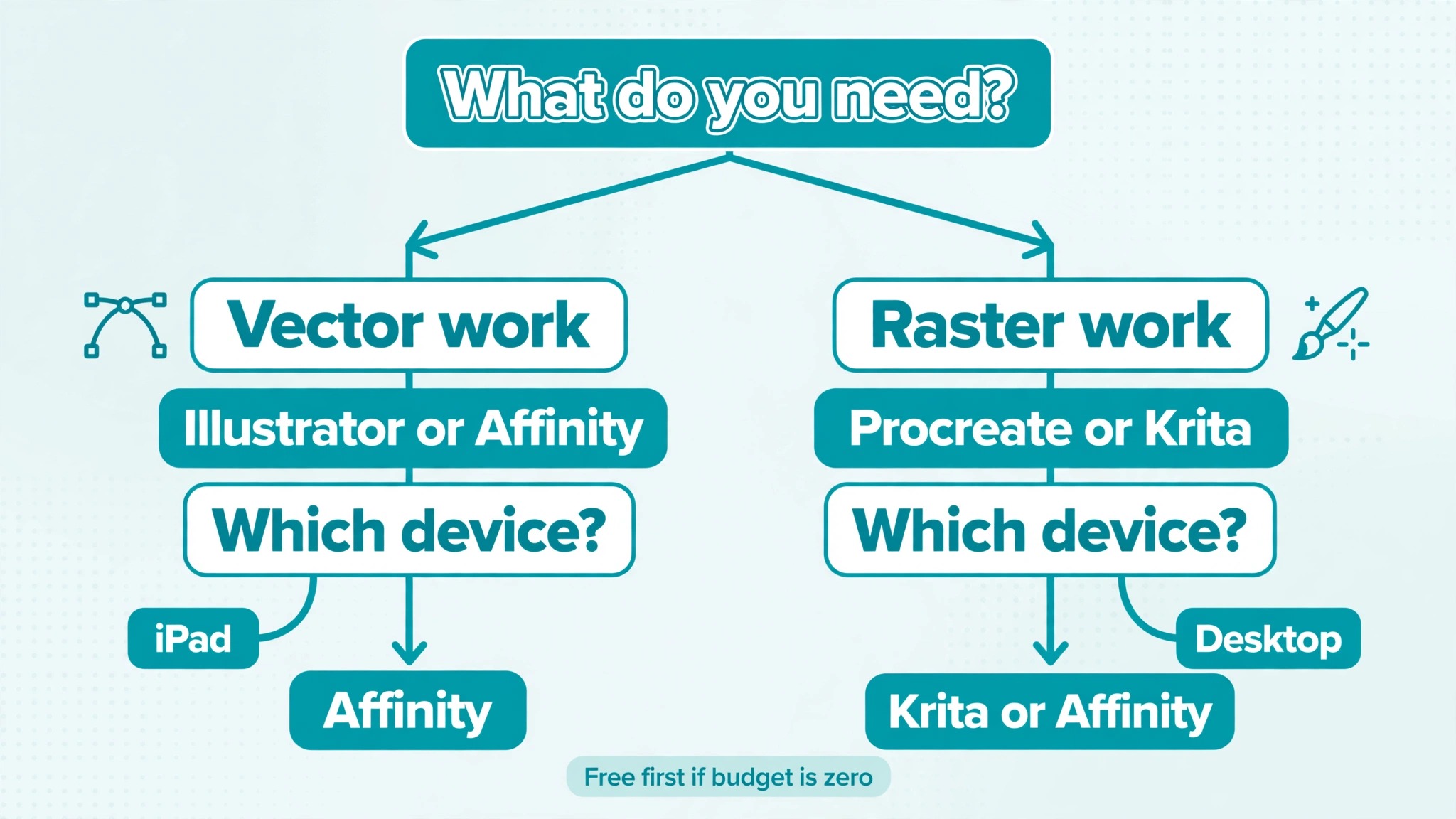
Most illustrators need one of these more than the other, and the tools split cleanly along that line. Illustrator, Affinity, Inkscape, and CorelDRAW are vector first. Procreate, Krita, Rebelle, MediBang Paint, and Photoshop are raster first. Clip Studio Paint sits in the middle, with strong raster tools and vector layers for line art. If you are unsure, ask what your work becomes. If the answer is logos, icons, packaging, or anything that must scale, start vector. If the answer is portraits, comics, concept art, or anything that must feel handmade, start raster. The tools below are organised with that split in mind.
How We Picked the Best Illustration Makers
We compared pricing pages, product documentation, and public user reviews, following the same approach used by recent 2026 roundups from Rankite and Guideflow. Every tool below is available now, actively maintained, and capable of professional work. We excluded abandoned apps, tools that only generate images from text prompts, and tools with no real drawing engine. Prices are given as listed by vendors at the time of writing. Where a vendor does not publish a clear price, this guide says so rather than guessing. Ratings mentioned come from G2 reviews checked in October 2026, and they are included as a signal, not a verdict.
The 10 Best Illustration Makers Compared
| Tool | Best for | Starting price | Free option |
|---|---|---|---|
| Adobe Illustrator | Professional vector work | 22.99 dollars a month | 7 day trial |
| Procreate | iPad drawing and painting | 12.99 dollars one time | No |
| Affinity | Free pro grade vector and raster | Free | Yes, fully free |
| Krita | Free digital painting | Free | Yes |
| Clip Studio Paint | Comics and manga | About 50 dollars one time for PRO | Free trial |
| Inkscape | Free vector illustration | Free | Yes |
| CorelDRAW | Vector plus layout and print | Subscription, check current price | Free trial |
| Adobe Photoshop | Raster illustration and compositing | 22.99 dollars a month | 7 day trial |
| Rebelle | Realistic traditional media | About 90 dollars one time | Free trial |
| MediBang Paint | Free comics and manga | Free | Yes |
Best Pick by Job
| Job | Best pick | Why it wins |
|---|---|---|
| Professional vector and branding | Adobe Illustrator | Industry standard, precise vector tools |
| iPad illustrator | Procreate | Best brush engine for the price |
| No budget at all | Affinity | Pro grade vector and raster, free |
| Free painting | Krita | Full painting studio, zero cost |
| Comics and manga | Clip Studio Paint | Panels, tones, and lettering built in |
| Free vector work | Inkscape | Capable vector editor, zero cost |
| Traditional media look | Rebelle | Watercolour and oil simulation |
| Beginner on any device | MediBang Paint | Free, light, and comic ready |
1. Adobe Illustrator
Illustrator is still the benchmark for vector illustration, and the reasons have not changed. The pen tool, shape builder, and pathfinder operations are precise in a way raster tools cannot match, and vector files scale from a business card to a billboard without losing quality. Logos, icons, infographics, and brand illustrations are built here because the output is production ready, and the files move cleanly into Photoshop, InDesign, and After Effects.
Illustrator holds a 4.6 out of 5 rating on G2 across more than 6,000 reviews, which reflects decades of professional use rather than a single good release. The price is the honest drawback. At 22.99 dollars a month on annual billing, it costs about 276 dollars a year, and the subscription never ends. For a freelancer who does not need the Adobe ecosystem, the free Affinity app now covers much of the same ground, which makes Illustrator a harder sell than it was five years ago. But when a client expects Illustrator files, or when precision matters more than price, it remains the right tool.
2. Procreate
Procreate is the reason many illustrators own an iPad. The one time price of 12.99 dollars buys a complete raster illustration studio, with a brush engine artists genuinely love, huge canvases up to 16K, frame by frame animation assist, and 3D model painting. There is no subscription, no trial, and no upsell. Open the app, pick a brush, and draw.
The brush engine feels responsive with Apple Pencil, layers and masks cover most illustration needs, and the time lapse recording feature automatically captures the creation process, which is valuable for social media content. Procreate holds a 4.9 out of 5 rating on G2. The limits are platform and format. It runs on iPad only, and it is raster only, so logo and vector work belongs in Affinity or Illustrator, and files do not move cleanly into vector workflows. For iPad illustrators, it is still the best value in this entire guide.
3. Affinity
Affinity is the story of 2026 in creative software. After Canva acquired Serif, the three Affinity apps for vector, photo, and layout were merged into one unified application and made free forever for everyone on Windows and Mac. That single change rewrote the value calculation for the whole category. The unified app handles vector illustration competently, with raster and layout tools in the same window, at zero cost.
For a freelancer weighing Illustrator at 276 dollars a year against a free app that covers most of the same work, the free app wins unless a client demands Adobe files. Affinity is not perfect. Its vector tools are strong but not identical to Illustrator, and some professionals will miss specific features. But as a starting point, or as a permanent home for illustrators who refuse subscriptions, it is now the default recommendation. Check the current version before you commit, because the free relaunch is recent and the feature set is still evolving.
4. Krita
Krita is a genuinely usable free painting tool, not a stripped down teaser, and it covers most hobbyist and many freelance workflows. It is built for digital painting, with a strong brush engine, stabilisers for clean line work, animation tools, and support for large canvases. Concept artists, illustrators, and comic painters all use it professionally.
The interface is denser than Procreate, and the learning curve is real, but the price is zero and the capability is high. Krita runs on Windows, Mac, and Linux, which makes it the best free option for desktop painters who do not own an iPad. Pair it with Inkscape for vector work and you have a complete free illustration setup that costs nothing and covers almost every job a beginner will face.
5. Clip Studio Paint
Clip Studio Paint is the strongest pick for comics and manga, because it was built around panels, screen tones, inking, and lettering from the start. The perspective rulers, panel tools, balloon and text features, and 3D pose models save hours on every page, and the brush engine is excellent for line art. The PRO version costs about 50 dollars as a one time purchase, while the EX version adds multi page management for longer books at a higher price.
A free trial is available, and the tool runs on Windows, Mac, iPad, and other tablets. Illustrators who do not draw comics can still use it as a general painting app, but its real advantage shows on sequential art. If your work is a comic, a manga, or a graphic novel, start here and do not look elsewhere first.
6. Inkscape
Inkscape is the best free vector illustration tool, and it has been for years. It is open source, runs on Windows, Mac, and Linux, and covers the core vector workflow of paths, shapes, text on paths, gradients, and SVG export. For logo work, icon sets, and simple illustrations, it is capable enough that many freelancers use it as their daily tool.
The interface is less polished than Illustrator or Affinity, and some advanced features like gradient meshes and variable width strokes are weaker or missing. But the price is zero, the SVG output is clean, and the community is large and helpful. Inkscape suits beginners learning vector drawing, hobbyists, and professionals who want a free tool that respects open standards. If you need vectors and cannot pay, start here.
7. CorelDRAW
CorelDRAW is the veteran of this list, a vector illustration and layout suite that has served print and sign shops for decades. It combines vector drawing with page layout, typography, and photo editing in one package, which makes it strong for packaging, signage, and print work where illustration and layout meet. The toolset is deep, the typography controls are excellent, and the output is production ready for print. The drawback is price and positioning.
CorelDRAW is sold as a subscription, and the current price should be checked on the vendor site before you buy, because it changes by region and promotion. It is also less common in digital first studios, so files move less easily into the Adobe workflows many clients expect. Choose CorelDRAW when your work ends on paper, vinyl, or packaging, and when the layout tools matter as much as the drawing tools.
8. Adobe Photoshop
Photoshop remains the default for many professional illustrators, not because it is the simplest app, but because it covers the most ground. Raster illustration, photo based work, compositing, texture work, and colour grading all happen in one place, and the brush engine, layer system, and plugin ecosystem are unmatched. Illustrators who paint over photographs, build textured editorial art, or prepare files for print will find Photoshop hard to replace.
The price is the same as Illustrator at 22.99 dollars a month for the single app on annual billing, and the subscription adds up fast when combined with other Adobe apps. Photoshop is also heavier and slower to learn than Procreate or Krita. It earns its place when the job needs its breadth, and it is overkill when the job is a simple illustration.
9. Rebelle
Rebelle is the specialist on this list, built to simulate traditional media with unusual fidelity. Watercolour bleeds and dries, oils blend, and pencils smudge the way they do on paper, which makes it the best choice for illustrators whose work must look painted rather than digital. The effect is not a filter. It is a simulation of how pigment and water behave, and the results carry a texture that vector tools cannot imitate and most raster tools only approximate.
The price is about 90 dollars as a one time purchase, with a free trial available. Rebelle is narrower than Photoshop or Krita, and it is not the tool for logos, icons, or comics. But for fine art illustration, book covers, and editorial work where the traditional media look is the point, it has no equal in this guide.
10. MediBang Paint
MediBang Paint is a free, lightweight app built for comics and manga, and it is the best starting point for a beginner who wants to draw sequential art without paying or learning a complex interface. It offers comic panels, tones, brushes, and cloud saving across devices, and it runs on Windows, Mac, iPad, and Android.
The toolset is simpler than Clip Studio Paint, and the brush engine is less deep than Krita, but the learning curve is gentle and the price is zero. MediBang suits young artists, hobbyists, and anyone who wants to finish a first comic page this weekend rather than study a manual. If the work outgrows it, Clip Studio Paint is the natural next step, and the panel based thinking transfers directly.
Vector vs Raster in Practice
Theory is useful, but the choice becomes clear with examples. A logo for a coffee shop is vector work. The mark must appear on a cup, a sign, a menu, and a social avatar, all at different sizes, and only Illustrator, Affinity, Inkscape, or CorelDRAW will keep it sharp everywhere. A portrait for a book cover is raster work. The skin tones, the brush texture, and the soft light need pixels, and Procreate, Krita, Photoshop, or Rebelle will do it better. A comic page is both. The panels and lettering benefit from vector precision, while the art itself is raster, which is why Clip Studio Paint and MediBang Paint exist.
Many professionals use two tools. A common pair is Affinity for vector work and Krita for painting, which together cost nothing. Another is Illustrator for client logos and Procreate for personal art, which costs a subscription plus a one time purchase. The pair matters more than any single app, because no tool in this guide does everything well.
Pick the tool for the work you do most, then add a second tool for the work you do second most. That is how working illustrators actually build their setup, and it is why lists of the best illustration makers should be read as a menu rather than a ranking. The right answer is the combination that fits your work, your device, and your budget, not the app at the top of someone else list.
What to Check Before You Pay
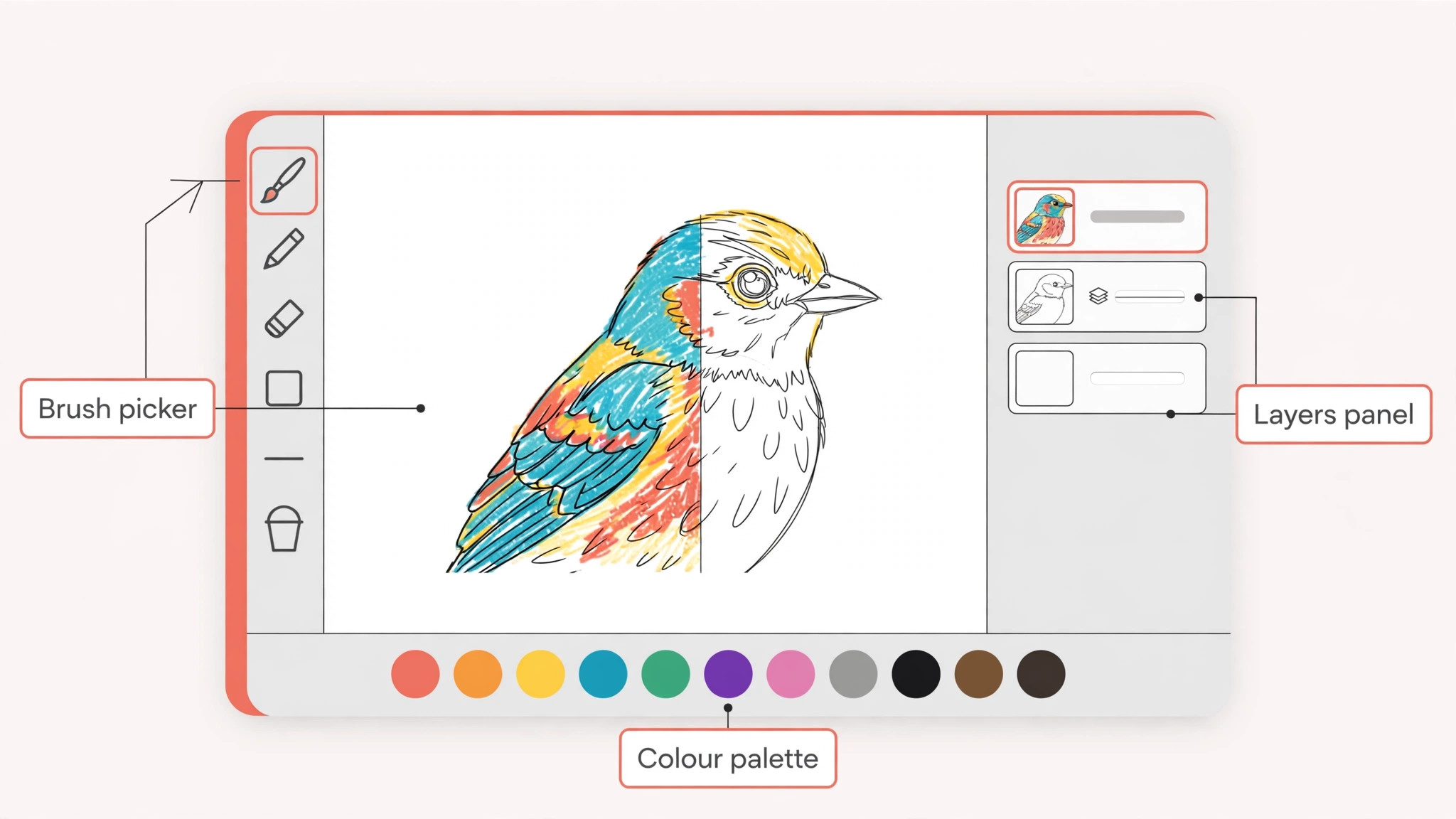
Price is the easiest thing to compare and the least important on its own. Check the platform first. Procreate is iPad only, and buying it without an iPad is a waste of 13 dollars. Check the file formats second. If your clients expect AI or PSD files, a tool that only exports PNG will create friction on every job. Check the trial third. Illustrator and Photoshop both offer seven day trials, and seven days is enough to learn whether the interface fits your hands. Check the subscription terms fourth. A one time purchase like Procreate or Clip Studio Paint PRO costs less over two years than any monthly plan, and that gap grows every year you keep the tool.
Finally, check the community. A tool with tutorials, brush packs, and an active forum is easier to learn than a tool with better features and no help. Affinity, Krita, and Procreate all have large communities. Rebelle and MediBang Paint have smaller ones, but they are focused and generous. The best illustration makers are not just the apps with the longest feature lists. They are the apps you will still be using in a year, because the files, the community, and the workflow all fit the work you actually do. A tool you abandon after a month was never a good buy, whatever its price, and a free tool you use every day was the best purchase you never made.
Illustration Pricing Over Two Years
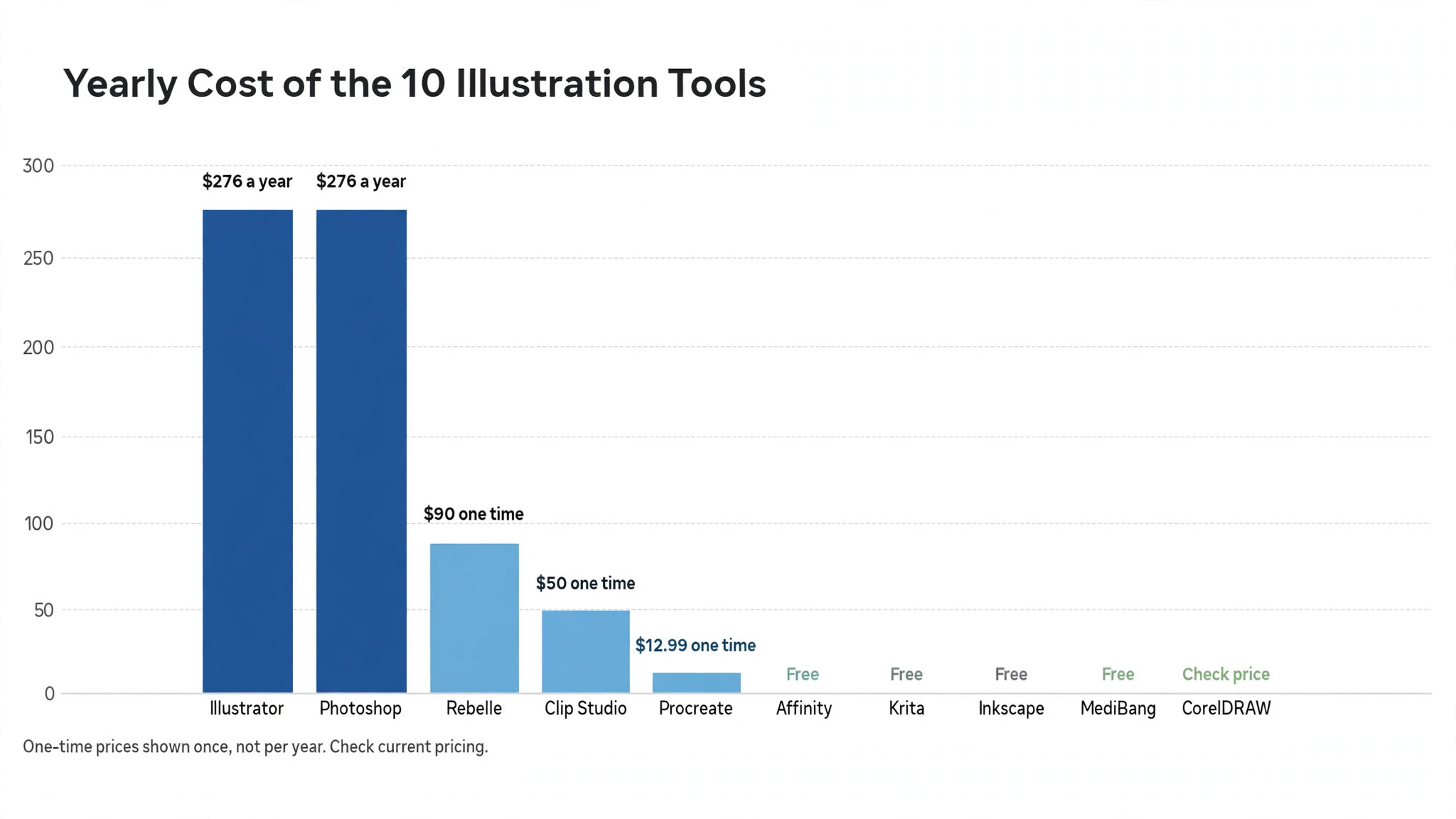
Monthly prices hide the real cost of a tool, because a subscription repeats while a one time purchase does not. The table below shows what each paid tool costs over two years, using the prices listed earlier in this guide. Free tools cost nothing in both years, which is why they dominate the value conversation.
| Tool | Year one cost | Year two cost | Two year total |
|---|---|---|---|
| Adobe Illustrator | About 276 dollars | About 276 dollars | About 552 dollars |
| Procreate | 12.99 dollars | Zero | 12.99 dollars |
| Affinity | Zero | Zero | Zero |
| Krita | Zero | Zero | Zero |
| Clip Studio Paint PRO | About 50 dollars | Zero | About 50 dollars |
| Inkscape | Zero | Zero | Zero |
| Adobe Photoshop | About 276 dollars | About 276 dollars | About 552 dollars |
| Rebelle | About 90 dollars | Zero | About 90 dollars |
| MediBang Paint | Zero | Zero | Zero |
The gap is stark. Two years of Illustrator costs about 552 dollars, while Procreate, Clip Studio Paint PRO, and Rebelle together cost about 153 dollars once, and the free set costs nothing at all. That does not make Illustrator a bad tool. It makes it a tool that must earn about 276 dollars a year in client work to justify itself, which it does easily for a working professional and never does for a hobbyist.
Run the same maths for your own work before you subscribe to anything. If the tool does not pay for itself in the work it enables, the free alternative is the professional choice, not the cheap one. This two year view is the most useful lens in the whole guide, because it turns a small monthly number into a real budget decision.
Hardware That Matters for Illustrators
Software gets the attention, but hardware decides how the software feels. A pressure sensitive pen is the single most important purchase for raster illustration, because pressure controls brush size and opacity in a way a mouse cannot imitate. An Apple Pencil on iPad, a Wacom tablet on desktop, or a pen display all serve the same purpose, and the choice depends on the device you already own. An iPad plus Procreate is the cheapest complete drawing station, at the cost of the tablet plus 12.99 dollars. A desktop plus Krita and a basic Wacom tablet is cheaper still, and it runs the full free toolset.
Screen size matters next. A small laptop screen forces constant zooming, which slows painting and hides composition errors. A larger monitor, or an iPad with a roomy canvas, makes the work faster and the mistakes easier to spot. Colour accuracy matters for print work, and a cheap screen that shifts colours will produce files that look different on the client screen. You do not need professional hardware to start, and the best illustration makers run well on ordinary machines. But when the software stops being the bottleneck, the next purchase should be a pen and a decent screen, not another app.
Mistakes to Avoid When Choosing
The first mistake is buying the industry standard before you know what you draw. Illustrator is a superb tool, and it is wasted on someone who paints portraits. Start from the work, not the reputation. The second mistake is paying monthly for a tool you use twice a year. A one time purchase or a free app is the right answer for occasional use, and the subscription only makes sense when the tool earns its keep every week.
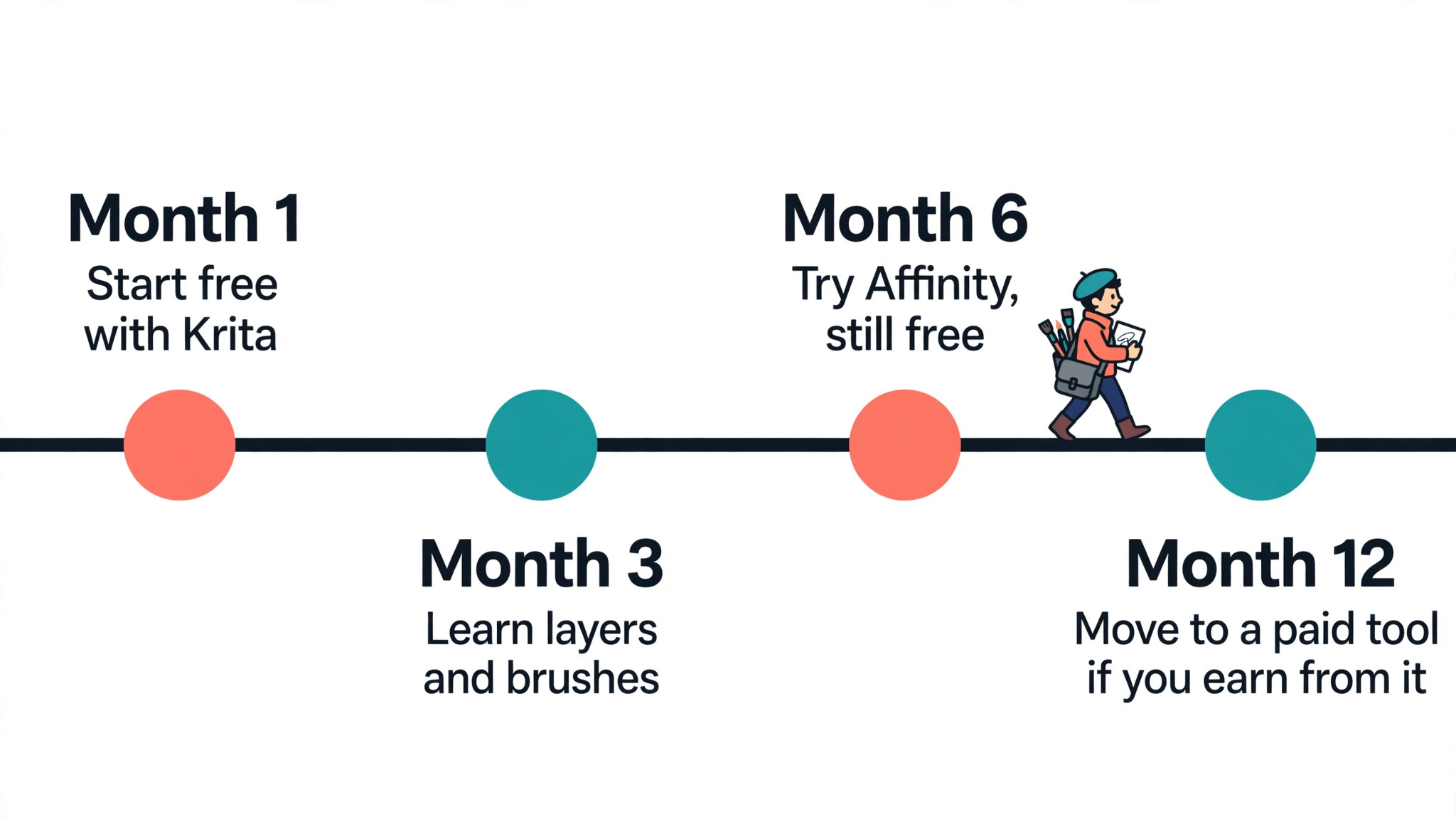
The third mistake is ignoring the free options. Affinity, Krita, Inkscape, and MediBang Paint are all free and all capable of professional work. A beginner who spends 300 dollars on subscriptions before finishing a first portfolio has spent money that a free setup would have saved. The fourth mistake is collecting tools instead of learning one. Five apps at a shallow level produce worse work than one app at a deep level. Pick one, learn it for three months, and only add a second tool when you can name the specific job the first one cannot do.
How to Learn Your First Illustration Tool
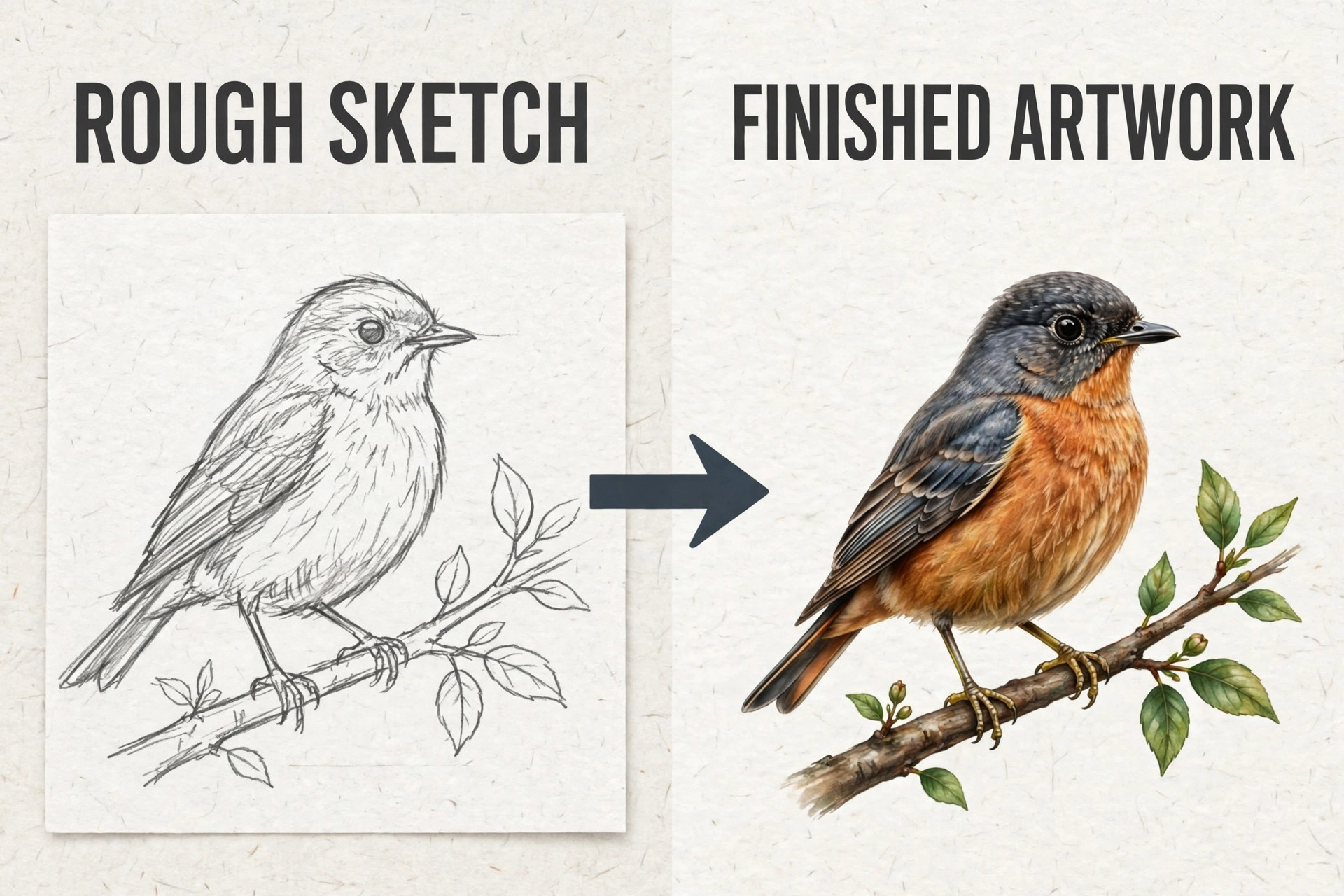
A new app feels overwhelming for about a week, then it feels normal. The fastest way through that week is to learn five things and ignore the rest. Learn how to create a canvas, how to pick a brush, how to use layers, how to undo, and how to export. Those five skills cover ninety percent of real work. Everything else can wait until a project needs it. The best illustration makers reward this approach, because their core tools are simple and their advanced features stay out of the way until you ask for them.
Set a small project for the first week. Redraw a logo you like, paint a portrait from a photo, or finish one comic page. A real project teaches faster than a tutorial playlist, because it forces you to solve problems the tutorial never mentions. When you get stuck, search for the specific task rather than watching a general course. A three minute answer to one question beats a three hour course you never finish.
By the end of the month, the tool will feel like yours, and the work will matter more than the software. That is the moment to judge whether you picked the right app. If the work flows, you did. If every task feels like a fight, try the next tool on the list, because the right fit should feel easy by week four, and the wrong fit rarely improves with more effort.
Frequently Asked Questions
What is the best illustration software for beginners?
Affinity is the best starting point for most beginners because it is free, covers vector and raster work, and runs on Windows and Mac. MediBang Paint is the best free start for comics, and Krita is the best free start for painting. Procreate is the best paid start for iPad owners at 12.99 dollars once. Start free, learn the basics, and only pay when you know what the paid tool adds.
Is Procreate better than Adobe Illustrator?
They do different jobs, so the comparison depends on the work. Procreate is better for iPad painting, sketching, and textured illustration, and it costs 12.99 dollars once. Illustrator is better for vector logos, icons, and anything that must scale, and it costs 22.99 dollars a month. Many illustrators own both and use each for the work it suits best.
Is Affinity really free now?
Yes. After Canva acquired Serif, the Affinity apps were merged into one unified application and made free forever for Windows and Mac users. The change happened in October 2025, and it is the biggest pricing shift in this category in years. Check the current version on the vendor site, because the free app is still evolving and new features arrive regularly.
What is the best free illustration software?
For vector work, Inkscape is the best free choice, with Affinity now free as well and more polished. For painting, Krita is the best free choice. For comics, MediBang Paint is the best free choice. Together, Affinity, Krita, and Inkscape cover almost every illustration job at zero cost, which is why a paid tool should only be bought when it solves a specific problem.
Do I need a drawing tablet to illustrate?
A tablet helps, but it is not required to start. Vector illustration with a mouse is normal, and many logo and icon illustrators work that way for years. Raster painting benefits greatly from a pressure sensitive pen, whether that is an Apple Pencil on iPad, a Wacom tablet on desktop, or a pen display. Start with the hardware you have, and buy a tablet when the lack of one is the thing slowing you down.
Can I make logos in Procreate?
You can draw a logo in Procreate, but you should not deliver it from Procreate alone. Logos need vector files so they scale cleanly, and Procreate is raster only. The practical workflow is to sketch and refine the idea in Procreate, then rebuild it as vectors in Affinity, Inkscape, or Illustrator for the final files. That two step process gives you the best of both tools.
Which illustration tool is best for comics and manga?
Clip Studio Paint is the best choice for comics and manga because its panel tools, perspective rulers, screen tones, and lettering features were built for sequential art. MediBang Paint is the best free alternative, with comic panels and tones at zero cost. Both run on desktop and tablet, and the skills transfer directly between them.