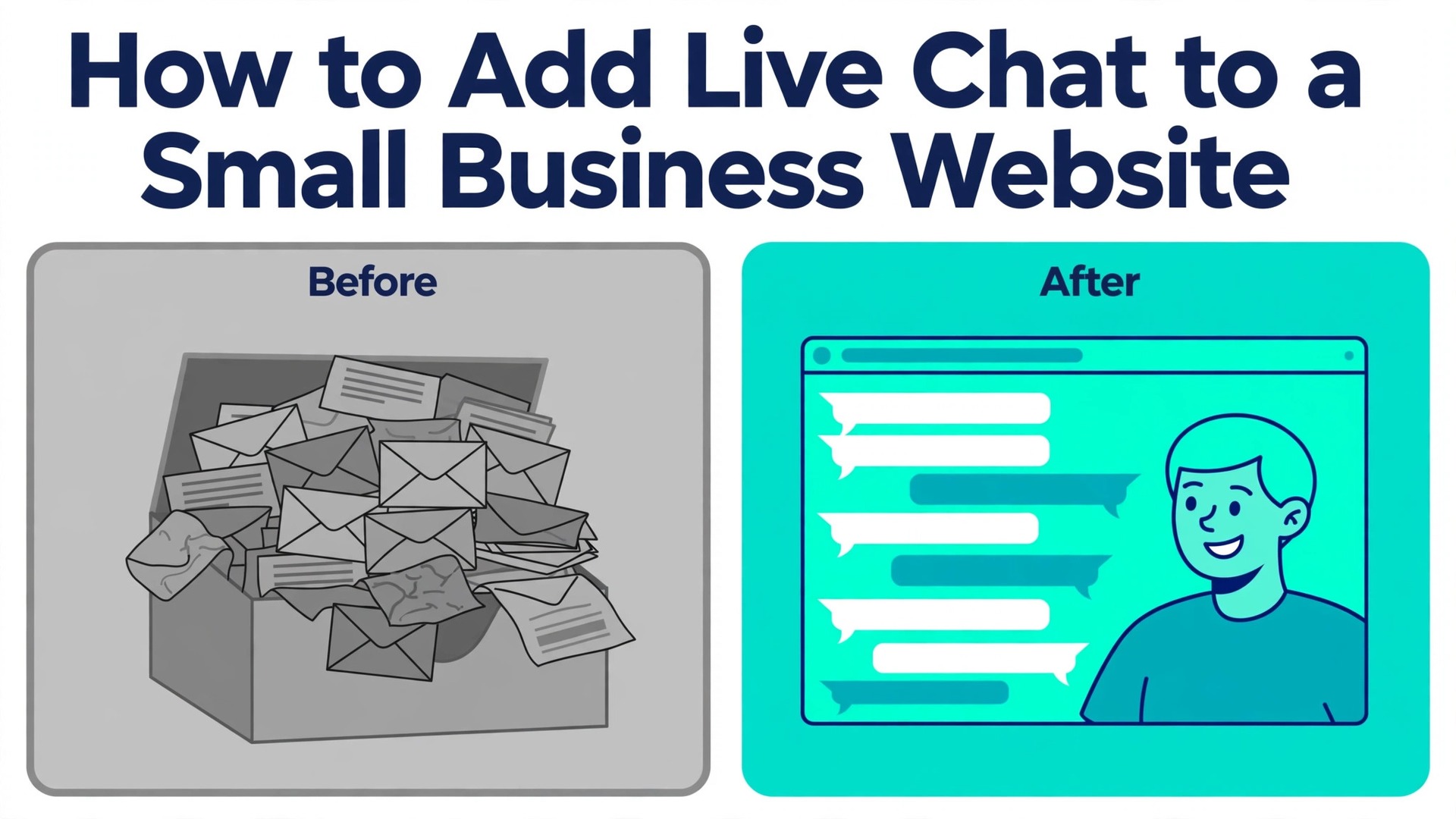
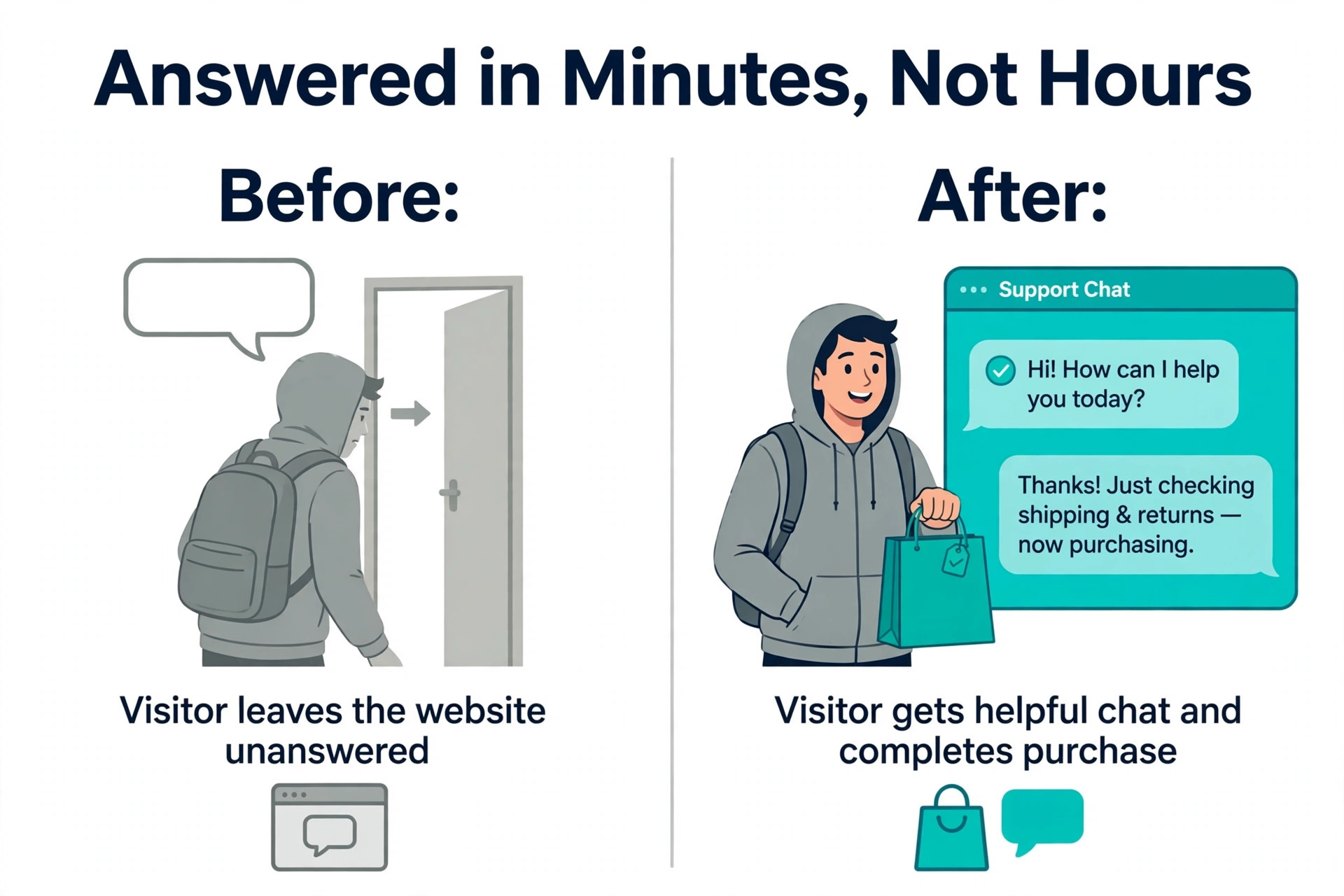
Learning how to add live chat to a small business website is one of the fastest ways to turn existing traffic into revenue, because it fixes the moment a visitor is closest to buying. Before live chat, a visitor with a question had two choices, send an email and wait hours for a reply, or leave and buy from a competitor. After live chat, the same visitor gets an answer in under two minutes and often buys in the same visit.
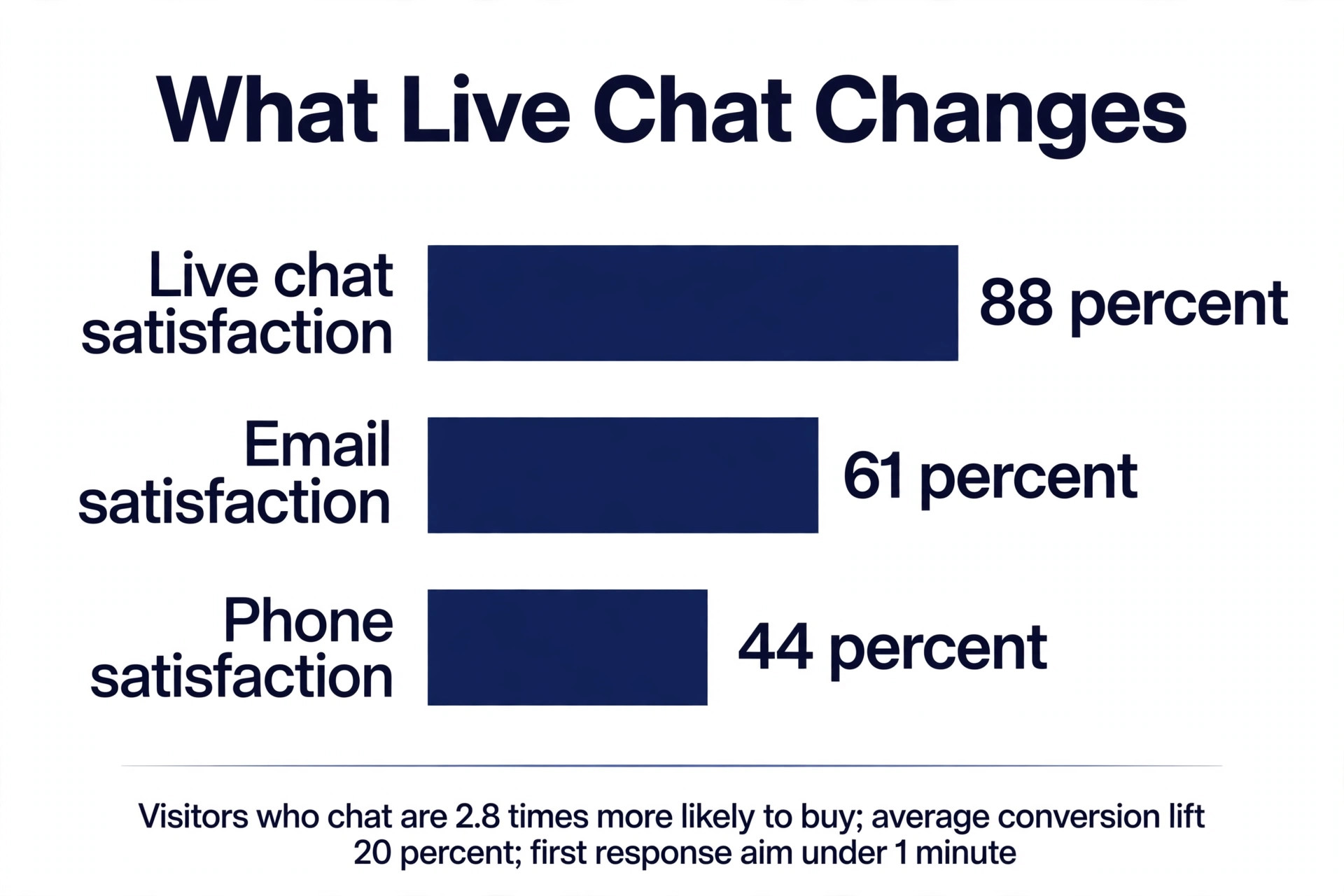
The published numbers back up that before and after picture, with businesses that add live chat reporting an average conversion increase of 20 percent according to Invesp, visitors who chat proving 2.8 times more likely to buy according to ICMI, and average order value rising about 10 percent according to Forrester.
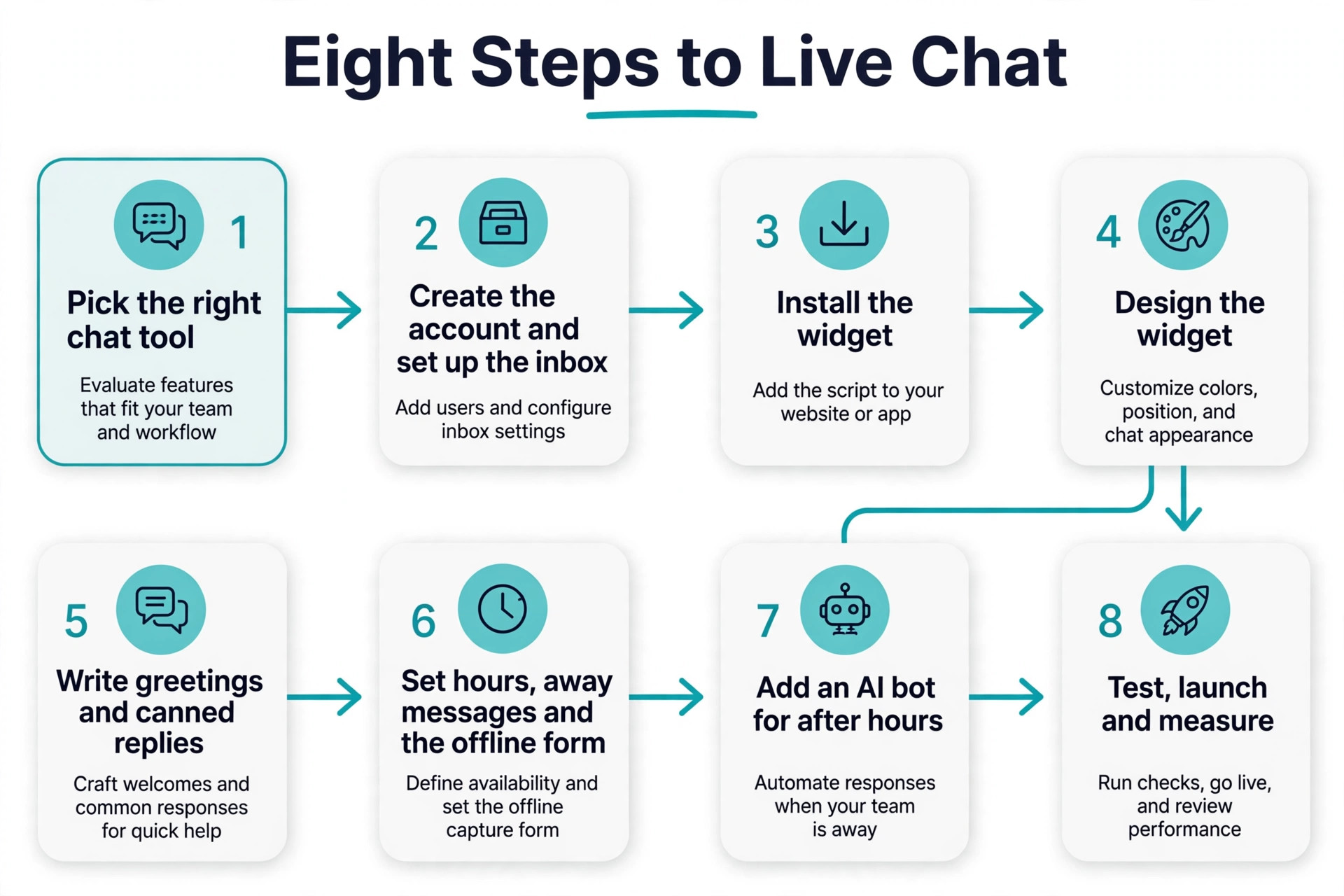
This guide walks through the whole job in eight steps, from picking the tool to measuring the results after launch. It covers WordPress, Shopify, and Wix installs, the widget design, the greeting messages, the offline form, and the AI bot that answers after hours. Most small businesses can finish the setup in one afternoon, and the first chats usually arrive the same day.
What Live Chat Changes on a Small Business Site
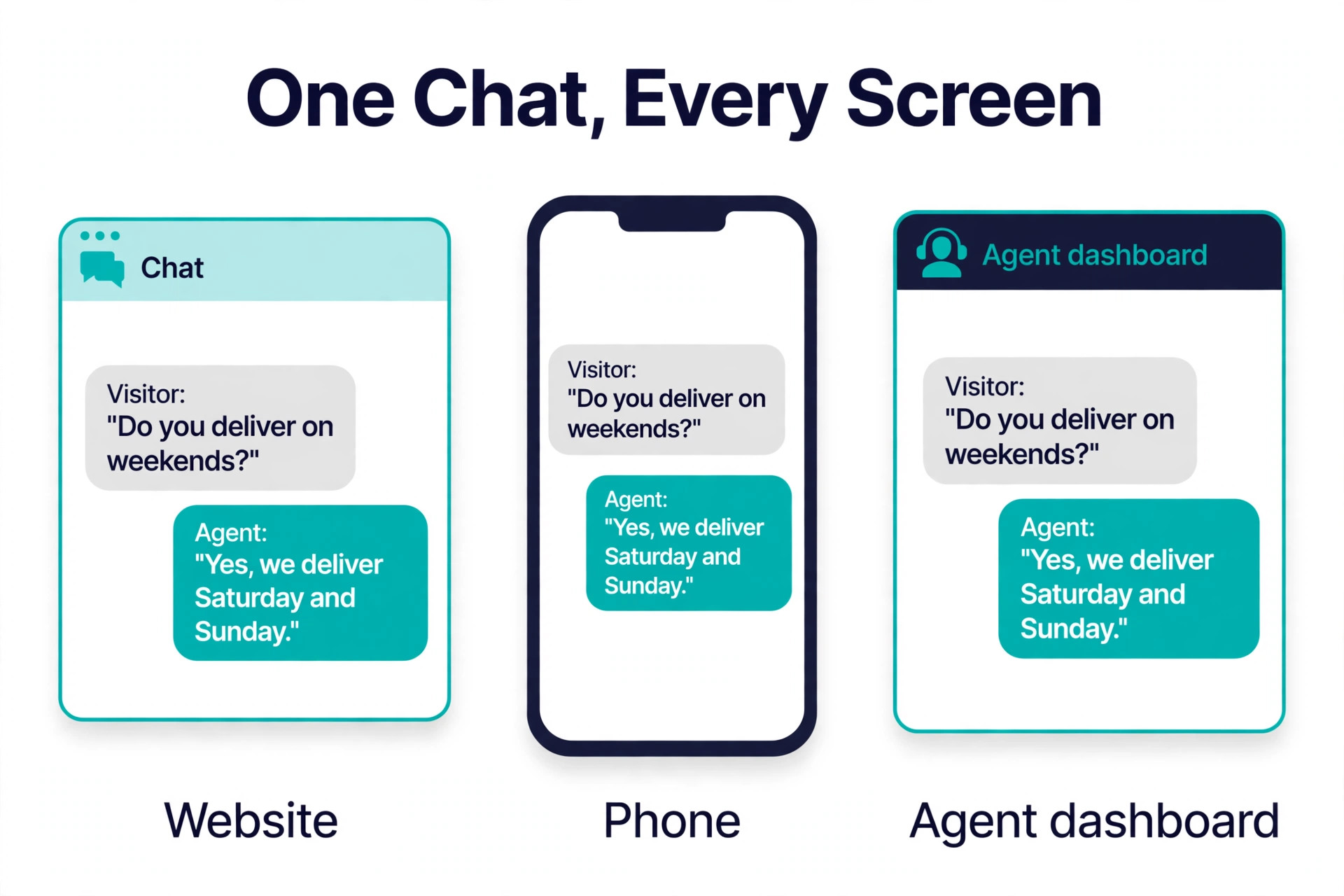
Live chat changes the timing of the conversation. Email support answers in hours, phone support answers when someone is free to call, and live chat answers while the visitor is still looking at the product page. That timing is the whole advantage, because a question about delivery, sizing, or pricing is easiest to answer in the 30 seconds after the visitor thinks of it, and hardest to answer in an email the next morning when the visitor has already moved on.
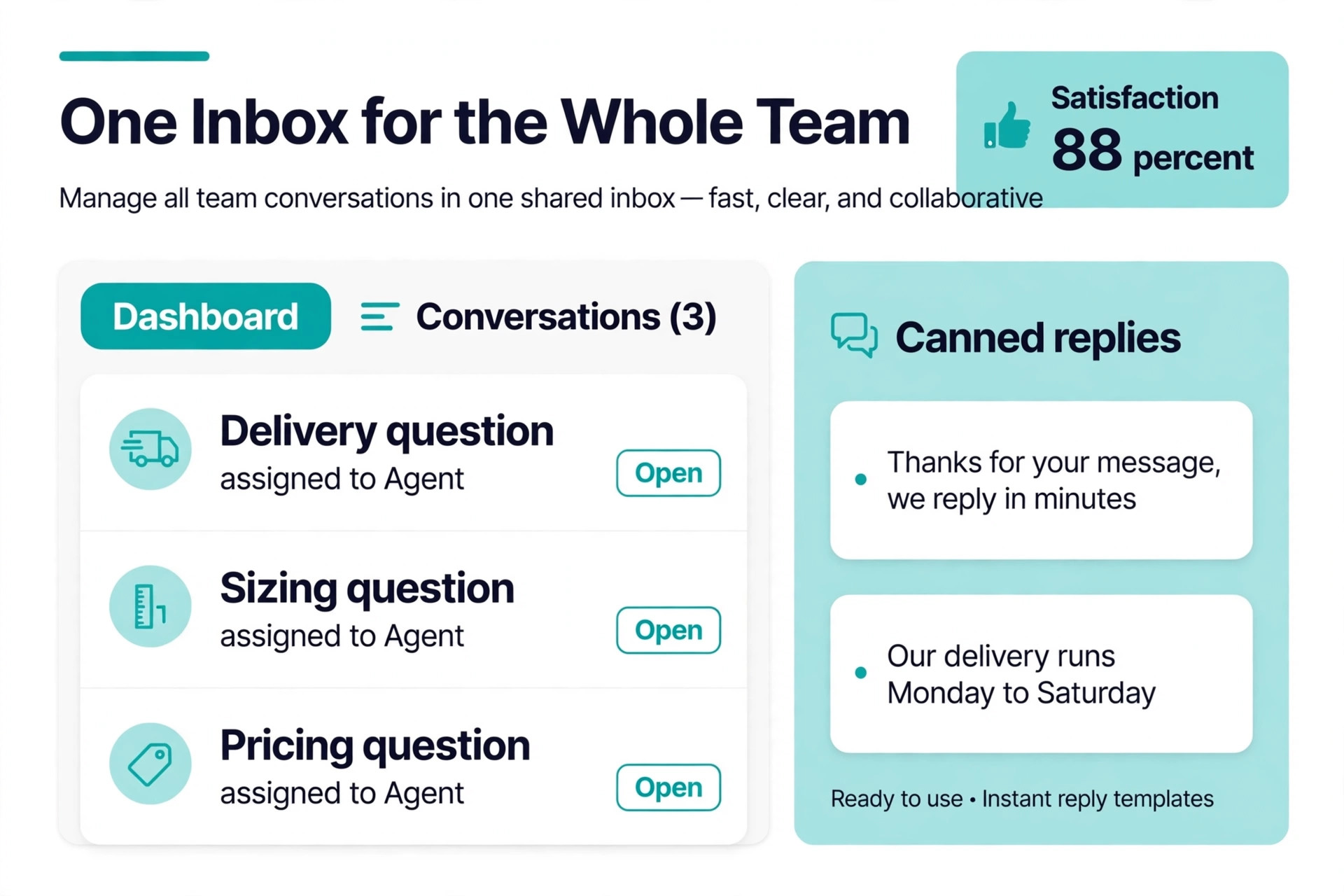
The satisfaction numbers explain why customers prefer it. Live chat earns an 88 percent average satisfaction rating according to the American Customer Satisfaction Index, the highest of any digital support channel, against about 61 percent for email and 44 percent for phone in older benchmark studies. About 41 percent of customers say live chat is their preferred way to contact a business, and 63 percent say they are more likely to buy from a website that offers it. A small business that adds chat is not adding a support channel, it is adding the channel customers already prefer.
Live chat also changes what you learn about your business. Every chat is a record of what visitors actually ask, which pages confuse them, and which objections stop them from buying. A shop that reads its chats for a month will find the three questions that appear every day, and answering those questions on the product page itself will lift conversions for every visitor, including the ones who never open the chat. The chat log is free market research, and it arrives every day without a survey.
The before and after picture is what convinces most owners to act, and it is the reason this guide exists. A site without chat loses the visitor who had one question and no patience, while a site with chat keeps that visitor, answers the question, and often closes the sale in the same visit. Any owner who works through how to add live chat to a small business website carefully will see the change in the first week, because the chats start arriving the day the widget goes live, and the log shows exactly which questions were costing sales before anyone fixed them.
How to Add Live Chat to a Small Business Website in 8 Steps
The eight steps below run in order, and each one takes minutes rather than hours. Do not skip the greeting messages or the offline form, because those two steps decide whether visitors actually use the chat and whether after hours questions become leads instead of lost sales. A widget with no greeting gets ignored, and a widget with no offline form loses every visitor who arrives after closing time. The steps cover the full job of how to add live chat to a small business website, from picking the tool to measuring the results, and each step ends with a clear action you can finish in one sitting.
1. Pick the Right Chat Tool for Your Size
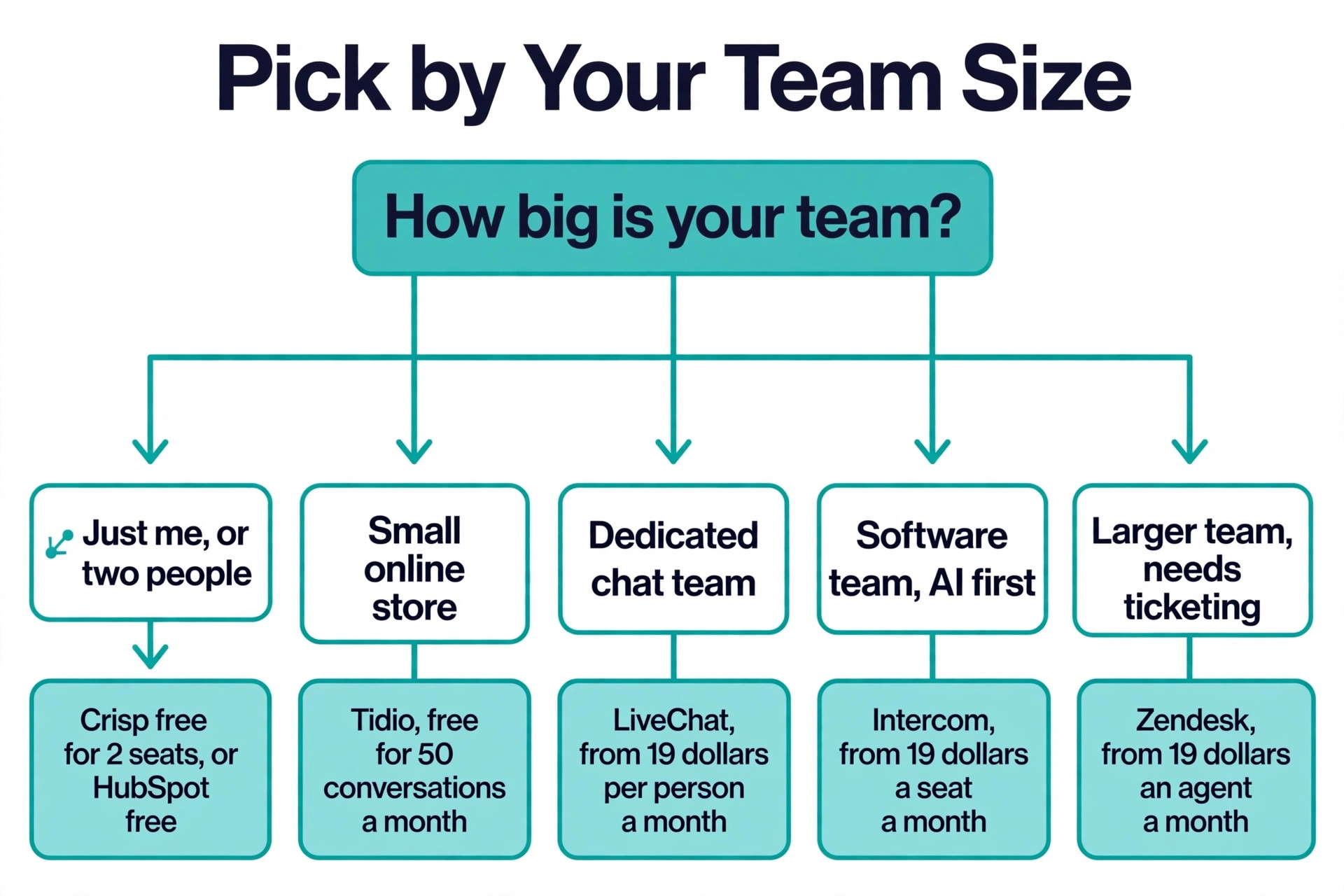
Start by matching the tool to your team size and your budget, not to the feature list. A solo owner or a shop with one person answering messages needs a free or cheap tool with a mobile app, because the phone is where the chats will be answered. A team of three or more needs a shared inbox, assignment rules, and reporting, because two people answering the same chat at once looks worse than no chat at all.
Tidio is the best starting point for most small businesses, with a free plan covering 50 billable conversations a month and 10 seats, and paid plans from 24.17 dollars a month billed annually. LiveChat is the best pick for a dedicated chat team, from 19 dollars per person a month billed annually. Intercom suits software teams that want AI first support, from 19 dollars a seat a month billed annually plus 0.99 dollars per AI resolution, though other guides list Intercom from 29 or 39 dollars a seat, so confirm the current price before you budget.
HubSpot offers a free live chat tool that suits businesses already using HubSpot CRM, and Crisp offers a free plan for two seats that suits a very small team.
2. Create the Account and Set Up the Inbox
Sign up for the tool you picked and set up the shared inbox before you touch the website. Add every person who will answer chats, give each one a name and a photo, and set the working hours so the widget knows when the team is online. A chat answered by a named person with a photo feels like a conversation, while a chat answered by a generic “Support” label feels like a ticket queue.
Connect the inbox to email as well, so a chat that arrives when nobody is online becomes an email the team can answer in the morning. Most tools also connect to Facebook Messenger, Instagram, and WhatsApp, which means the same inbox can answer messages from every channel in one place. Set the notification sounds and the mobile app up on every team phone, because a chat that sits unanswered for 10 minutes is worse than no chat widget at all.
3. Install the Widget on Your Website
Installing the widget takes minutes on every major platform, and you do not need a developer. On WordPress, install the tool’s plugin from the plugin directory, connect it with your account, and the widget appears on every page. On Shopify, install the app from the Shopify App Store and follow the same connect flow. On Wix and Squarespace, install from the app market or paste one line of JavaScript into the site settings.
If your site is custom built, paste the JavaScript snippet just before the closing body tag on every page, or add it through Google Tag Manager so it loads on all pages at once. Test the install on a phone and a desktop after you add it, because a widget that covers the checkout button on mobile will cost you sales. Most tools let you choose which pages show the widget, so start with the product pages, the pricing page, and the checkout page, where questions are most likely to turn into sales.
4. Design the Widget to Match Your Brand
Design the widget so it looks like part of your site, not like a third party add on. Set the colour to match your brand, upload your logo, and write the widget text in your own voice. A widget that matches the site gets more clicks, because visitors trust it, while a widget in a default colour with default text looks like an ad and gets ignored.
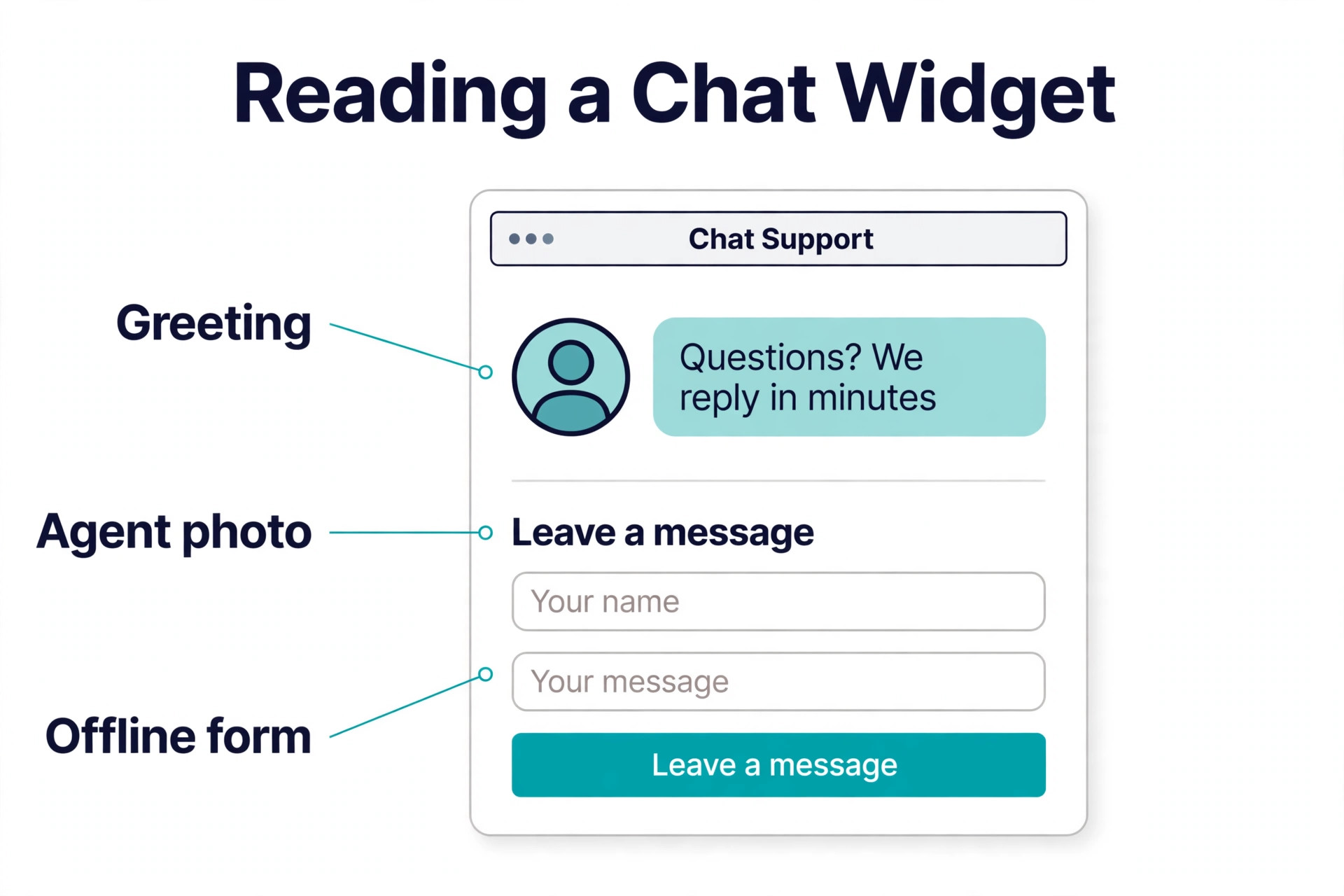
Set the widget position to the bottom right on desktop, which is where visitors expect it, and check that it does not cover important buttons on a phone screen. Keep the launcher small and friendly, with a short greeting such as “Questions? We reply in minutes”, and avoid a launcher that takes up a quarter of a mobile screen. The design step takes 10 minutes and it is the difference between a widget visitors use and a widget visitors close.
5. Write Greetings and Canned Replies
Write the greeting messages before launch, because a blank chat box asks the visitor to do all the work. Set a welcome message that appears when the widget opens, such as a one line offer of help plus a question about what the visitor needs. Add proactive greetings that appear after 30 seconds on key pages, such as a delivery question prompt on the checkout page or a sizing question prompt on a product page.
Write canned replies for the 10 questions you already answer every day, covering delivery times, returns, pricing, stock, and booking. A canned reply should be short, specific, and in your own voice, not a copy of a policy page, because a visitor who wanted the policy page would have read it. Test every canned reply by reading it aloud, and rewrite any reply that sounds like a robot wrote it. Good canned replies cut the average answer time in half, which is what keeps the satisfaction rating high.
6. Set Hours, Away Messages, and the Offline Form
Set the working hours honestly, and write an away message that tells the visitor when to expect a reply. A widget that promises instant answers at 2 in the morning and delivers silence will damage trust, while a widget that says “We reply within one business hour” and does so will earn it. Show the hours on the widget itself, so visitors know before they type.
Turn on the offline form, because it is the most valuable part of the setup for a small business. When the team is offline, the widget should collect the visitor’s name, email, and question, and turn it into a lead the team answers in the morning. A visitor who leaves a question at midnight is a hot lead, and a site with no offline form loses that lead entirely. Check the offline messages every morning before anything else, because a fast reply to an overnight question often closes the sale.
7. Add an AI Bot for After Hours Questions
Add an AI bot to answer the simple questions after hours, so the widget earns its keep while the team sleeps. Tidio’s AI agent, Lyro, answers from your FAQs and shows which questions it failed to answer, so you can improve the knowledge base each week. Intercom’s Fin agent resolves common questions at 0.99 dollars per resolution, and LiveChat and Zendesk offer AI add ons on higher tiers.
Keep the bot honest about what it is. A bot that pretends to be human and fails will frustrate visitors more than a bot that says it is automated and hands over to a person when it cannot help. Set the handover rule clearly, so any question the bot cannot answer, any complaint, and any request for a refund goes straight to a human with the full chat history attached. The bot should handle the easy 60 percent and escalate the rest, not pretend to handle everything.
8. Test, Launch, and Measure the Results
Test the whole setup before you tell anyone about it. Open the site on a phone and a desktop, start a chat, ask a question, and answer it from the team phone. Check that the greeting appears, the offline form works, the notification arrives, and the chat history is saved. Fix anything that feels slow or confusing, because the first real visitors will judge the chat on the first message.
Launch the widget on the product and pricing pages first, then roll it out to the rest of the site after a week of clean chats. Measure three numbers every week, the first response time, the share of chats that end in a sale or a booking, and the satisfaction rating visitors leave after the chat. Aim for a first response under one minute, because research links sub 20 second first responses to higher conversion, and the industry average sits around one minute and 35 seconds. A chat that answers fast, resolves the question, and asks for the sale will pay for the tool many times over.
Share the early results with the whole team, because the first week of chats usually contains a surprise, such as a pricing question nobody expected or a page that confuses visitors. Fix the surprise on the page itself, then watch the chat volume for that question fall, which is the sign the fix worked. A team that sees the chat log improving the site will keep answering fast, and a team that never sees the results will let the response time drift.
Which Live Chat Tool Should You Pick
The right tool depends on the team, the budget, and the platform, and the table below lines up the main options. Tidio is the best starting point for most small businesses, because the free plan covers 50 conversations a month and the paid plans start at 24.17 dollars a month billed annually, with a Shopify native app, an AI agent, and no code automations in one place. LiveChat is the best pick for a dedicated chat team, from 19 dollars per person a month billed annually, with the most hands on widget editor and strong ecommerce features such as cart preview.
Intercom is the best pick for software teams that put AI first, from 19 dollars a seat a month billed annually plus 0.99 dollars per Fin AI resolution, though other guides list entry prices of 29 and 39 dollars a seat, so the price depends on the plan and the billing, and you should confirm it on the Intercom pricing page. Zendesk is the best pick for larger businesses that need ticketing and a knowledge base alongside chat, from 19 dollars an agent a month on older listings, though some 2026 roundups list it from 55 dollars an agent a month, so confirm the current price.
HubSpot is the best free pick for a business already using HubSpot CRM, and Crisp is the best free pick for a two person team. Any founder who follows this guide on how to add live chat to a small business website will find that the tool choice matters less than the setup, because a well configured free tool beats a poorly configured expensive one.
| Tool | Best for | Starting price | Free plan |
|---|---|---|---|
| Tidio | Small stores and online shops | 24.17 dollars a month, billed annually | Yes, 50 conversations a month |
| LiveChat | Dedicated chat teams | 19 dollars per person a month, billed annually | No, 14 day trial |
| Intercom | SaaS teams that put AI first | 19 dollars a seat a month, billed annually | No, 14 day trial |
| Zendesk | Larger teams with ticketing | From 19 dollars an agent a month | No, free trial |
| HubSpot | Businesses already on HubSpot CRM | Free live chat tool | Yes |
| Crisp | Two person teams | Free plan for 2 seats | Yes |
Setup Checklist
Use this checklist on the day you install the widget, and again a week after launch. Every item here is one of the failure points covered in the steps above, and a setup that passes all of them is ready for real visitors. Treat it as the final review for how to add live chat to a small business website in your own case, because a single missed item, such as a missing offline form or an untested notification, can cost you the first week of chats.
- The chat tool is picked, the account is created, and every agent is added with a name and photo.
- The widget is installed on the product, pricing, and checkout pages, and tested on a phone and a desktop.
- The widget colour, logo, and greeting match the brand and the site voice.
- Greetings and canned replies are written for the 10 most common questions.
- Working hours are set, the away message is written, and the offline form is turned on.
- The AI bot is set up with the FAQs loaded and a clear handover rule to a human.
- Notifications are turned on for every team phone and the mobile app is installed.
- A test chat has been run end to end, from the visitor message to the agent reply.
- The first response time, the chat to sale rate, and the satisfaction rating are being tracked weekly.
- The chat log is reviewed weekly for the three questions that should become page content.
Mistakes That Waste Money
The biggest mistake is installing the widget and never answering it. A chat that sits unanswered for 10 minutes is worse than no chat widget at all, because the visitor was promised a fast answer and got silence. Set notifications on every team phone, set the away message honestly, and check the offline messages first thing every morning. A small business that cannot answer chats within a few minutes should start with an offline form and limited hours, rather than a widget that promises 24 hour instant replies it cannot deliver.
The second mistake is a bot that pretends to be human. A visitor who realizes they have been talking to a bot that cannot help will leave angrier than a visitor who waited for a person, so label the bot clearly and hand over fast when it cannot answer. The bot should handle the easy questions and escalate the rest, with the full chat history attached, so the human does not ask the visitor to repeat everything. A clean handover is what keeps the satisfaction rating high.
The third mistake is never reading the chat log. The log holds the three questions visitors ask every day, the page that confuses people, and the objection that stops sales, and a business that ignores it keeps paying for the same problems. When you learn how to add live chat to a small business website properly, the weekly log review is the step that pays for the tool, because answering the top questions on the product page itself lifts conversions for every visitor, including the ones who never open the chat.
Our Verdict
Live chat is worth adding for almost every small business website, because the published results are strong, with a 20 percent average conversion lift, visitors who chat proving 2.8 times more likely to buy, and an 88 percent satisfaction rating. The setup takes one afternoon, the free plans cover a real test, and the first chats usually arrive the same day. The cost is time, not money, and the return is a sales channel that runs on your existing traffic.
Start with Tidio on the free plan, install it on the product and pricing pages, write the greetings and the canned replies, and turn on the offline form before you launch. Answer the first chats fast, read the log every week, and move to a paid plan only when the conversation volume outgrows the free tier. A widget that answers in under a minute, resolves the question, and asks for the sale will pay for itself many times over, and a widget that is installed and ignored will do the opposite.
The owners who get the most from live chat are the ones who treat it as a sales job, not a support chore. The person answering chats should know the products, the prices, and the delivery times, and should be allowed to offer a small discount or a free upgrade to close a hesitant buyer. That authority turns a chat agent into a salesperson, and it is the difference between a widget that answers questions and a widget that brings in revenue. Any owner who follows the steps for how to add live chat to a small business website and then gives the chat team real authority will see the results in the first month.
Frequently Asked Questions
How long does it take to add live chat to a website?
Most small businesses finish the setup in one afternoon. Signing up and setting up the inbox takes about 15 minutes, installing the plugin or pasting the snippet takes about 10 minutes, and writing the greetings, canned replies, and away message takes about an hour. Testing the full flow on a phone and a desktop takes another 30 minutes. A Shopify or WordPress install is the fastest, because the plugin handles the code, while a custom site needs the snippet pasted before the closing body tag or added through Google Tag Manager. The first real chats usually arrive the same day the widget goes live.
Do I need a developer to add live chat to my website?
Usually not. Tidio, LiveChat, Intercom, HubSpot, and Crisp all install with a short code snippet or a site builder plugin, and WordPress, Shopify, Wix, and Squarespace all have one click installs. A developer is only needed for a custom built site with unusual page templates, or for deep integrations such as pulling order data into the chat window. If you can install a plugin, you can install live chat, and the setup wizards in most tools walk through the whole process in under 10 minutes.
What is the best live chat tool for a small business?
Tidio is the best starting point for most small businesses, because the free plan covers 50 conversations a month with 10 seats, paid plans start at 24.17 dollars a month billed annually, and the Shopify app, AI agent, and automations are built in. LiveChat is the best pick for a dedicated chat team at 19 dollars per person a month, and HubSpot is the best free pick for a business already using HubSpot CRM. The best tool is the one your team will actually answer, so pick the tool with the mobile app your team likes and the price you will keep paying.
How much does live chat cost for a small business?
Live chat can cost nothing to start, with free plans from Tidio, HubSpot, and Crisp covering a small volume of conversations. Paid plans start at 19 dollars per person a month for LiveChat and 24.17 dollars a month for Tidio Starter, billed annually, while Intercom starts at 19 dollars a seat a month plus 0.99 dollars per AI resolution. A solo owner answering 50 chats a month can run on a free plan, while a team of three on LiveChat pays about 57 dollars a month. The cost that matters is the cost per sale, and a tool that costs 50 dollars a month and closes five extra sales has paid for itself many times over.
Should I use an AI chatbot or live agents?
Use both, with the bot handling the easy questions and agents handling the rest. An AI bot answers delivery times, opening hours, and pricing questions instantly, including after hours, while a human handles complaints, refunds, and complex sales questions. Set the handover rule clearly, so any question the bot cannot answer goes straight to a person with the full chat history attached, and label the bot as automated so visitors know what to expect. A bot that pretends to be human and fails will frustrate visitors more than a bot that is honest about its limits.
How do I measure whether live chat is working?
Track three numbers every week, the first response time, the share of chats that end in a sale or a booking, and the satisfaction rating visitors leave after the chat. Aim for a first response under one minute, because research links sub 20 second first responses to higher conversion, and the industry average sits around one minute and 35 seconds. Read the chat log weekly for the three questions that appear most often, and answer those questions on the product page itself, because that lifts conversions for every visitor, including the ones who never open the chat. If the chat to sale rate is rising and the response time is falling, the setup is working.