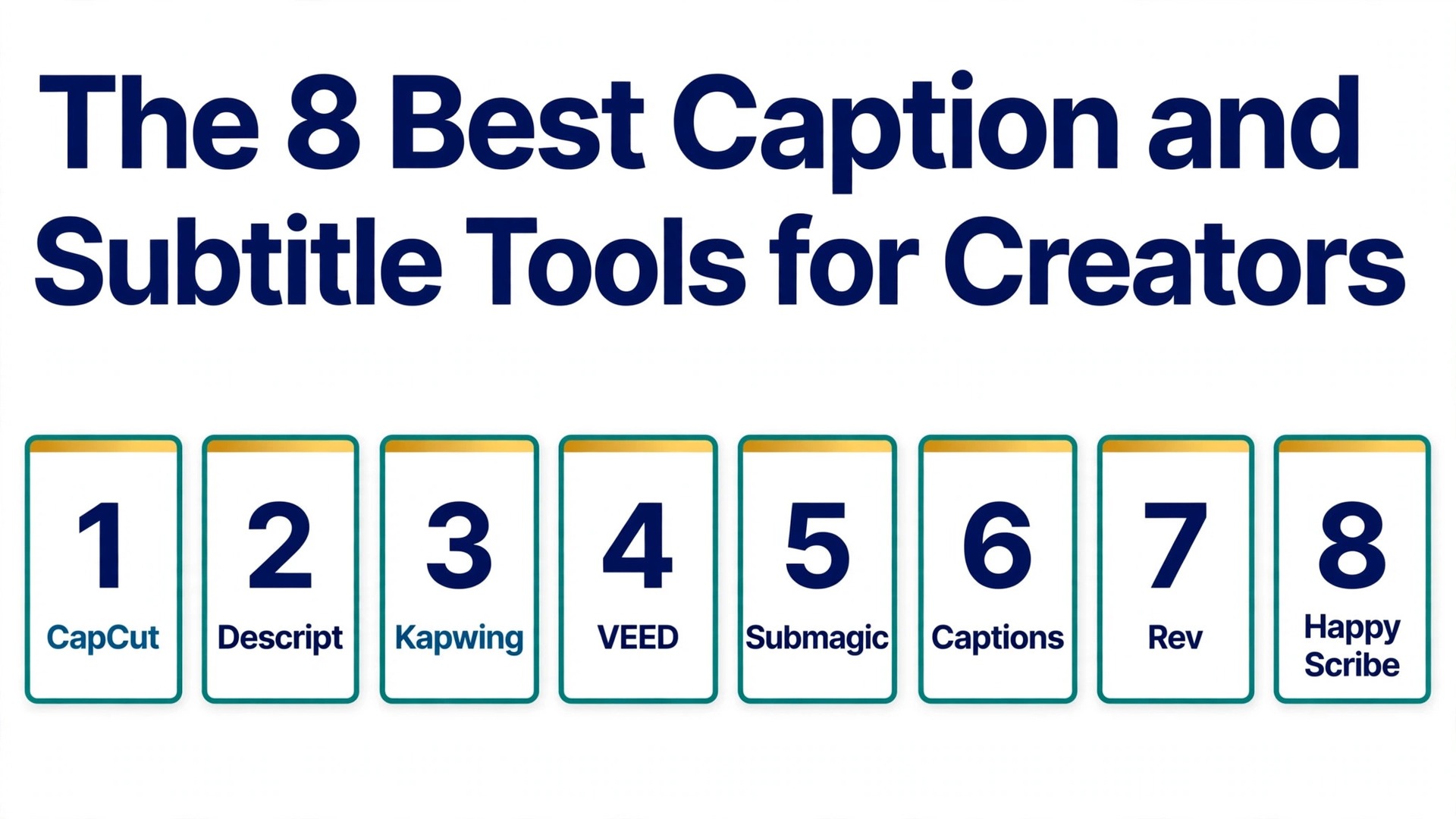
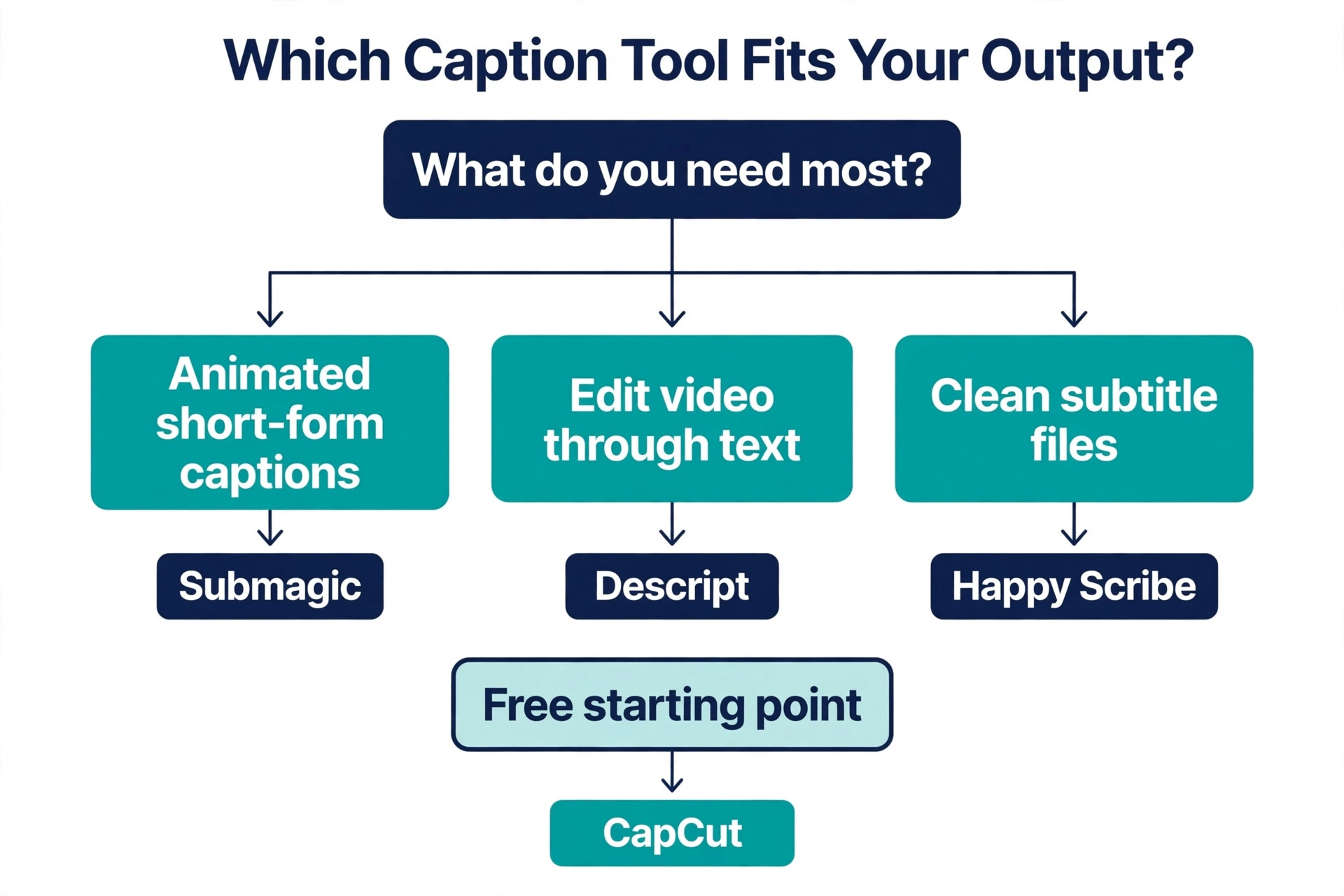
Eight tools, prices from free to 24 dollars a month, and only some of them let you download the subtitle file you actually need. That gap is the story of the best caption and subtitle tools for creators in 2026. CapCut is the strongest free starting point, Descript is the best choice when you edit video through the transcript, Kapwing and VEED are the best all round picks for teams, and Rev is the best choice when your captions must meet a compliance standard.
We compared eight real tools on accuracy in plain English, subtitle file export, languages, burned in styling, free plans and the true monthly cost, so you can pick by the output you need rather than by the prettiest demo.
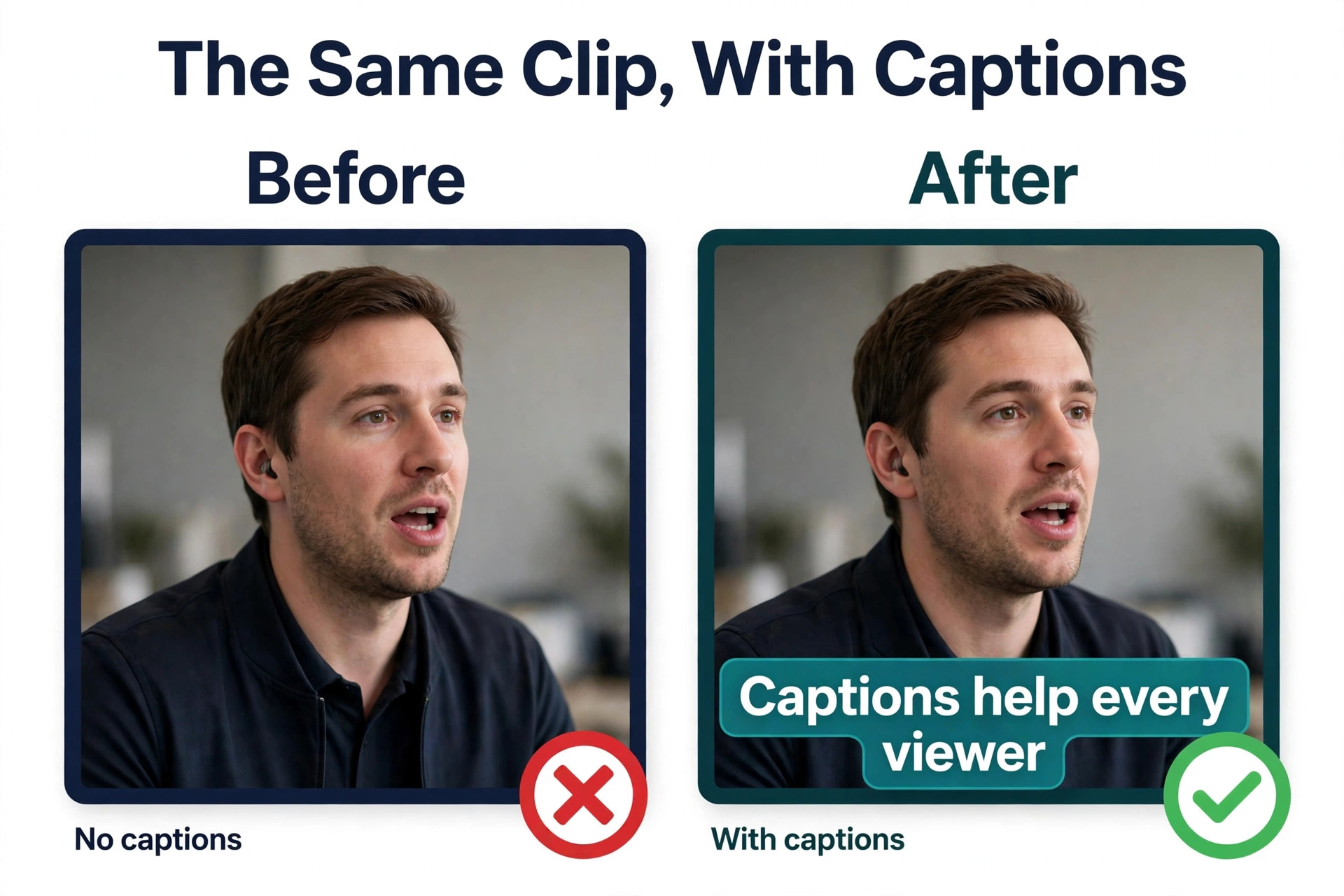
Captions do two jobs at once, and a tool that does one well can fail the other. Burned in captions are the animated words on the video itself, and they help a silent viewer on TikTok or Reels understand the clip in the first seconds. Subtitle files are the separate SRT or VTT text files that YouTube, course platforms and broadcasters need, and they help a viewer who turns captions on, a search engine that reads the text, and a team that must meet accessibility rules. Before you pay, decide which output matters more, because the best tool for animated short form captions is not the best tool for a clean SRT file.
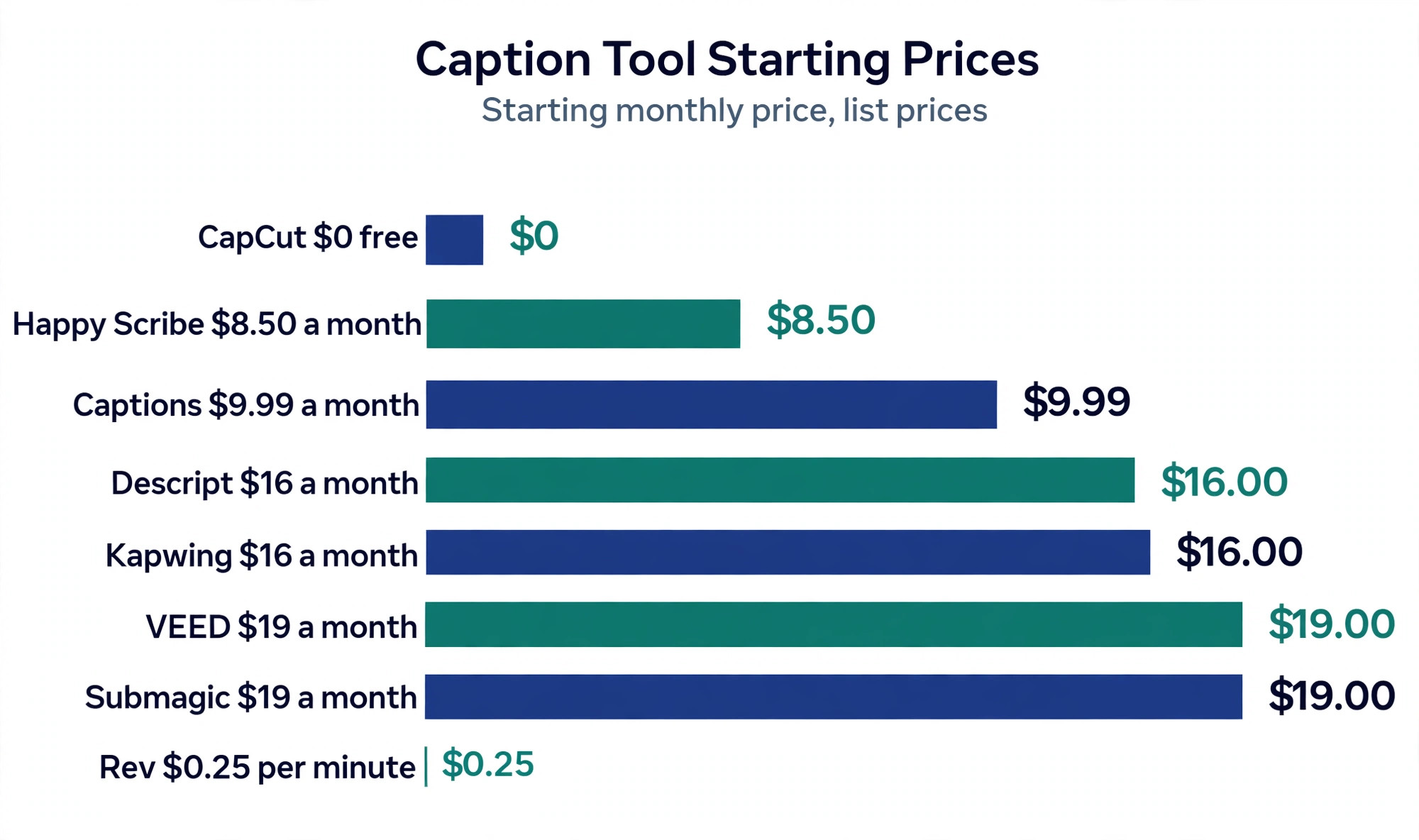
Prices in this guide are regular monthly list prices in United States dollars, checked against vendor pricing pages and current 2026 roundups in November 2026. Several vendors price by seat, by video count or by minutes, so the same plan can cost very different amounts depending on how much you publish. Sources disagree on a few figures, and we flag those conflicts in the text. Confirm the price and the export rules on the vendor page before you pay, because a caption you cannot export is a caption you do not own.
How We Compared Eight Caption Tools
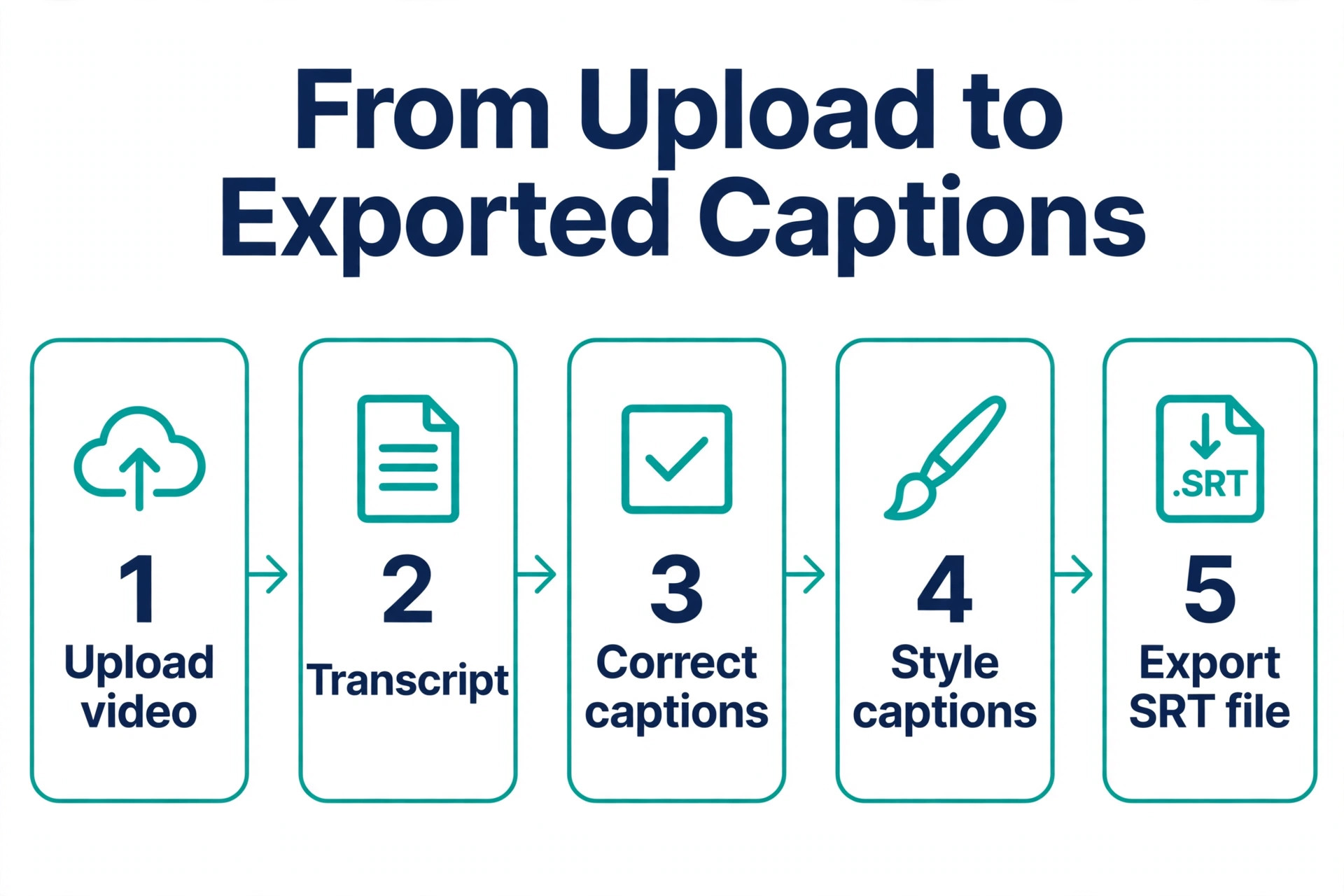
We scored each tool on six points that matter to a working creator. Accuracy covered clean single speaker English, because that is the only test most vendors publish, and we note where a tool also offers a human review option. Subtitle export covered whether you can download SRT and VTT files, on which plan, and whether the free plan locks that export behind a paywall. Burned in styling covered animated word by word captions, fonts, colours and templates for short form video. Languages covered the number of languages for transcription and translation, and whether translation costs extra. Editing covered how you fix a wrong word, whether you edit text or a timeline, and how long a correction takes.
Price covered the true cost at your real volume, including per seat pricing, per video quotas and per minute charges.
We also checked the free plan honestly. A free plan that gives you 45 minutes of AI captions a month is a real test, while a free plan that watermarks every export or blocks SRT download is a demo that pushes you to pay before you can judge the output. Every tool on this list needs a human pass before the captions are published, because names, numbers and brand terms are where automatic captions fail first, even when the headline accuracy looks high.
The Best Pick for Each Job
| Job | Pick | Why it wins |
|---|---|---|
| Best free starting point | CapCut | Free auto captions in a free editor |
| Best for editing through text | Descript | Fix the transcript and the video follows |
| Best all round for teams | Kapwing | Browser editor plus generous subtitle minutes |
| Best for browser editing | VEED | Unlimited subtitles on paid plans |
| Best for short form style | Submagic | Animated word by word captions |
| Best phone first workflow | Captions | Fast filming to posting on a phone |
| Best for compliance | Rev | Human captions plus AI captions |
| Best for languages and files | Happy Scribe | SRT on the free plan and 120 plus languages |
Use this table as a shortcut, then read the full section for the tool you are leaning toward. The cheapest option is not the best value when it cannot export the file you need, and the most expensive option is not the best choice when you only need burned in captions for short clips.
The Best Caption and Subtitle Tools for Creators in 2026, Ranked
The eight tools below fall into three groups. The first group is full editors that add captions inside a larger video workflow, and these are the strongest picks for creators who edit every week. The second group is short form specialists that make animated captions for TikTok and Reels, and these suit creators who publish daily on a phone. The third group is file first tools that focus on accurate transcripts and subtitle files, and these suit creators who need SRT or VTT files for YouTube, courses or compliance.
1. CapCut
CapCut is the default choice for editing footage you filmed yourself, and its free tier includes the full editor, auto captions and 1080p export, which is more than most free caption apps give you. The auto captions are fast, the styling is simple to change, and the app works on phone, desktop and web, so you can start a caption on your phone and finish it on a laptop. For a creator who posts short video every day, that free starting point is hard to beat.
CapCut Pro costs about 19.99 dollars a month in many listings, while other 2026 sources say CapCut no longer publishes pricing on its website and sells plans in app, with prices that vary by region. Treat the 19.99 dollar figure as a guide rather than a fixed price, and check the price inside the app before you budget. Premium templates, effects and most AI features are paid, and subtitle file export terms were not verified in the sources we checked, so test SRT export on your own video before you rely on it.
CapCut wins on free access and on speed, and it loses on file export and on depth. It is built around burned in captions for social video, not around subtitle files for long form work, and a creator who needs clean SRT files for a course or a client will need a second tool. Choose CapCut when you edit on a phone, when you post short form video daily, and when free auto captions inside a free editor are the priority.
2. Descript
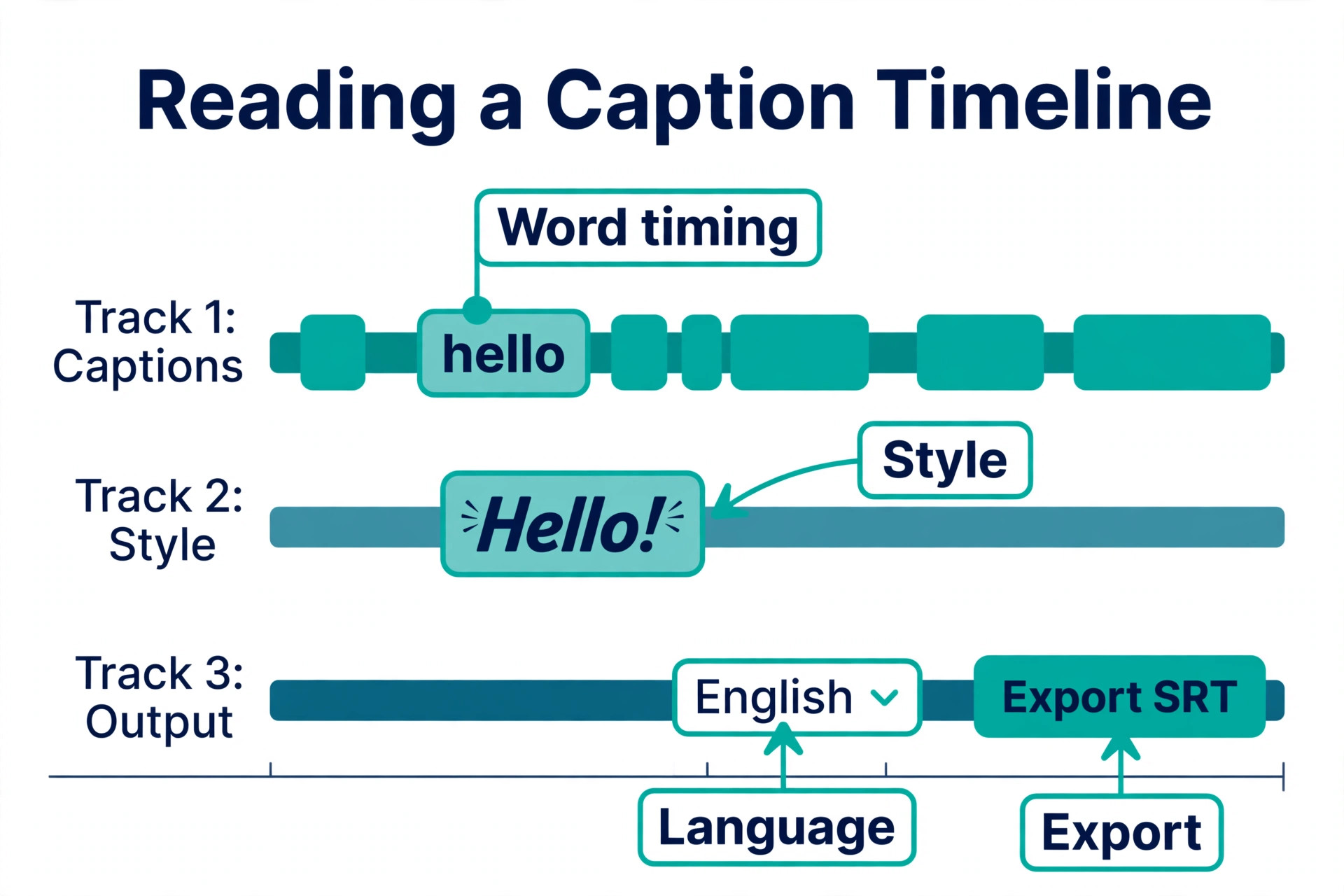
Descript transcribes your recording and lets you edit the video by editing the text, which changes the whole caption workflow. When the transcript says the wrong word, you fix the word and the caption and the video follow, without scrubbing a timeline. Studio Sound and filler word removal clean up spoken audio, and the same transcript produces captions, show notes and a searchable record of the episode. For talking videos and podcasts, that is the most efficient workflow on this list.
Pricing is clear, with a free plan that includes 60 media minutes a month and 720p export, and paid plans from Hobbyist at 16 dollars per person a month billed annually, or 24 dollars a month billed monthly, through Creator at 24 dollars a month billed annually and Business at 50 dollars a month billed annually. Paid plans include unlimited dynamic captions, and SRT, VTT and TXT export is included. Transcription covers 25 languages, which is fewer than some rivals, but the editing workflow matters more than the language count for most English speaking creators.
Descript wins on editing speed and on the transcript as the source of truth, and it loses on price per seat, because a team of three pays three times the sticker price. Choose Descript when you record talking videos or podcasts, when you fix mistakes by editing text, and when captions are one part of a larger editing job rather than a separate task.
3. Kapwing
Kapwing is a browser editor built for marketing teams that caption a steady stream of videos together, with a generous subtitle allowance and a full editing suite attached. The Pro plan includes 1,000 monthly subtitle minutes, which is generous for a team that publishes several videos a week, and SRT, VTT and TXT export covers YouTube, course platforms and ad managers without retyping. The browser workflow means no install, no file transfer, and a shared workspace where a teammate can review captions before export.
Pricing is per member, with Pro at 16 dollars per member a month billed annually, or 24 dollars a month billed monthly, and Business at 50 dollars per member a month billed annually, or 64 dollars a month billed monthly. The free plan includes up to 50 minutes of auto subtitling, a watermark, 720p export and four minute exports, while SRT download is a paid feature, so the free plan lets you test the editor but not take the file away. Kapwing supports more than 70 languages for transcription.
Kapwing wins on team workflow and on subtitle minutes, and it loses on the free plan, because the SRT export lock and the watermark push you to pay before you can judge the file. Choose Kapwing when you caption as a team, when you need a browser editor with a real subtitle allowance, and when the per member price still fits your budget at your real headcount.
4. VEED
VEED is a browser video editor with accurate subtitles, translation and a full editing suite, and it is the best all round pick for a creator who wants captions inside a complete editor rather than as a separate step. Paid plans include unlimited subtitle generation with no per minute charge, which removes the mental maths that per minute tools force on you, and the editor covers trimming, templates, branding and export in the same window.
Pricing is where sources disagree most in this category. One 2026 roundup lists VEED Lite at 19 dollars a month billed monthly, another lists Creator from 10 dollars per user a month billed annually, and a third lists Creator from 20 dollars a month. The difference may reflect a plan rename, a billing term, or a price change during 2026, so confirm the current price on the VEED pricing page before you buy. The free plan is watermarked, and subtitle file download is available on Pro and Enterprise plans according to VEED support, not on the entry plan, so check which plan releases the SRT file before you pay.
VEED wins on unlimited subtitles and on the breadth of the editor, and it loses on export clarity, because the SRT rule is easy to miss until you try to download. Choose VEED when you want one browser tool for editing and captions, when you publish enough video that unlimited subtitles matter, and when you have confirmed that your plan includes SRT download.
5. Submagic
Submagic is built for one format, which is the animated word by word caption style that performs on TikTok and Reels, and it does that format better than any general editor on this list. The templates are designed for short form, the word highlighting pulls the eye forward, and the export is tuned for vertical video at high quality, with 4K export on the Business plan. For a creator whose whole channel is short clips, that focus is the point.
Pricing is per user and quota based, with Starter at 19 dollars a month billed monthly, or 12 dollars per member a month billed annually in other sources, Pro at 23 dollars a month, and Business at 41 dollars a month. Starter allows only 15 videos of up to two minutes each a month, so a creator who posts daily will outgrow it fast. The export warning matters here, because the subtitle export feature produces a green screen video rather than a text file, so Submagic is a burned in caption tool, not a subtitle file tool.
Submagic wins on short form style and on speed, and it loses on volume and on file export. Choose Submagic when your videos are short, vertical and posted daily, when the animated caption style is part of your brand, and when you do not need SRT files for those clips.
6. Captions
Captions is a phone first app for creators who film and post fast, and it is the best pick in this group for a creator who does almost everything on a phone. You record, the app transcribes and styles the captions, you fix the worst errors on the screen, and you post without opening a laptop. The workflow is built for speed rather than for deep editing, and that is the right trade for a creator who posts several times a day.
Pricing is listed at 9.99 dollars a month for Pro in several 2026 roundups, which makes it the cheapest paid plan on this list, while other sources list higher figures for similar phone first tools, so confirm the current price in the app store before you buy. The free option is a trial rather than a permanent free plan, and the tool is built around burned in captions, not around subtitle files, so a creator who needs SRT files will need a second tool for long form work.
Captions wins on phone speed and on price, and it loses on editing depth and on export. Choose Captions when you film on your phone, when you post fast and often, and when a simple accurate caption with good styling matters more than a transcript you can edit word by word.
7. Rev
Rev is a transcription company first, which makes it the unusual pick on this list and the right one for a specific buyer. If your captions need to meet ADA, FCC or WCAG standards, automated captions alone will not do, and Rev lets you step up from AI captions to human generated captions with a review process built for compliance. The AI captions cost 0.25 dollars per minute on a pay as you go basis, with a free plan that includes 45 AI minutes a month in English only, and the human service is the one vendors cite for 99 percent accuracy.
Paid plans add a subscription layer, with Essentials listed at 25.49 dollars per seat a month billed annually, or 29.99 dollars a month billed monthly, and Pro at 47.99 dollars per seat a month billed annually. The per seat pricing means a team pays for each person, and the AI minutes are separate from the subscription in some plans, so read the pricing page as two costs, not one. Rev supports 37 languages for AI captions, and all formats are included with an order, which is a clear advantage over tools that lock SRT behind a higher tier.
Rev wins on compliance and on the human option, and it loses on price for a creator who only needs casual captions for social video. Choose Rev when your captions must pass an accessibility check, when a client requires a human reviewed transcript, or when you need a reliable SRT file for long form content and you are willing to pay per minute for it.
8. Happy Scribe
Happy Scribe is the best choice in this group for multilingual subtitles and subtitle files, because it puts SRT download on its free plan, which no other tool here does, even though that free plan covers only ten minutes of media. The tool supports more than 120 languages, offers transcription and translation, and exports SRT, VTT and TXT files, with more formats on higher plans. For a creator who publishes in more than one language, or who needs a clean subtitle file without paying first, that free SRT export is the deciding feature.
Pricing starts at Basic at 8.50 dollars a month billed annually, or 17 dollars a month billed monthly, with Pro at 19 dollars a month and Business at 59 dollars a month. Basic covers 120 minutes a month, and overage is charged per minute, so a creator who publishes long videos every week should check the overage rate before committing. Happy Scribe is also the most honest vendor on accuracy, publishing a range of 85 to 95 percent for AI subtitles where rivals claim 99 percent without a method, and it offers a human review option for work that must be exact.
Happy Scribe wins on languages, on file export and on honest accuracy, and it loses on editing depth, because it is a transcription and subtitle tool rather than a full video editor. Choose Happy Scribe when you need subtitle files in several languages, when you want to test SRT export for free, or when you publish long form video and need a reliable transcript as well as captions.
How to Choose the Right Caption Tool
Choosing the best caption and subtitle tools for creators starts with the output you need. If you need a subtitle file, shortlist Happy Scribe, Rev, Descript and Kapwing, and check which plan releases the file before you pay. The best caption and subtitle tools for creators for your channel are the ones that match your output, your volume and your language needs, not the ones with the longest feature list. If you need a subtitle file, shortlist Happy Scribe, Rev, Descript and Kapwing, and check which plan releases the file before you pay. If you need burned in animated captions for short form, shortlist Submagic, Captions and CapCut, and judge them on style and speed rather than on file export.
If you need both, plan for two tools or pick a full editor such as Descript, Kapwing or VEED that covers both outputs, and accept that one output will be stronger than the other.
Next, match the pricing model to your volume. A per minute tool such as Rev is cheap when you publish rarely and expensive when you publish daily, while a per video tool such as Submagic is cheap when you post a few clips a week and expensive when you post daily. A per seat tool such as Descript or Kapwing is cheap for a solo creator and expensive for a team, so multiply the sticker price by your real headcount before you compare. A free plan with a watermark or a blocked export is not a free tool, it is a trial that ends when you need the file.
Then test accuracy on your own voice, not on a demo video. Record a two minute clip with your real microphone, your real accent, your real brand names and your real numbers, and run it through two tools. The tool that gets names and numbers right will save you more editing time than the tool with the highest headline accuracy on clean English. Finally, check the language list if you publish in more than one language, because translation often costs extra and the quality varies more than the marketing suggests.
What to Check Before You Pay
A caption purchase is an export purchase as much as a software purchase, because the file is the product for many creators. Check the export rules before you enter card details, and confirm that your plan includes SRT and VTT download, that the download has no watermark, and that the timing and line breaks survive the export. A tool that generates perfect captions and then blocks the download is a tool that holds your work hostage.
Check the free trial next, and use it on a real video rather than on a demo, because that test is how you judge the best caption and subtitle tools for creators on your own voice. Upload a clip with background noise, with two speakers, or with a brand name the tool has never seen, and count the errors you have to fix. That error count is the real cost of the tool, because every error is a minute of editing. Check the cancellation terms at the same time, because a monthly plan that you can leave in one click is worth more than an annual plan that saves 30 percent but locks you in for a year.
- Confirm SRT and VTT download is included on the plan you will buy.
- Confirm the free plan export rules, including watermarks and minute caps.
- Confirm the price at your real volume, including seats, videos and minutes.
- Confirm the language list covers every language you publish in.
- Confirm you can fix a wrong word quickly, by text or by timeline.
Mistakes That Waste Money
The most common mistake is paying for a tool that cannot export the file you need. A creator buys Submagic for animated captions, then learns that the subtitle export is a green screen video rather than a text file, and then pays for a second tool to make the SRT file. The fix is simple, and it happens before you pay, by checking the export format in the pricing page or the help centre rather than in a review headline.
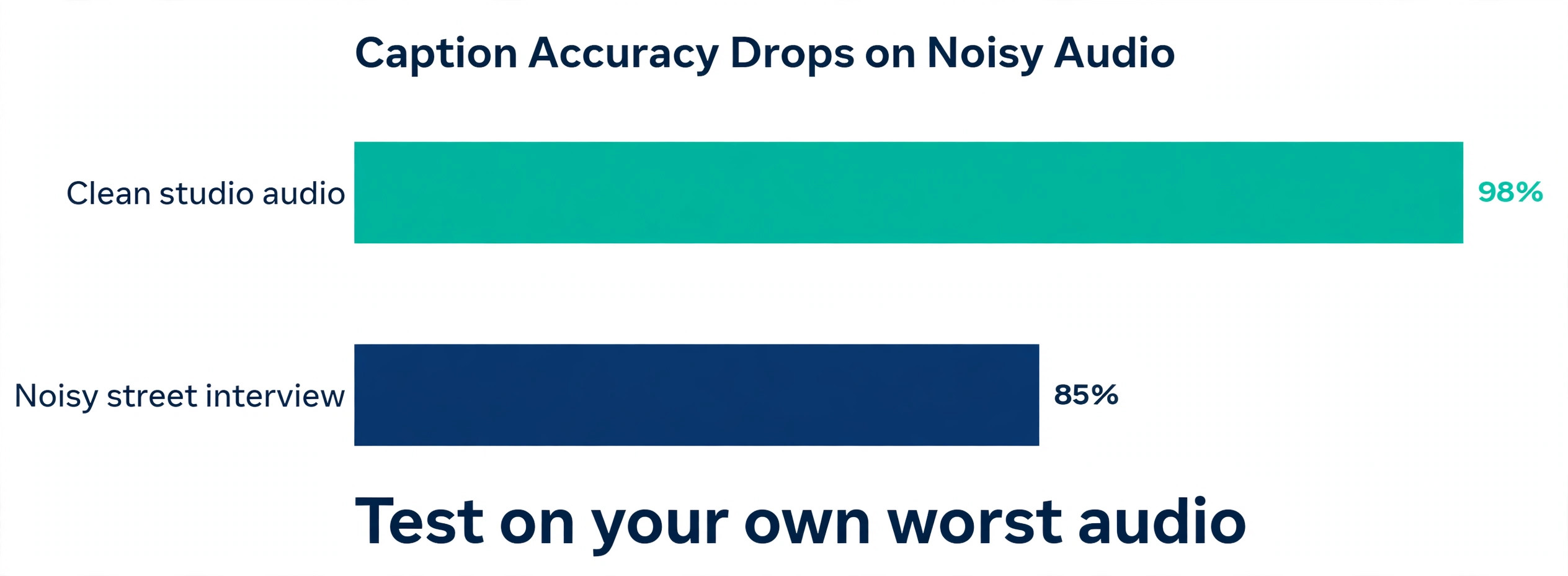
The second mistake is judging accuracy on a clean demo. A tool that scores 98 percent on a studio recording can fall to 85 percent on a noisy street interview, a fast speaker, or a video with music under the voice. Test on your own worst audio, not on your best, because the worst audio is where the editing time lives. The third mistake is ignoring per seat and per video pricing when you compare the best caption and subtitle tools for creators. A 16 dollar plan for one person is 48 dollars for a team of three, and a 19 dollar plan for 15 videos is 38 dollars when you post 30 clips a month.
Add up the cost at your real volume before you compare sticker prices.
Our Verdict
CapCut is the pick for most readers among the best caption and subtitle tools for creators, because the free tier gives you auto captions, a full editor and 1080p export at no monthly cost, and that is enough to test the workflow before you pay. Descript is the pick when you edit talking videos or podcasts, because the transcript workflow saves more time than any other feature on this list, with Hobbyist at 16 dollars a month billed annually.
Happy Scribe is the pick when you need subtitle files in several languages, because SRT download on the free plan and Basic at 8.50 dollars a month billed annually make it the cheapest honest route to a clean file. Rev is the pick when compliance matters, because the human caption option is the only one that meets a strict accessibility standard. Submagic is the pick when short form style is the whole job, and Kapwing or VEED is the pick when a team needs a browser editor with a real subtitle allowance.

Frequently Asked Questions
What is the best caption and subtitle tool for creators?
CapCut is the best free starting point, Descript is the best for editing through the transcript, and Happy Scribe is the best for subtitle files in several languages. The best choice depends on whether you need burned in captions for short form, a clean SRT file for YouTube or a course, or a full editor that covers both. Check the export rules before you pay, because the file is often the deciding factor.
Can I get SRT files for free?
Yes, Happy Scribe is the only tool on this list that puts SRT download on its free plan, though that plan covers only ten minutes of media. Rev offers 45 AI minutes a month free, Descript offers 60 media minutes a month free, and CapCut offers free auto captions, but SRT export on those tools is paid or was not verified in our sources. Test the export on your own video before you rely on a free plan for client work.
Are automatic captions accurate enough to publish without checking?
No. Every tool on this list needs a human pass before the captions are published, because names, numbers, brand terms and accented speech are where automatic captions fail first. Headline accuracy figures describe clean single speaker English, and real videos with noise, music or fast speech score lower. Read the captions once, fix the names and numbers, and then publish.
Which caption tool is best for TikTok and Reels?
Submagic is the best choice for the animated word by word style that performs on TikTok and Reels, with Captions as the best phone first alternative and CapCut as the best free alternative. Those tools are built around burned in captions for vertical video, not around subtitle files, so use a second tool such as Happy Scribe or Descript when you also need an SRT file for the same video.
Do caption tools charge per minute, per video or per seat?
All three models exist, and the model matters more than the sticker price. Rev charges per minute for AI captions, Submagic charges per video, and Descript, Kapwing and VEED charge per seat or per member. A per minute tool is cheap for rare publishing and expensive for daily publishing, while a per seat tool is cheap for a solo creator and expensive for a team. Multiply the price by your real volume before you compare.
Is Descript worth it just for captions?
Descript is worth it when you edit talking videos or podcasts, because the transcript workflow saves time on every edit, not just on captions. It is less convincing when you only need captions for short clips, because CapCut does that for free and Submagic does it with better short form styling. Buy Descript for the editing workflow, with captions as one part of that workflow, rather than as a caption only tool.